User Settings
User Settings allows you to manage your personal POSM Central account information, notification preferences, and available organization settings.
Select User Settings from the left navigation menu to open the page.
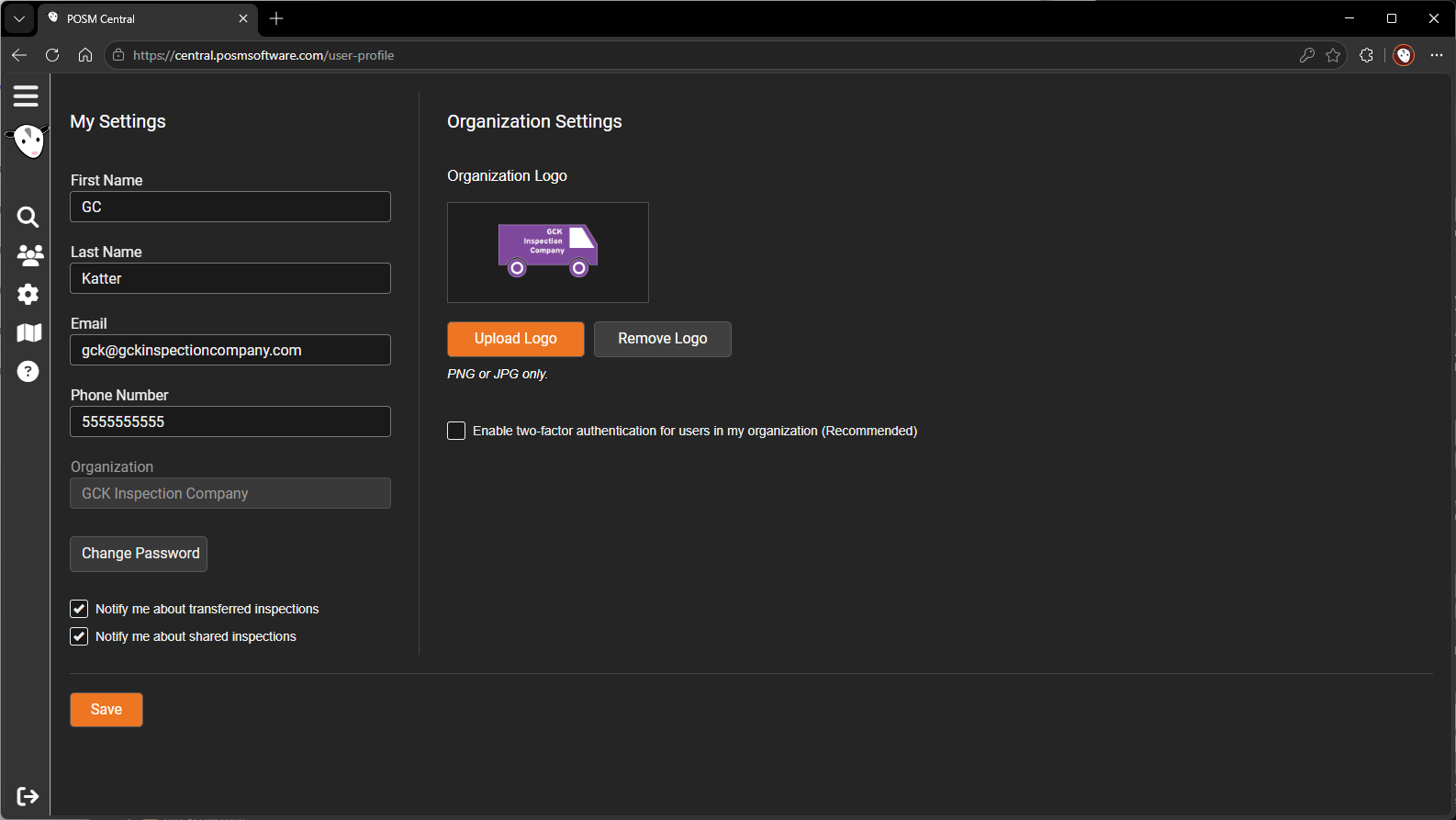
The page contains two main areas:
- My Settings — personal account information and notification preferences
- Organization Settings — organization logo and two-factor authentication settings
My Settings
The My Settings area contains information associated with your POSM Central user account.
You can update:
- First Name
- Last Name
- Phone Number
After making changes, click Save.
Keep your email address current
POSM Central uses the email address associated with your account for notifications and two-factor authentication codes.
Change Your Password
Use Change Password to update the password for your POSM Central account.
Follow the prompts shown by POSM Central to complete the password change.
Notification Preferences
User Settings allows you to control whether POSM Central sends certain inspection notifications to your email address.
Available preferences include:
- Notify me about transferred inspections
- Notify me about shared inspections
Enable or disable each option according to the notifications you want to receive.
Transferred Inspection Notifications
When Notify me about transferred inspections is enabled, POSM Central can notify you when inspection ownership is transferred to your organization.
Learn About Transfer Ownership
Shared Inspection Notifications
When Notify me about shared inspections is enabled, POSM Central can notify you when inspection data is shared with you or your organization.
Learn About Sharing Inspections
Organization Settings
The Organization Settings area appears on the same User Settings page.
Organization Settings includes:
- Organization logo
- Two-factor authentication
These settings affect the organization rather than only the individual user's account.
Organization Logo
POSM Central allows an organization logo to be uploaded from Organization Settings.
Supported image formats are:
- PNG
- JPG
If an organization logo has been uploaded, it appears in the Organization Settings area.
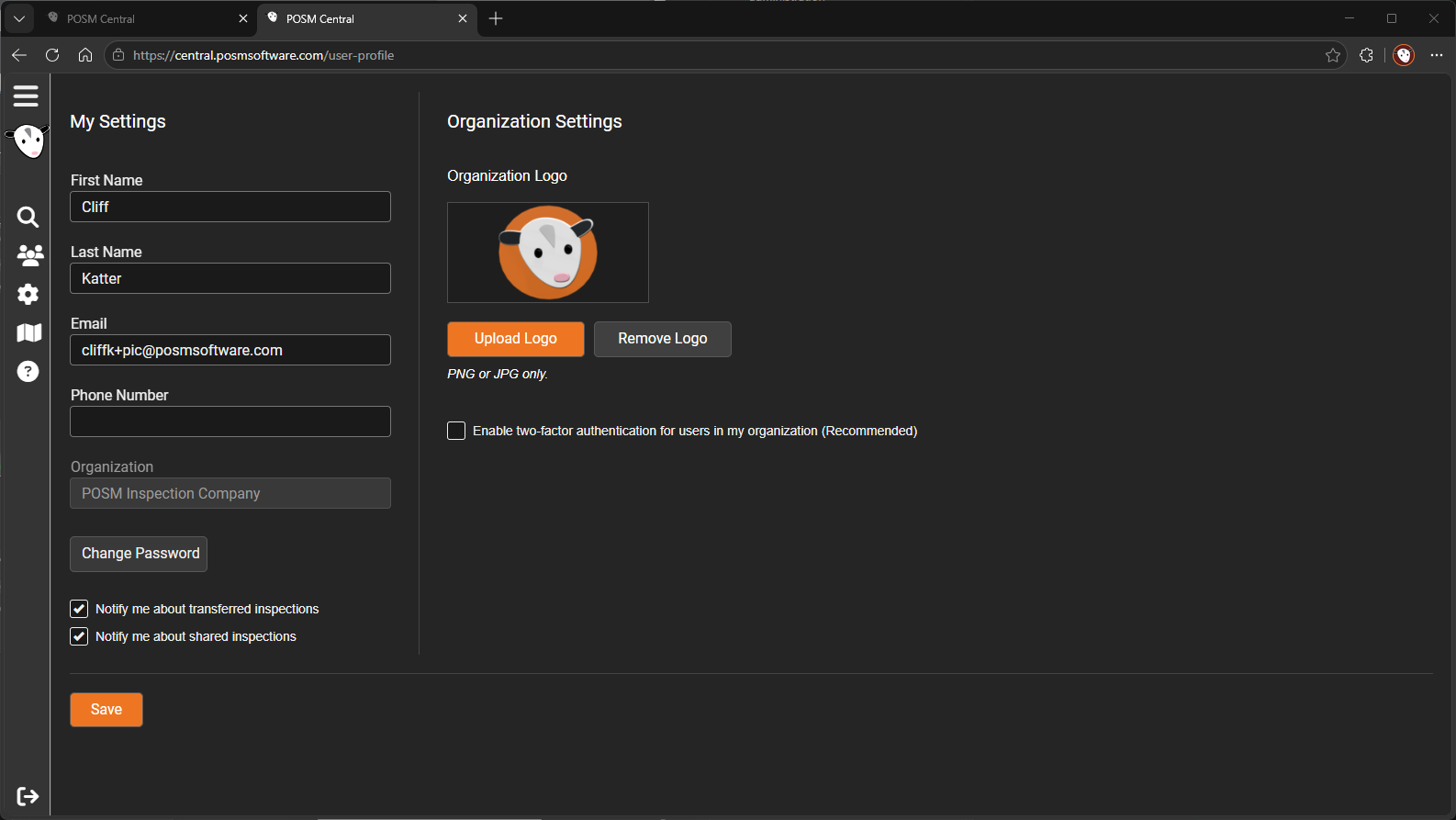
The logo workflow allows an authorized user to:
- Upload a logo
- Browse for an image on the computer
- Crop the image before uploading
- Replace the current logo
- Remove the current logo
For complete step-by-step instructions, including the Browse, Crop, Upload, and Remove screens, see Organization Settings.
Upload or Manage the Organization Logo
Two-Factor Authentication
Organization Settings also contains:
Enable two-factor authentication for users in my organization (Recommended)
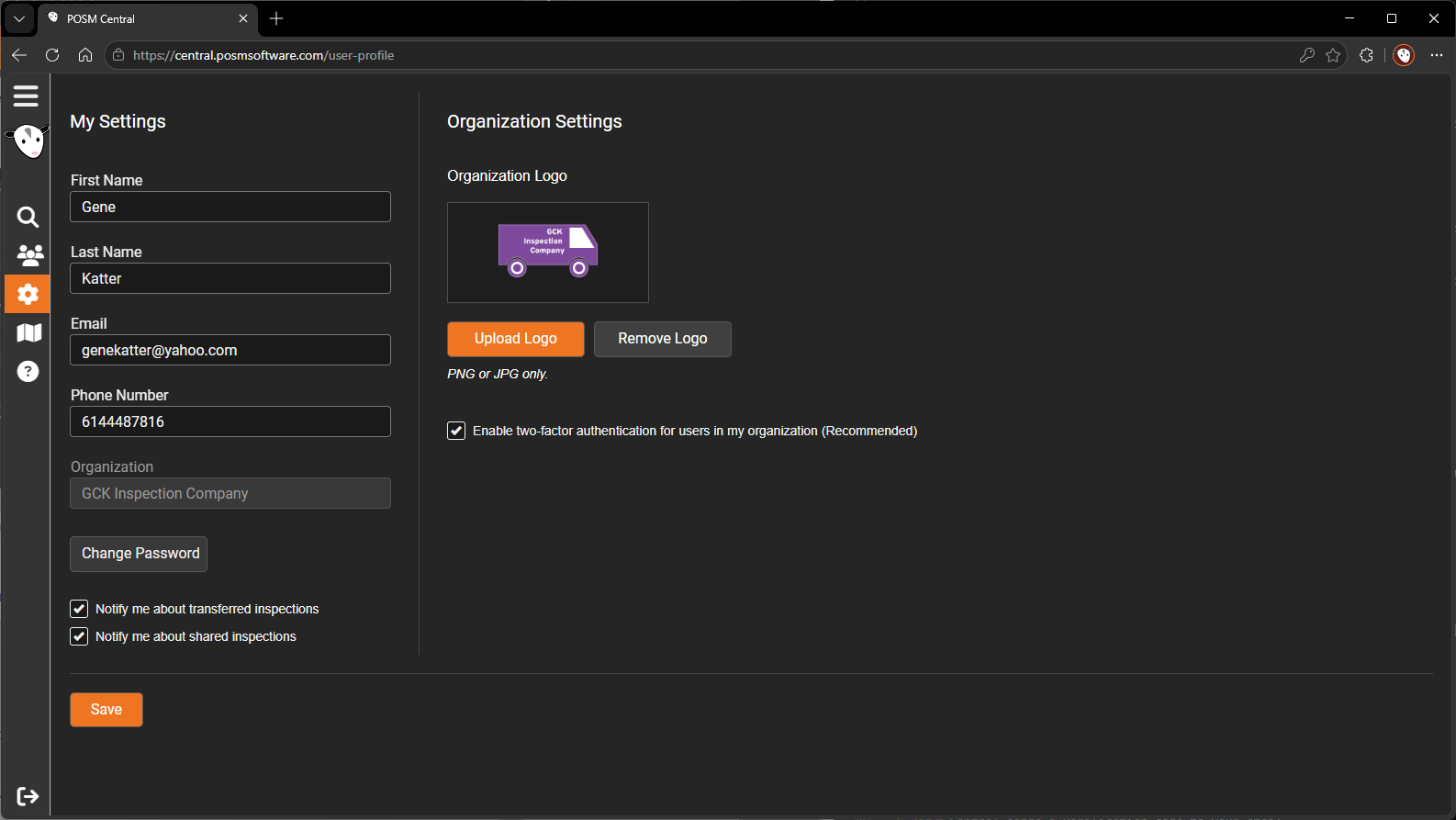
When enabled, POSM Central requires users in the organization to enter a verification code sent to their email address after signing in with their email and password.
The ability to change this setting depends on the user's role:
| User Role | Change Organization 2FA |
|---|---|
| Organization Admin | Yes |
| Edit User | Yes |
| View & Download User | No |
Two-factor authentication is an organization setting
Changing this option affects users in the organization. It is not an individual user's personal two-factor authentication preference.
Two-Factor Authentication Instructions
My Settings vs. Organization Settings
| Area | What It Controls |
|---|---|
| My Settings | Your name, email, phone number, password, and notification preferences |
| Organization Settings | Organization logo and organization two-factor authentication |