Session Management
Session Management is the main workspace for viewing, organizing, searching, and managing inspections in POSM Central.
After signing in, users are typically taken to the Session Management screen. The sessions shown depend on the organization, the user's permissions, session ownership, and any inspections shared with the organization.
Use Session Management to locate inspections, organize projects, select sessions, and access editing, reports, sharing, validation, export, and other tools.
Left Navigation
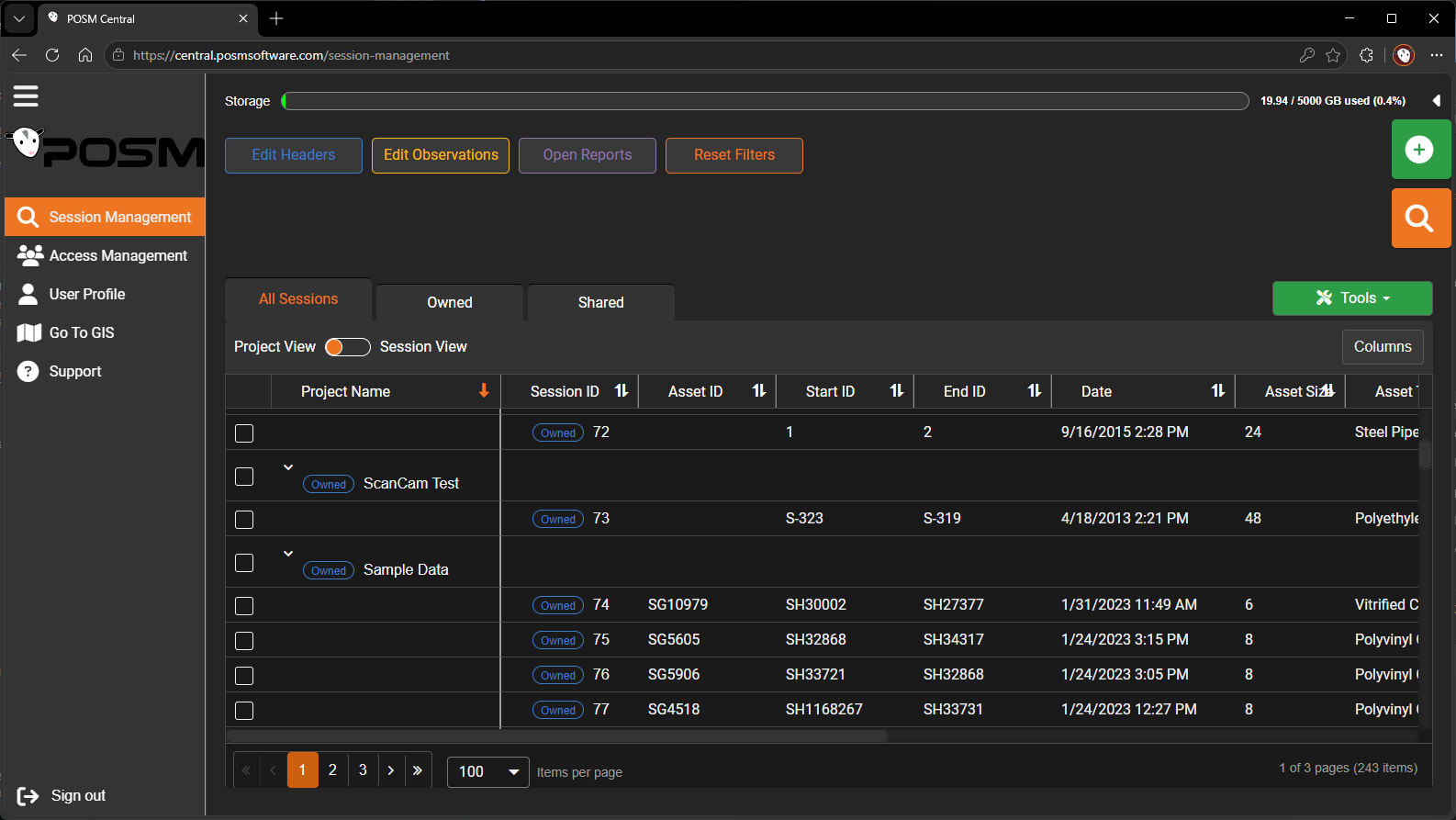
The navigation menu on the left side of POSM Central includes:
- Session Management — opens the main inspection list.
- Access Management — manages users and access for the organization.
- User Settings — opens the current user's account and organization settings.
- Go To GIS — opens POSM Central GIS for customers configured to use GIS.
- Support — provides access to POSM Support.
The left navigation menu can be expanded or collapsed to provide more space for the Session Management workspace.
Storage Usage Meter
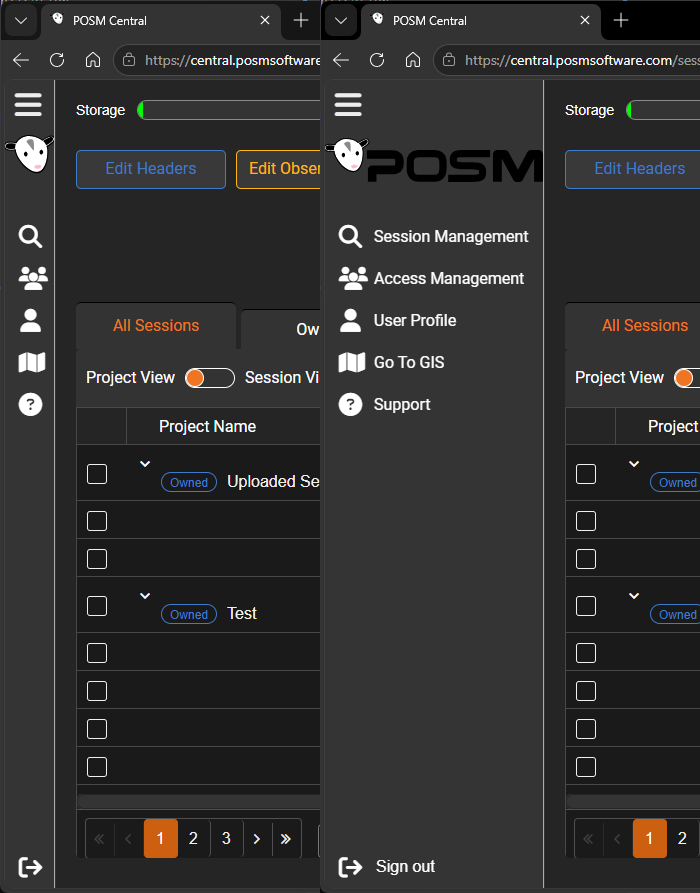
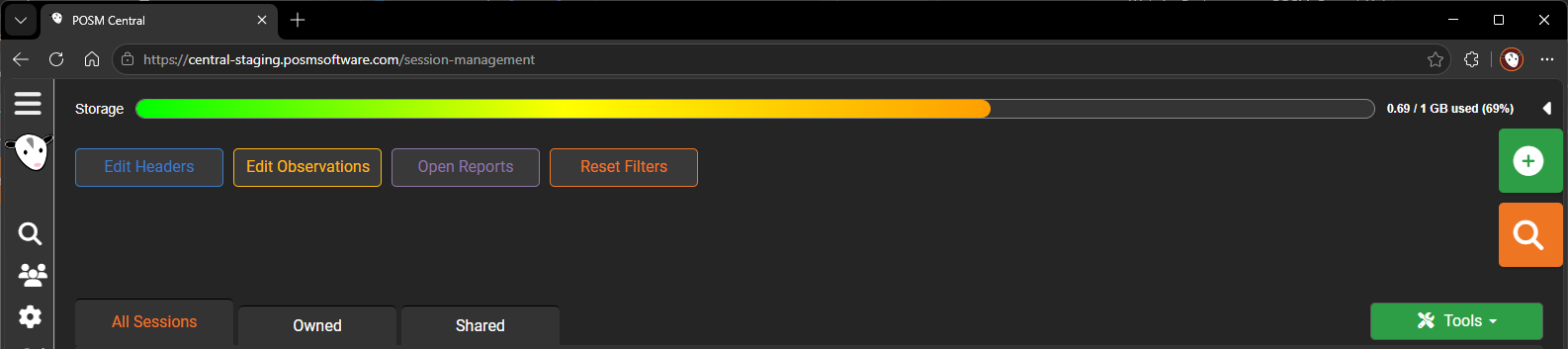
A storage usage meter appears at the top of Session Management.
The meter shows how much of the organization's available POSM Central storage is currently in use.
The meter changes from:
- Green when storage usage is low
- Through intermediate warning colors as usage increases
- Red when the organization is approaching or has reached its available storage limit
POSM Central storage is based primarily on the inspection videos, images, and other inspection data stored for the organization.
Storage limit
Existing sessions remain available when the organization reaches its storage limit.
New inspection data cannot be uploaded to POSM Central until additional storage is available.
Contact POSM Support when your organization needs additional storage.
Session Views
POSM Central provides two ways to organize inspections:
- Project View
- Session View
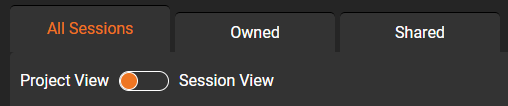
Project View groups inspections by project name.
Session View displays each inspection as an individual row.
Use the view that best matches the task you are performing.
Learn About Project View and Session View
Session Tabs
The Session Management screen includes three tabs:
- All Sessions
- Owned
- Shared
These tabs help distinguish between all available inspections, inspections owned by the organization, and inspections that have been shared.
Selecting Sessions or Projects
Use the checkbox beside a session to select an individual inspection.
In Project View, use the checkbox beside a project to select the entire project.
Selecting one or more inspections makes the applicable Session Management actions available.
Selecting an entire project allows supported actions to be applied to the inspections contained in that project.
Select only what you need
Review the selected sessions or projects before using an action that affects multiple inspections.
Session Management Actions
Several actions are available near the top of Session Management.
Depending on the current selection and the user's permissions, these may include:
- Edit Headers
- Edit Observations
- Open Reports
- Reset Filters
Editing and report actions are covered in their applicable help sections.
Import Inspection Data
POSM Central can import supported inspection packages directly from Session Management.
Use Tools → Import to upload ZIP packages or supported exchange database files such as .mdb and .db3. This provides a direct path for bringing compatible inspection data into Central, including data created with other inspection software.
Tools Menu
The Tools menu provides additional actions for selected inspections or projects.
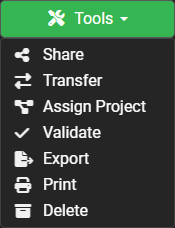
Available Tools actions may include:
- Share
- Transfer
- Assign Project
- Validate
- Export
- Delete
The actions available to a user may depend on:
- Session ownership
- User permissions
- Access level
- Number of sessions selected
- Current session status
Note
Some actions may not be available for inspections your organization does not own or does not have permission to modify.