Activate or Deactivate Users
Organization Administrators can activate or deactivate users from Access Management.
Deactivating a user prevents that user from accessing the organization without removing the user account from the Access Management list.
This is useful when a user should no longer have access to the organization but you want to retain their user record.
Open Access Management
- Sign in to POSM Central.
- Select Access Management from the left navigation menu.
- Locate the user you want to manage.
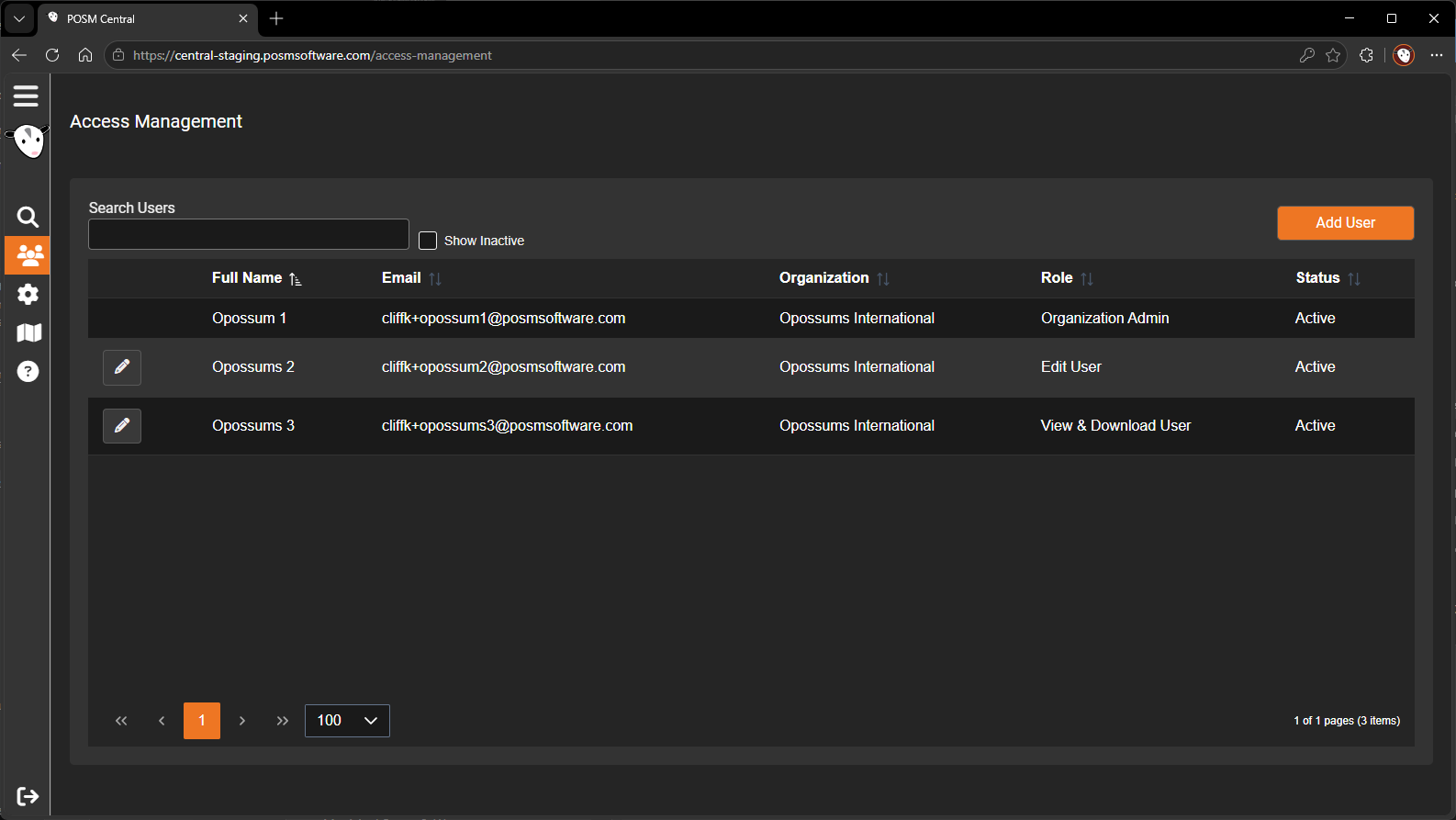
The Status column shows whether each user is currently active.
Deactivate a User
To deactivate a user:
- Locate the user in Access Management.
- Click the edit button for that user.
- The Edit User window opens.
-
Clear the Active checkbox.
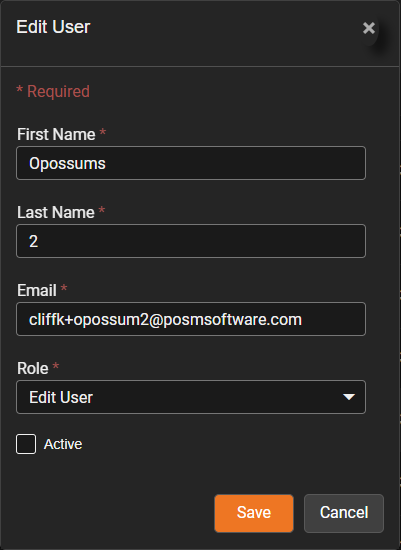
-
Click Save.
The user is now inactive.
Deactivated users cannot access the organization
Deactivate a user when they should no longer have access to your POSM Central organization.
View Inactive Users
Inactive users may be hidden from the normal Access Management list.
To include them:
- Open Access Management.
- Select Show Inactive.
Inactive users are included in the user list so they can be reviewed or reactivated.
Reactivate a User
To restore access for an inactive user:
- Open Access Management.
- Select Show Inactive.
- Locate the inactive user.
- Click the edit button for that user.
- Select the Active checkbox.
- Click Save.
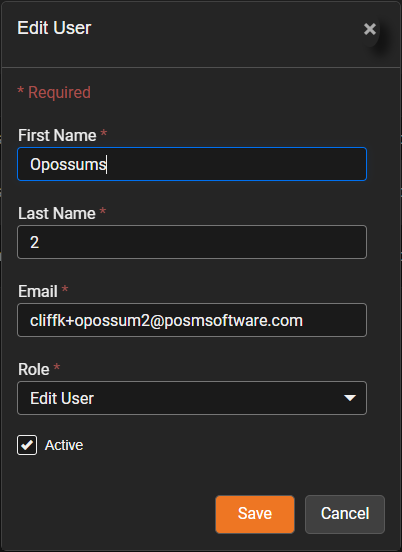
The user is active again and can access the organization according to their assigned role.
The user's role still applies
Reactivating a user does not change their assigned role.
Review the user's **Role** in the Edit User window before restoring access and change it if necessary.
Deactivate or Change the Role?
Deactivating a user and changing a user's role serve different purposes.
| If you want to... | Action |
|---|---|
| Prevent the user from accessing the organization | Deactivate the user |
| Restore access to an inactive user | Activate the user |
| Keep the user active but change what they are allowed to do | Change the user's role |
For information about the available roles and their permissions, see User Roles.