Import Sessions
Use Import to bring inspection data directly into POSM Central from supported inspection packages and exchange database files.
Import is useful when inspection data comes from another software system or when you have an inspection package that is not being uploaded through POSM Data Sync.
Supported Import Files
POSM Central can import:
- ZIP packages containing supported inspection data
- NASSCO v7 packages
- NASSCO v8 packages
- Microsoft Access exchange databases (
.mdb) - SQLite exchange databases (
.db3)
A ZIP package does not need to use a specific internal folder layout or exchange-database filename. POSM Central searches the package for a supported exchange database and imports the inspection data it contains.
A package can contain more than one supported inspection type. For example, a NASSCO package may contain PACP, LACP, and MACP inspections.
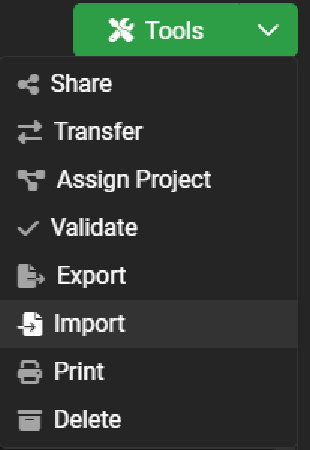
Open Import
- Open Session Management.
- Open the Tools menu.
- Select Import.
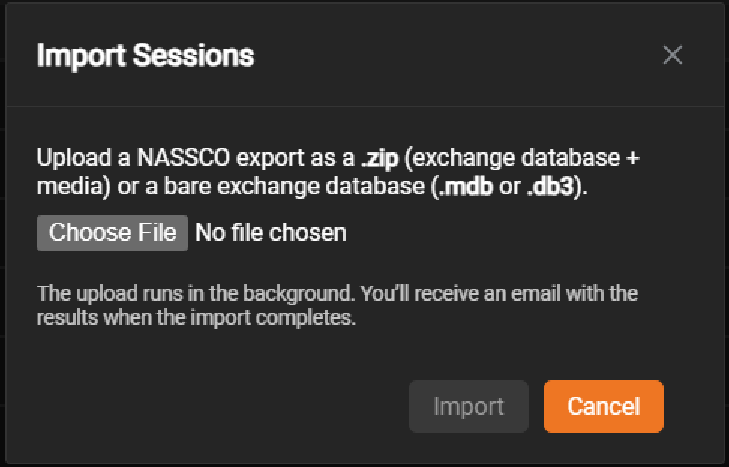
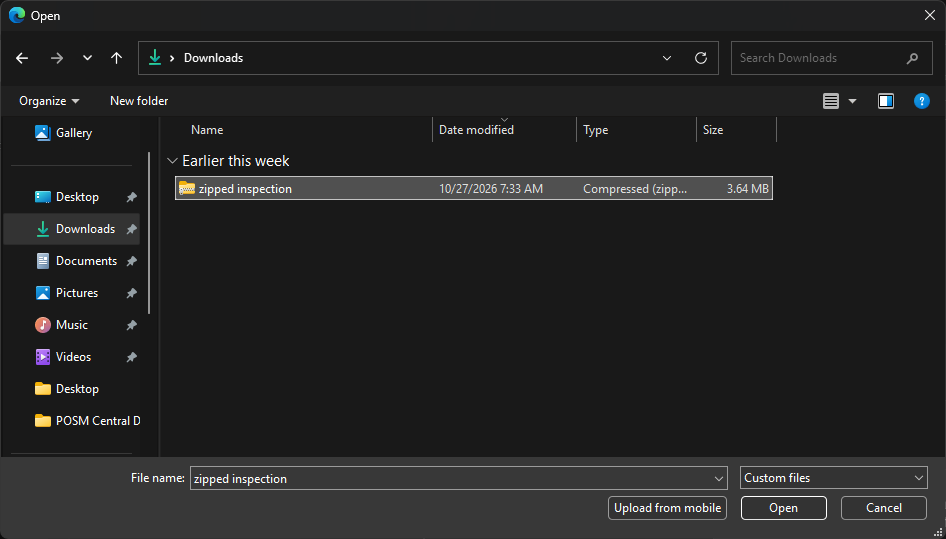
Choose Inspection Files
Select the ZIP package or exchange database you want to import.
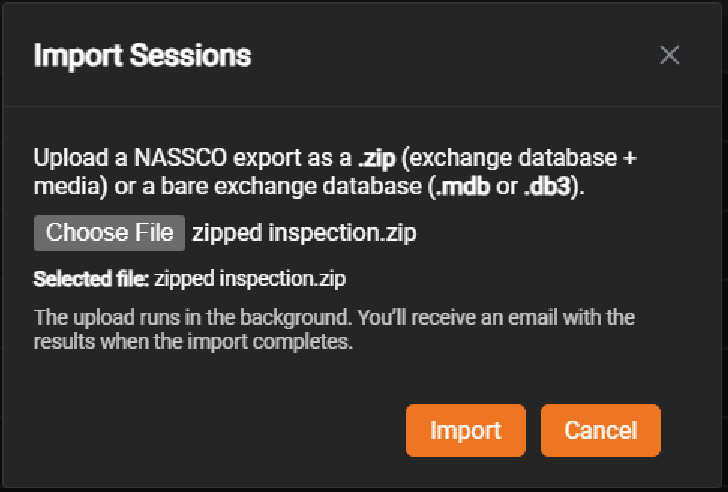
When importing a ZIP package, POSM Central processes the package contents and locates the supported exchange database.
Uploading the File
After you start the import, an upload notification appears near the lower-right corner of the Central page.
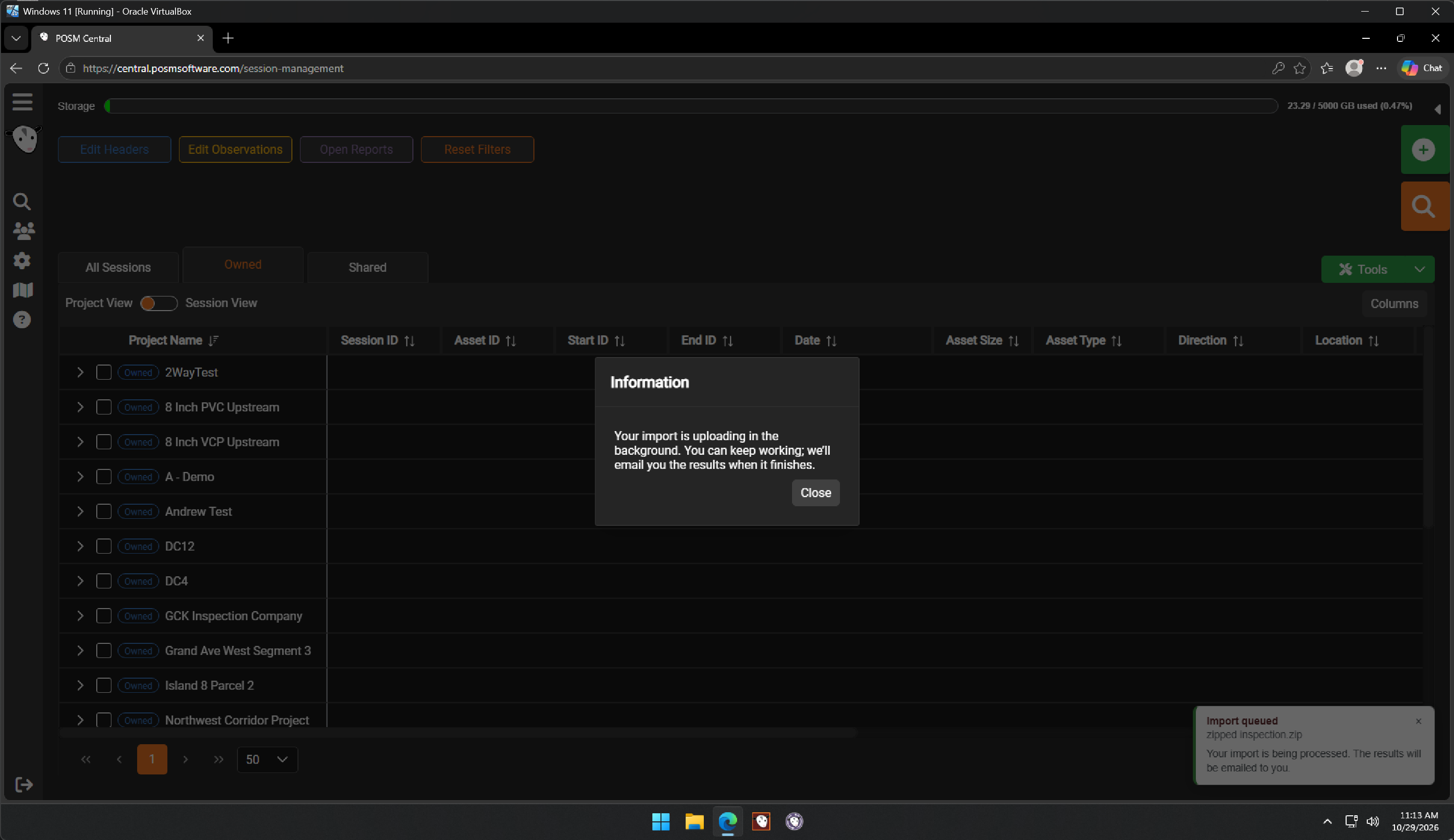
Large files can continue uploading in the background.
When the browser upload finishes, the notification briefly indicates that the upload completed and then changes to Import Queued.
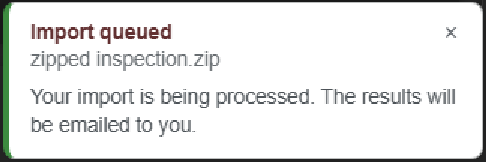
You may close the queued notification
Closing the bottom-right Import Queued notification does not cancel the import.
POSM Central continues processing the uploaded package in the background.
Cancel an Upload
A large upload can be cancelled while the file is still uploading.
Cancellation stops the current upload. After the upload has completed and the import has been queued, closing the queued notification does not cancel background import processing.
Duplicate Sessions
POSM Central checks imported inspection data against sessions already in the organization.
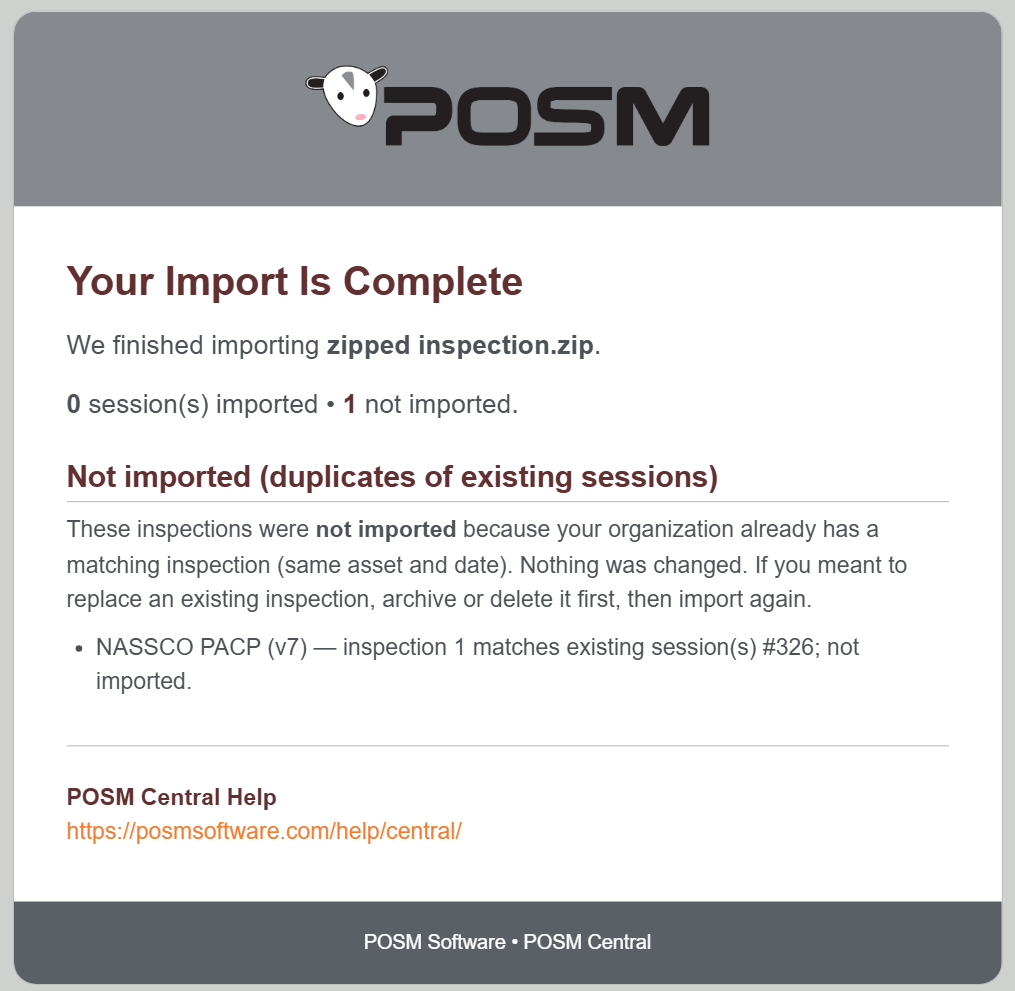
If a session already exists, Central rejects the duplicate instead of creating a second copy.
Existing sessions are preserved
A duplicate rejection does not overwrite the existing inspection and does not create another copy of it.
Import Results by Email
POSM Central sends an email after import processing finishes.
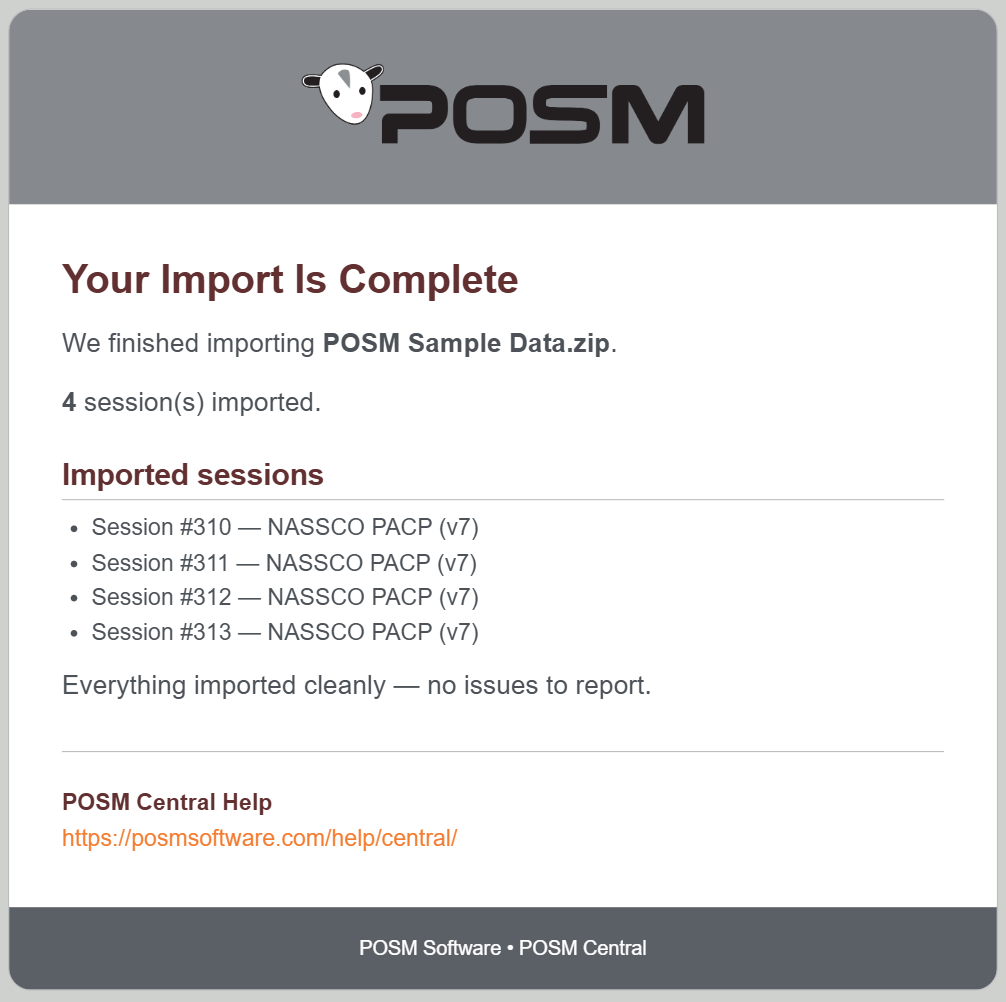
Successful Import
The completion email lists the sessions that were imported successfully.
Duplicate or Rejected Sessions
If sessions were rejected because they already exist, the email identifies the sessions that were not imported.
Import Could Not Be Completed
If Central cannot complete the import because of another processing issue, the user receives an import-failure email.
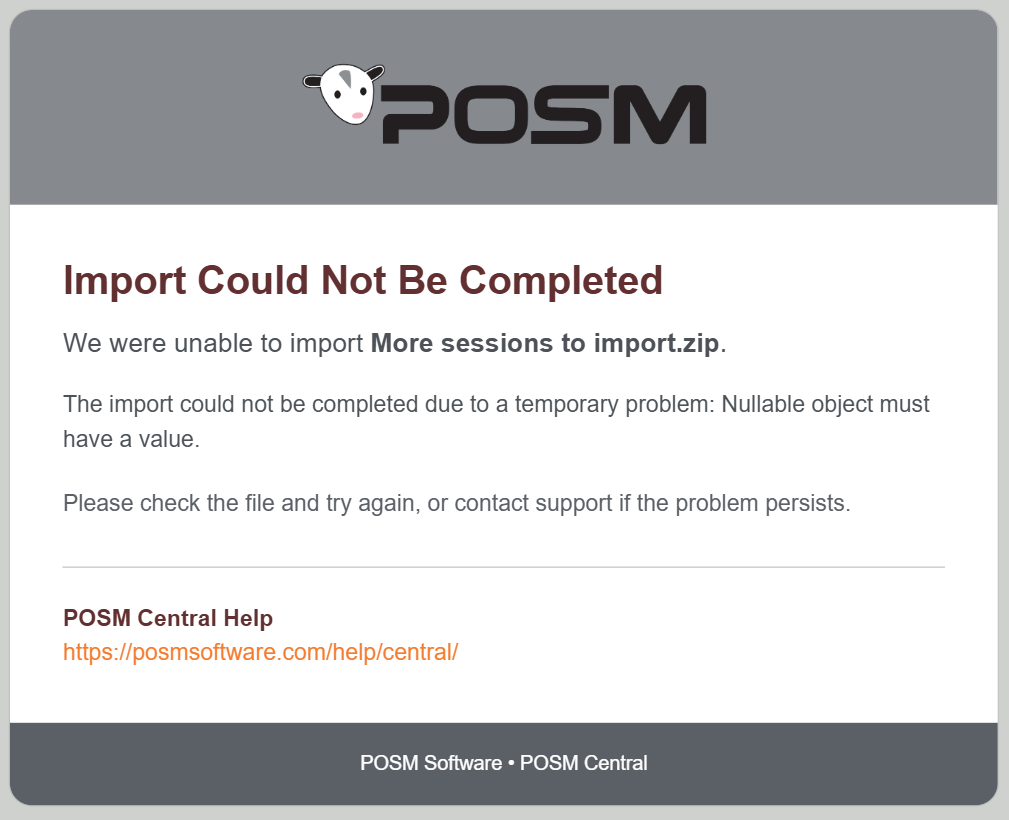
Review the message and try the import again when appropriate. Contact POSM Support if the same package continues to fail.
Imported Date
Session Management includes an Imported Date column for imported inspection data.
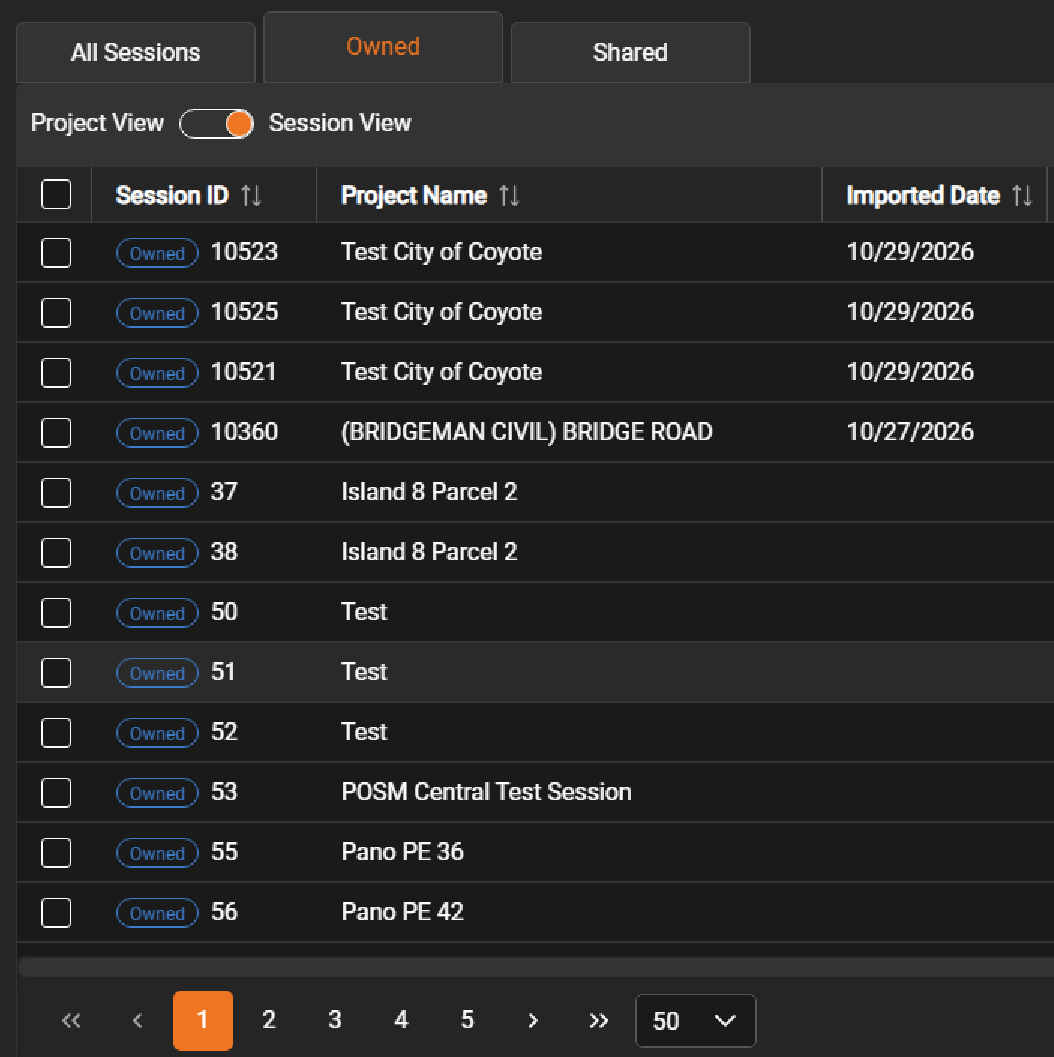
Imported Date can be used when filtering the session list to help locate recently imported inspections.
Import Versus Data Sync Upload
Import and POSM Data Sync Upload both bring inspection data into Central, but they are intended for different workflows.
| Workflow | Use it when |
|---|---|
| Import | You have a supported ZIP package, .mdb, or .db3 inspection file to bring directly into Central. This also supports inspection data created by other compatible software. |
| Data Sync Upload | Inspection data is stored in a configured POSM Desktop installation and should be synchronized to Central with its associated media. |
POSM Data Sync remains available for ongoing POSM Desktop synchronization.