Additional Files
The Additional report area allows supplemental files to be included with an inspection.
These files provide supporting information that may not be part of the standard POSM report tabs.
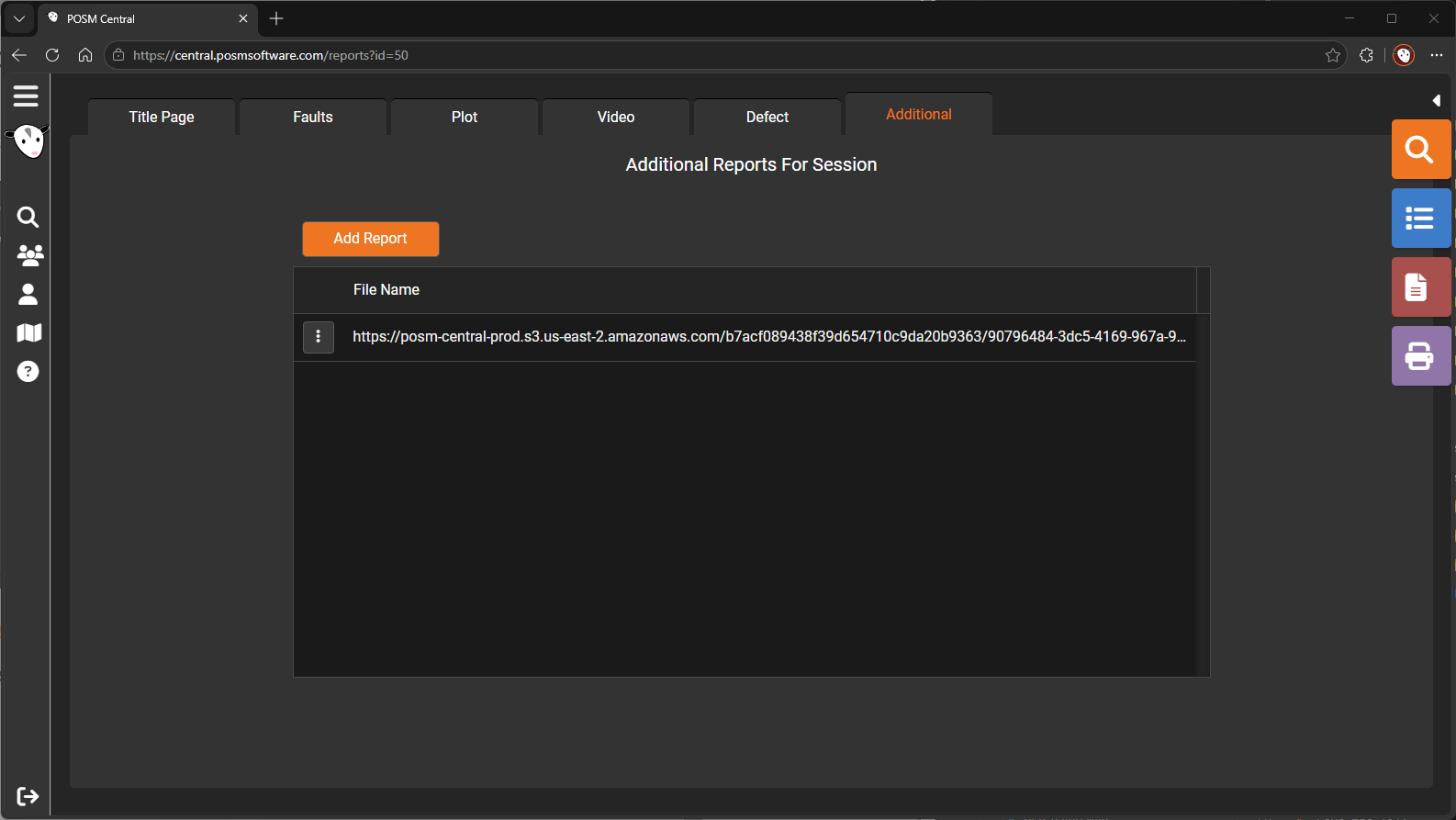
Open Additional Files
- Open Session Management.
- Select an inspection.
- Select Open Reports.
- Select the Additional tab.
- Select the file you want to view or download.
Types of Additional Files
Additional files may include:
- PDF documents
- Supplemental reports
- Images
- Customer documents
- Engineering documents
- Maps
- Inspection notes
- Other inspection-related attachments
The available files depend on what has been added to the inspection.
View a File
Select the file name or available view control.
Depending on the file type and browser settings, the file may:
- Open in the browser
- Open in a new tab
- Download to the computer
- Open in another installed application
Download a File
When a download option is available:
- Select the file.
- Select Download.
- Choose a location on your computer.
- Save the file.
File Does Not Open
When an additional file does not open:
- Confirm that your browser allows downloads or new tabs.
- Confirm that an application capable of opening the file type is installed.
- Download the file and open it locally.
- Confirm that your account has access to the inspection.
- Contact POSM Support if the file remains unavailable.