Two-Factor Authentication
Two-factor authentication adds an additional verification step when users sign in to POSM Central.
When two-factor authentication is enabled for an organization, users sign in with their normal email address and password and then enter a verification code sent to their email address.
Enable Two-Factor Authentication
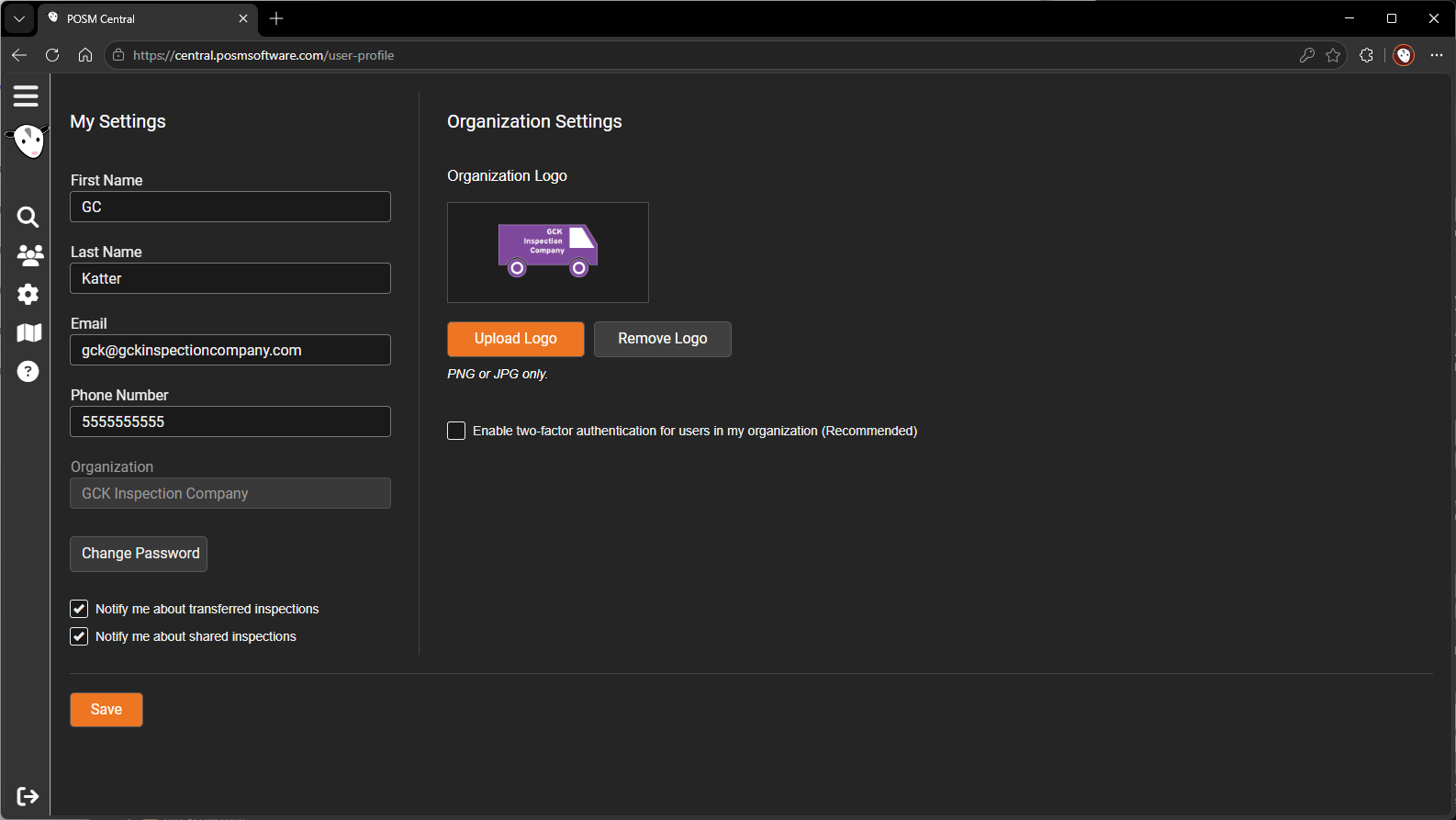
Two-factor authentication is enabled from User Settings.
- Open User Settings from the left navigation menu.
- Locate Organization Settings.
- Select Enable two-factor authentication for users in my organization (Recommended).
- Click Save.
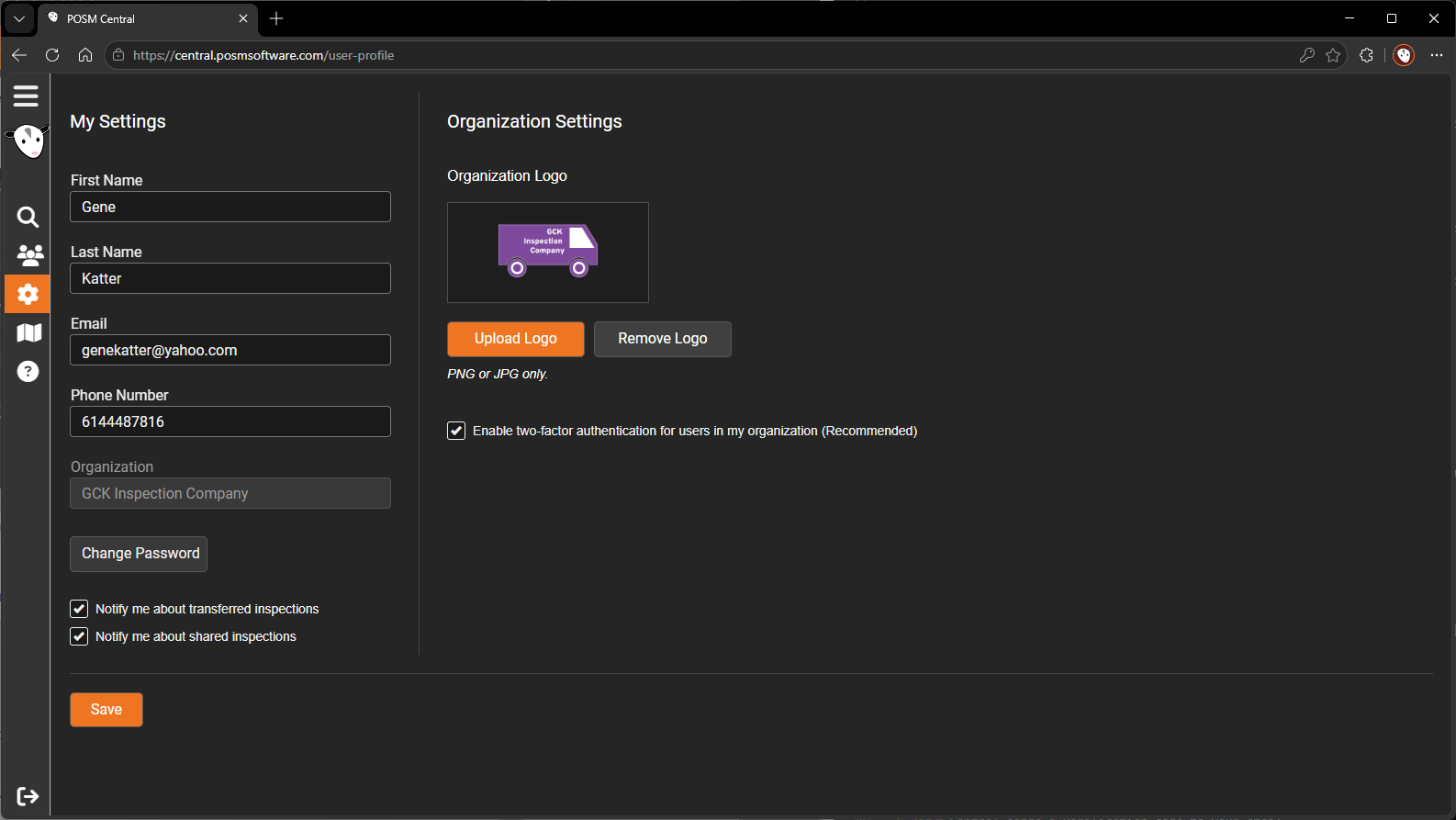
Organization-wide setting
Two-factor authentication applies to users in the organization when it is enabled.
Individual users do not enable two-factor authentication separately for their own accounts.
Sign In with Two-Factor Authentication
When two-factor authentication is enabled, begin by signing in normally.
Enter Your Login Information
- Open the POSM Central login page.
- Enter your Email.
- Enter your Password.
- Click Sign In.
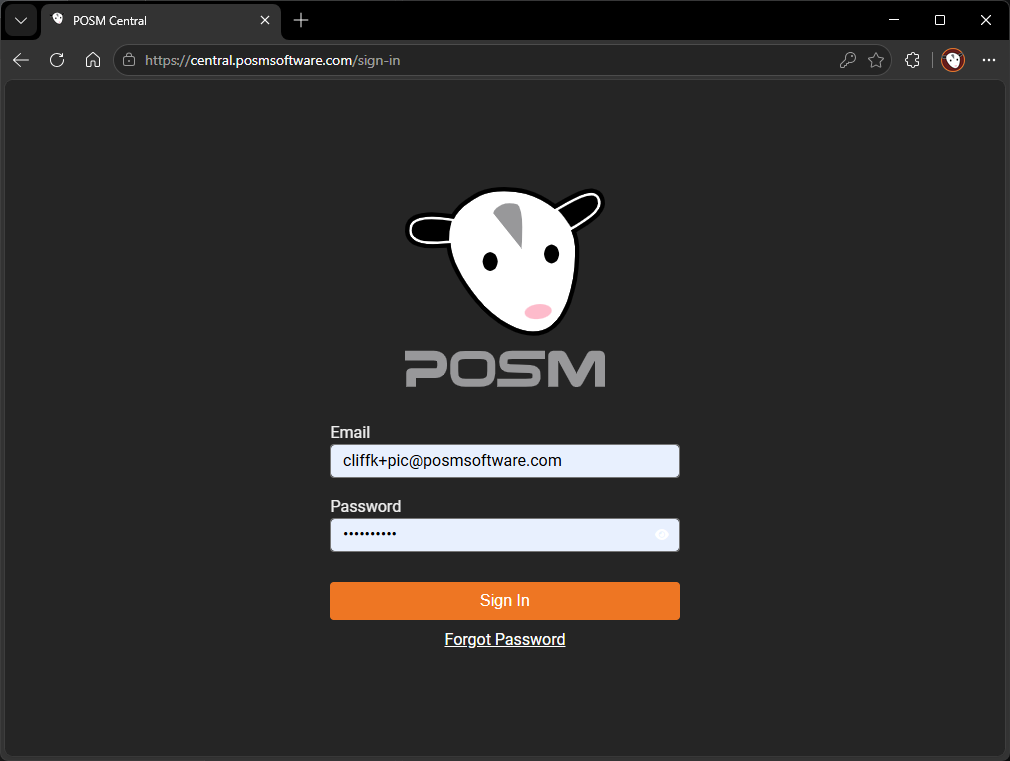
After your email and password are accepted, POSM Central displays the two-factor authentication screen.
Enter the Verification Code
POSM Central sends a verification code to the email address associated with your account.
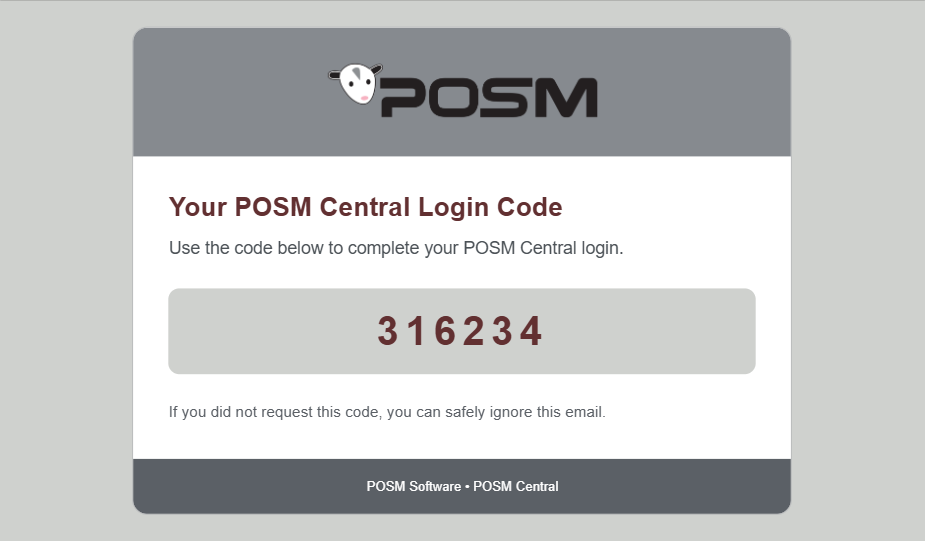
Return to POSM Central and enter the code from the email into the verification-code field.
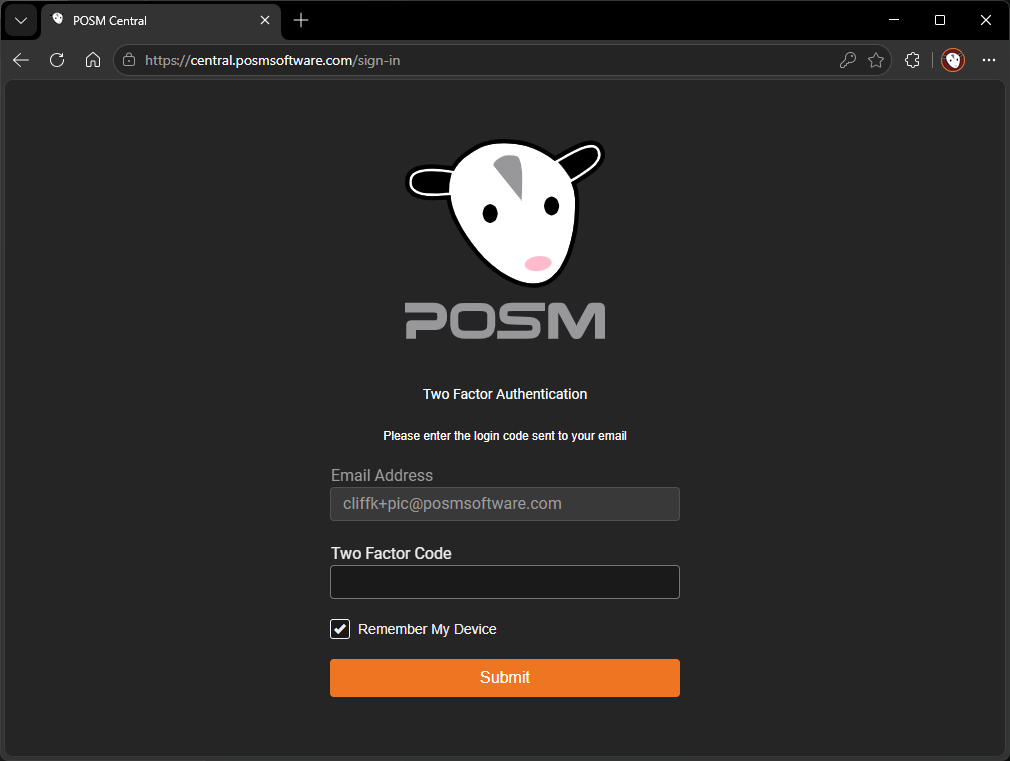
After the correct code is entered, POSM Central completes the sign-in and takes you directly to Session Management.
Didn't Receive the Code?
If the verification email does not arrive:
- Verify that you are checking the email account associated with your POSM Central account.
- Check your Spam or Junk folder.
- Allow a short time for the email to arrive.
- Try signing in again to request another authentication code.
Check your account email
Two-factor authentication codes are sent to the email address associated with your POSM Central user account.
If you have trouble receiving or using a login code, POSM Support can help.
Disable Two-Factor Authentication
If two-factor authentication should no longer be required for the organization:
- Open User Settings.
- Locate Organization Settings.
- Clear Enable two-factor authentication for users in my organization (Recommended).
- Click Save.
After the setting is disabled, users will no longer be required to complete the email verification step when signing in.
Organization-wide change
Disabling two-factor authentication affects users in the organization, not just the user making the change.
Sign-In Process
When two-factor authentication is enabled, the sign-in process is:
- Enter your Email and Password.
- Click Sign In.
- POSM Central sends a verification code to your email.
- Enter the verification code in POSM Central.
- POSM Central opens Session Management.