Troubleshooting POSM Central

Use this section when something in POSM Central is not working as expected.
Start with the problem that most closely matches what you are experiencing. Each section provides a quick solution and links to more detailed instructions when available.
The troubleshooting topics below can help resolve common POSM Central issues.
You are also welcome to contact POSM Support at any time. You do not need to troubleshoot or diagnose a problem before asking for help.
I Can't Perform an Action
If an action is unavailable, disabled, or you cannot make a change, first check your user role, the inspection's ownership, and any sharing access level.
POSM Central provides three organization roles:
- Organization Admin
- Edit User
- View & Download User
Some common permission differences are:
| Action | Organization Admin | Edit User | View & Download User |
|---|---|---|---|
| View inspection data | Yes | Yes | Yes |
| Edit permitted inspection data | Yes | Yes | No |
| Create sessions | Yes | Yes | No |
| Share owned sessions/projects | Yes | Yes | No |
| Transfer owned sessions/projects | Yes | Yes | No |
| Delete permitted inspections | Yes | Yes | No |
| Export | Yes | Yes | Yes |
| Yes | Yes | Yes | |
| Access Access Management | Yes | No | No |
Check both the user role and sharing access
A user's role and the access level assigned to shared inspection data work together.
For example, an Edit User normally has editing permission, but an inspection shared as View & Download remains read-only.
I Can't Transfer Inspections to Someone
A Transfer recipient must already have a POSM Central account associated with an organization.
If you attempt to transfer inspection data to an email address that is not associated with a POSM Central organization, Central displays:
The specified email address is not associated with an organization.
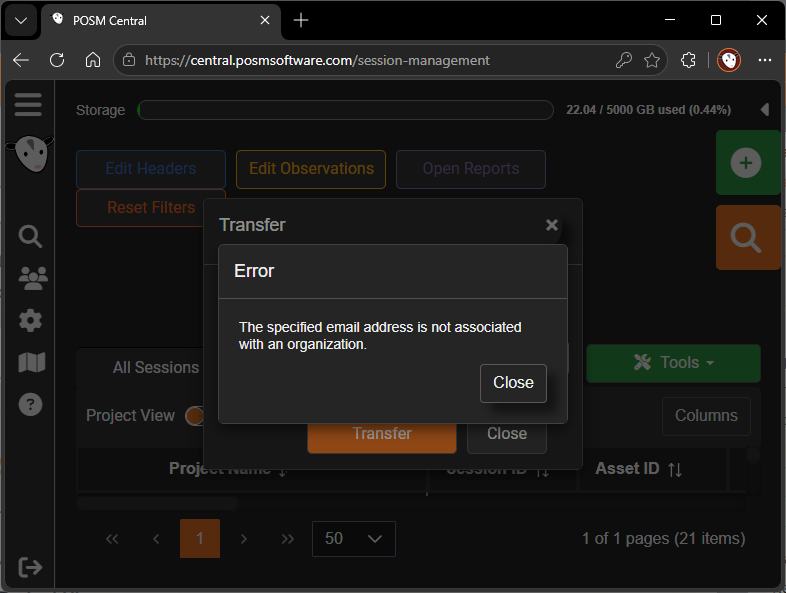
What to Do
The intended recipient must contact POSM Support to have a POSM Central account created.
After the recipient has an account associated with an organization, try the Transfer again.
Transfer requires a Central account
Transfer changes ownership of inspection data and therefore requires the receiving user to be associated with a POSM Central organization.
Transfer Ownership Instructions
My Organization Is Out of Storage Space
The storage meter at the top of Session Management shows your organization's current storage usage.
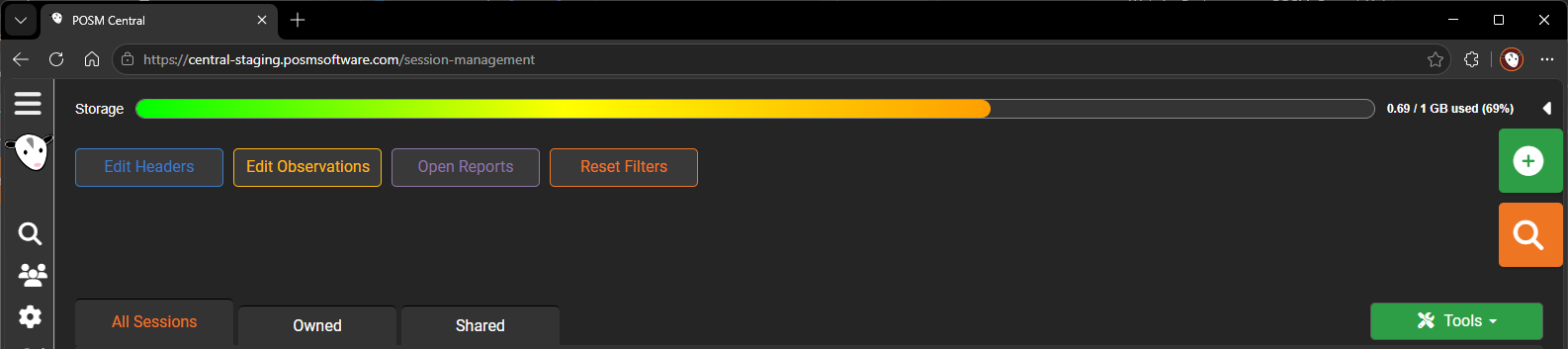
The meter fills from left to right through a color spectrum from green toward red as storage is used.
Current usage is also displayed numerically:
X / X GB used (X%)
When the organization's storage limit is reached, new inspection data cannot be imported.
What to Do
Contact POSM Support to increase your organization's available storage.
Inspections Will Not Upload From the Data Sync Tool
If inspections will not upload to POSM Central from the POSM Central Data Sync Tool, check the affected inspections for NASSCO validation errors.
NASSCO validation errors must be corrected in POSM before the affected inspections can be uploaded to POSM Central.
What to Do
- Open the affected inspection in POSM.
- Validate the inspection for NASSCO compliance.
- Review any validation errors.
- Correct the errors in POSM.
- Validate the inspection again.
- After the inspection passes validation, try uploading it to POSM Central again with the Data Sync Tool.
Validate NASSCO Sessions in POSM
Validation errors must be corrected in POSM
Use POSM to correct the inspection data and resolve the NASSCO validation errors before attempting the Central upload again.
A Downloaded Inspection Report Will Not Open Correctly
POSM Central Download Link Only shares and exported inspection packages may be delivered as ZIP files.
The ZIP file must be extracted before opening the inspection report.
Do not double-click into the ZIP file and try to open Index.html while it is still inside the compressed ZIP.
What to Do
-
Locate the downloaded ZIP file.
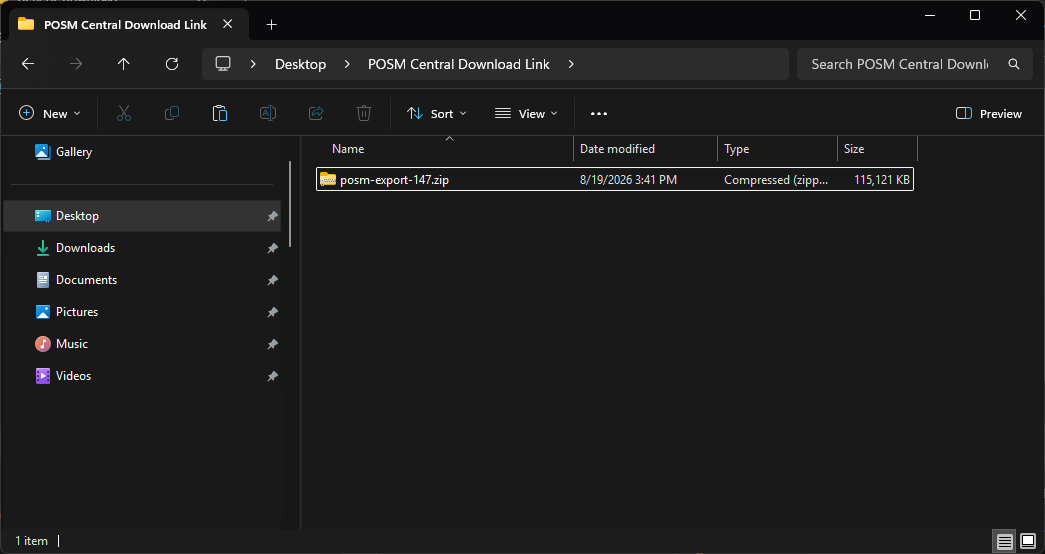
-
Right-click the ZIP file and select Extract All...
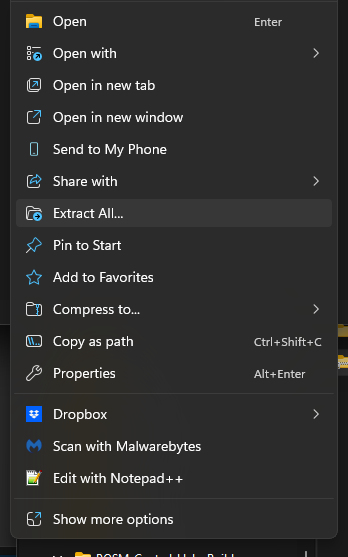
-
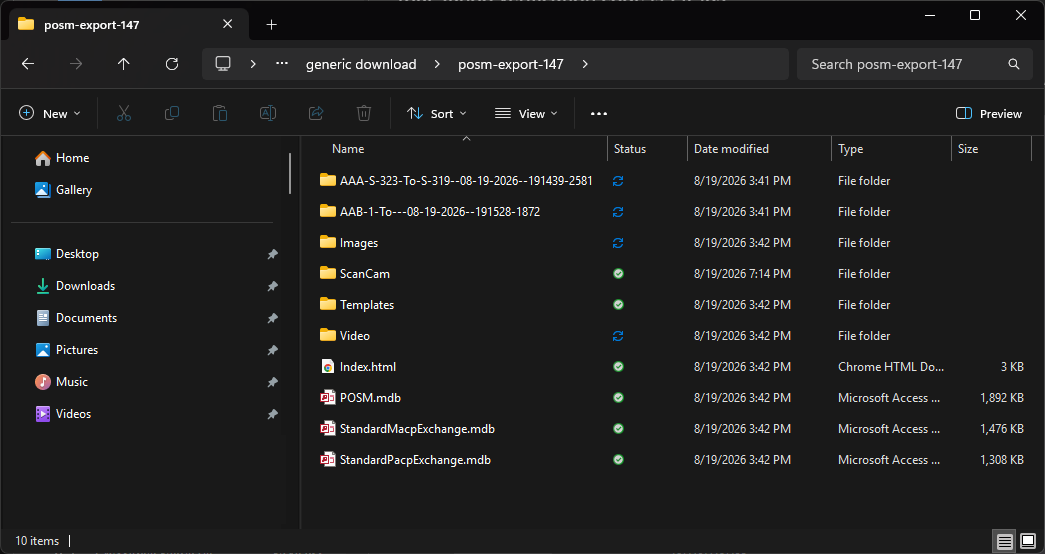
Open the newly extracted folder.
-
Open
Index.htmlfrom the extracted folder.
Extract the ZIP first
The inspection export contains files and folders that work together.
Opening Index.html from inside the compressed ZIP can prevent the report and its associated files from displaying correctly.
Keep the extracted files together
Do not move Index.html away from the other files and folders in the extracted inspection package.
Quick Start Download Instructions
Export Could Not Be Completed
If POSM Central encounters an error while preparing an export, you may receive an Export Could Not Be Completed email.
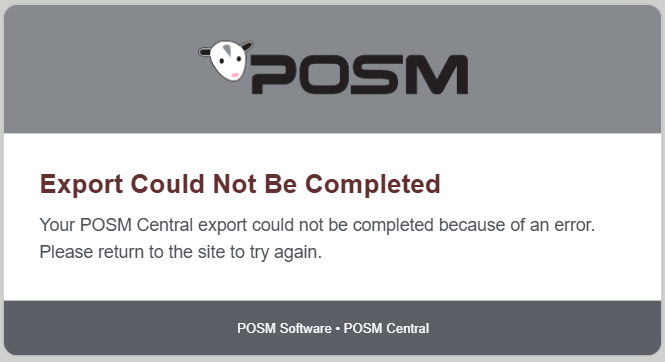
The email indicates that POSM Central could not complete the requested export.
What to Do
- Return to POSM Central.
- Open Session Management.
- Select the inspection data again.
- Run Export again.
If the export continues to fail, contact POSM Support.
I Didn't Receive My Two-Factor Authentication Code
When two-factor authentication is enabled for your organization, POSM Central sends a verification code to the email address associated with your account after your email and password are accepted.
What to Do
- Verify that you are checking the email account associated with your POSM Central account.
- Check your Spam or Junk folder.
- Allow a short time for the message to arrive.
- Try signing in again to request another authentication code.
If you continue to have trouble receiving the code, contact POSM Support.
My Invitation Link Expired
POSM Central user invitation links expire after 14 days.
If an invitation expires before account registration is completed, the original invitation can no longer be used.
An Organization Administrator will need to create a new invitation for the user.
I Can't Edit a Shared Inspection
The ability to edit shared inspection data depends on both:
- The access level assigned to the share
- Your POSM Central user role
View & Download
A View & Download share is read-only.
The recipient can review and download the inspection but cannot edit it.
Full Edit Access
Full Edit Access provides edit-capable access, but the receiving user's POSM Central role still applies.
For example, a View & Download User cannot edit the inspection even when the organization received Full Edit Access.
The more restrictive permission applies
Full Edit Access does not override the permissions assigned to an individual user's role.
I Need to Change a Share From Download Only
A Download Link Only share cannot be changed to View & Download or Full Edit Access.
Download Only creates a downloadable package rather than ongoing account-based access to the inspection in POSM Central.
What to Do
Share the original inspection or project again and select:
- View & Download for read-only account-based access
- Full Edit Access for edit-capable account-based access
Existing account-based shares can be switched between View & Download and Full Edit Access.
I Can't Access Access Management
Access Management is available only to users with the Organization Admin role.
Edit Users and View & Download Users cannot access Access Management.
Organization Administrators use Access Management to:
- Add users
- Edit users
- Change user roles
- Activate users
- Deactivate users
If you need one of these changes and you are not an Organization Administrator, contact an Organization Administrator for your POSM Central organization.
I Can't Find an Inspection
If an inspection does not appear where you expect it, check the Session Management tabs and views.
Check All Sessions
All Sessions displays inspection data available to your organization.
Check Owned
Owned displays inspection data currently owned by your organization.
If ownership was transferred to another organization, the inspection will no longer appear as owned.
Check Shared
Use the Shared tab to review inspection data your organization has shared with other recipients.
Also try:
- Switching between Project View and Session View
- Searching for the inspection
- Clearing active filters
- Checking the project containing the session
Need Help?
POSM Support is available if you would like help with any of these issues or something not covered in this guide.
You do not need to know what is causing the problem. Start a Remote Support session or call POSM Support and show us what you are experiencing.
When contacting Support, provide:
- Your name and organization
- The POSM product you are using
- A description of the problem
- What you were doing when the problem occurred
- Any error messages
- The affected session or project, when applicable
- Screenshots, when available
POSM Support is available Monday through Friday, 7:00 AM–7:00 PM Eastern Time.