Inspection Editing
POSM Central provides two primary workspaces for reviewing and editing inspection information:
- Edit Headers
- Edit Observations
These buttons appear near the upper-left side of Session Management after an inspection is selected.

The actions available depend on:
- The user's role
- The user's editing permissions
- The organization that owns the inspection
- The access level assigned to a shared inspection
Users without editing permission may still be able to open inspection information in read-only mode.
Choose an Inspection Editor
Use the workspace that matches what you need to review or change.
| If you want to... | Use |
|---|---|
| Review or change asset, project, pipe, location, or inspection information | Edit Headers |
| Change the inspection project name | Edit Headers |
| Review inspection video and observations | Edit Observations |
| Add, edit, or delete observations | Edit Observations |
| Review or manage observation images | Edit Observations |
| Review the pipe plot | Edit Observations |
| Add, remove, or reorder inspection video | Edit Observations → Manage Videos |
The two workspaces are connected. While working in Edit Observations, you can select the blue Edit Headers button to open the Header Editor.
Select an Inspection
Before opening an inspection:
- Open Session Management.
- Locate the inspection.
- Select the checkbox beside the inspection.
- Select Edit Headers or Edit Observations.
Only one inspection should normally be selected when opening the inspection editing screens.
Edit Headers
Use Edit Headers to review or update the descriptive information associated with an inspection.
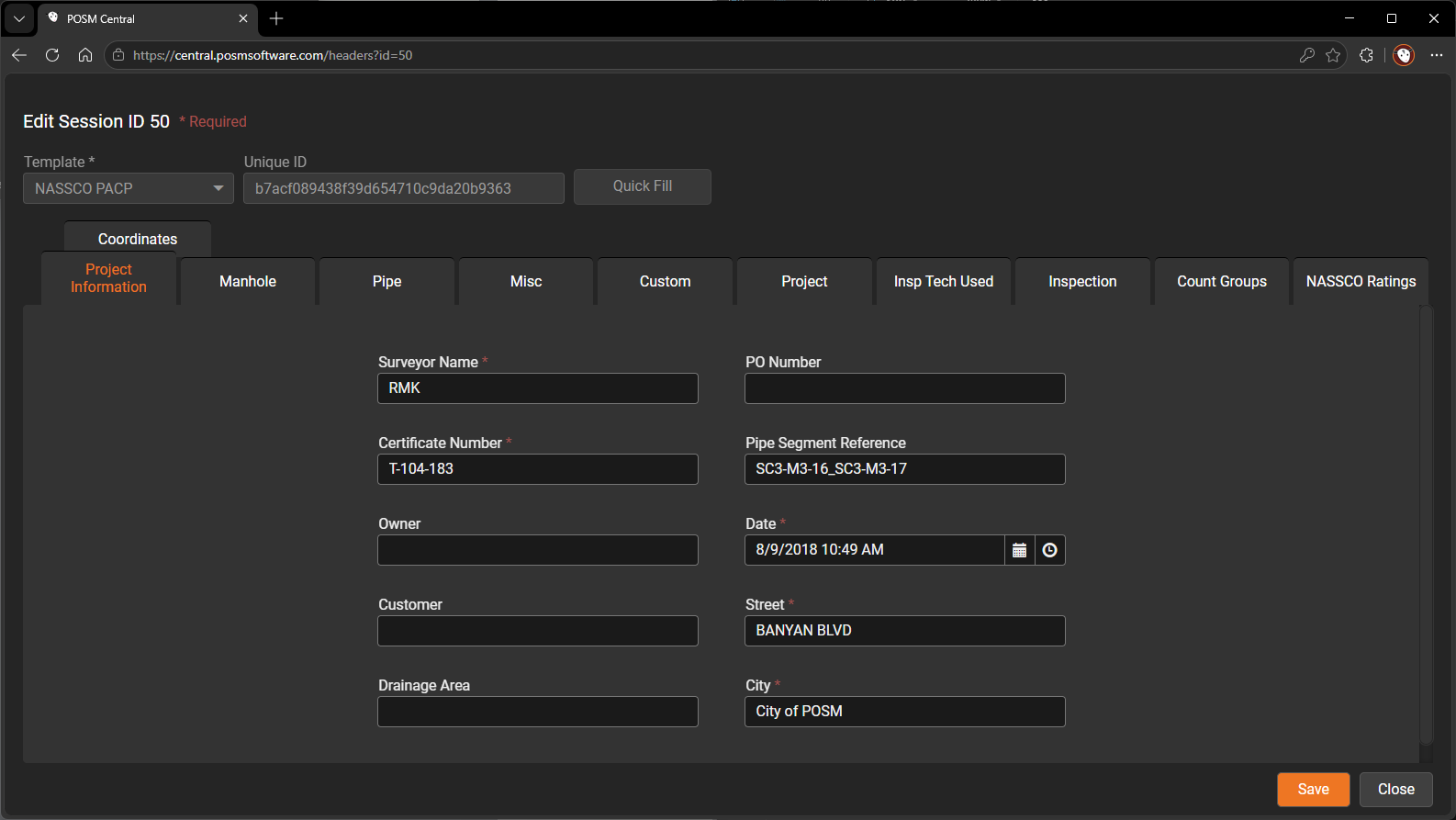
The Header Editor provides a comprehensive view of the asset and inspection information stored with the session.
Depending on the selected inspection template, header information may include:
- Project name
- Asset ID
- Start ID
- End ID
- Inspection date
- Pipe material
- Pipe size and shape
- Inspection direction
- Street or location
- Upstream and downstream information
- Operator information
- Weather or flow conditions
- Required NASSCO fields
- Custom inspection fields
The Header Editor may contain several tabs that organize related inspection fields.
Edit Header Information
Users with editing permission can edit header information immediately after opening the Header Editor.
Unlike Edit Observations, the Header Editor does not require you to select Begin Editing before making changes.
To make a change:
- Open the applicable header tab.
- Locate the field that needs to be changed.
- Enter or select the correct value.
- Review the remaining required fields.
- Select Save.
Changes are applied when Save is selected.
Required fields
Required fields must be completed before some changes can be saved.
The available fields and required information depend on the inspection template.
Learn How to View or Edit Inspection Headers
Close the Header Editor
Where you return after closing Edit Headers depends on where you opened it.
Opened From Session Management
If you selected Edit Headers from Session Management, clicking Close returns you to Session Management.
Opened From Edit Observations
If you selected the blue Edit Headers button while working in Edit Observations, clicking Close returns you to the Edit Observations screen.
Edit Observations
Use Edit Observations to review the inspection video and observations recorded during the inspection.
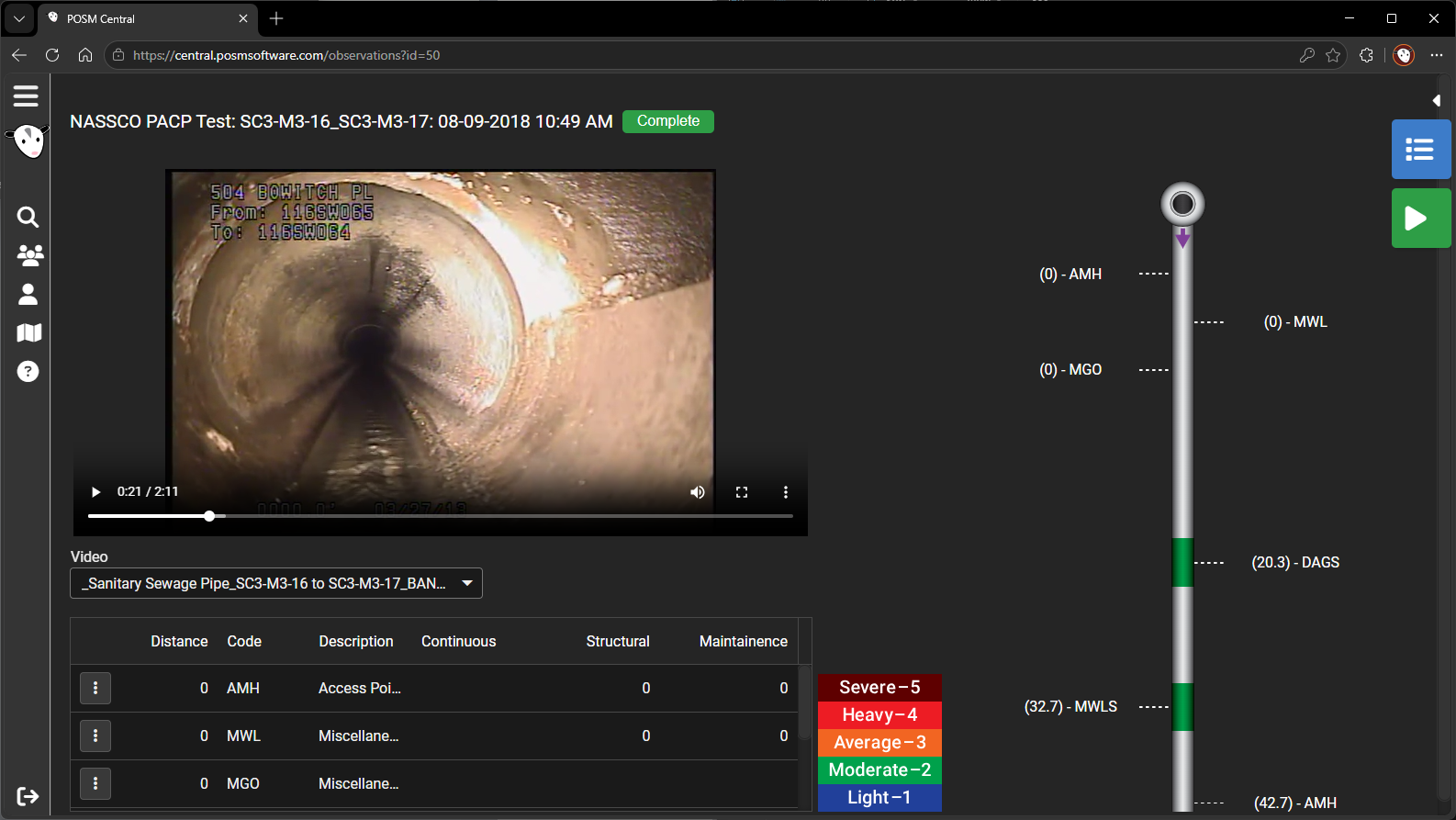
The Edit Observations workspace combines several parts of the inspection in one screen, including:
- Inspection video player
- Observation list
- Observation details
- Observation images
- Footage or distance
- Video time
- Pipe plot
- Add Observation controls
- Video management controls
- Edit mode controls
This allows users to review the inspection video, observations, images, and their locations within the pipe from one workspace.
View Mode
The Edit Observations screen initially opens for reviewing the inspection.
In View Mode, users can:
- Play the inspection video
- Review recorded observations
- Select an observation
- View observation details
- View observation images
- Jump to an observation's video position
- Review the pipe plot
Users with read-only access can use these review functions without changing the inspection.
Begin Editing
Users with the appropriate editing permissions can click the green Begin Editing button to enter Edit Mode.
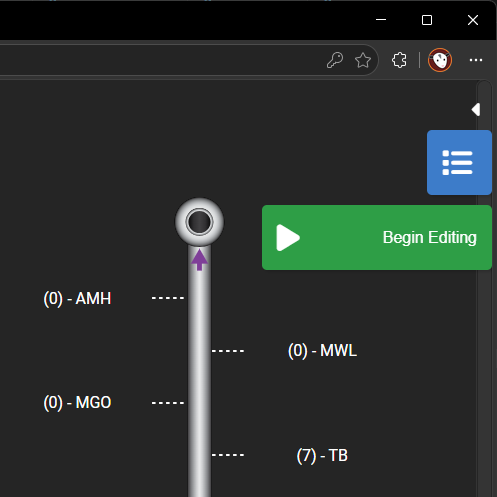
In Edit Mode, authorized users can:
- Add observations
- Edit existing observations
- Delete observations
- Capture or manage observation images
- Add, remove, or reorder inspection video
When editing is complete, select End Editing.
Learn How to View or Edit Observations
Open Edit Headers From Edit Observations
While working in Edit Observations, select the blue Edit Headers button to open the inspection's header information.
Use the Header Editor to review or change:
- Asset information
- Project information
- Pipe information
- Location information
- Inspection conditions
- Other header fields
The Header Editor does not require Begin Editing. Users with editing permission can make changes and select Save directly.
When you click Close in the Header Editor, POSM Central returns you to Edit Observations.
Move between inspection data and observations
Use the Edit Headers button in Edit Observations when you need to review or change header information without leaving the inspection workspace.
Pipe Plot
The pipe plot appears on the right side of the Edit Observations workspace.
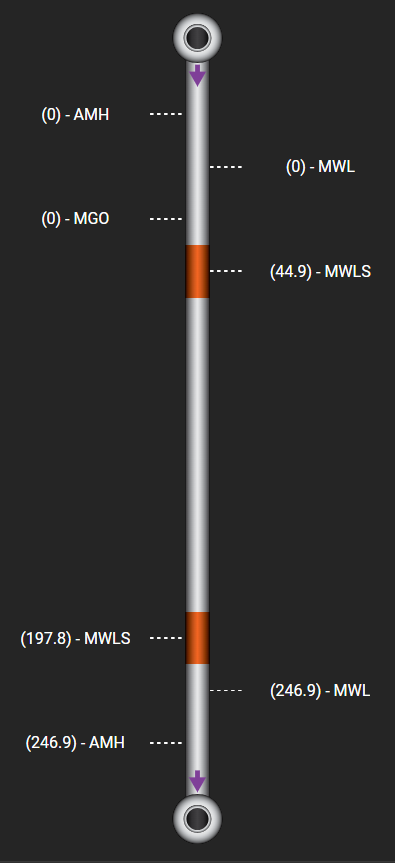
The plot provides a graphical representation of the inspection and shows where observations occur.
It may display:
- Inspection footage
- Video time
- Observation positions
- Observation codes
- Pipe segments
- Structural or maintenance severity
When an applicable NASSCO template is used, pipe segments may be color-coded according to defect severity.
The plot helps relate observations to their location in the pipe and their position in the inspection video.
You can also use the pipe plot to jump directly to observations within the inspection video.
Observation Images
Observation images provide visual documentation of defects and other conditions recorded during an inspection.
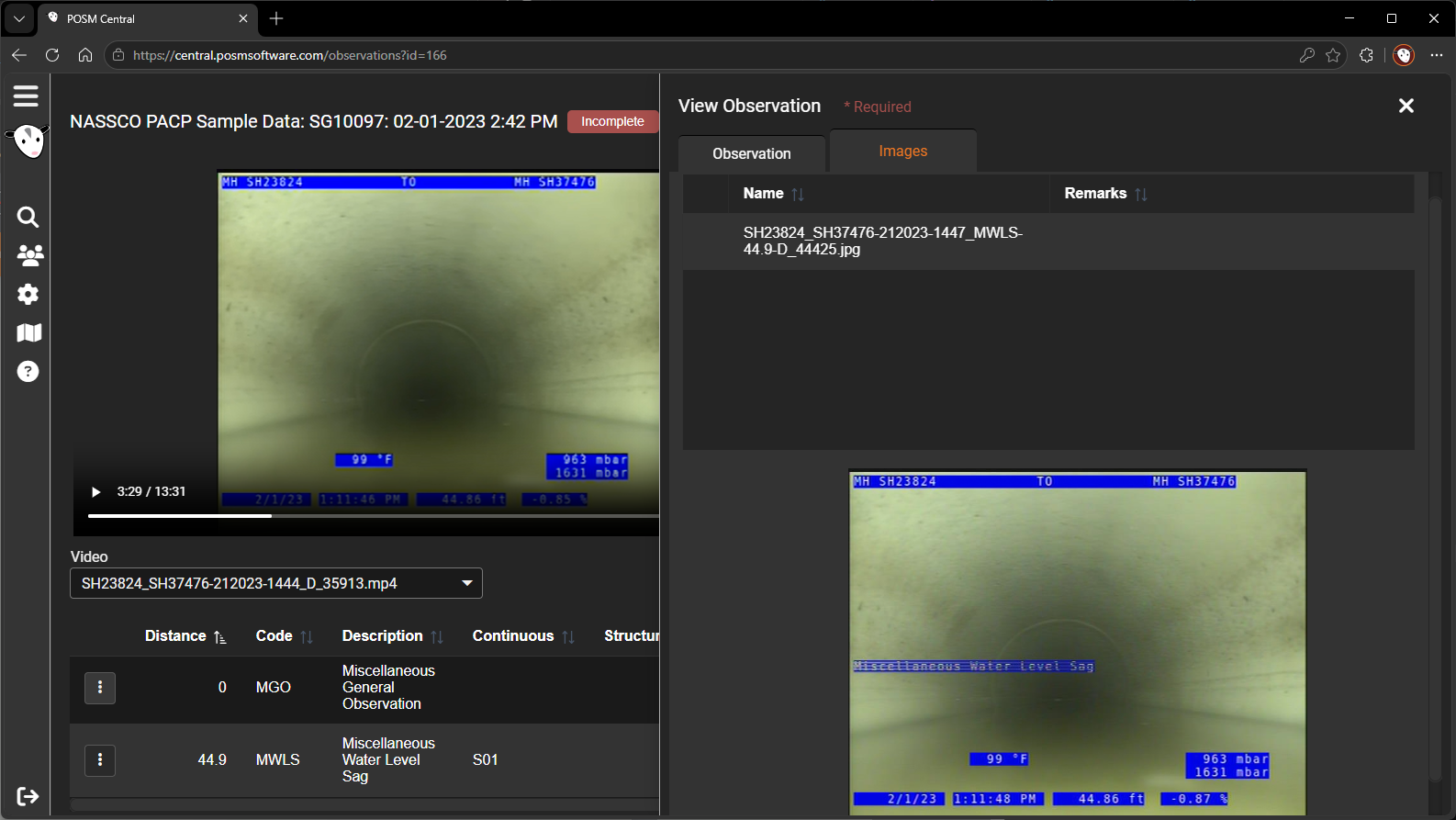
Depending on permissions, users may be able to:
- View an observation image
- Capture an image from the inspection video
- Upload an image
- Associate an image with an observation
- Replace an observation image
- Delete an observation image
When an observation is created through the normal Add Observation workflow, POSM Central can capture an image from the inspection video and associate it with the observation.
Learn How to Manage Observation Images
Manage Inspection Videos
Inspection video is managed from the Edit Observations workspace.
You must enter Edit Mode before the Manage Videos button becomes available.

Select Manage Videos to open the video-management window.
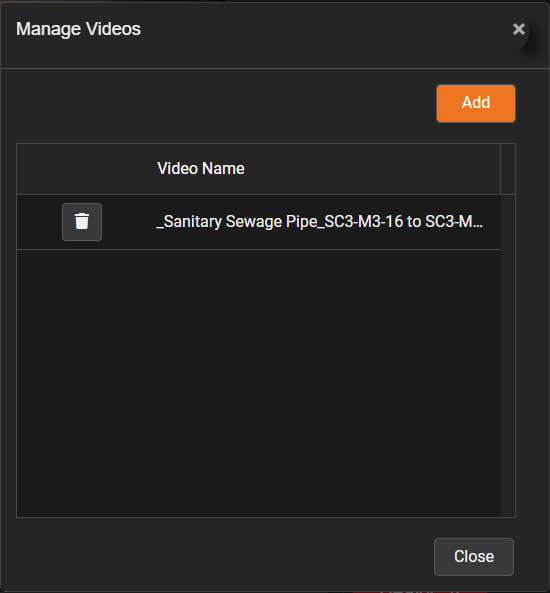
Authorized users can use Manage Videos to:
- Add a video
- Delete a video
- Change the order of multiple videos
- Review which videos are associated with the session
- Replace an incorrect video
Learn How to Manage Inspection Videos
Editing Permissions
Inspection editing requires the appropriate user role and access level.
An Edit User can edit permitted inspection information owned by the user's organization, including headers and observations.
Edit Users can also perform other permitted inspection operations such as:
- Create inspections
- Change project information
- Delete inspections
- Share owned sessions and projects
- Transfer owned sessions and projects
- Export
Organization Administrators can perform these inspection operations and also manage organization users and settings.
A shared inspection can be edited when:
- The inspection was shared with Full Edit Access
- The receiving user's role permits editing
View & Download Users can review permitted inspection information but cannot edit headers, observations, images, or videos.
Inspection Editing and Reports
The Edit Headers and Edit Observations workspaces provide detailed ways to review inspection information.
The Reports area provides formatted reports generated from that inspection data.
Changes made to headers and observations can affect the applicable reports.
For example:
- Header changes may update the Title Page report.
- Observation changes may update the Faults, Plot, and Defect reports.
- Video changes may affect the Video report.
- Observation images may appear in applicable inspection reports.
Learn About Inspection Reports