Contact POSM Support

POSM Support is available whenever you need help with POSM Central, POSM inspection software, Data Sync, reports, account access, inspection data, or other POSM products.
You do not need to troubleshoot a problem on your own before contacting us.
You can start a POSM Remote Support session directly or call POSM Support. If you are not sure what is causing the problem, that is okay. Show us what you are experiencing and our support team can help investigate it.

Tell POSM Support what you were trying to do and what happened. We can investigate Central, Data Sync, GIS, inspection data, reports, configuration, and other POSM workflows.
Support Hours
POSM Support is available:
Monday through Friday 7:00 AM–7:00 PM Eastern Time
Holiday closures may affect normal support availability.
Start a POSM Remote Support Session
For most support requests, you can open the POSM Remote Support Application and connect directly with the POSM Support team.
You do not need to call POSM before starting a remote-support session.
If the Remote Support Application is already installed:
- Open the POSM Remote Support Application.
- Enter the requested contact information.
- Enter a brief description of the problem, if known.
- Select Connect.
A member of the POSM Support team will respond to the incoming support request.
You don't need to know what is causing the problem
Tell us what you are seeing or what you were trying to do.
POSM Support can investigate the problem with you and determine the cause.
Download the POSM Remote Support Application
If the POSM Remote Support Application is not already installed, download and install it on the computer where you need assistance.
- Download the application.
- Open the downloaded installer.
- Follow the prompts to install the application.
- Open POSM Remote Support.
- Enter the requested information.
- Select Connect.
Download POSM Remote Support Application
Keep Remote Support installed
Keeping the POSM Remote Support Application installed makes it easy to connect with POSM Support whenever assistance is needed.
Call POSM Support
Prefer to speak with someone directly? Call:
You can call POSM Support directly for assistance or while working with a technician in a remote-support session.
Providing a general description of the problem is helpful, but you do not need to diagnose the issue before contacting us.
Helpful information can include:
- Your name and organization
- The POSM product you are using
- What you are trying to do
- What you expected to happen
- What happened instead
- Any error message you noticed
- The affected session, project, or computer
If you do not have all of this information, contact us anyway. POSM Support can investigate the issue with you.
Who Can Contact POSM Support?
POSM Support is available to help with POSM products and POSM inspection data.
Support is not limited to the primary POSM user at an organization.
For example, if your organization delivers POSM inspection data to a customer and that customer needs assistance opening or using the delivered information, they can contact POSM Support for help.
Your customers can contact us too
If someone receiving POSM inspection data from your organization needs help using that data, they are welcome to contact POSM Support.
Connect With a 6-Digit PIN
In some situations, a POSM Support technician may provide a 6-digit PIN for a support session.
Enter the PIN below and select Connect to Technician.
Help Us Understand the Problem
You do not need to determine the cause of a problem before contacting POSM Support.
A simple description of who, what, when, and where can help us begin investigating.
For example:
- What were you trying to do?
- Which POSM product were you using?
- Which inspection or project was involved?
- What happened?
- Has it happened more than once?
- Did you see an error message?
Screenshots and exact error messages can also be helpful when available.
Show us what you are seeing
If you are unsure how to describe the problem, start a Remote Support session and show the technician what is happening.
POSM Central Errors
If POSM Central displays an error, you are welcome to contact POSM Support immediately.
When practical, you can also try the operation again to determine whether the problem was temporary.
Some POSM Central operations may send an error notification by email.
For example, if an export cannot be completed, POSM Central may send an Export Could Not Be Completed email.
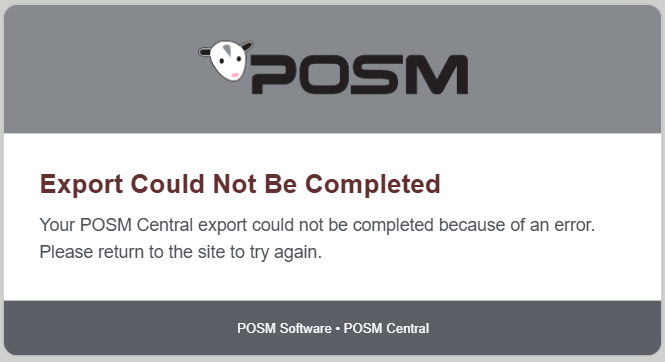
If an export fails, you can:
- Return to POSM Central.
- Open Session Management.
- Select the inspection data again.
- Run Export again.
If you would rather have POSM investigate the problem, or if the export continues to fail, start a Remote Support session or call POSM Support.
Sign-In and Two-Factor Authentication Help
POSM Support can assist if you are having trouble accessing POSM Central.
Before or while contacting Support, you may also check:
- The email address entered on the login screen
- Your password
- The email account associated with your POSM Central account
- Spam or Junk folders for a two-factor authentication email
Sharing and Transfer Help
POSM Support can assist with sharing inspection data, transferring ownership, recipient accounts, or determining which option should be used.
Common things to check include:
- The selected sessions or project
- Your POSM Central user role
- Whether your organization should remain the owner
- Whether the recipient needs View & Download or Full Edit Access
- Whether a Transfer recipient has a POSM Central account associated with an organization
Data Sync Help
POSM Support can install, configure, troubleshoot, and assist with the POSM Data Sync Tool.
If Data Sync is not uploading or backing up inspections correctly, you can start a Remote Support session or call POSM Support.
The Data Sync troubleshooting guide also covers common issues such as:
- NASSCO validation errors
- Missing inspection media
- Missing ScanCam files
- Database connection problems
- Incomplete synchronization
- POSM Central storage limits
- Server or communication errors
Contact POSM Support
Choose whichever method is most convenient:
Remote Support Open the POSM Remote Support Application and connect directly with the Support team.
Download POSM Remote Support Application
Phone Support 859-274-0041
Hours Monday through Friday, 7:00 AM–7:00 PM Eastern Time