Sharing Inspections
POSM Central provides several ways to share, deliver, or transfer inspection data.
The method you choose depends on whether another person needs access to an inspection in POSM Central, needs a downloadable copy, or should become the new owner of the inspection.
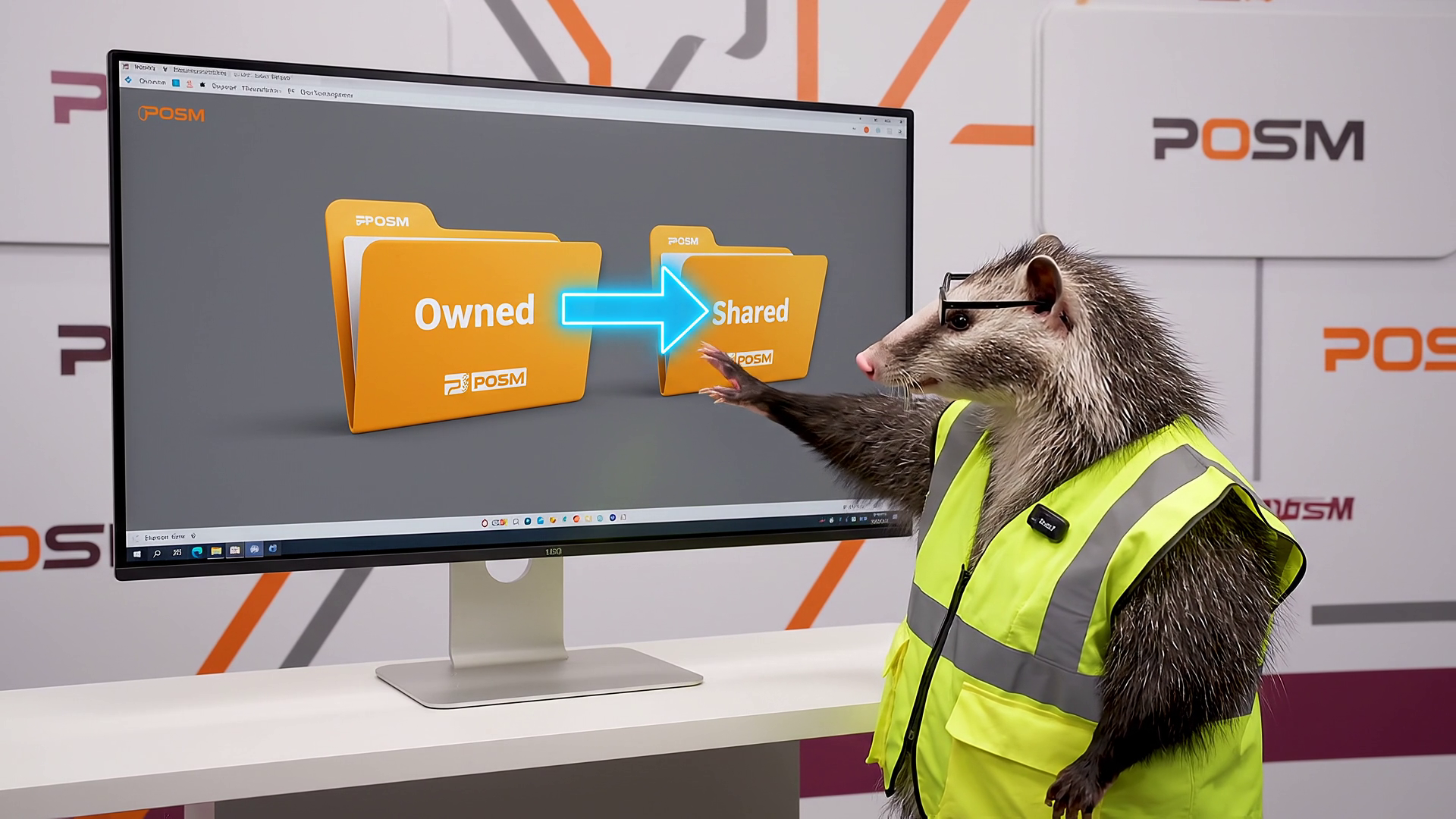
Share when another person needs access, Transfer when another organization should become the owner, and Export when you need a separate downloadable copy.
Share Inspections
Use Share to provide one or more inspections to another person while your organization retains ownership.
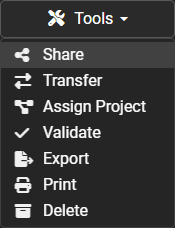
To begin, select the inspection or inspections in Session Management, open the Tools menu, and select Share.
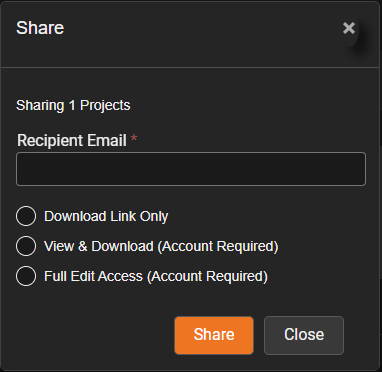
The Share window allows you to enter the recipient's email address and choose how the recipient can access the inspections.
Sharing Options
POSM Central provides three sharing options:
| Sharing Type | Account Required | Recipient Access |
|---|---|---|
| Download Link Only | No | Allows the recipient to download the shared inspection package using a link sent by email. |
| View & Download (Account Required) | Yes | Provides read-only access to the inspection in POSM Central, including reports, images, and video. The recipient can also download the inspection. |
| Full Edit Access (Account Required) | Yes | Provides read/write access to the shared inspection in POSM Central, subject to the recipient's organization role and permissions. |
Download Link Only
Choose Download Link Only when the recipient only needs a downloadable copy of the inspection.
The recipient does not need a POSM Central account.
Download links expire
A Download Link Only sharing link is available for 60 days.
This is useful when you need to deliver inspection data to someone who does not use POSM Central or does not need access to the inspection through Central.
View & Download
Choose View & Download (Account Required) when the recipient should be able to open and review the inspection through POSM Central without making changes.
The recipient can:
- View the inspection
- View reports
- View images
- View video
- Download the inspection
The shared inspection is read-only. The recipient cannot edit the inspection.
Full Edit Access
Choose Full Edit Access (Account Required) when the recipient needs read/write access to the shared inspection.
Full Edit Access does not grant all permissions
Full Edit Access allows the recipient to edit the shared inspection, but the recipient's POSM Central organization role and permissions still apply.
Sharing an inspection with Full Edit Access does not automatically give the recipient permission to share the inspection with others or transfer its ownership.
Sharing does not change ownership of the inspection. Your organization remains the owner unless ownership is explicitly transferred.
Manage Shared Inspections
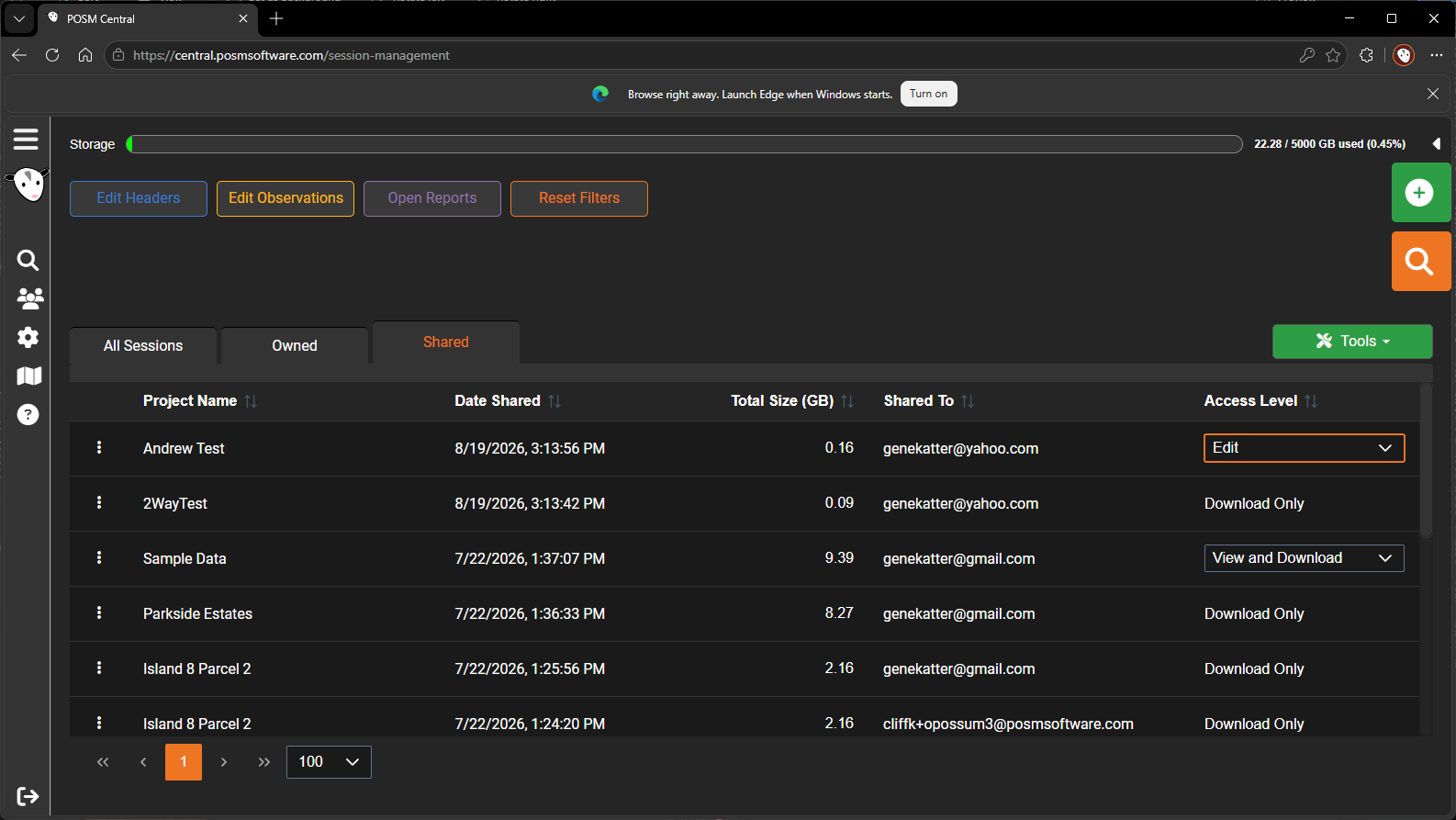
Use the Shared tab in Session Management to review inspection data your organization has already shared.
The Shared tab shows information about each share, including the project, date shared, recipient, size, and access level.
For account-based shares, you can change access between:
- View & Download
- Full Edit Access
The change takes effect immediately.
Download Only shares
Download Only shares are downloadable packages rather than ongoing account-based access.
Their access level cannot be changed. If the recipient needs View & Download or Full Edit Access, share the original inspection or project again using the desired access type.
Transfer Ownership
Use Transfer when ownership of one or more inspections needs to move from your organization to another organization.
Transfer is also available from the Tools menu in Session Management.
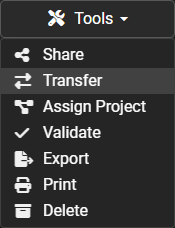
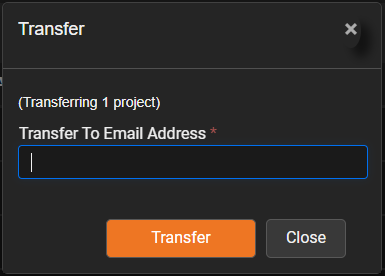
Transferring an inspection is different from sharing it:
- Share gives another recipient access while your organization retains ownership.
- Transfer changes which organization owns the inspection.
Transfer may be appropriate when a contractor completes inspections for a municipality and the municipality should become the owner of the completed inspection data.
Transfer changes ownership
Do not use Transfer when another organization only needs access to an inspection.
If your organization should remain the owner, use Share instead.
Export Inspections
Use Export when you want to create your own downloadable copy of one or more sessions.
Export is available from the Tools menu in Session Management.
After selecting the sessions and choosing Export, POSM Central queues the export for processing.
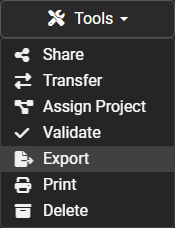
You do not need to wait on the Session Management page while POSM Central prepares the export.
When the export is ready, POSM Central sends you an email notification letting you know that the exported sessions are ready to download.
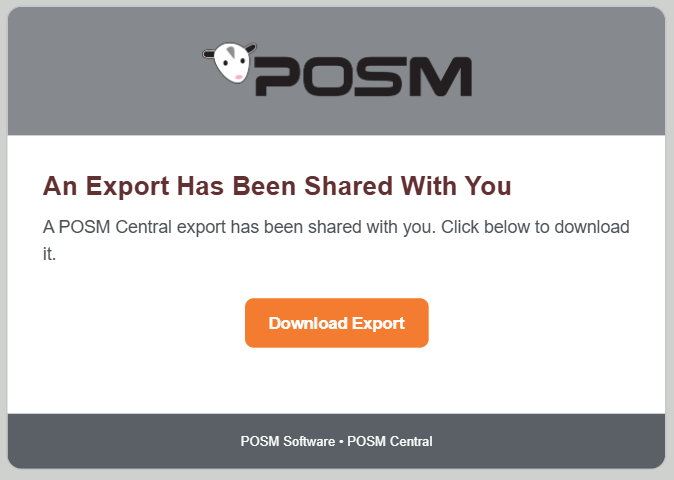
After downloading the export, you can:
- Save a copy to your computer
- Store it as a backup or archive
- Upload it to Dropbox, OneDrive, or another file-sharing service
- Copy it to a file server or other storage location
- Deliver it using another method outside POSM Central
Export does not share the Central inspection
Export creates a separate downloadable copy of the selected session data.
It does not give another user access to the inspection in POSM Central and does not change inspection ownership.
Which Method Should I Use?
| If you want to... | Use |
|---|---|
| Send someone a downloadable inspection without requiring a POSM Central account | Share → Download Link Only |
| Give someone read-only access through POSM Central | Share → View & Download |
| Give someone read/write access through POSM Central | Share → Full Edit Access |
| Give another organization ownership of the inspection | Transfer |
| Create your own downloadable copy of one or more sessions | Export |
| Send inspection files using Dropbox, OneDrive, a file server, or another external method | Export |
Share, Transfer, or Export?
Share when another person needs the inspection directly through POSM Central or needs a download link.
Transfer when another organization should become the owner of the inspection.
Export when you want your own downloadable copy for backup, delivery, or distribution outside POSM Central.