POSM Central Quick Start
Received an email from POSM Central?
Use this page for the short version of what to do next. For complete instructions, follow the links to the full POSM Central Help documentation.
Your POSM Central Login Code
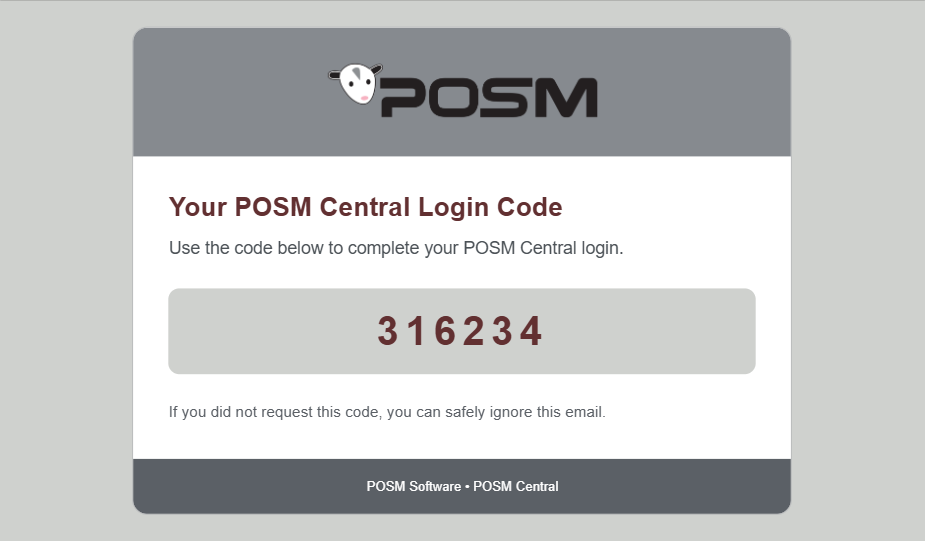
If you received an email titled Your POSM Central Login Code, you are completing a POSM Central sign-in that requires two-factor authentication.
What to Do
- Return to the POSM Central sign-in page.
- Enter the 6-digit code from the email.
- Complete the sign-in.
Did not request the code?
If you did not attempt to sign in to POSM Central, you can ignore the email.
View Complete Sign-In Instructions
Inspection Data Has Been Transferred to You
If you received an Inspection Data Transferred email, ownership of inspection data has been transferred to your organization.
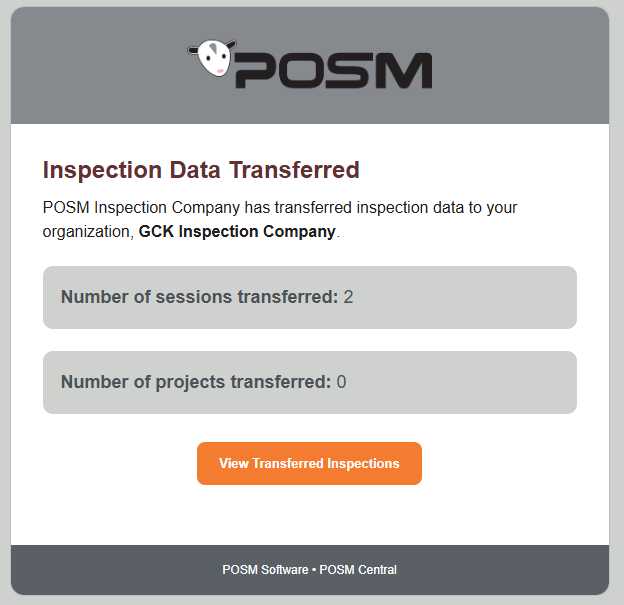
The email identifies the number of sessions and projects transferred to your organization.
What to Do
- Click View Transferred Inspections in the email.
- Sign in to POSM Central if prompted.
- Open Session Management.
- Locate the transferred sessions or projects.
The transferred inspection data is now owned by your organization.
Transferred data is different from shared data
A transfer changes ownership of the inspection data.
Sharing gives another user access while the original organization remains the owner.
Learn More About Transferring Ownership
You've Been Added to an Organization
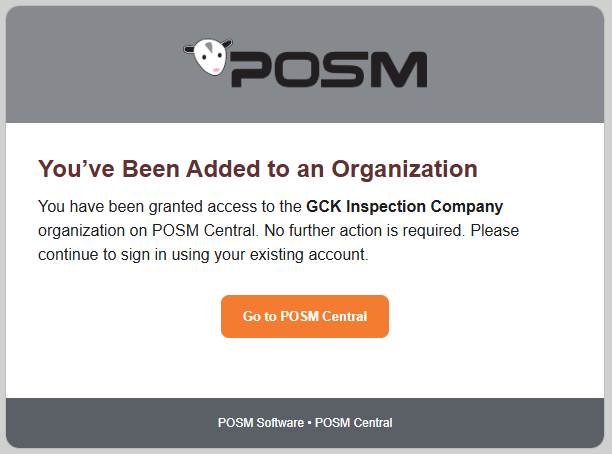
If you received a You've Been Added to an Organization email, your existing POSM Central account has been granted access to the organization named in the email.
What to Do
- Click Go to POSM Central.
- Sign in using your existing POSM Central account.
- Continue using POSM Central with the access provided by the organization.
No additional registration is required.
Use your existing account
This email is for a user who already has a POSM Central account.
You do not need to create another account.
Learn More About POSM Central Access
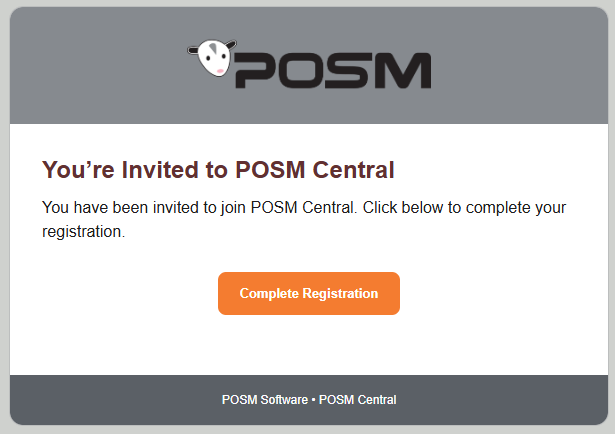
You've Been Invited to POSM Central
If you received a You're Invited to POSM Central email, you need to complete your POSM Central account registration before accessing the inspection data that was shared with you.
What to Do
- Click Complete Registration in the email.
- Enter the requested account information.
- Create your password.
- Click Save.
- Sign in to POSM Central.
After registration, you can access the inspection data that was shared with your account.
Your access depends on how the inspection was shared
View & Download provides read-only access.
**Full Edit Access** provides read/write access, subject to your POSM Central role and permissions.
View Complete Sharing Instructions
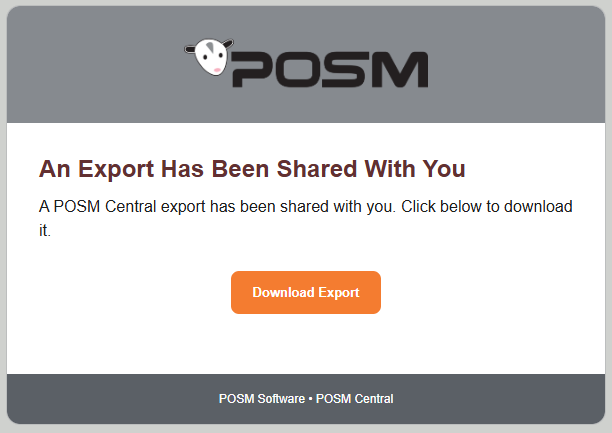
An Export Has Been Shared With You
If you received an An Export Has Been Shared With You email, someone has shared a downloadable POSM inspection package with you.
You do not need a POSM Central account to download a Download Link Only share.
What to Do
- Click Download Export in the email.
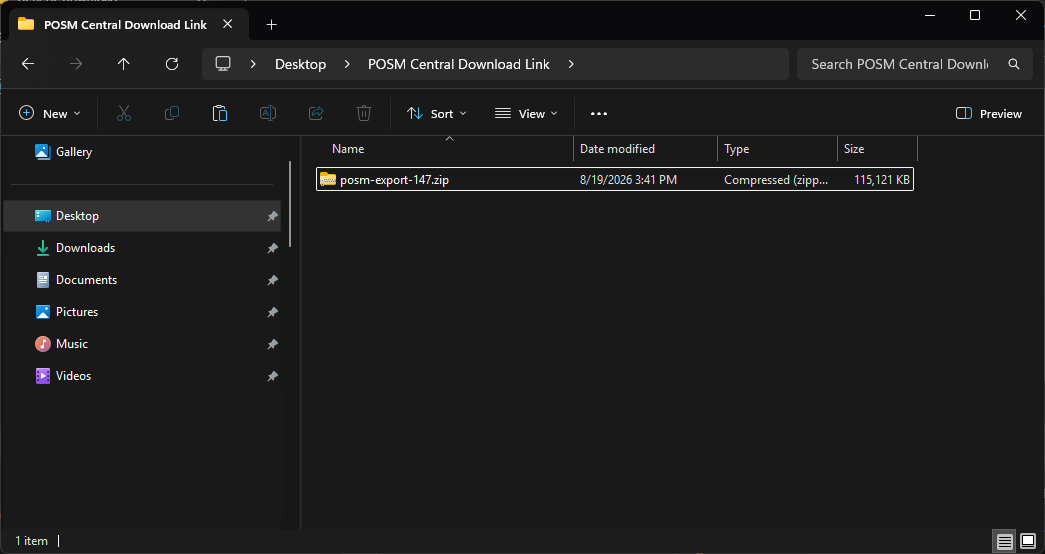
- Save the ZIP file to your computer.
- Extract the ZIP file before opening anything inside it.
- Open the extracted folder.
- Open
Index.htmlfrom the extracted folder to view the exported inspection information as a web page.
Extract the ZIP file first
Do not double-click into the ZIP file and try to open Index.html from inside the compressed ZIP.
The export contains files and folders that work together. The ZIP must be extracted before the report can be viewed correctly.
Extract the ZIP File in Windows
Locate the downloaded ZIP file.
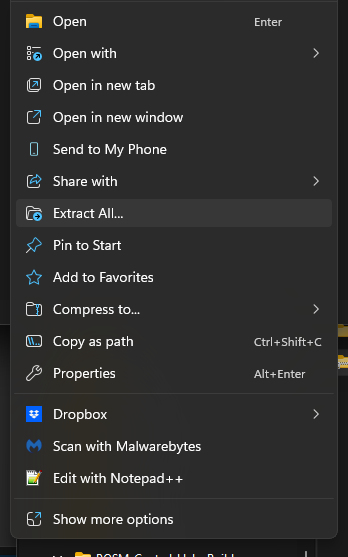
Right-click the ZIP file and select Extract All...
After extraction, open the new extracted folder.
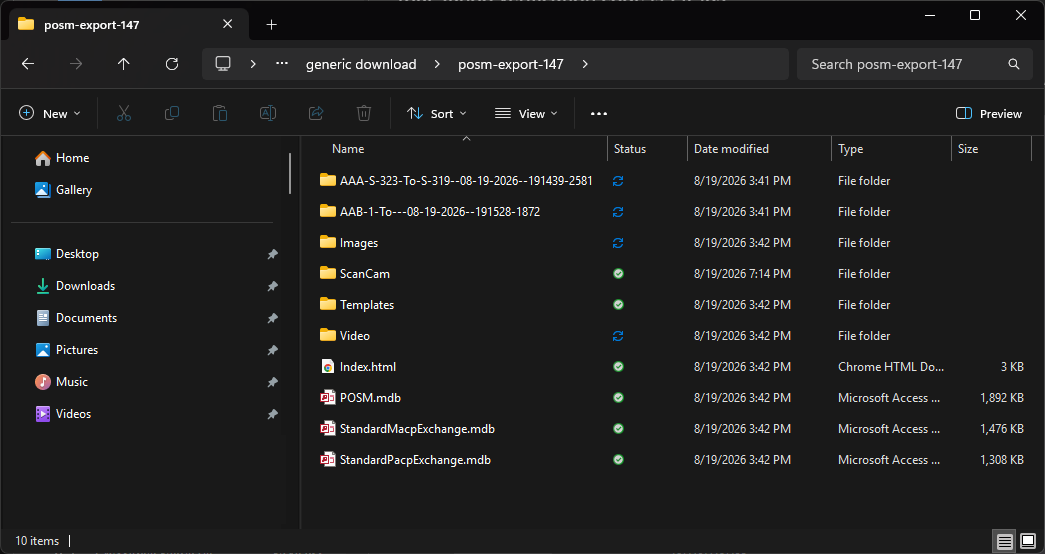
You can now open:
Index.html
from the extracted folder to view the inspection export.
Keep the extracted files together
Do not move Index.html away from the other folders and files in the export.
The web page may reference images, videos, inspection data, and other files contained in the extracted package.
Download link expiration
A Download Link Only share is available for 60 days.
View Complete Sharing and Download Instructions
Export Could Not Be Completed
If you received an Export Could Not Be Completed email, POSM Central encountered an error while preparing your export.
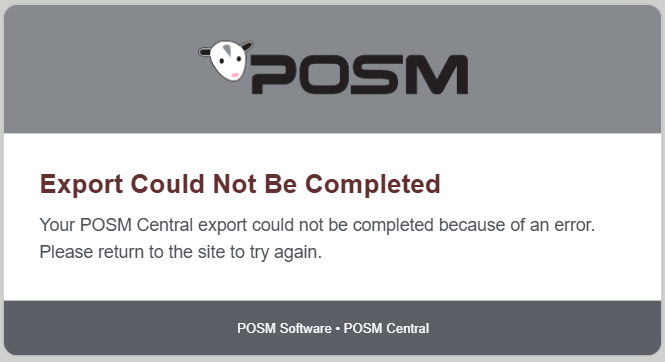
What to Do
- Return to POSM Central.
- Open Session Management.
- Select the sessions or project again.
- Run Export again.
If the export fails again, or if you would like help investigating the problem, contact POSM Support.
Need More Help?
The POSM Central Help site contains complete instructions for working with sessions, inspections, reports, sharing, access, and administration.