Print Inspection Reports
Use Print to generate PDF reports for one or more selected inspections.
The generated PDF files can be downloaded to your computer and printed afterward using a PDF viewer.
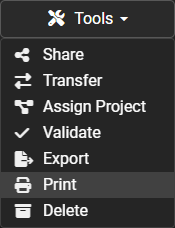
Generate Reports
- Open Session Management.
- Select one or more sessions, or select an entire project in Project View.
- Open the Tools dropdown.
- Select Print.
- Choose the available report options.
- Select Print to generate the reports.
- Download the completed PDF file or files when prompted by the browser.
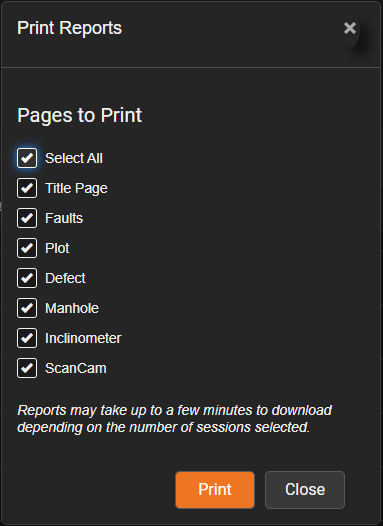
Generate Multiple Reports
Multiple inspection reports can be generated together.
- Open Session Management.
- Select the sessions or project.
- Open Tools.
- Select Print.
- Choose the desired report settings.
- Choose whether the reports should be combined into one PDF.
- Generate the report batch.
- Download the completed PDF file or files.
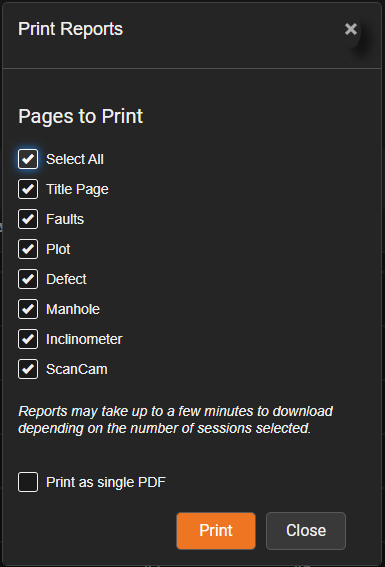
POSM Central supports large report batches without requiring each inspection to be generated separately.
Print as Single PDF
Use the Print as Single PDF checkbox to control how reports are created:
- Checked — combines the reports for all selected inspections into one PDF file.
- Unchecked — creates a separate PDF file for each selected inspection.
Tip
Select Print as Single PDF when you want one document containing all selected inspection reports. Leave it cleared when each inspection needs its own PDF file.
Download the Generated PDF
After POSM Central finishes generating the reports, the browser displays a download notification or download dialog.
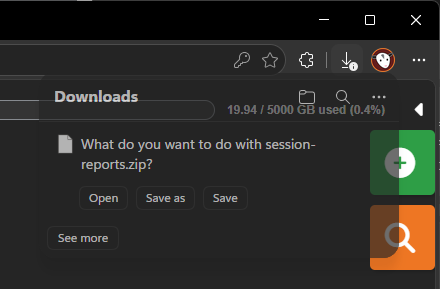
To save the reports:
- Wait for report generation to finish.
- Select the browser download notification or downloaded file.
- Choose a folder when prompted.
- Save the PDF file or files to your computer.
The exact download controls may vary by browser.
Note
Microsoft Edge may show the generated file in the Downloads panel in the upper-right corner of the browser.
Download a Sample Printed Report
Use the sample report below to see an example of the PDF generated by POSM Central.
Download a sample printed report
Print a Downloaded Report
After downloading the PDF:
- Open the PDF file.
- Select the print command in the PDF viewer.
- Choose a printer and the desired print settings.
- Select Print.
You can also keep the PDF as an electronic copy without printing it.
Specialized Reports
Generated reports may include specialized information when the corresponding inspection data exists, including:
- ScanCam charts
- Inclination charts
These report pages are included only when applicable data is associated with the inspection and the report option is selected.
Report Settings
Users with the appropriate permissions can update report settings:
- For the current project
- For the organization
Project-level settings allow a specific project to use a different report layout from the organization default.
Troubleshooting
If no report is generated:
- Confirm that at least one session or project is selected.
- Confirm that the selected inspection contains report data.
- Allow time for large report batches to finish.
- Check the browser Downloads panel.
- Confirm that browser downloads are not being blocked.
- Try a different supported browser.
- Contact POSM Support if the issue continues.