Manage Inspection Videos
Use Manage Videos to add, remove, or reorder the video files associated with an inspection.
The Manage Videos button is available only after session editing has been activated.
Open Manage Videos
- Open Session Management.
- Select an inspection.
- Select Edit Observations.
- Select Begin Editing.
- Select Manage Videos.

Note
The Manage Videos button is not visible until Begin Editing has been selected.
Manage Videos Window
The Manage Videos window displays the video files currently associated with the inspection.
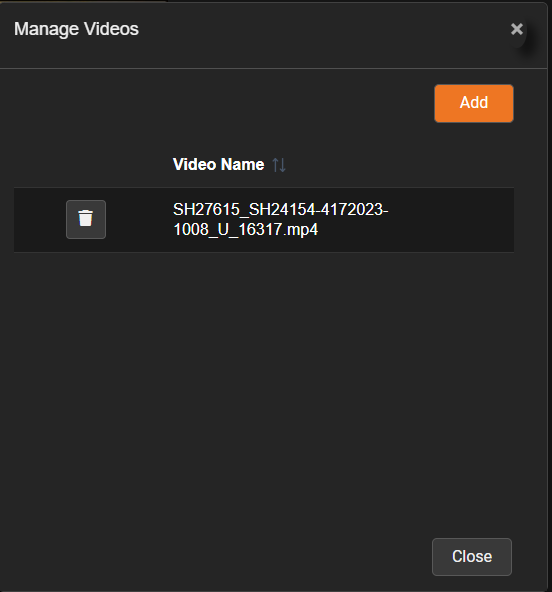
From this window, authorized users can:
- Add a video
- Delete a video
- Change the order of the videos
- Review which videos are associated with the session
Add a Video
To manually add a video:
- Open the Manage Videos window.
- Select Add.
- Choose the video file from your computer.
- Confirm the selection.
- Wait while POSM Central uploads the video to cloud storage and associates it with the session.
- Confirm that the video appears in the Manage Videos list.
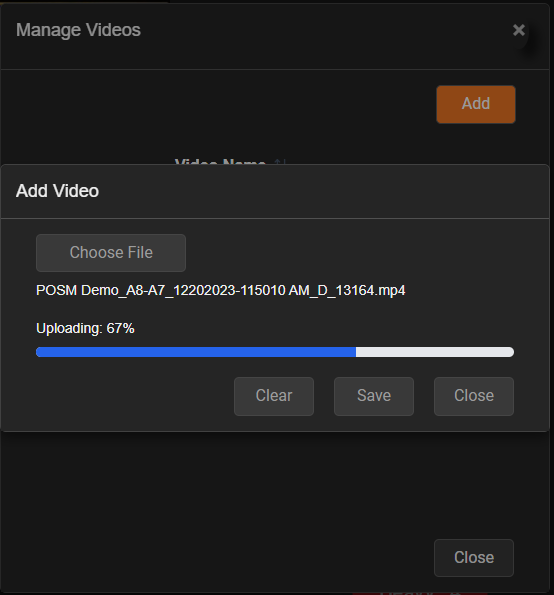
The upload time depends on:
- Video file size
- Internet connection speed
- Current server activity
Tip
Keep the browser window open until the upload has completed.
Delete a Video
To remove a video from the inspection:
- Open the Manage Videos window.
- Locate the video.
- Select the delete control beside it.
- Confirm the deletion when prompted.
Warning
Deleting a video may affect video playback, observation timing, captured observation images, and the Video report. Confirm that the correct video is selected before deleting it.
Change Video Order
When an inspection contains more than one video, use the available ordering controls to arrange the videos in the correct sequence.
The video order determines how the files are presented and played as part of the inspection.
After changing the order:
- Review the sequence.
- Save or confirm the changes when required.
- Close the Manage Videos window.
- Play the inspection video to verify the order.
Close the Manage Videos Window
After adding, deleting, or reordering videos, close the Manage Videos window and continue editing the inspection.
When all observation and video changes are complete, select End Editing.
Permissions
Managing videos requires the appropriate editing permissions.
Users can manage videos when:
- Their role allows editing, and
- Their organization owns the inspection, or
- The inspection was shared with Full Edit Access
View-only and download-only users cannot add, delete, or reorder videos.