Getting Started with POSM Central
POSM Central is a cloud-based platform for storing, organizing, reviewing, editing, sharing, transferring, and reporting sewer inspection data.
This guide introduces the main areas of POSM Central and provides links to detailed instructions for common tasks.

Learn the core POSM Central workflow first: sign in, find your inspection data, select what you need, and open the appropriate tools.
Session Management
Session Management is the main working area in POSM Central.
From Session Management, users can locate inspections, organize sessions into projects, review inspection data, open reports, and perform actions permitted by their user role.
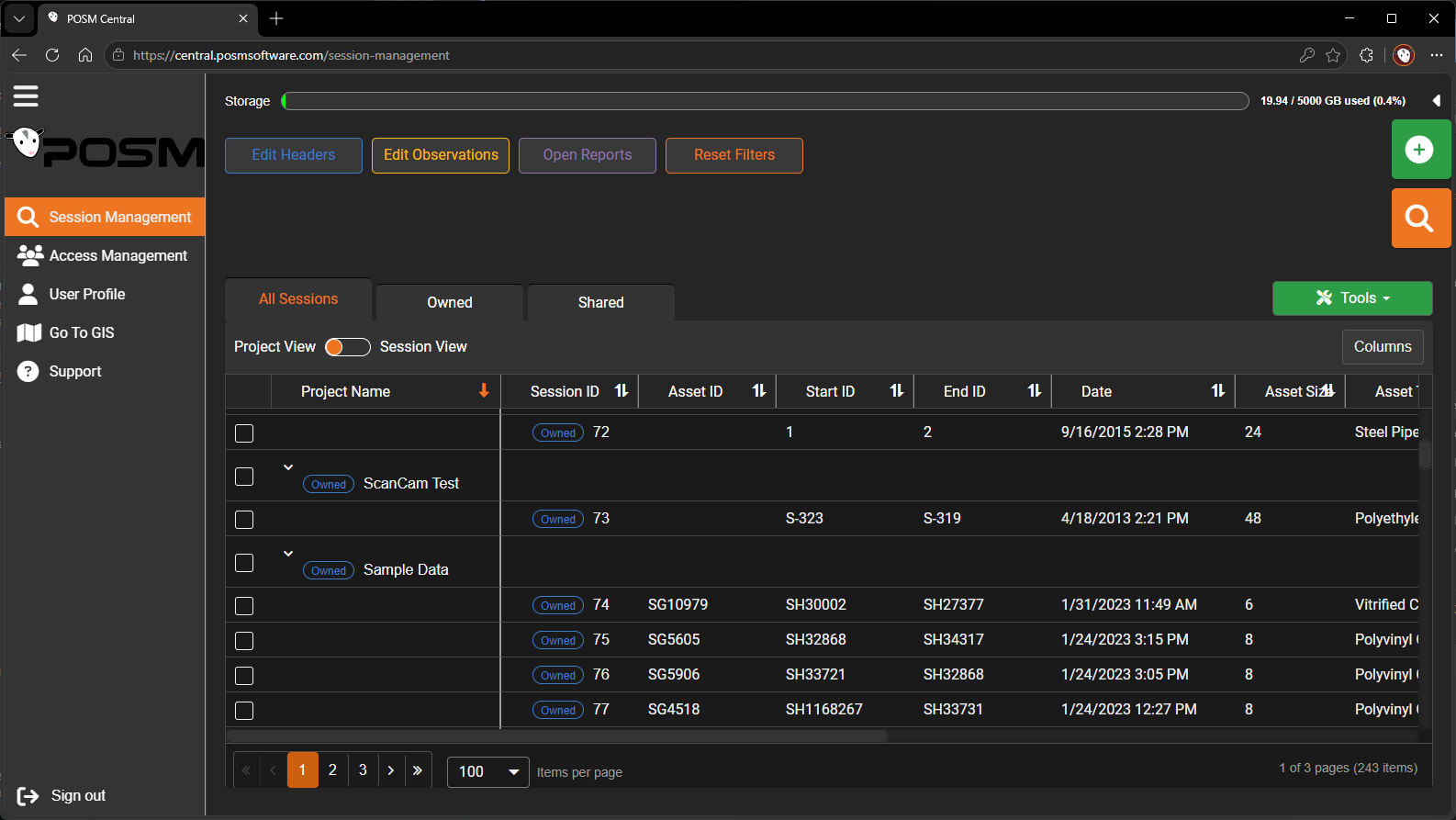
The Session Management workspace includes:
- Organization storage usage
- Project View and Session View
- All Sessions, Owned, and Shared tabs
- Search and filter controls
- Sortable and customizable columns
- Inspection action buttons
- Tools menu
- Session and project selection controls
Learn About Session Management
Storage Usage
A storage meter at the top of Session Management shows how much of the organization's available storage is currently being used.
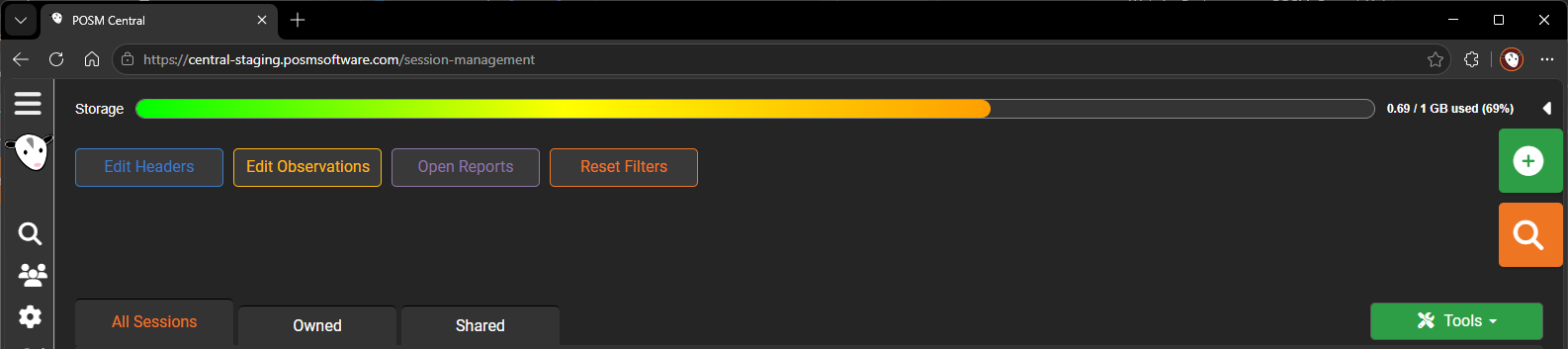
The meter fills from left to right as storage is used and progresses through a color spectrum from green toward red.
Current usage is also displayed numerically:
X / X GB used (X%)
Storage limit
Existing inspection data remains available when the organization reaches its storage limit.
New inspection data cannot be uploaded to POSM Central until additional storage is available.
Contact POSM Support when your organization needs additional storage.
Project View and Session View
POSM Central provides two primary ways to work with inspection data.

Project View
Project View groups sessions beneath their assigned projects.
Use Project View when you want to:
- Review the inspections in a project
- Select an entire project
- Perform supported actions on a project
Session View
Session View displays inspections as individual session rows.
Use Session View when you want to:
- Review individual inspections
- Find sessions across multiple projects
- Select one or more individual sessions
- Sort and compare session information
All Sessions, Owned, and Shared
Session Management includes tabs that help identify inspection ownership and access.

All Sessions
All Sessions displays inspection data available to the organization.
This can include inspection data owned by the organization and inspection data the organization has been granted access to.
Owned
Owned displays sessions and projects currently owned by the organization.
Ownership is important for actions such as sharing and transferring inspection data.
Shared
Shared displays inspection data your organization has shared with other recipients.
The Shared tab includes information such as:
- Project Name
- Date Shared
- Total Size
- Shared To
- Access Level
Account-based shares can be changed between View & Download and Full Edit Access.
Download Only shares remain Download Only.
Select Sessions or Projects
Many POSM Central actions begin by selecting the inspection data you want to work with.
To select an individual session:
- Locate the session in Session View or beneath an expanded project.
- Select the checkbox beside the session.
To select a project:
- Switch to Project View.
- Locate the project.
- Select the checkbox beside the project.
Supported actions can then be performed on the selected inspection data.
Select only what you need
Review the selected sessions or projects before using an action that affects multiple inspections.
Inspection Actions
After selecting an inspection, the primary inspection controls provide access to inspection information and editing tools.
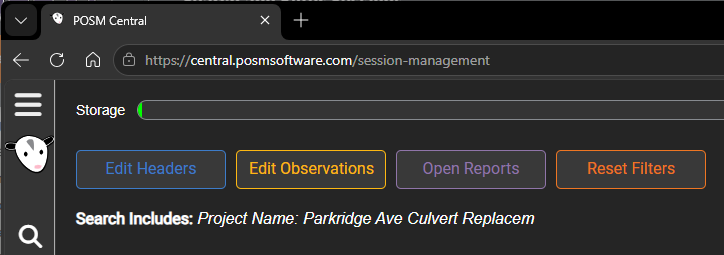
Common actions include:
- Edit Headers
- Edit Observations
- Open Reports
- Reset Filters
Additional inspection controls may become available depending on the session and your permissions.
The available actions depend on the user's role and the access provided to the inspection.
Edit Headers
Use Edit Headers to review or modify inspection header information.

Header information can include:
- Asset identification
- Project information
- Inspection date
- Pipe information
- Location information
- Operator information
- Inspection conditions
- Fields required by the inspection template
Users with editing permission can make changes directly in the Header Editor and select Save.
The Header Editor does not require Begin Editing.
Edit Observations
Use Edit Observations to review inspection video, recorded observations, observation images, and the pipe plot.
The workspace can be used for reviewing inspection information without entering Edit Mode.
Users with editing permission select the green Begin Editing button before adding, editing, or deleting observations or managing inspection video.
Reset Filters
Use Reset Filters to clear the current Session Management search and filter settings.
After the filters are reset, Session Management returns to displaying the sessions available to the current view rather than only the sessions matching the previous search or filter.
Use Reset Filters when sessions appear to be missing
If you previously searched or filtered the session list and cannot find an inspection you expect to see, select Reset Filters to clear the current search and filter settings.
Manage Videos
Inspection video can be reviewed and managed with the inspection according to the user's permissions.

Video management is available from the inspection editing workflow and can be used to review or manage the video associated with an inspection.
Reports
Use Open Reports to review reports and supporting information associated with an inspection.
Available report types depend on the inspection template and the data associated with the session.
Reports may include:
- Title Page
- Faults
- Plot
- Video
- Defect
- ScanCam
- Inclination
- Additional Files
Tools Menu
The Tools menu provides additional actions for selected sessions or projects.
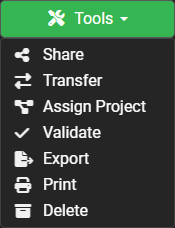
The current Tools menu includes:
- Share
- Transfer
- Assign Project
- Validate
- Import
- Export
- Delete
The actions available to a user depend on their role, inspection access, and ownership where required.
Note
Some actions may not be available for inspection data your organization does not own or does not have permission to modify.
Share Inspection Data
Use Share when another recipient needs access to inspection data while your organization remains the owner.
Sharing options include:
- Download Link Only
- View & Download
- Full Edit Access
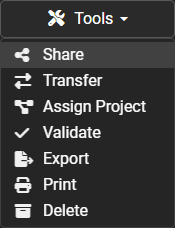
Sharing does not change ownership.
Full Edit Access
Full Edit Access allows the receiving organization to edit permitted inspection information, but the receiving user's organization role still applies.
Full Edit Access does not allow the recipient to re-share or transfer ownership of the inspection.
Transfer Ownership
Use Transfer when another organization should become the owner of selected inspection data.
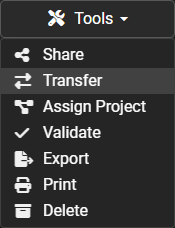
Transfer is different from sharing. After ownership is transferred, the receiving organization becomes responsible for the transferred inspection data and its storage.
Transfer changes ownership
Use Share instead when another organization needs access but your organization should remain the owner.
After a transfer is confirmed, your organization will no longer be able to edit the transferred sessions.
Export Inspection Data
Use Export when you need a downloadable copy of inspection data for backup, delivery, or storage outside POSM Central.
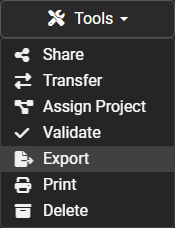
POSM Central prepares the export and sends an email when it is ready to download.
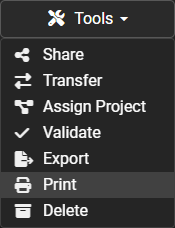
Print Reports
Use Print to prepare reports for one or more selected inspections.
Delete Inspection Data
Organization Admin and Edit User accounts can permanently delete permitted inspection data.
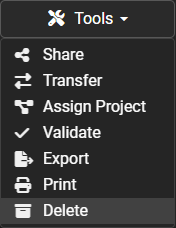
After selecting Delete, POSM Central asks for confirmation before removing the selected sessions.
Deletion cannot be undone
Deleted sessions are permanently removed from POSM Central and are removed for all users who had access to them.
Export or download inspection data that needs to be retained before deleting it.
Storage and Deleting Inspection Data
Access Management
Access Management is available to Organization Administrators and is used to manage the users in the organization.
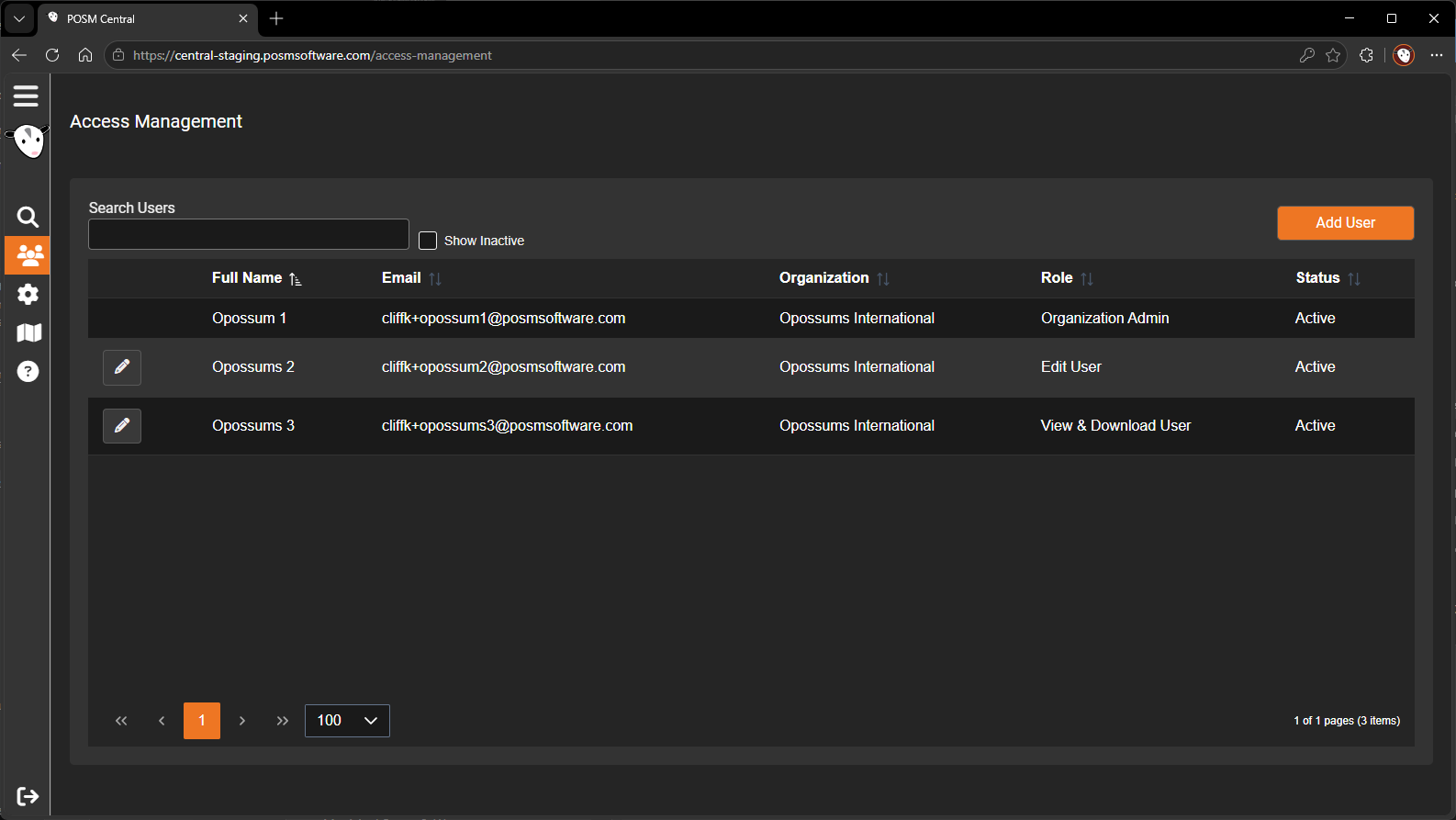
Organization Administrators can:
- Add users
- Edit users
- Assign or change user roles
- Activate users
- Deactivate users
- Review inactive users
User Roles
POSM Central provides three organization user roles:
- Organization Admin
- Edit User
- View & Download User
Organization Admin
Organization Admins have full organization access, including user administration and permitted inspection-data operations.
Edit User
Edit Users can perform permitted inspection editing and management operations but cannot access Access Management.
Depending on ownership and access, Edit Users can perform actions such as:
- Edit inspection headers
- Edit observations
- Manage inspection video
- Rename or manage projects
- Share inspection data
- Transfer ownership
- Export
- Delete permitted inspection data
View & Download User
View & Download Users can review and download permitted inspection information but cannot perform editing or ownership-management operations.
User Settings
User Settings contains the signed-in user's account information and preferences.
Users can manage:
- First Name
- Last Name
- Phone Number
- Password
- Transfer notification preference
- Share notification preference
The page also contains available Organization Settings, including the organization logo and two-factor authentication setting.
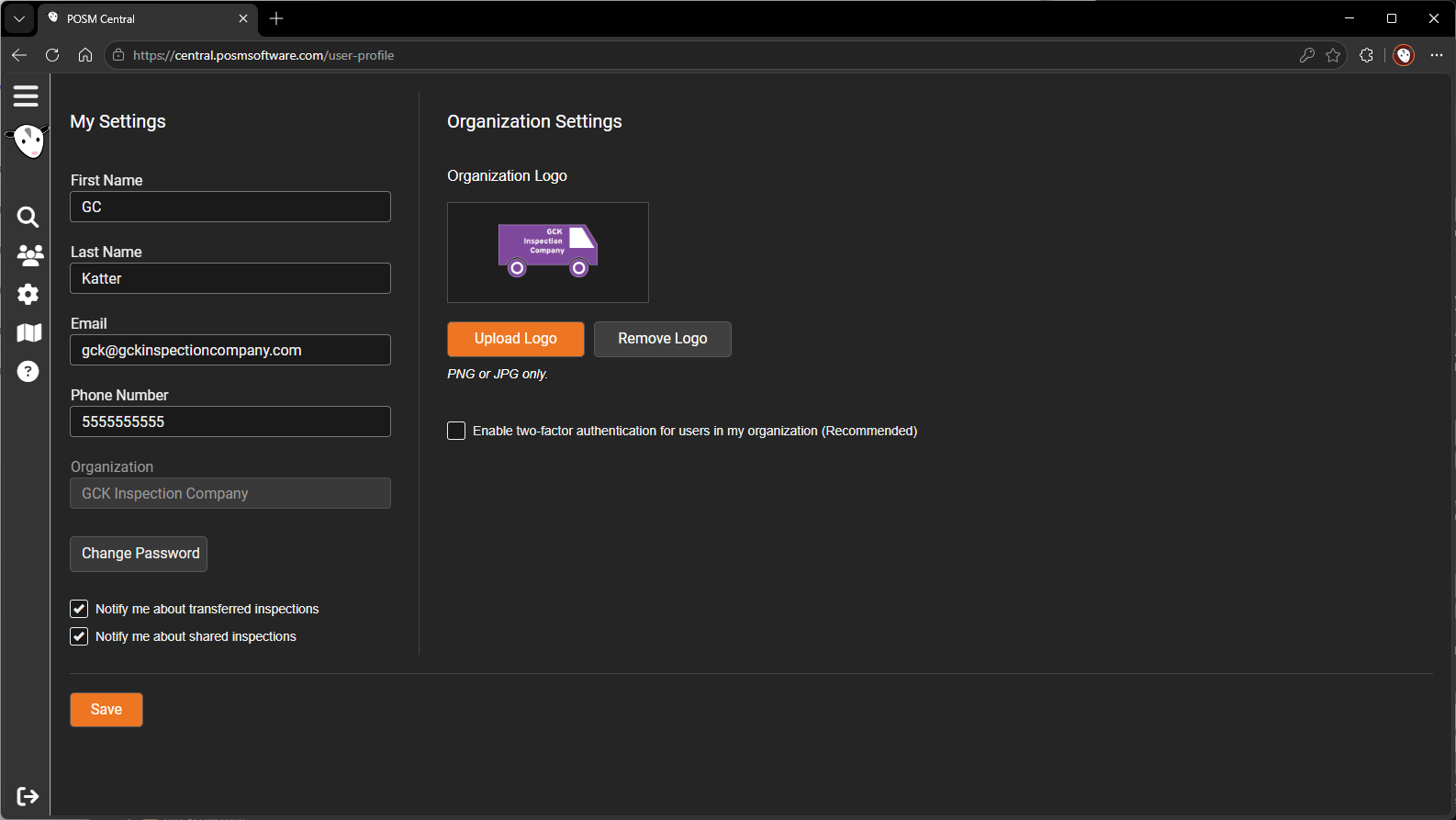
Two-Factor Authentication
When two-factor authentication is enabled for an organization, users sign in with their normal email address and password and then provide a verification code sent by email.
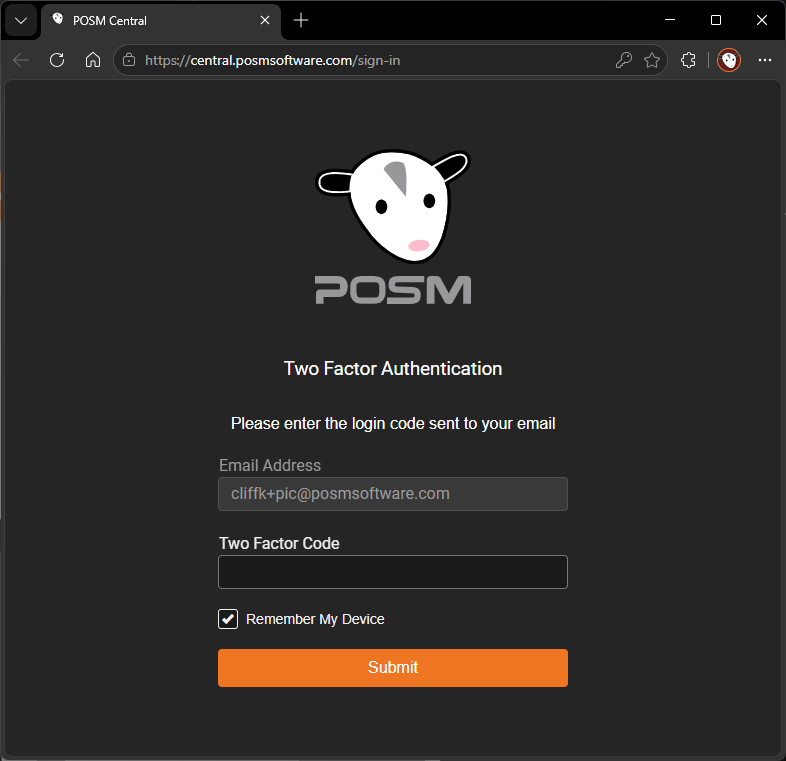
The verification code is entered before POSM Central completes the sign-in process.
Go To GIS
Go To GIS appears in the POSM Central left navigation menu for customers configured to use POSM Central GIS.
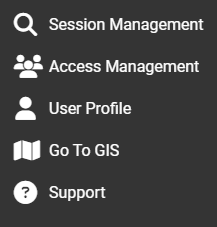
Selecting Go To GIS opens POSM Central GIS.
POSM Central GIS is currently a separate web application with its own user accounts and sign-in process.
After signing in to POSM Central GIS, users can access the GIS workspace or workspaces assigned to their GIS account.
Need Help?
POSM Support is available when you need assistance with POSM Central or other POSM products.

Customers can start a POSM Remote Support session directly or call POSM Support when they prefer to speak with a technician.
You do not need to diagnose a problem before contacting POSM Support. A general description of what you are seeing is enough to get the support process started.
Recommended First Steps
If you are new to POSM Central, start with: