Inspection Reports

Reports bring inspection headers, observations, media, plots, scoring, and supporting information together in presentation-ready views.
POSM Central provides several report views for reviewing inspection details, observations, media, charts, and supporting files.
The reports available for a session depend on:
- The inspection template
- The information recorded during the inspection
- The media and supplemental data associated with the session
- The user’s permissions
Open Inspection Reports
- Open Session Management.
- Select an inspection.
- Select Open Reports.
- Choose the report tab you want to review.
The available report tabs may include:
- Title Page
- Faults
- Plot
- Video
- Defect
- ScanCam
- Inclination
- Additional
Learn how to open and navigate reports
Report Gallery
The gallery below shows the different report views available in POSM Central.
Select the image to open the report gallery. Use the left and right arrows to move through the available reports. You can also use the arrow keys on your keyboard.
Note
The reports available for an inspection depend on the inspection template and the data associated with the session.
Title Page
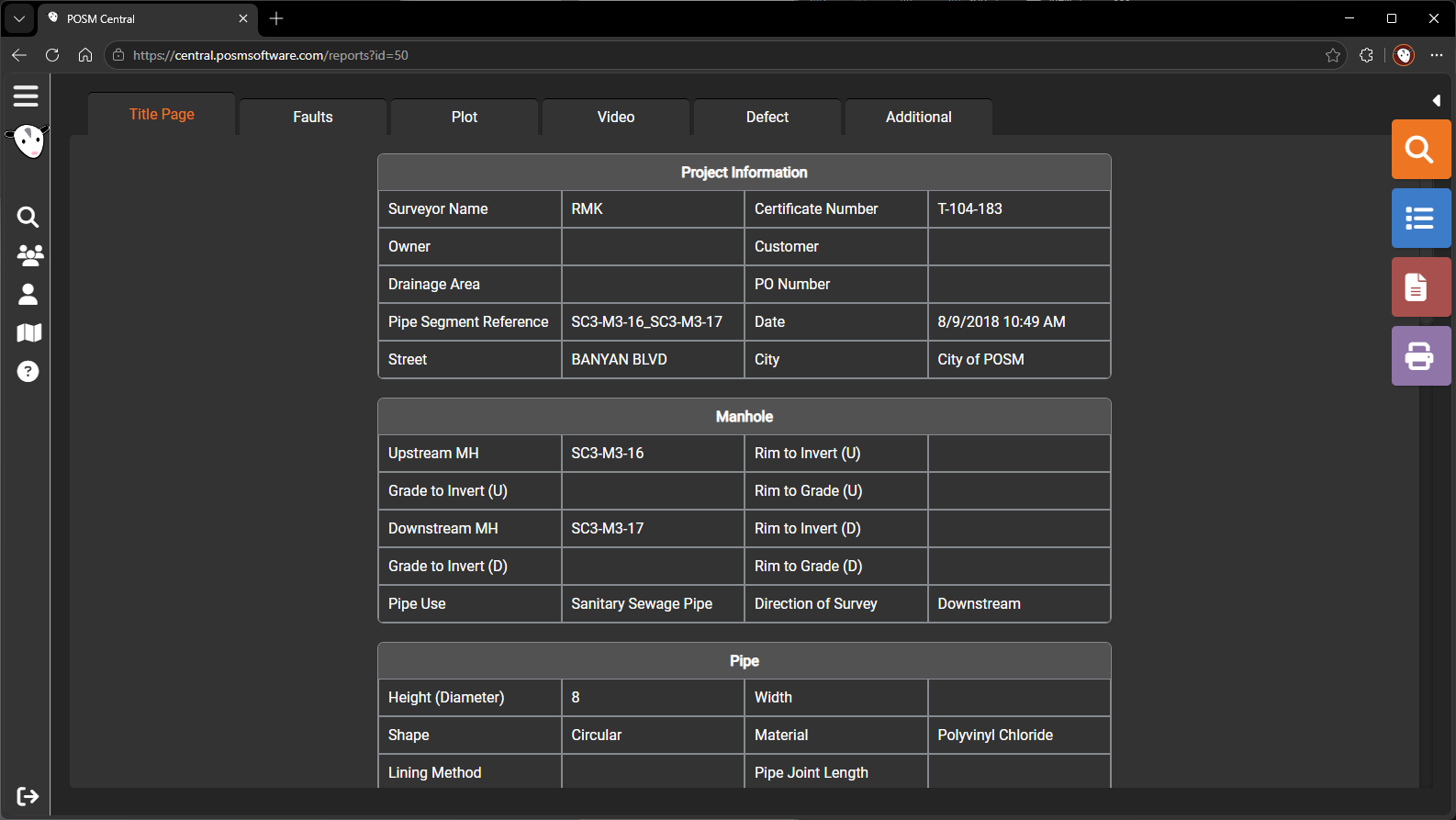
The Title Page displays the primary identifying and descriptive information for the inspection.
Much of this information comes from the inspection header, including:
- Project information
- Asset or pipe identification
- Inspection date
- Location
- Pipe material and size
- Inspection direction
- Operator information
- Other header fields included in the inspection template
Learn about the Title Page report
Faults
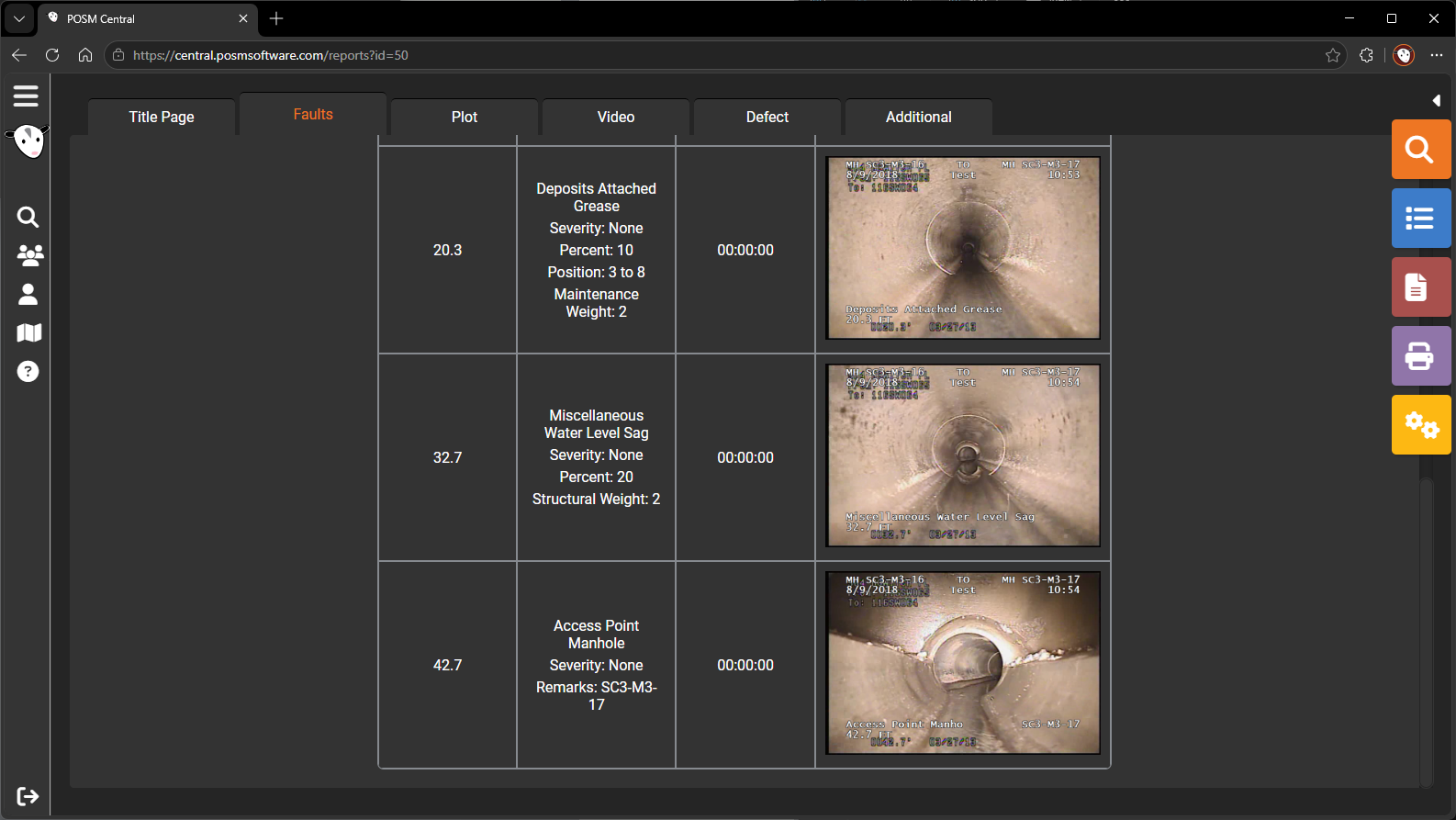
The Faults report lists the observations recorded during the inspection.
Depending on the template, the report may include:
- Observation code
- Observation description
- Footage or distance
- Clock position
- Severity
- Dimensions
- Comments
- Observation images
Plot
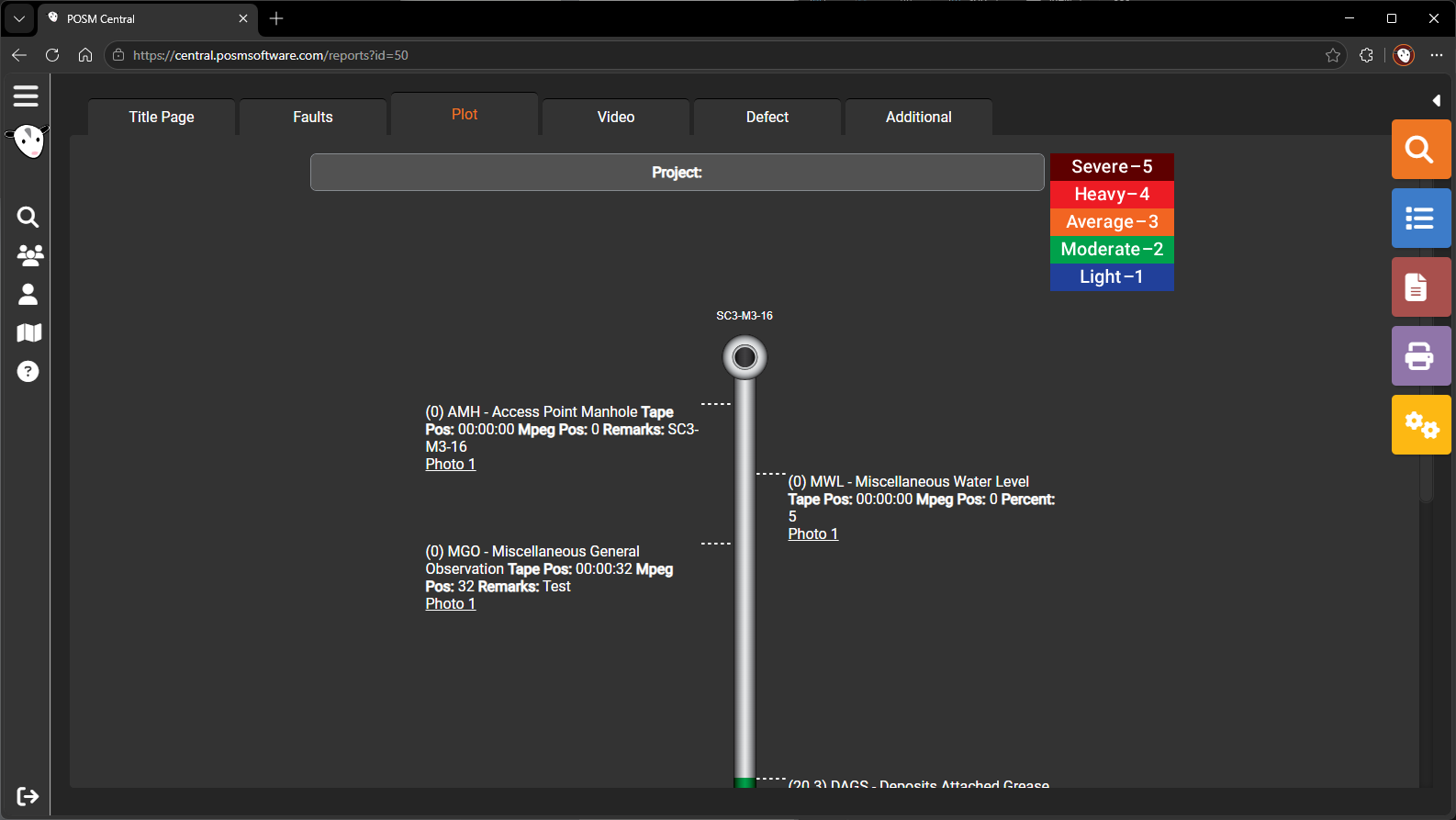
The Plot report displays a graphical representation of the pipe and the observations recorded along it.
The Plot is similar to the graphical pipe view shown in Edit Observations.
For inspections using NASSCO standards, portions of the plot may be color-coded according to defect severity.
Video
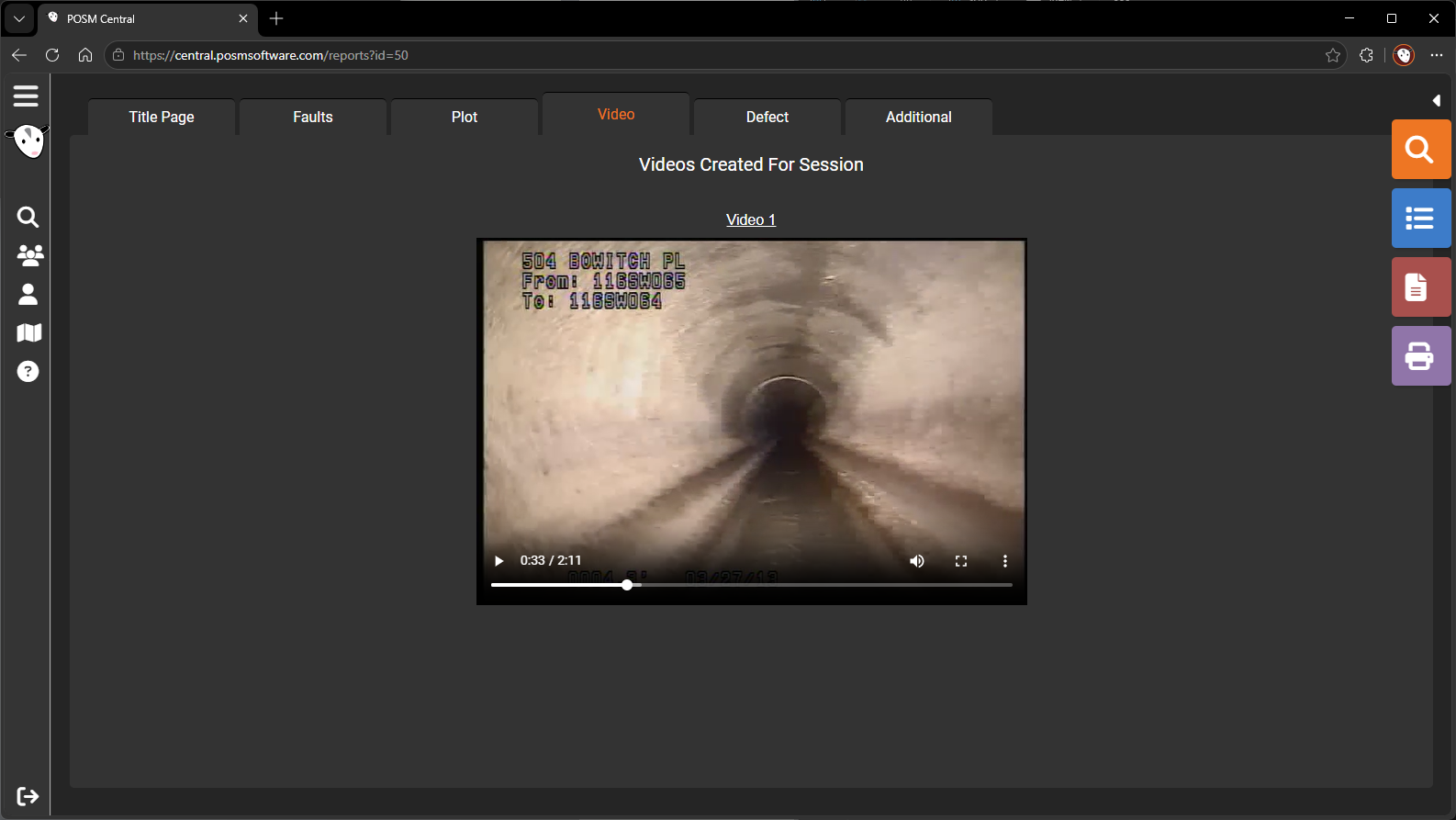
The Video report allows users to view the inspection video associated with the session.
Users may be able to:
- Play and pause the video
- Move forward or backward
- Drag the video timeline
- Review observation locations associated with footage or video time
Defect
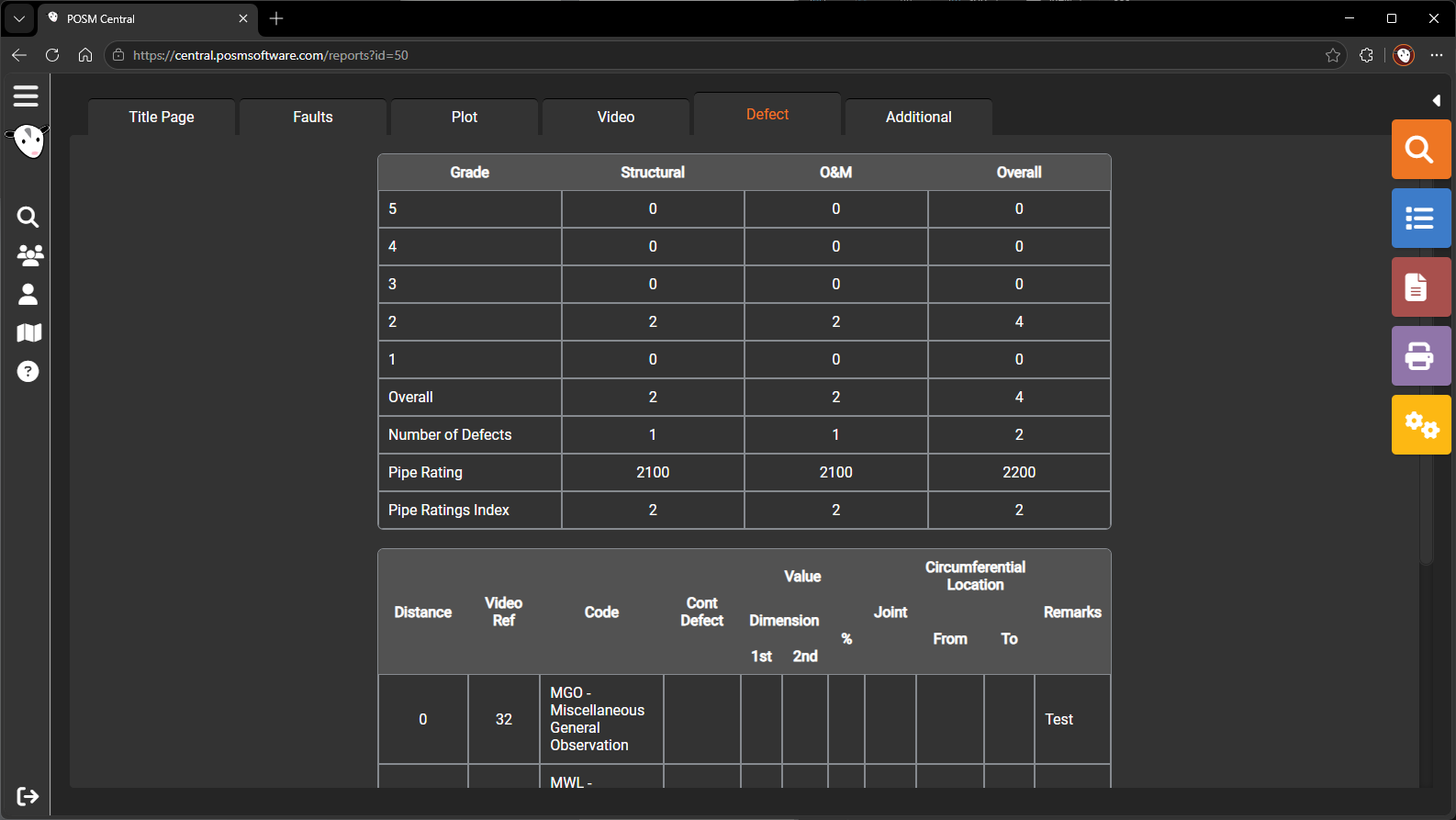
The Defect report is a NASSCO-style report showing structural and maintenance defect information for the pipe.
Depending on the inspection, it may include:
- Structural defect weights
- Maintenance defect weights
- Observation details
- Structural ratings
- Maintenance ratings
- Overall pipe ratings
ScanCam
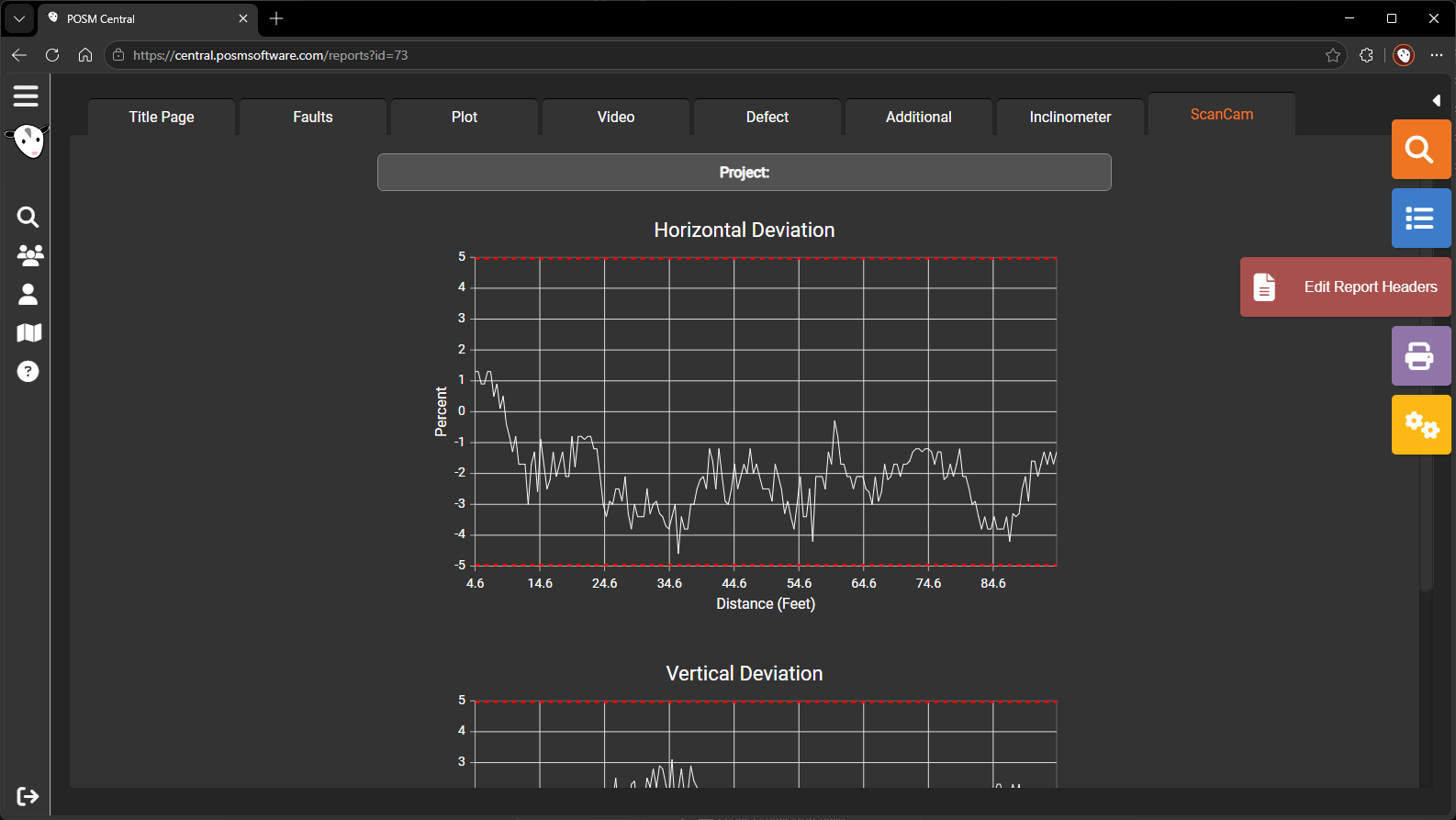
The ScanCam report displays laser pipe-profiling data for inspections performed with supported ScanCam technology.
The report may include:
- Pipe profile charts
- Measurements
- Laser scan results
- Pipe shape and dimensional information
The ScanCam report appears only when ScanCam data exists for the inspection.
Learn about the ScanCam report
Inclination
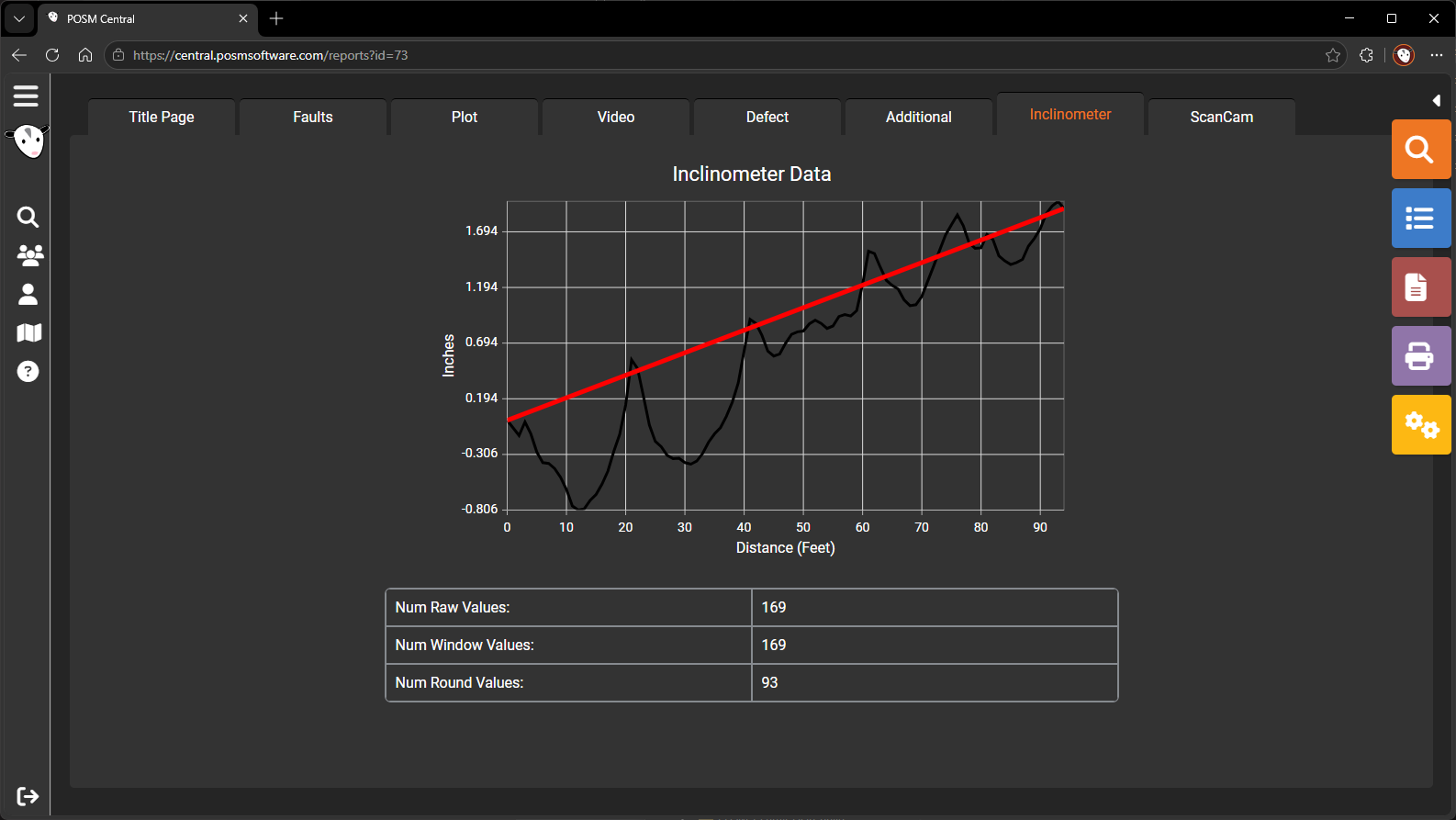
The Inclination report shows changes in the camera’s vertical movement as it travels through the pipe.
This information can help identify:
- Changes in pipe grade
- Upward or downward movement
- Possible sag areas
- Other changes in pipe elevation
The Inclination report appears only when inclination data exists for the inspection.
Learn about the Inclination report
Additional
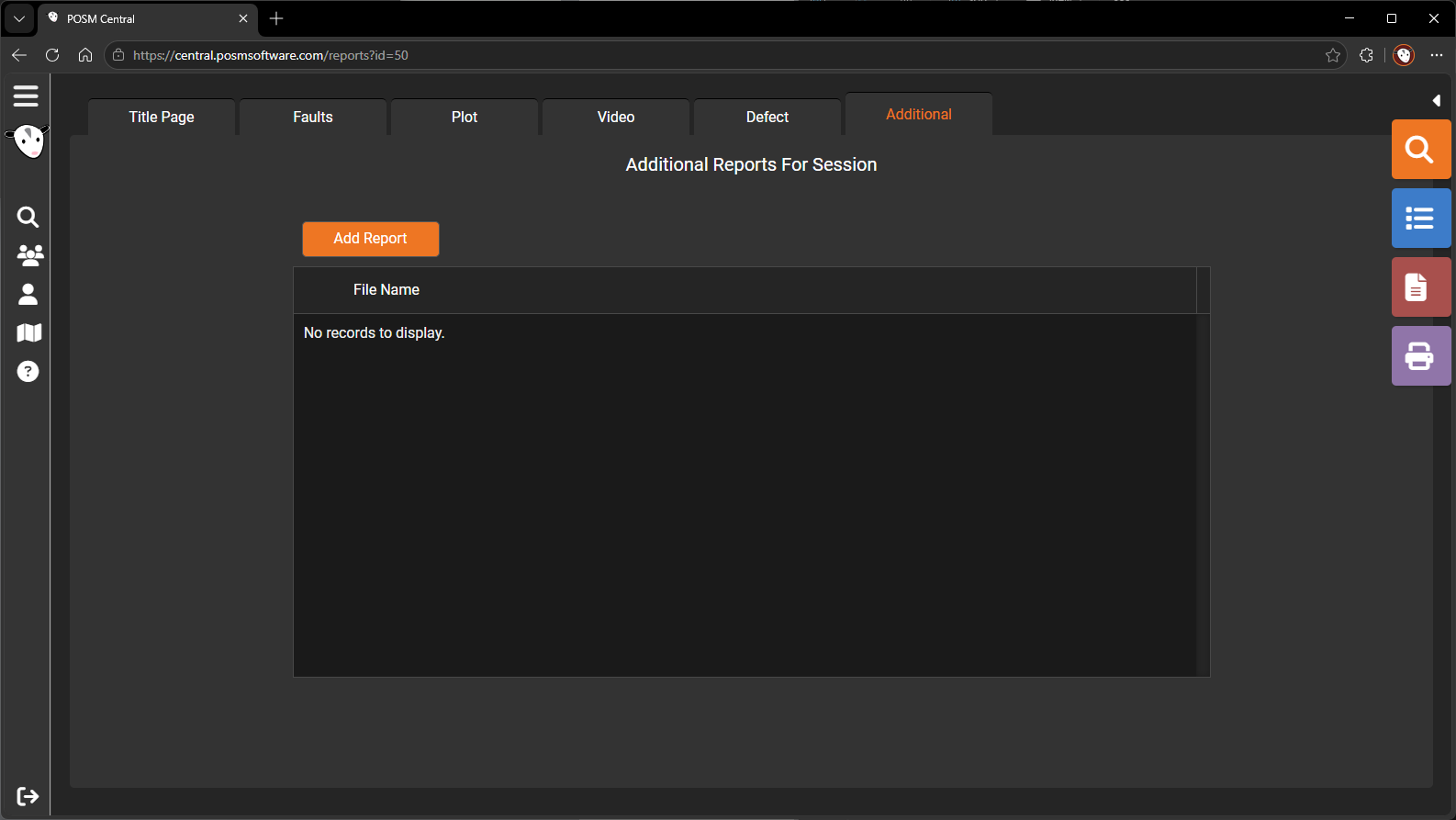
The Additional report area allows other files to be stored with and viewed as part of the inspection.
Additional files may include:
- PDF documents
- Supplemental reports
- Images
- Customer documents
- Other inspection-related attachments
Reports Opened from GIS
POSM Central can be connected to an organization’s GIS system.
GIS assets are often configured with links that open the related inspection directly in the POSM Central report viewer.
This allows GIS users to review inspection reports without first locating the session manually in Session Management.
The exact behavior depends on the organization’s GIS integration and configuration.
Print or Download Reports
Reports can also be printed or included in an export from Session Management.