Use the Tools Menu
The Tools menu contains actions that can be performed on selected sessions or projects in Session Management.
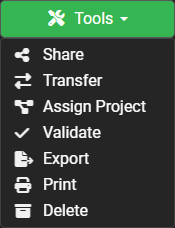
Open the Tools Menu
- Open Session Management.
- Select the checkbox beside one or more sessions, or select a project in Project View.
- Open the Tools dropdown.
- Select the desired action.
The available actions depend on the selected data and the user's permissions.
Share
Use Share to provide another recipient with access to sessions or projects while your organization retains ownership.
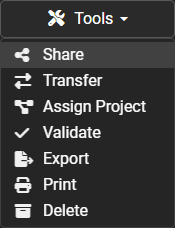
Sharing options include:
- Download Link Only
- View & Download
- Full Edit Access
Sharing does not change ownership of the inspection data.
Transfer
Use Transfer when ownership of selected sessions or projects needs to move to another organization.
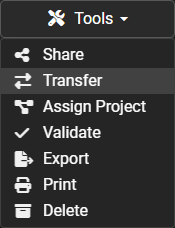
After the transfer is completed, the receiving organization becomes the owner of the transferred inspection data.
Transfer changes ownership
Use Share instead when another organization only needs access to the inspection data and your organization should remain the owner.
Assign Project
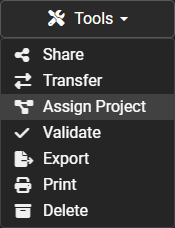
Use Assign Project to assign selected sessions to a project or change their existing project assignment.
Validate
Use Validate to check selected sessions for NASSCO compliance.
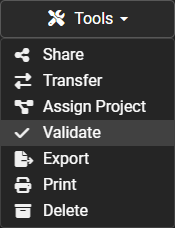
Validation can help identify missing or invalid required information before delivery or export.
Import
Use Import to bring supported inspection packages and exchange database files directly into POSM Central.
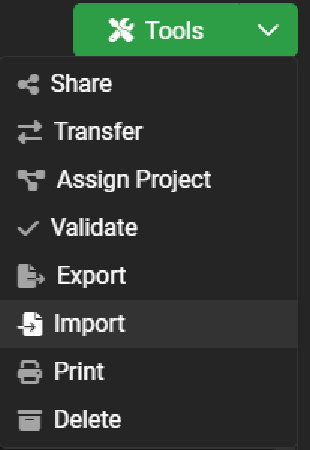
Import supports ZIP packages and supported exchange database files such as .mdb and .db3. Imports continue processing in the background after the upload is queued.
Export
Use Export to create your own downloadable copy of the selected session or sessions.
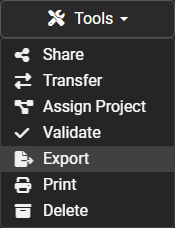
POSM Central queues the export for processing and sends an email when the export is ready to download.
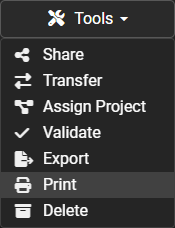
Use Print to prepare reports for one or more selected inspections.
Delete

Deletion cannot be undone. Export or otherwise retain any inspection data you may need before deleting it from POSM Central.
Use Delete to permanently remove selected inspection data from POSM Central.
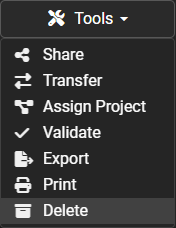
After selecting Delete, POSM Central displays a confirmation before the selected sessions are removed.
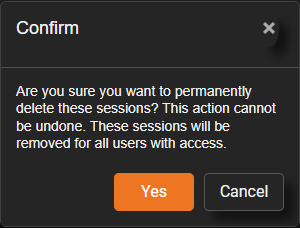
Deletion cannot be undone
Deleted sessions are permanently removed from POSM Central and are removed for all users who had access to them.
Export or download any inspection data that needs to be retained before deleting it.
Tools and User Permissions
The actions a user can perform depend on their POSM Central role.
- Organization Admin — can use all Tools actions for permitted inspection data.
- Edit User — can Share, Transfer, Assign Project, Validate, Export, Print, and Delete permitted inspection data.
- View & Download User — can Export and Print permitted inspection data but cannot Share, Transfer, edit, or delete inspection data.
Troubleshooting
If a Tools action is unavailable:
- Confirm that the appropriate session or project is selected.
- Confirm that your organization owns the inspection data when ownership is required.
- Confirm that your user role permits the action.
- Confirm that the selected inspection data supports the action.