Share Inspections
POSM Central allows you to share inspection data with another person or organization directly from Session Management.
You can share:
- A single inspection
- Multiple inspections at the same time
- An entire project
- Multiple projects
When you share inspections, your organization retains ownership of the inspection data. Sharing gives the recipient access according to the sharing option you select.
Before You Begin
Before sharing, decide what type of access the recipient needs.
POSM Central provides three sharing options:
| Sharing Type | Account Required | Access |
|---|---|---|
| Download Link Only | No | Download the shared inspection package |
| View & Download (Account Required) | Yes | Read-only access in POSM Central plus the ability to download |
| Full Edit Access (Account Required) | Yes | Read/write access in POSM Central, subject to the recipient's role and permissions |
Sharing with someone who does not use POSM Central
Choose Download Link Only if the recipient only needs a copy of the inspection data and does not need access through POSM Central.
Select What You Want to Share
Open Session Management and select the inspection data you want to share.
You can share from either Session View or Project View, depending on whether you want to select individual inspections or entire projects.
Share Inspections from Session View
Use Session View when you want to select individual inspections.
You can select:
- One inspection
- Multiple inspections
Select the inspection or inspections you want to share, then open the Tools menu and select Share.
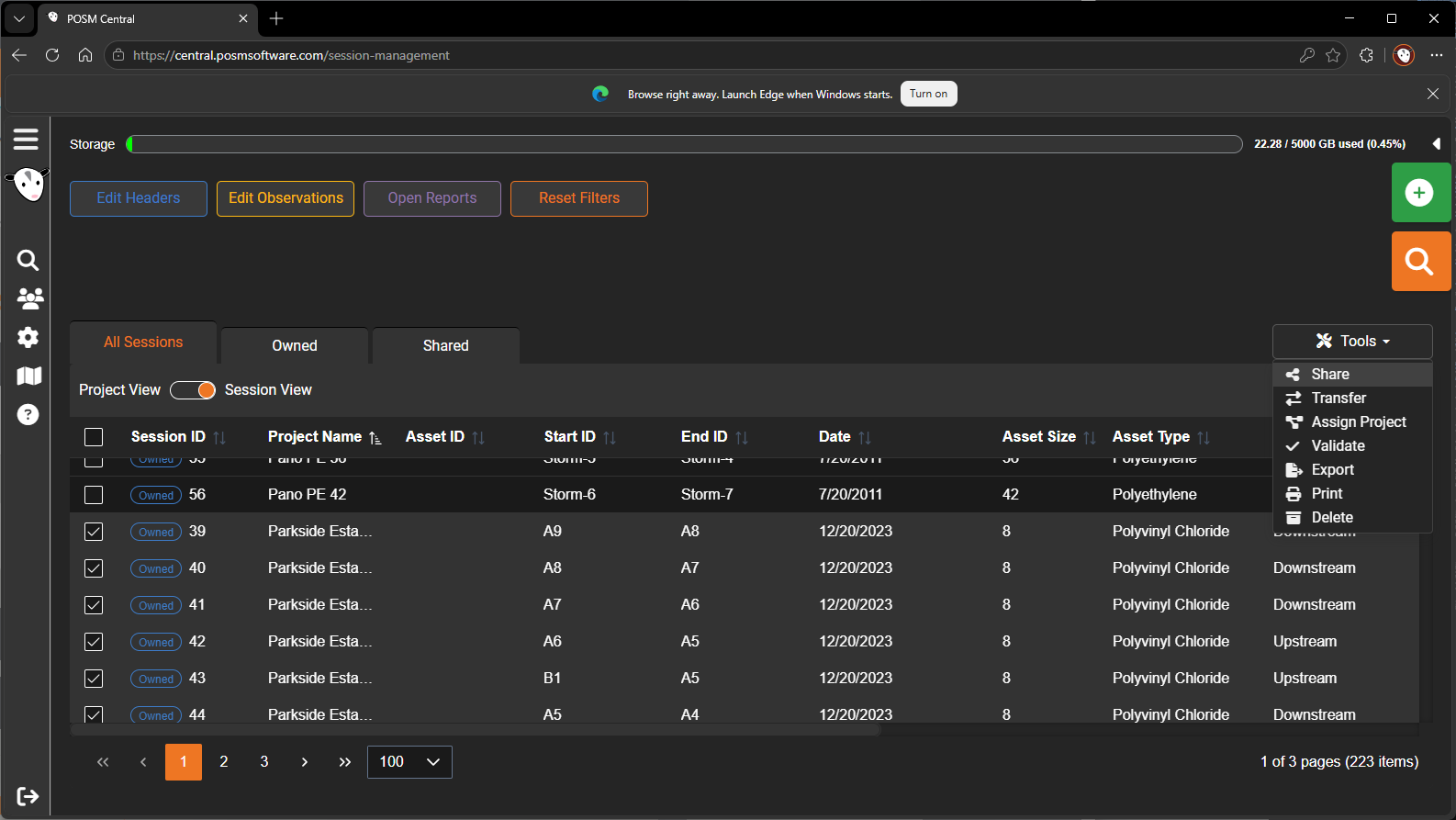
Share multiple inspections at once
You do not have to share inspections one at a time. Select all of the inspections you want to share before choosing Share from the Tools menu.
Share Projects from Project View
Use Project View when you want to share an entire project or multiple projects.
Select the project or projects you want to share, then open the Tools menu and select Share.
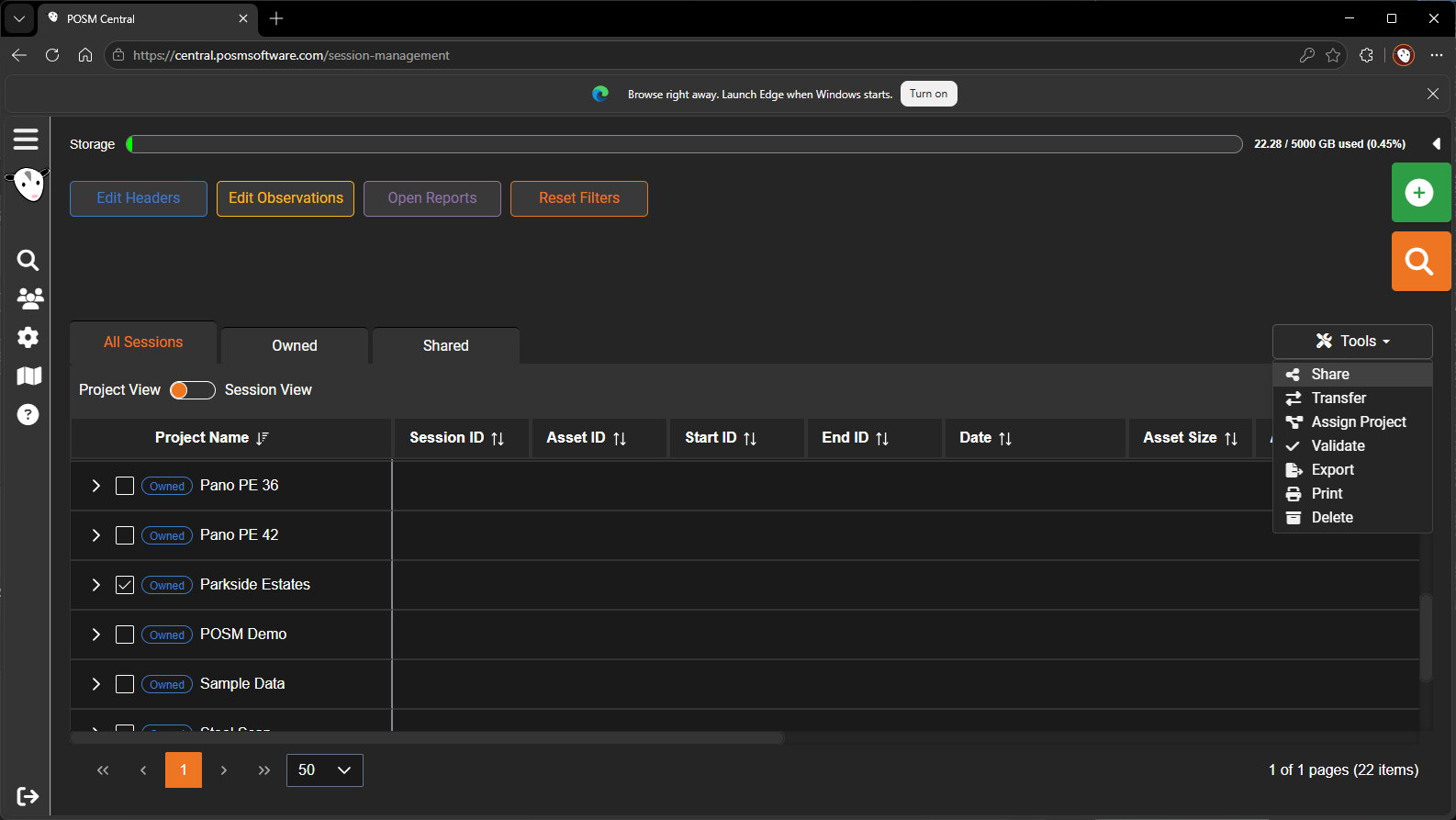
When a project is selected, the inspections contained in that project are included in the Share operation.
Share multiple projects
You can select multiple projects before choosing Share to share them together.
Open the Share Window
After selecting the inspections or projects you want to share:
- Open the Tools menu.
- Select Share.
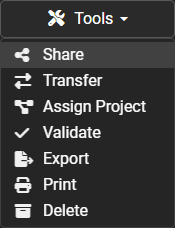
The Share window opens and displays the number of inspections or projects included in the Share operation.
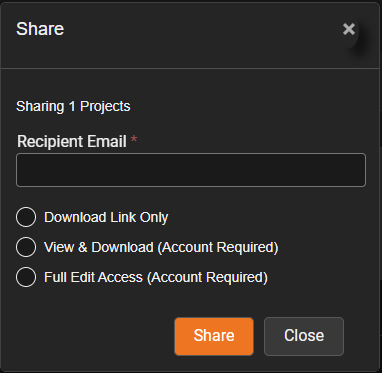
Enter the Recipient and Choose Access
In Recipient Email, enter the email address of the person you want to share the selected inspection data with.
Choose one of the three available sharing options:
- Download Link Only
- View & Download (Account Required)
- Full Edit Access (Account Required)
The option you select determines how the recipient receives and can use the shared inspection data.
After confirming the recipient email address and sharing option, click Share.
Sharing Options
Download Link Only
Choose Download Link Only when the recipient needs a downloadable copy of the inspection data but does not need access through POSM Central.
A POSM Central account is not required.
After the share is processed, the recipient receives an email stating that a POSM Central export has been shared with them.
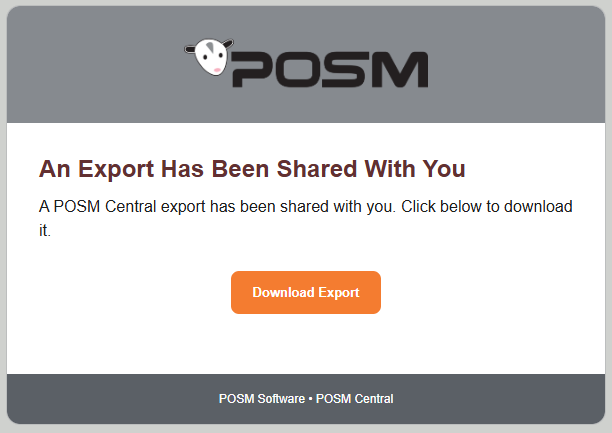
The recipient clicks Download Export to download the inspection package.
60-day download period
The shared download link expires after 60 days.
Download the ZIP File
The inspection package downloads as a compressed ZIP file.
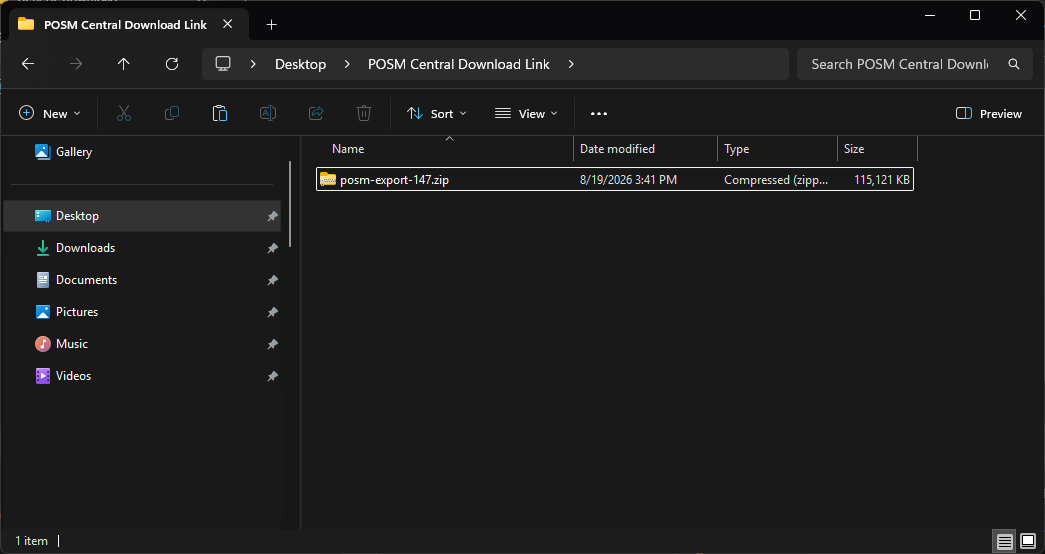
The ZIP file contains the inspection data and associated files included in the shared package.
Extract the ZIP File
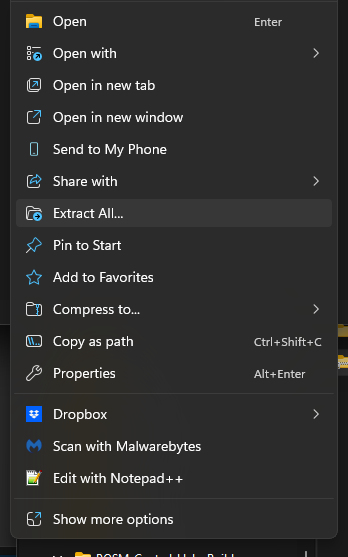
Before using the downloaded inspection package, extract the contents of the ZIP file.
In Windows:
- Locate the downloaded ZIP file.
- Right-click the ZIP file.
- Select Extract All...
- Choose where you want the extracted files to be stored.
- Complete the extraction.
View the Extracted Inspection Package
Open the extracted folder to access the downloaded inspection data.
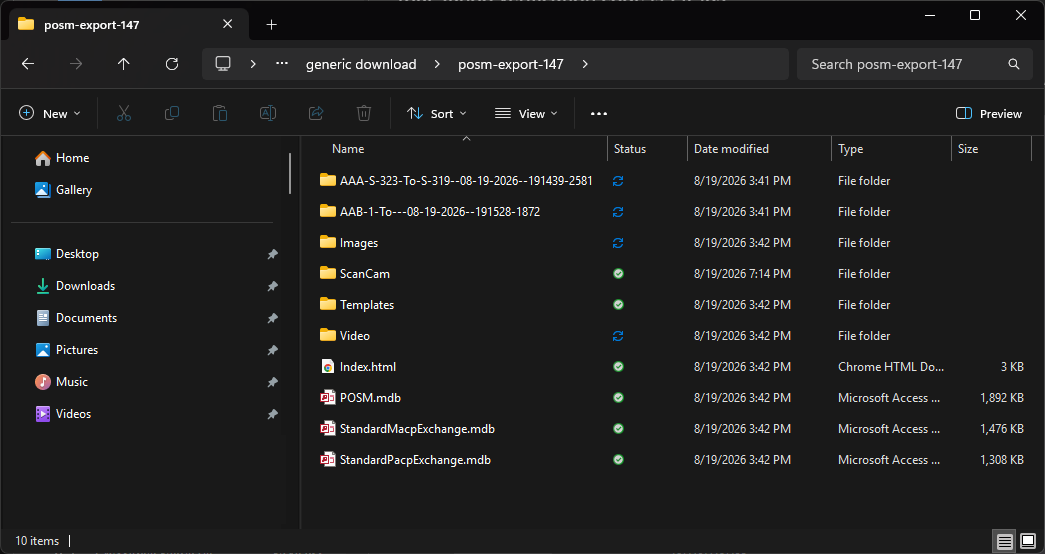
Depending on the inspection data included in the share, the package may contain items such as:
- Inspection folders
- Images
- Video
- ScanCam files
- Templates
- POSM database files
- Exchange database files
- An
Index.htmlfile
Keep the package together
Keep the extracted folders and files together. Files within the inspection package may reference other files and folders included in the export.
View & Download (Account Required)
Choose View & Download (Account Required) when the recipient needs to access the shared inspection through POSM Central but should not be able to modify it.
The recipient can:
- View the inspection
- View reports
- View images
- View video
- Download the inspection
The shared inspection is read-only.
A POSM Central account is required.
Read-only access
View & Download allows the recipient to review and download the inspection but does not allow the recipient to edit it.
If the recipient already has a POSM Central account, the shared inspection becomes available through their Central account.
If the recipient does not yet have an account, they are invited to create one.
Full Edit Access (Account Required)
Choose Full Edit Access (Account Required) when the recipient needs to work with and edit the shared inspection through POSM Central.
A POSM Central account is required.
After accessing the shared inspection, the recipient has read/write access to the inspection data.
The recipient's permissions still apply
Full Edit Access does not override the recipient's POSM Central organization role or permissions.
Giving someone Full Edit Access does not automatically give that person permission to share the inspection with others or transfer its ownership.
If the recipient does not yet have a POSM Central account, they are invited to create one before accessing the shared inspection.
New POSM Central Recipients
When View & Download or Full Edit Access is shared with someone who does not yet have a POSM Central account, the recipient receives an invitation by email.
Open the Invitation
The email informs the recipient that they have been invited to join POSM Central.
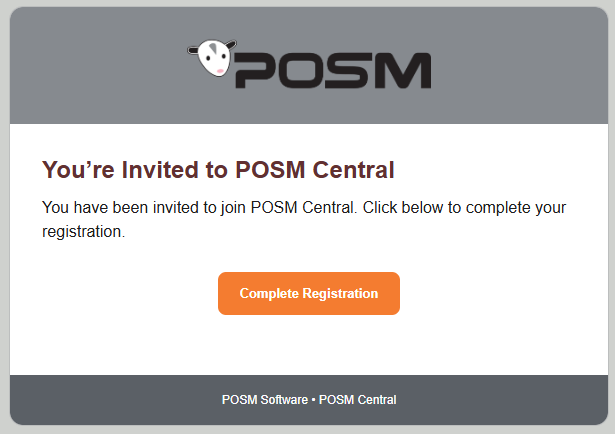
Click Complete Registration to continue.
Create the POSM Central Account
The Create Account page opens with the recipient's email address already associated with the invitation.
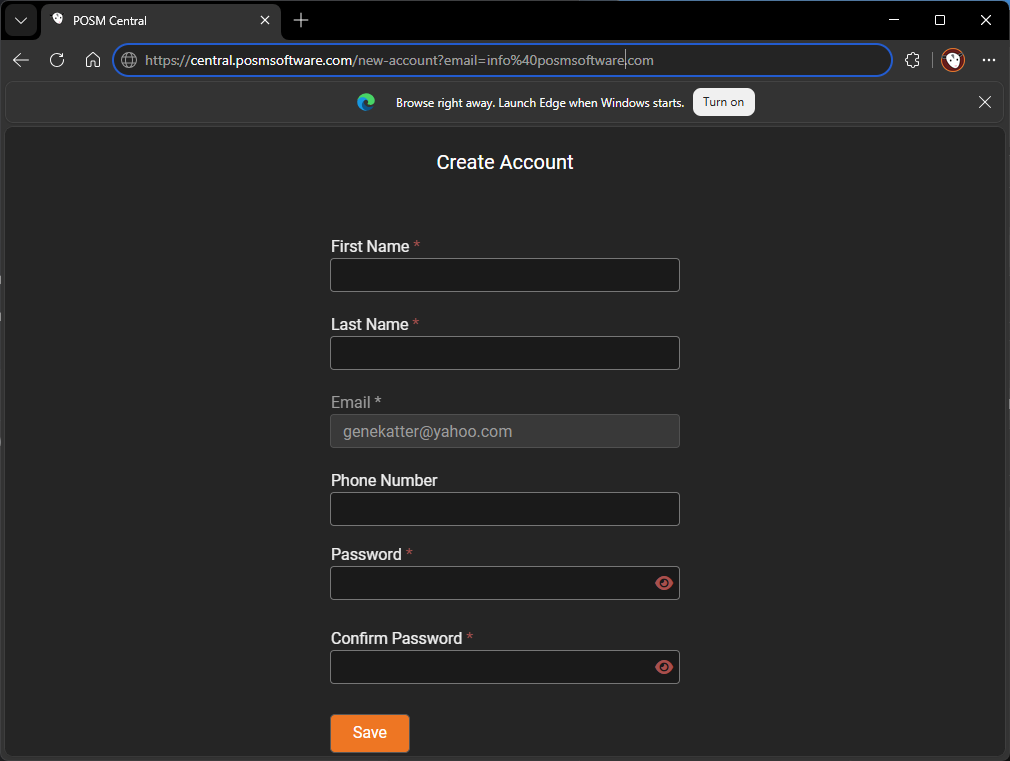
Enter the required account information:
- Enter your First Name.
- Enter your Last Name.
- Enter a Phone Number, if applicable.
- Create a Password.
- Enter the password again in Confirm Password.
- Click Save.
After registration is complete, the recipient can sign in to POSM Central and access the inspections that were shared with them.
The sharing level still applies
Creating a POSM Central account does not change the access level selected by the person who shared the inspection.
View & Download remains read-only, while Full Edit Access provides edit-capable access subject to the recipient's role and permissions.
What Happens After Sharing?
The result depends on the sharing option selected.
| Sharing Option | What Happens |
|---|---|
| Download Link Only | The recipient receives an email with a Download Export button and downloads a ZIP package. No POSM Central account is required. |
| View & Download | The recipient accesses the shared inspection through POSM Central with read-only access and can download it. |
| Full Edit Access | The recipient accesses the shared inspection through POSM Central with read/write access, subject to their role and permissions. |
Sharing does not change ownership
Your organization remains the owner of the shared inspections.
If another organization should become the owner, use Transfer Ownership instead.
Manage an Existing Share
After sharing inspection data, you can review existing shares from the Shared tab in Session Management.
The Shared tab shows information about each share, including the project, when it was shared, who it was shared with, and the access level that was granted.
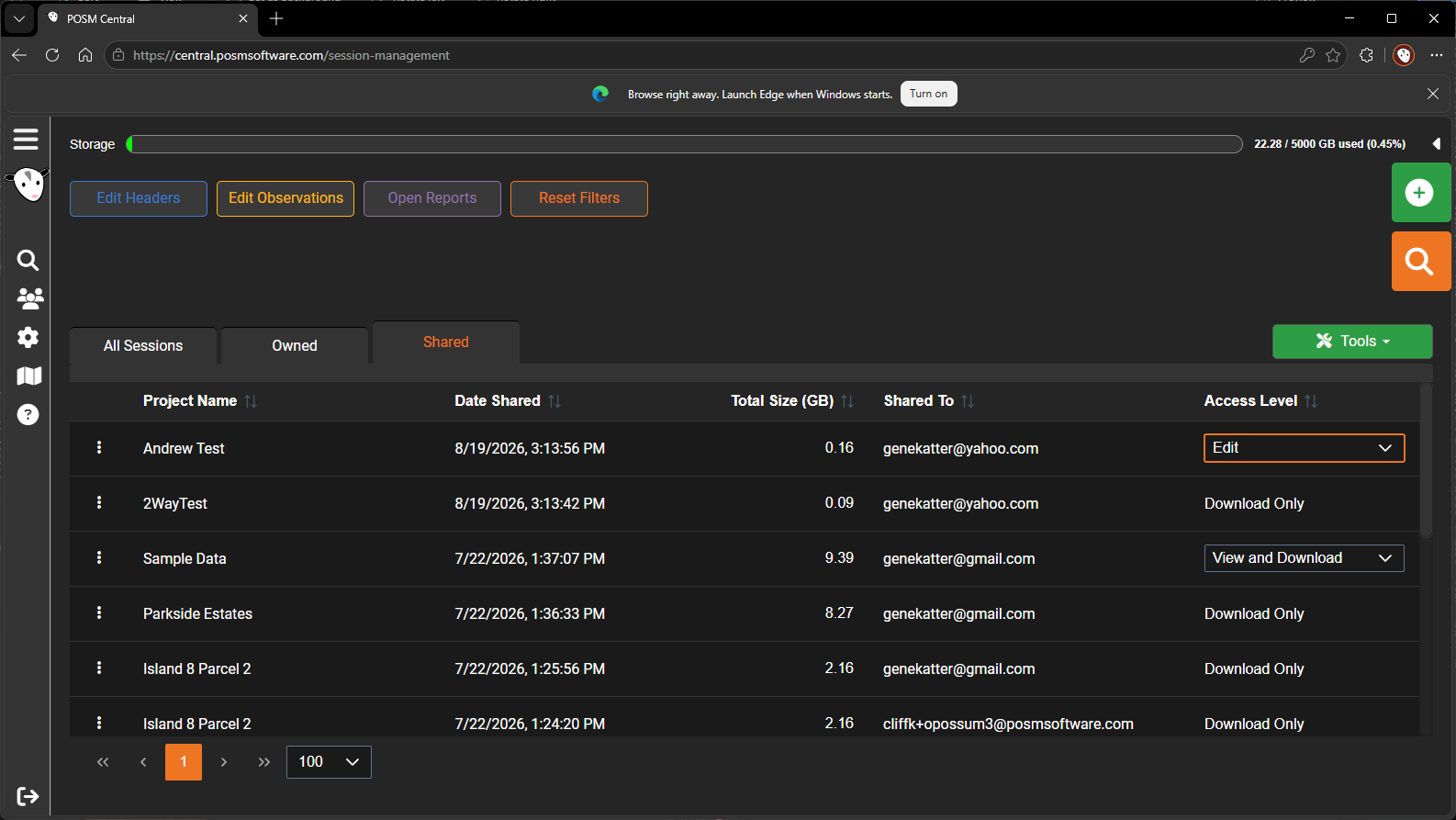
For account-based shares, you can change the access level between View & Download and Full Edit Access.
Download Link Only
Download Link Only shares cannot be changed to another access level.
If the recipient needs a different type of access, share the inspection or project again using the desired sharing option.
Share vs. Transfer vs. Export
| Action | Use It When |
|---|---|
| Share | Another person needs a download or access to the inspection while your organization retains ownership |
| Transfer | Another organization should become the owner of the inspection |
| Export | You need your own downloadable copy for backup, delivery, external storage, Dropbox, OneDrive, or another off-platform use |