Title Page Report
The Title Page report displays the primary identifying and descriptive information for an inspection.
Most of the information shown on this report comes from the inspection header.
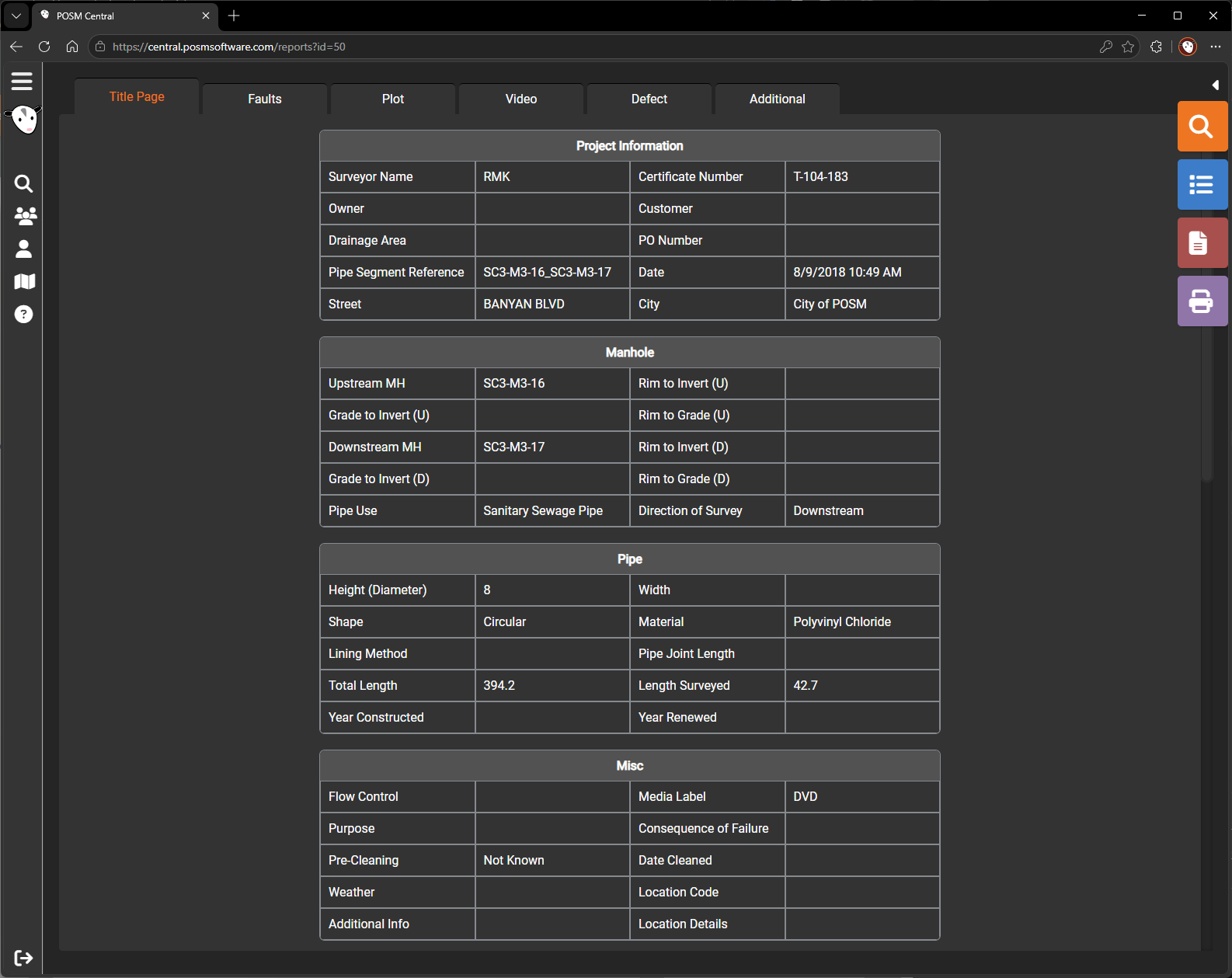
Open the Title Page Report
- Open Session Management.
- Select an inspection.
- Select Open Reports.
- Select the Title Page tab.
Information Shown
The Title Page may include:
- Project name
- Asset or pipe identification
- Inspection date
- Street or location
- Upstream structure
- Downstream structure
- Pipe material
- Pipe diameter
- Inspection direction
- Operator information
- Customer information
- Inspection template
- Other header fields associated with the inspection
The exact information shown depends on the inspection template.
Update Title Page Information
Because most Title Page information comes from the inspection header, changes are normally made through Edit Headers.
- Return to Session Management.
- Select the inspection.
- Select Edit Headers.
- Update the applicable fields.
- Save the changes.
- Reopen the report.
Print Reports
Select the purple Print Report(s) button on the right side of the report viewer to choose which report pages to print.
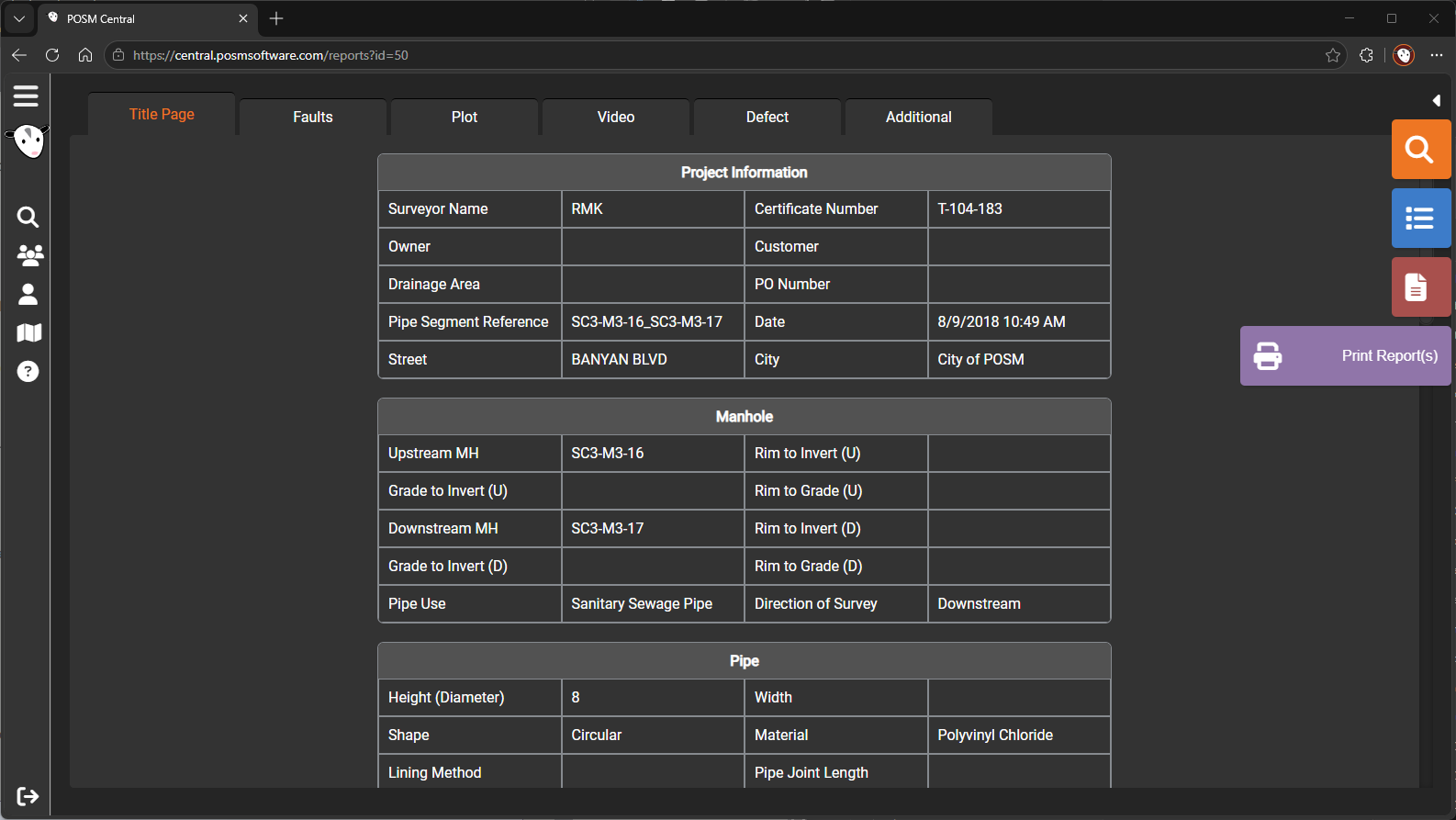
Learn how to print inspection reports
Learn about editing inspection headers
Missing or Incorrect Information
When information is missing or incorrect:
- Confirm that the correct inspection is open.
- Review the inspection header.
- Confirm that required header fields have been completed.
- Save any changes before reopening the report.
- Confirm that your account has permission to edit the inspection.