Export Sessions
Use Export to prepare one or more sessions as a downloadable ZIP file.
Export Sessions
- Open Session Management.
- Select one or more sessions, or select an entire project in Project View.
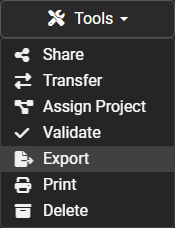
- Open the Tools dropdown.
- Select Export.
- Review the selected sessions or project.
- Start the export.
- Wait for POSM Central to prepare the downloadable file.
- Download the completed ZIP file when it becomes available.
NASSCO v7 and v8 Export
When selected NASSCO v7 sessions are exported, POSM Central asks whether the sessions should be exported as v7 or v8.
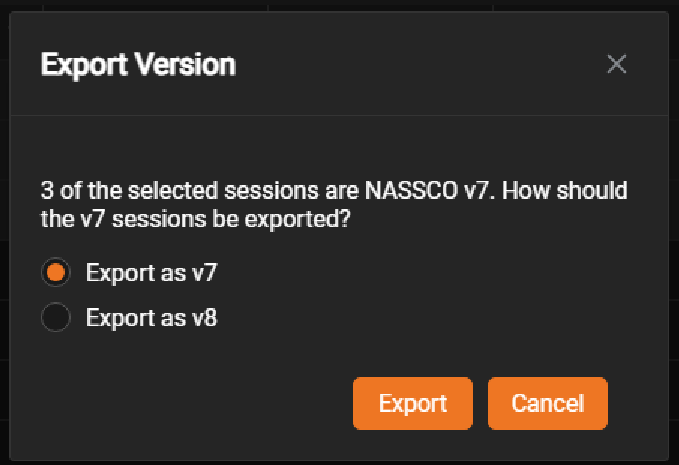
- Exporting as v7 produces a NASSCO v7 exchange package using a Microsoft Access (
.mdb) exchange database. - Exporting as v8 produces a NASSCO v8 package using a SQLite exchange database.
- PACP and LACP v7 sessions exported as v8 are converted and re-graded using the applicable v8 rules.
- Exporting a v7 session as v7 preserves the v7 export workflow.
Validation Is Required for NASSCO Export
A NASSCO export is blocked until the selected sessions pass the required NASSCO validation.
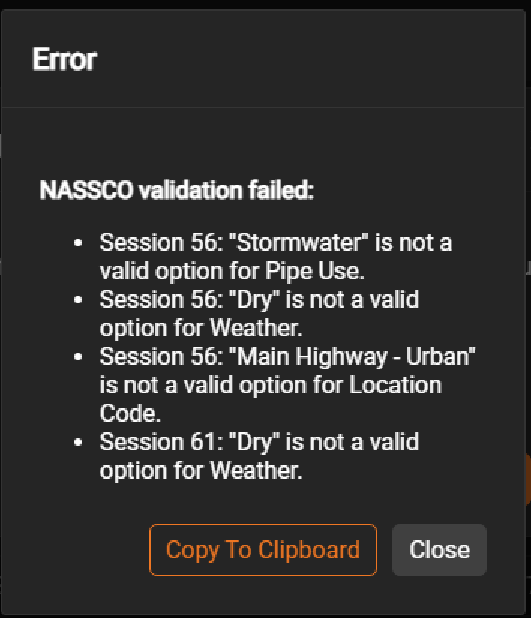
Validation errors identify the Session ID of a session that failed.
Export Package Contents
A completed NASSCO export package contains:
- the exchange database
- a Reports folder
- a Video folder
- a separate media subfolder for each session inside the Video folder
- the generated PDF report for each session in the Reports folder
Media paths stored in the exported exchange database point to the corresponding session subfolder inside the Video folder.
Export Processing
POSM Central prepares the selected sessions in the background.
Large sessions, projects, or multi-session exports may take longer to complete.
The processing time depends on:
- Number of selected sessions
- Total inspection size
- Number and size of video files
- Number of images and supporting files
- Current server activity
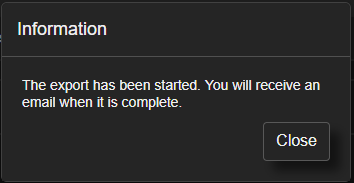
You do not need to keep the export window open while POSM Central prepares the file.
Export Ready Email
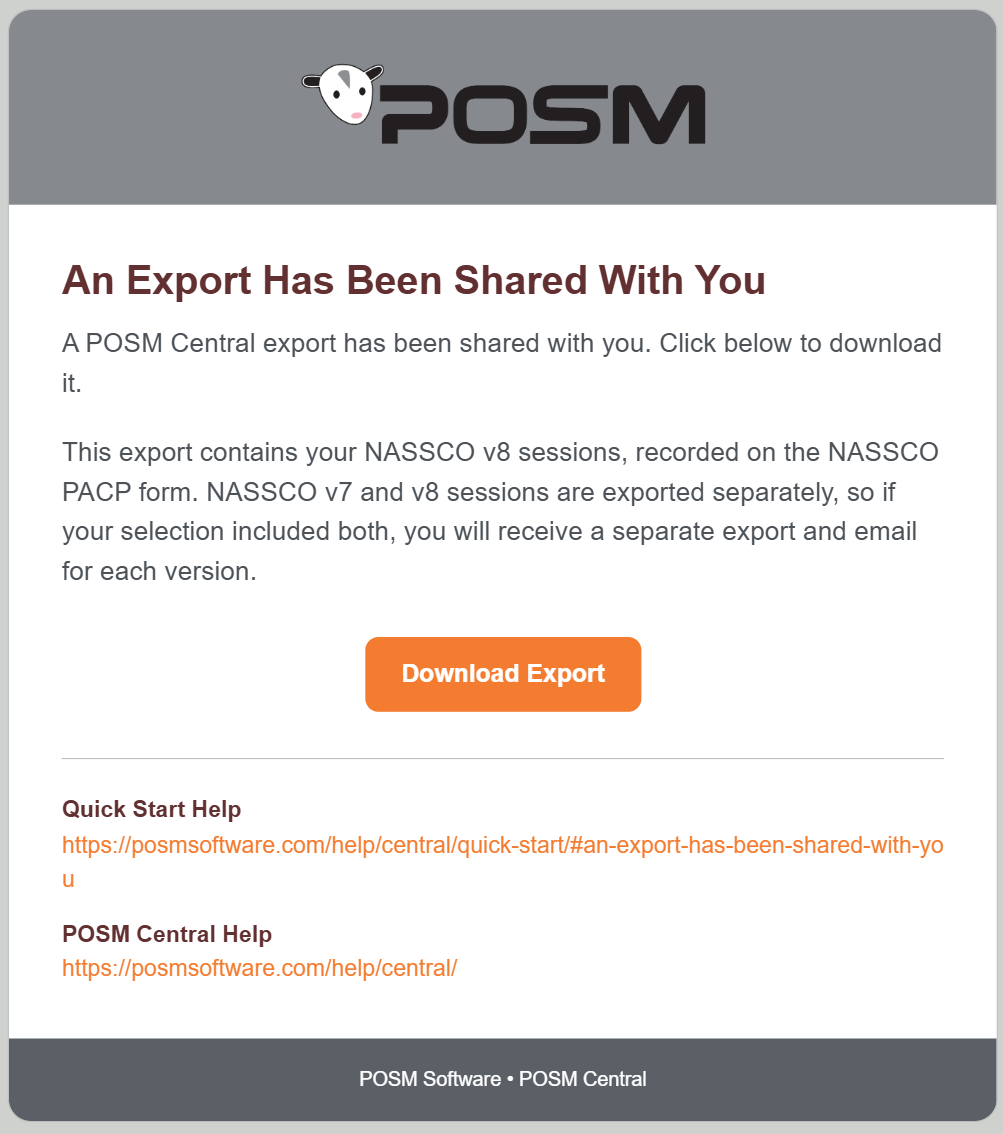
When the export is ready, POSM Central sends an email notification containing a link to the export download page.
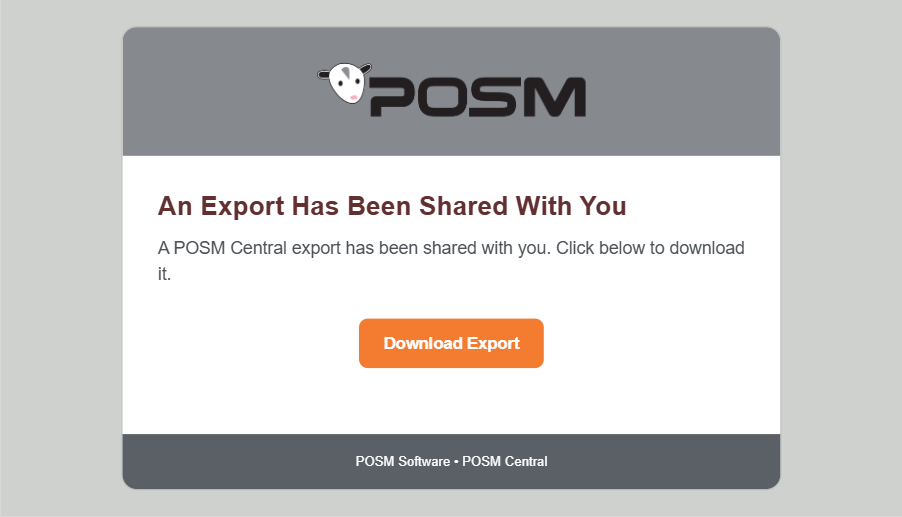
To open the completed export:
- Open the export-ready email.
- Select the link to POSM Central.
- Sign in when required.
- Review the available export.
- Select Download.
Note
The export email may be delivered to a spam, junk, or filtered folder. Check those folders if the message does not appear in your inbox.
If an Export Cannot Be Completed
If POSM Central encounters an error while preparing an export, the export may not complete.
When this happens, POSM Central sends an Export Could Not Be Completed email.
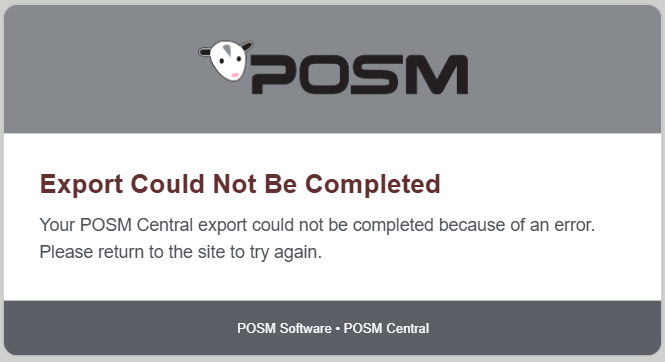
The email indicates that the export could not be completed because of an error.
What to Do
- Return to POSM Central.
- Open Session Management.
- Select the sessions or project you want to export.
- Run Export again.
If the export continues to fail, contact POSM Software Support.
A failed export does not mean the inspection was deleted
The error applies to the export operation. Return to POSM Central and try creating the export again.
Download the Export
The POSM Central export download page displays information about the completed file.
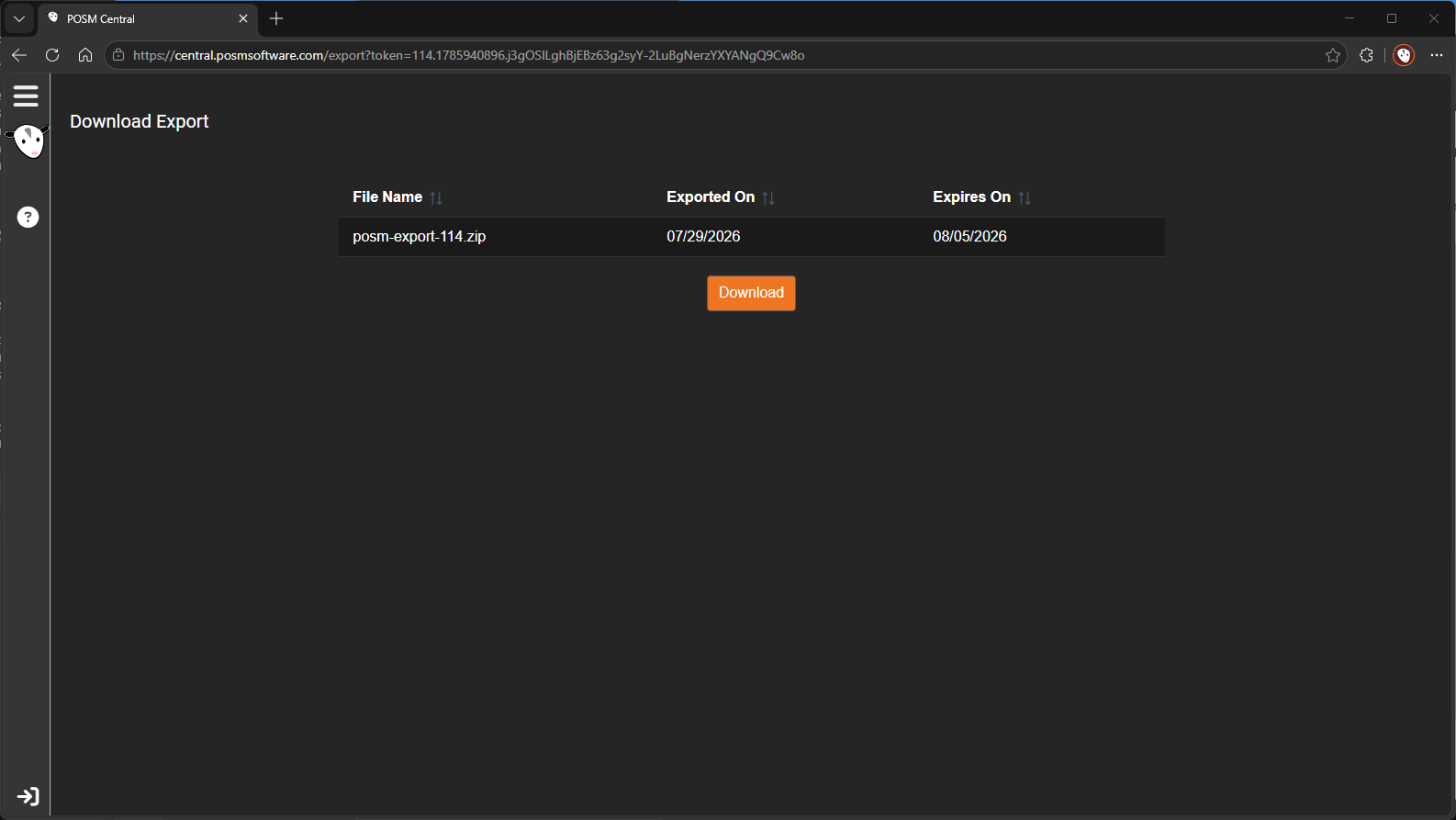
The page may show:
- File Name
- Exported On
- Expires On
- Download button
Select Download to save the ZIP file to your computer.
The exact browser download controls may vary.
Export Expiration
Exports are available only until the date shown in the Expires On field.
Download the file before it expires.
Warning
After the expiration date, the export may no longer be available. Create a new export if another download is required.
What the Export May Include
Depending on the selected sessions and available data, the ZIP file may include:
- Inspection database information
- Reports
- Observation images
- Video files
- Observation clips
- ScanCam data
- Inclination data
- Additional files
- Other supporting files
Downloading Large Exports
Large export files may require additional time to download.
For best results:
- Use a stable internet connection.
- Keep the browser open until the download begins.
- Confirm that the computer has enough available disk space.
- Avoid starting the same download repeatedly.
- Check the browser Downloads panel for progress.
Tip
For very large projects, export sessions in smaller groups to make the files easier to download and manage.
Troubleshooting
If the export is not available:
- Confirm that the export process has finished.
- Check your email for the export-ready notification.
- Check spam and junk folders.
- Confirm that you are signed in to the correct POSM Central account.
- Confirm that the export has not expired.
- Check whether browser downloads are being blocked.
- Try another supported browser.
- Contact POSM Support if the issue continues.
Export Notifications and Download
After an export is started, Central confirms that the export has been queued for background processing.
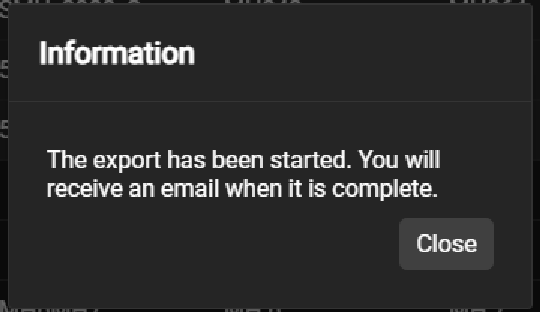
When the export is ready, use the download page to retrieve the completed package.
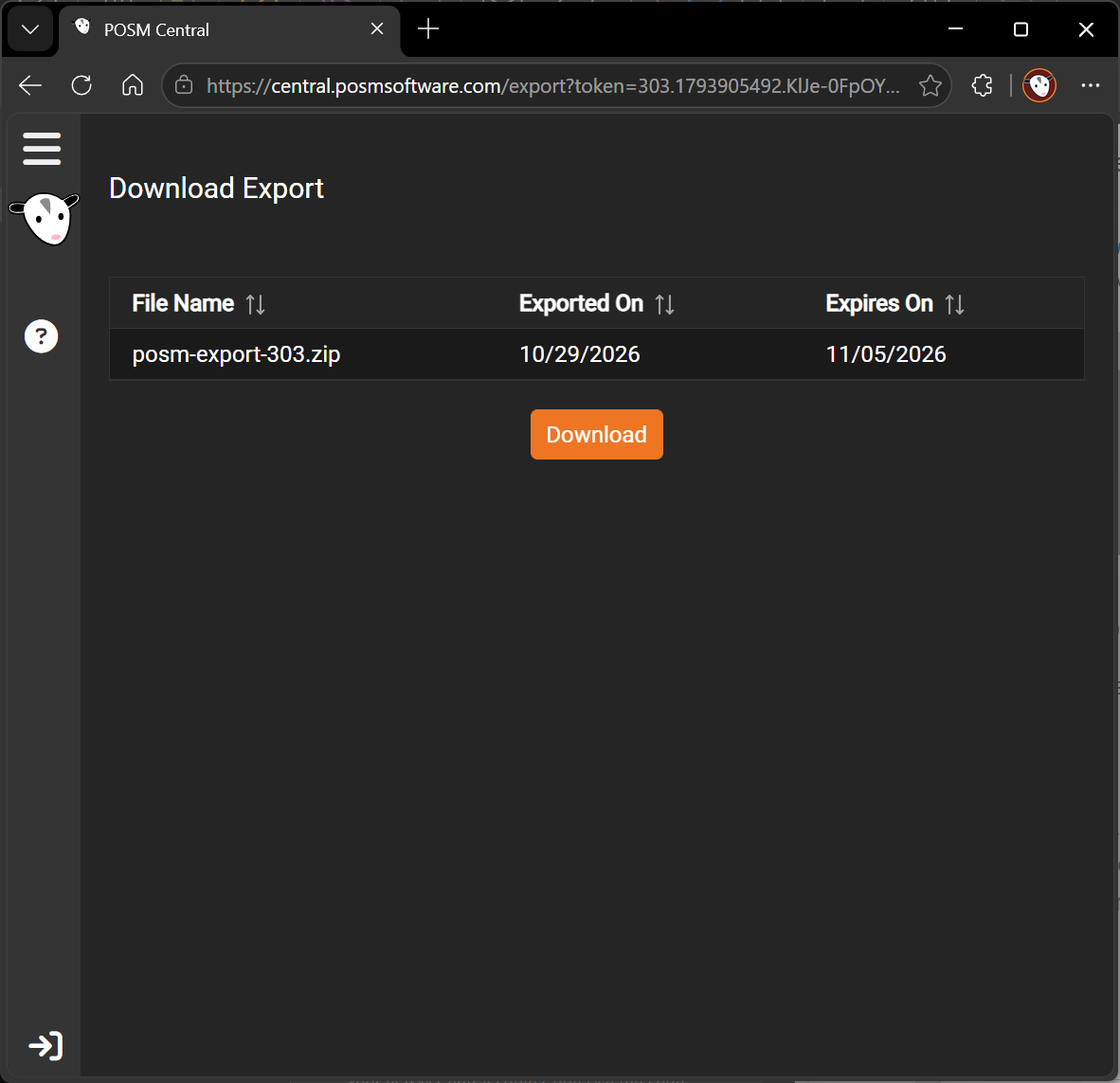
When more than one completed export is available, choose the export you want to download.
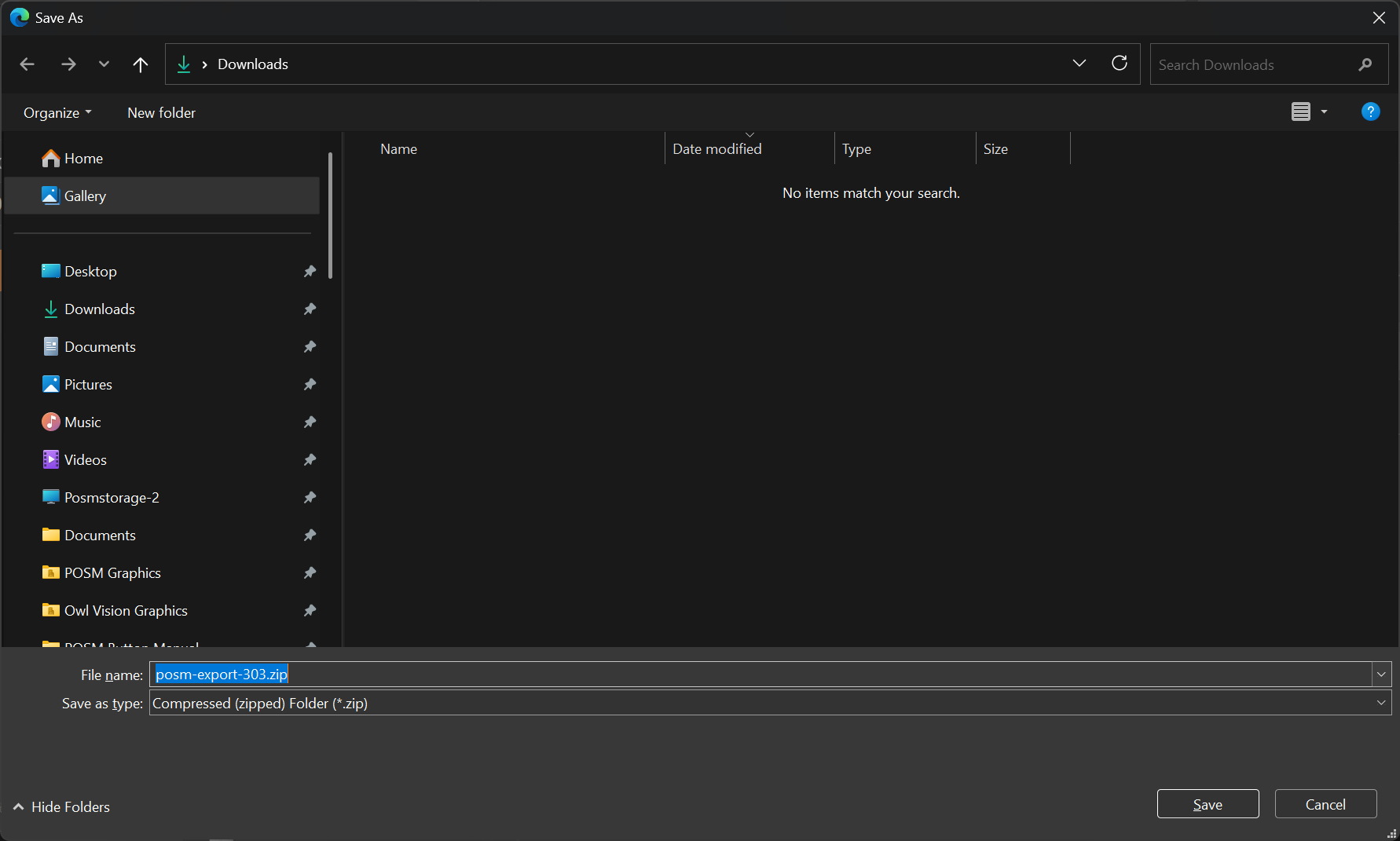
When an export is shared with a recipient, the recipient can also receive an email containing access to the prepared export.