Navigate POSM Central
POSM Central uses a left navigation menu to provide access to the main areas of the application.
Expand or Collapse the Menu
Select the menu control in the upper-left corner to expand or collapse the navigation panel.
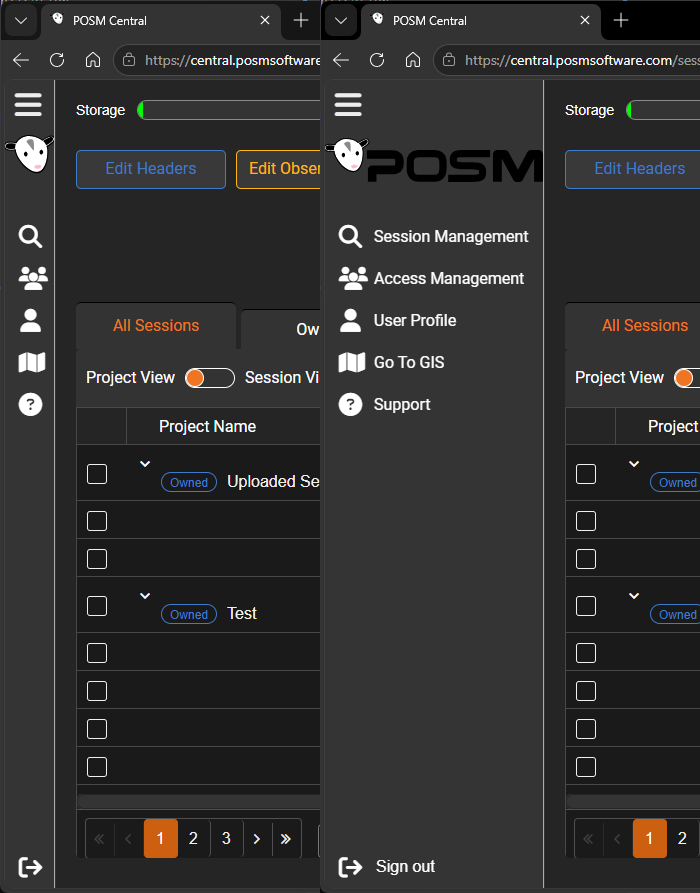
Collapsing the panel provides more room for session information.
Main Navigation
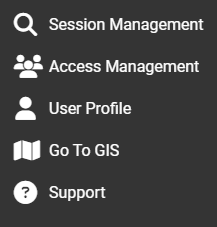
The left navigation menu includes:
- Session Management — view, search, organize, share, transfer, and manage sessions and projects.
- Access Management — manage users, permissions, invitations, and organization access.
- User Profile — review and update personal account information.
- Go To GIS — open the organization’s configured GIS application.
- Support — open POSM support resources.
Session Management
Session Management is the primary workspace in POSM Central.
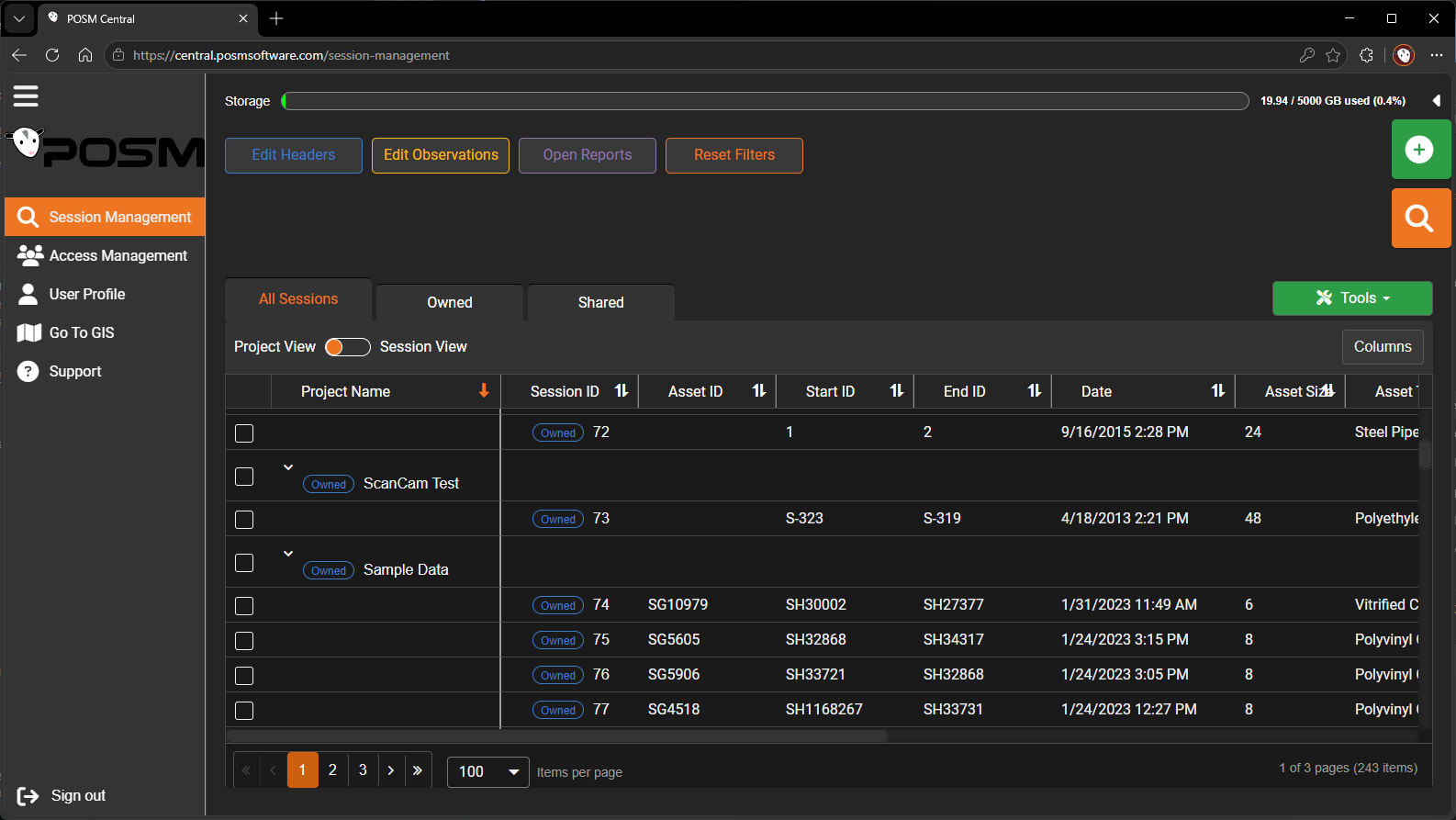
From Session Management, users can:
- Switch between Project View and Session View
- Review owned, shared, and previously owned sessions
- Search and filter sessions
- Open inspections
- Use the Tools menu
- Review storage usage
User Permissions
The options available in the navigation menu and throughout POSM Central depend on the user’s role and assigned permissions.
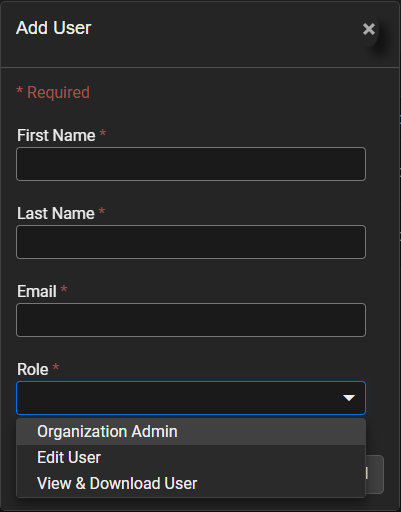
For example:
- View-Only Users cannot edit sessions.
- Users with Edit or Admin permission can edit permitted sessions.
- Organization Admins can manage organization users and access.
- Super Admins can review sessions across organizations.