POSM Central Data Sync
The POSM Data Sync Tool connects a local POSM installation with POSM Central.
Use Data Sync to move inspection data between your local POSM system and POSM Central.

Upload moves inspection data from your local POSM installation to Central. Backup moves Central inspection data back to your local POSM installation.
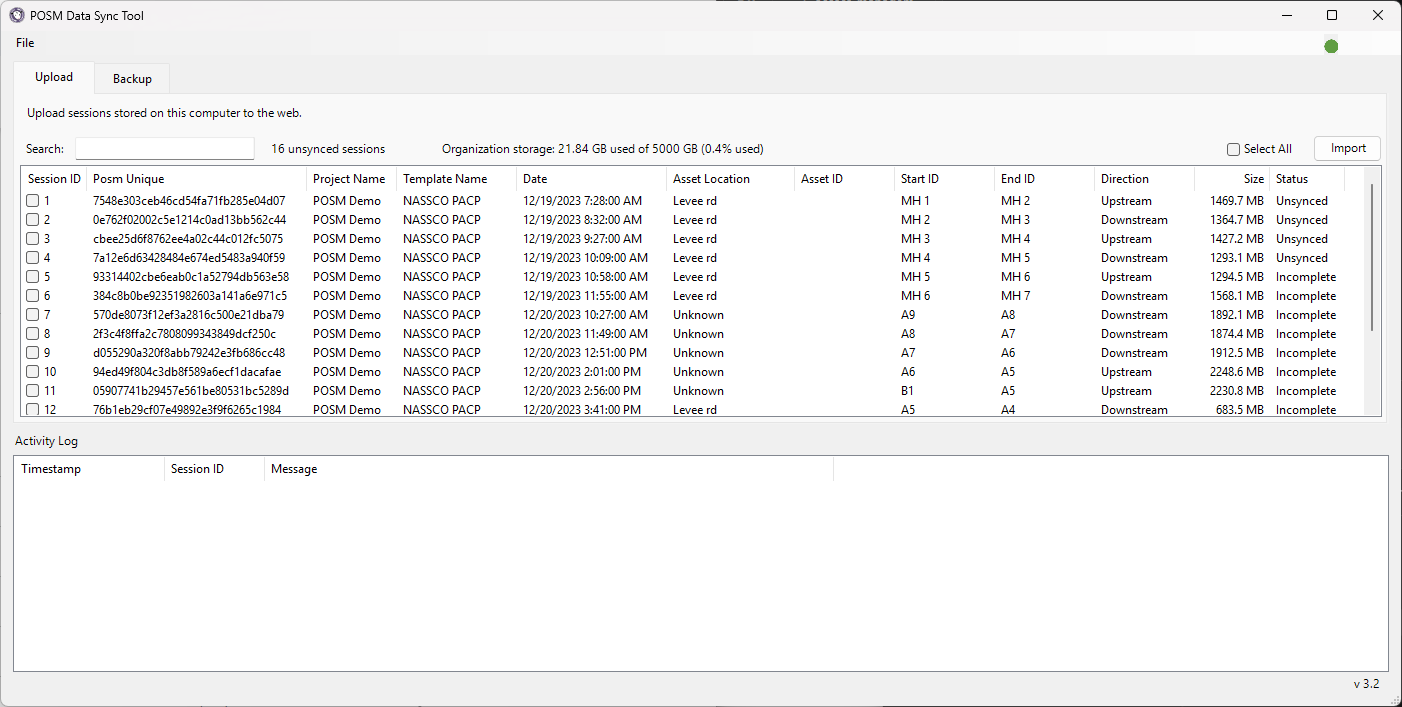
The application provides two primary workflows:
| Data Sync Tab | Direction | Purpose |
|---|---|---|
| Upload | Local POSM → POSM Central | Upload inspections stored in your local POSM system to POSM Central |
| Backup | POSM Central → Local POSM | Download inspections from POSM Central to your local POSM system |
Upload and Backup move data in different directions
Use Upload when inspection data is stored locally in POSM and needs to be sent to POSM Central.
Use Backup when inspection data in POSM Central needs to be downloaded to the local POSM installation.
Launch POSM Data Sync
Open the POSM Data Sync Tool from your computer.

The Data Sync login window opens.
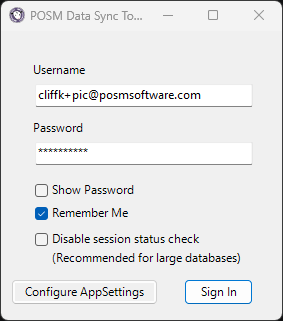
Enter your POSM Central:
- Username
- Password
The login window also provides:
- Show Password
- Remember Me
- Disable session status check (Recommended for large databases)
- Configure AppSettings
- Sign In
Large POSM databases
Disable session status check can reduce the initial loading time when working with a large POSM database containing thousands of sessions.
Click Sign In to open the Data Sync Tool.
Upload Inspections to POSM Central
The Upload tab is the default Data Sync workspace.
Use it to upload inspections stored in the local POSM database to POSM Central.
The Upload tab displays inspections from the configured local POSM database.
You can:
- Search for sessions
- Select individual sessions
- Select all available sessions
- Review session information
- Review synchronization status
- Monitor organization storage
- Follow upload progress in the Activity Log
After selecting the inspections you want to upload, click Import to begin uploading them to POSM Central.
Import uploads to Central
The button on the Upload tab is labeled Import.
In this workflow, Import uploads the selected inspections from the local POSM system to POSM Central.
Upload Inspections to POSM Central
Back Up Inspections From POSM Central
Use the Backup tab to download inspection data from POSM Central to the local POSM installation.
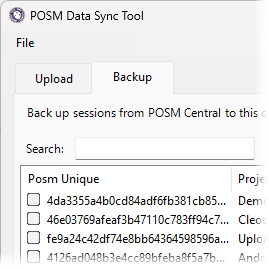
The Backup tab allows you to:
- Search Central inspections
- Select individual inspections
- Select all displayed inspections
- Load additional inspections
- Refresh the Central inspection list
- Show previously backed-up sessions
- Review backup status
- Synchronize selected inspections to the local POSM system
What Backup means in Data Sync
Backup moves inspection data from POSM Central to the local POSM installation.
It does not upload the local POSM database to Central.
Back Up Inspections From POSM Central
Data Sync Configuration
Before Data Sync can communicate correctly with your POSM installation and POSM Central, its application settings must be configured.
From the login window, click Configure AppSettings.
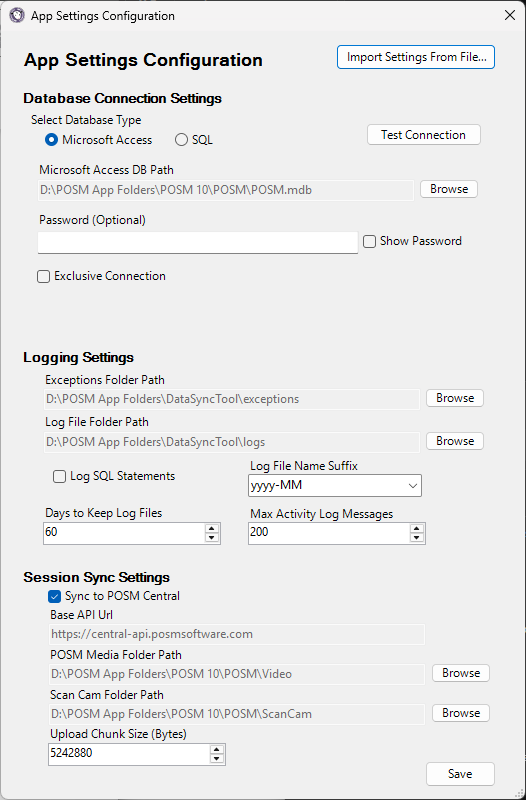
Configuration is divided into three areas:
Database Connection Settings
Defines the POSM database Data Sync uses.
Settings include:
- Database type
- Microsoft Access or SQL
- Database path
- Database password, when applicable
- Test Connection
- Exclusive Connection
Logging Settings
Controls where Data Sync stores diagnostic and activity information.
Settings include:
- Exceptions Folder Path
- Log File Folder Path
- Log SQL Statements
- Log File Name Suffix
- Days to Keep Log Files
- Max Activity Log Messages
Session Sync Settings
Controls the connection and media locations used when synchronizing inspection data.
Settings include:
- Sync to POSM Central
- Base API URL
- POSM Media Folder Path
- ScanCam Folder Path
- Upload Chunk Size
Configure the POSM Data Sync Tool
Search and Session Information
Both the Upload and Backup tabs provide a Search field for locating inspection data.
The session list includes information such as:
- Session ID or POSM Unique identifier
- Project Name
- Template Name
- Date
- Asset Location
- Asset ID
- Start ID
- End ID
- Direction
- Size
- Status
Available columns differ slightly depending on whether you are viewing the Upload or Backup tab.
The session list can be sorted using the column headings.
Activity Log
The Activity Log appears below the inspection list.
During synchronization, the Activity Log provides information about the current operation.
It includes:
- Timestamp
- Session ID
- Message
Messages can show activity such as inspection data being imported, images being processed, video being transferred, and completion status.
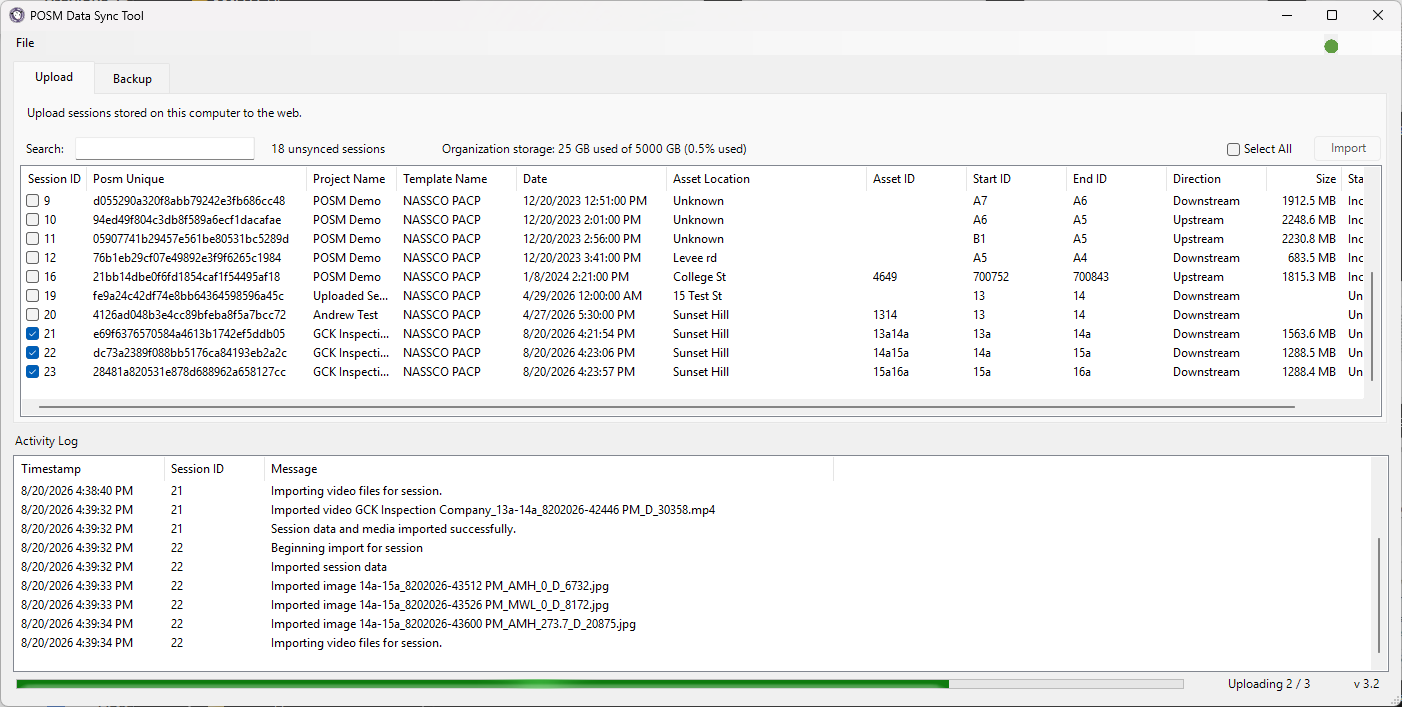
Use the Activity Log when you want to follow the progress of a synchronization operation or determine where a problem occurred.
Synchronization Status
Data Sync displays the synchronization status of inspections in the session list.
Depending on the tab and inspection, statuses may include:
- Unsynced
- Incomplete
- Not started
- Backed up
The Activity Log provides additional information while an operation is running.
Missing Inspection Files
Data Sync checks for inspection files needed during synchronization.
If expected files cannot be found, Data Sync may display a warning identifying the affected session and missing file.
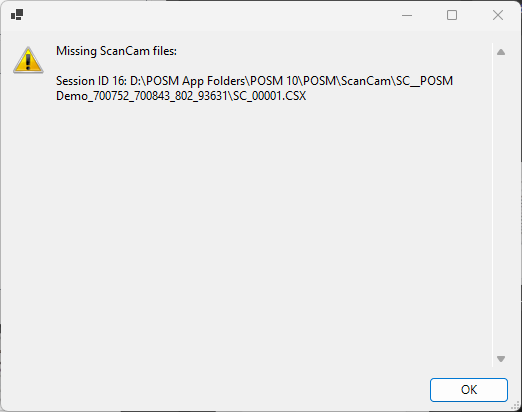
Missing inspection video, ScanCam, or other required media may need to be restored or the configured media paths may need to be checked.
NASSCO Validation
NASSCO inspections must pass the required validation before they can be uploaded to POSM Central.
If an inspection has NASSCO validation errors, correct the errors in the POSM application and validate the inspection again before attempting the Central upload.
Data Sync Tool Version
The installed Data Sync Tool version appears in the lower-right corner of the application window.
This information can be useful when contacting POSM Support about a Data Sync issue.
Automatic Video Conversion and Optional Compression
POSM Data Sync can convert inspection video to MP4 during upload.
- Videos that are not already MP4 are converted before upload.
- A converted video appears in Central using the original base filename with the
.mp4extension. - Video compression is off by default.
- When compression is enabled in App Settings, videos above the configured size cutoff can be reduced to the selected bitrate and maximum resolution.
- Data Sync checks available media-drive space before conversion and refuses the conversion when there is not enough free space.
- Videos that were already synchronized, under either their original or converted filename, are not uploaded again.
Named Configurations
Data Sync supports named configurations for installations that work with more than one POSM database or environment.
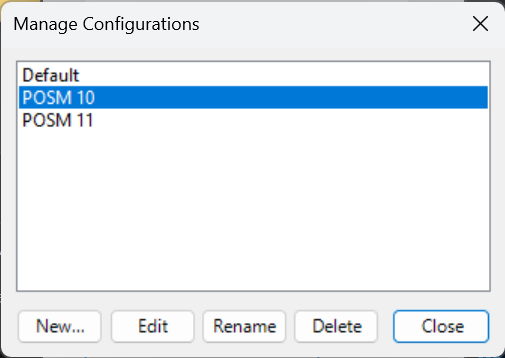
You can create, edit, and switch between configurations. Switching configurations applies the saved database credentials for that configuration, and the saved POSM sign-in is remembered separately for each configuration.
Conversion Space Requirements
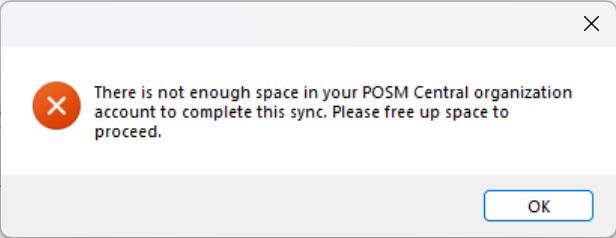
If Data Sync reports that there is not enough free space, free additional space before retrying the upload.