Customize the Session List
POSM Central allows users to customize how information appears in Session Management.
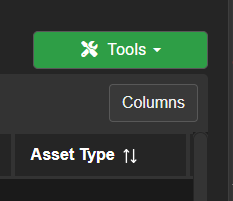
Sort Sessions and Projects
Select a column header to sort the list by that column.
Depending on the column, selecting the header again may reverse the sort order.
Sorting can be used in both:
- Session View
- Project View
Change Column Visibility
Use the column settings control to choose which columns appear in the session list.
- Open Session Management.
- Open the column settings or visibility menu.
- Select the columns you want to display.
- Clear the columns you want to hide.
- Close the menu or save the changes.
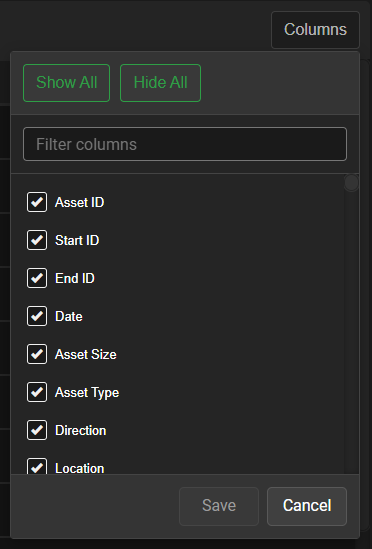
The available columns include inspection details, project information, condition ratings, GIS fields, custom fields, review information, and other session data.
View all available column options
General Session Information
- Asset ID
- Start ID
- End ID
- Date
- Asset Size
- Asset Type
- Direction
- Location
- Complete
- Session Size
- Project ID
- Session Modified
- Session Type
- Template
- Operator
- Run Number
- Use of Sewer
- Inspection Count
- Is Imperial
- Certificate Number
- Pre Cleaning
- Auto Increment
- Resurvey Required
- Reason Not Complete
- Full Segment Inspection Complete
- Uploaded By
- Date Uploaded
- Reviewed By
- Reviewer Cert Num
Asset Information
- Asset Width
- Asset Shape
- Asset Length
- Asset ID Main
- Asset ID Num
- Asset Name
- Asset 1
- Asset 2
- Asset 3
- Asset 4
- Asset 5
- City
- State
- Zip
Start and End Information
- Start Type
- Start Location
- Start Depth
- Start Notes
- Start 1
- Start 2
- Start 3
- Start 4
- Start 5
- End Type
- End Location
- End Depth
- End Notes
- End 1
- End 2
- End 3
- End 4
- End 5
Inspection Direction and Distance
- Reverse
- Length Surveyed
- VCR Index Start
- VCR Index End
- SixOClock Degree Position
Structural and Maintenance Ratings
- Sh Weight
- Mnt Weight
- PACP Overall Ratings Index
- PACP Quick Struct Rating
- PACP Quick Struct Rating Num
- PACP Struct Ratings Index
- PACP Quick Maint Rating
- PACP Quick Maint Rating Num
- PACP Maint Ratings Index
- PACP Quick Overall Rating
- PACP Quick Overall Rating Num
- Struct Peak Score
- Struct Peak Grade
- Struct Mean Score
- Struct Mean Grade
- Service Peak Score
- Service Peak Grade
- Service Mean Score
- Service Mean Grade
- LoF PACP
- Risk
Count and Rating Groups
- Count Group 1
- Count Group 2
- Count Group 3
- Count Group 4
- Count Group 5
- Count Group 6
- Count Group 7
- Count Group 8
- Count Group 9
- Count Group 10
- Struct Group 0
- Struct Group 1
- Struct Group 2
- Struct Group 3
- Struct Group 4
- Struct Group 5
- Main Count 0
- Maint Group 1
- Maint Group 2
- Maint Group 3
- Maint Group 4
- Maint Group 5
Pipe Deformation and Cross-Bore Information
- Cross Bore Found
- Pipe Def 5
- Pipe Def 75
- Pipe Def 10
GIS Information
- Web Path to Report Index
- Web Path to Video
- Exported to GIS
- GIS Import Settings Name
- Asset ID Matched to GIS
- Is Latest Inspection
Files, Folders, and Export Information
- PDF Export Name
- Session Compressed
- Archive Location
- Media Folder
- Report Folder
- Group Report Folder
Inspection Relationships and Unique Identifiers
- POSM Unique
- Linked Inspection Unique
Numeric Values
- Int Number Value
- Sng Number Value
GPS Information
- GPS Serial
Custom Fields
- Custom 1
- Custom 2
- Custom 3
- Custom 4
- Custom 5
- Custom 6
- Custom 7
- Custom 8
- Custom 9
- Custom 10
- Custom 11
- Custom 12
- Custom 13
- Custom 14
- Custom 15
- Custom 16
- Custom 17
- Custom 18
- Custom 19
- Custom 20
Note
The available columns may vary depending on the inspection template, organization configuration, and data associated with the sessions.
Your column visibility selections remain saved after you sign out and sign back in.
Change Column Order
Columns can be rearranged to place the most useful information first.
- Select and hold the column header.
- Drag the column to the desired position.
- Release it to save the new order.
Your column order remains saved after you sign out and sign back in.
Tip
Place frequently used fields such as Project ID, Asset ID, Date, Owner, and inspection ratings near the beginning of the table.