Open Inspection Reports From GIS
POSM Central GIS can provide direct access to POSM inspection reports from mapped GIS assets.
When a GIS asset is associated with POSM inspection information, the asset information window may contain a report_link.
This allows you to move directly from the GIS map to the associated POSM inspection report without first locating the inspection manually in Session Management.
Open POSM GIS
- Sign in to POSM Central.
-
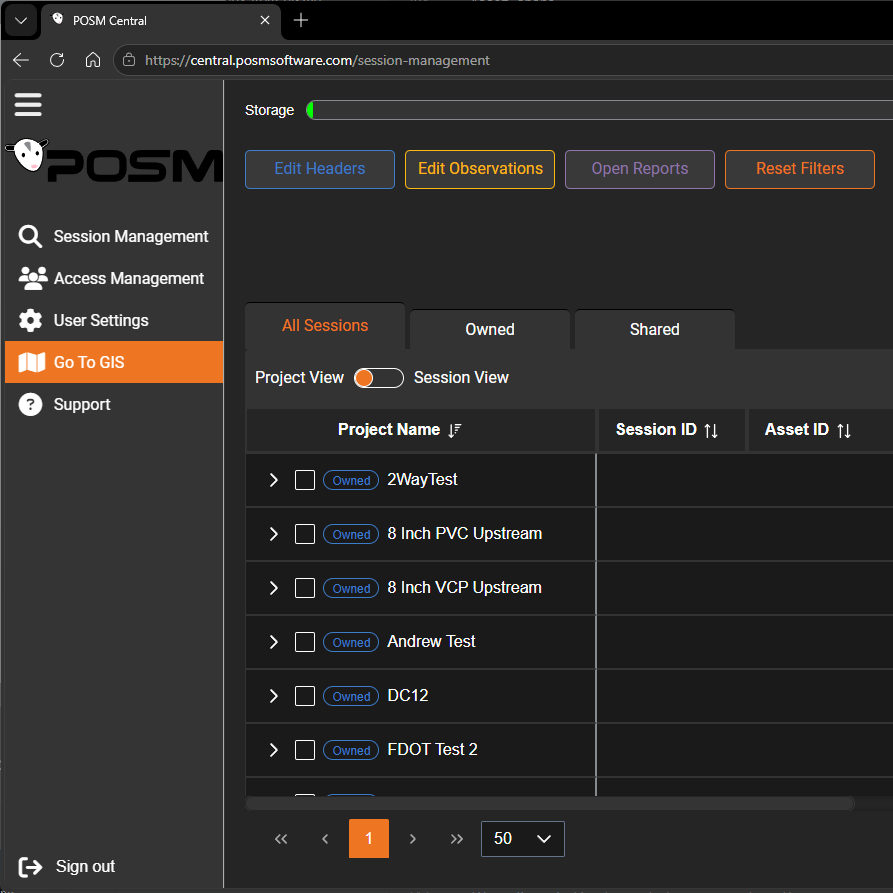
Select Go To GIS from the left navigation menu.
-
The organization's configured POSM GIS workspace opens.
Locate the Asset
Use the GIS map to locate the asset whose inspection report you want to view.
You can locate an asset by:
- Navigating the map
- Searching the Attribute Table
- Using Advanced Search
- Opening a saved Bookmark
Search by Asset Information
If you know the Asset ID, location, address, or another identifying value, use the search field in the Attribute Table.
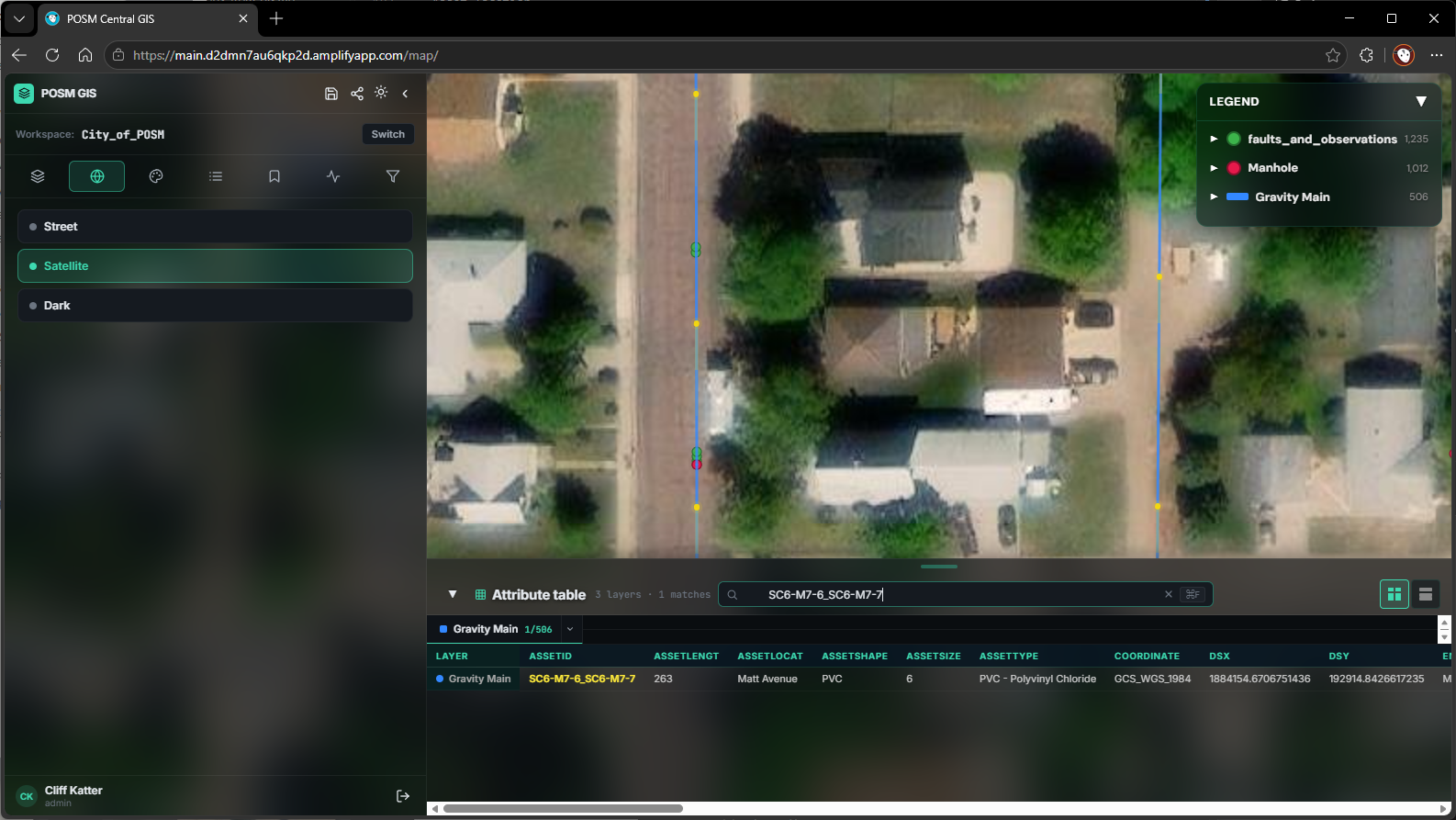
- Enter the identifying information in the search field.
- Review the matching records in the Attribute Table.
- Locate the desired asset on the map.
The number of matching records is displayed above the Attribute Table.
Use Advanced Search for more specific searches
If a basic Attribute Table search returns too many results, use Advanced Search to search specific layers and fields or combine multiple conditions.
Select the Asset
Click the desired asset on the map.
The asset information window opens.
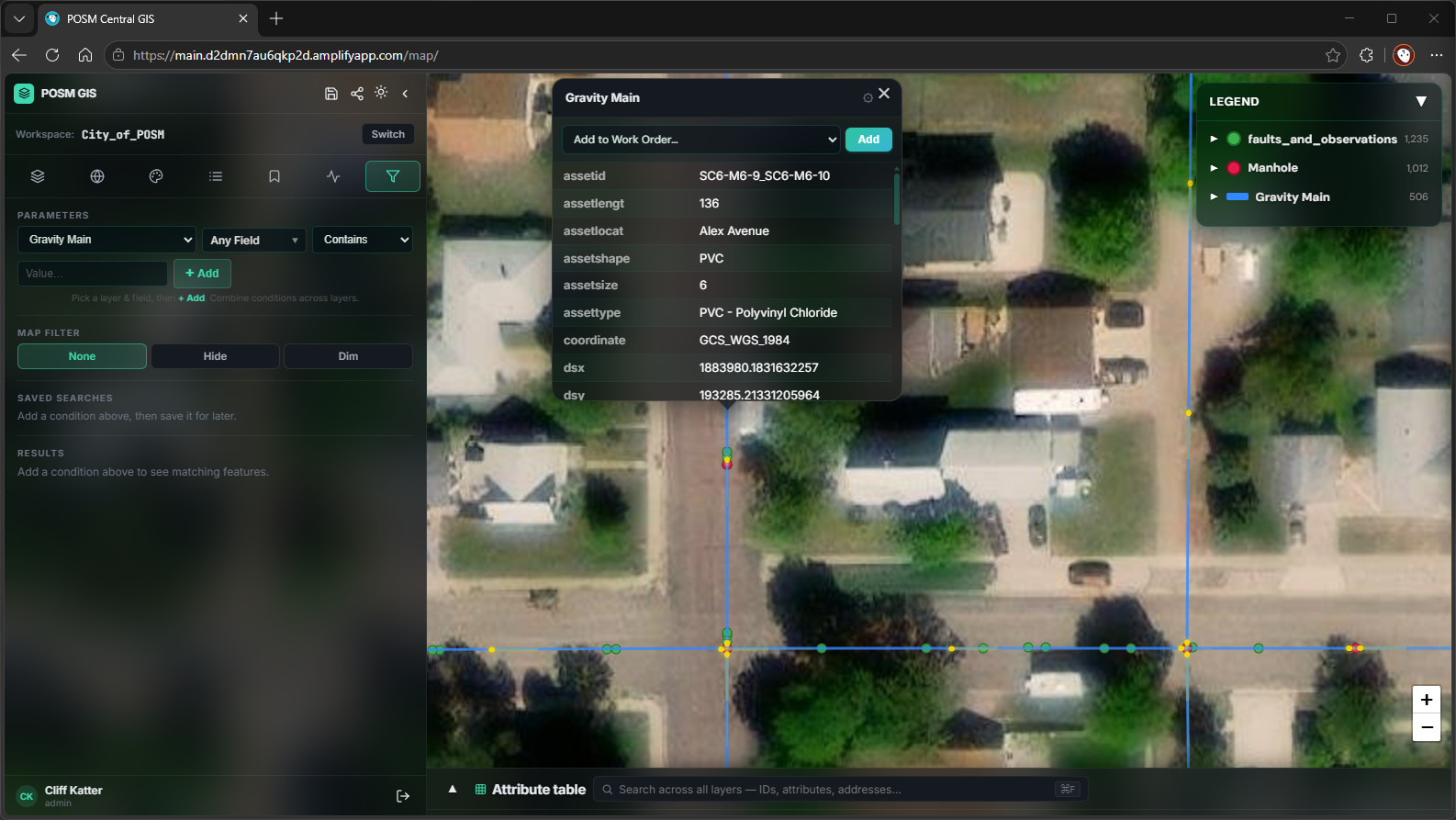
The information displayed depends on the selected GIS layer and the data stored for that feature.
Depending on the asset, information may include:
- Asset ID
- Asset length
- Asset location
- Asset shape
- Asset size
- Asset type
- Coordinate information
- Start and end information
- Other GIS attributes
Find the Report Link
When the GIS asset is associated with POSM inspection information, the asset information window may contain a report_link.
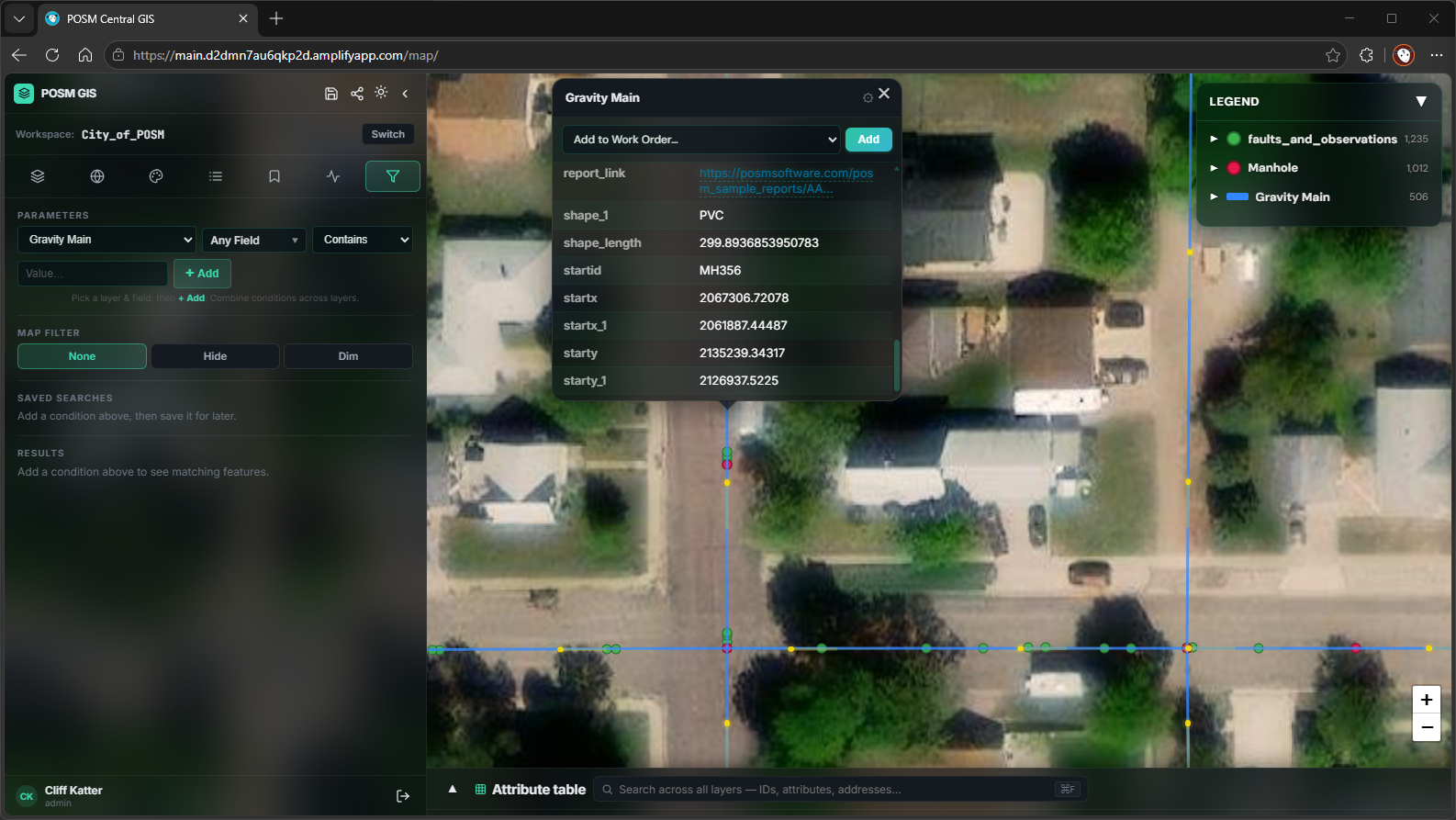
The report link appears with the other attributes associated with the selected GIS feature.
You may need to scroll through the asset information to locate the link.
Open the Inspection Report
Click the report_link displayed in the GIS asset information window.
The associated POSM inspection report opens in the browser.
The report opens to an index containing the saved reports available for the inspection.
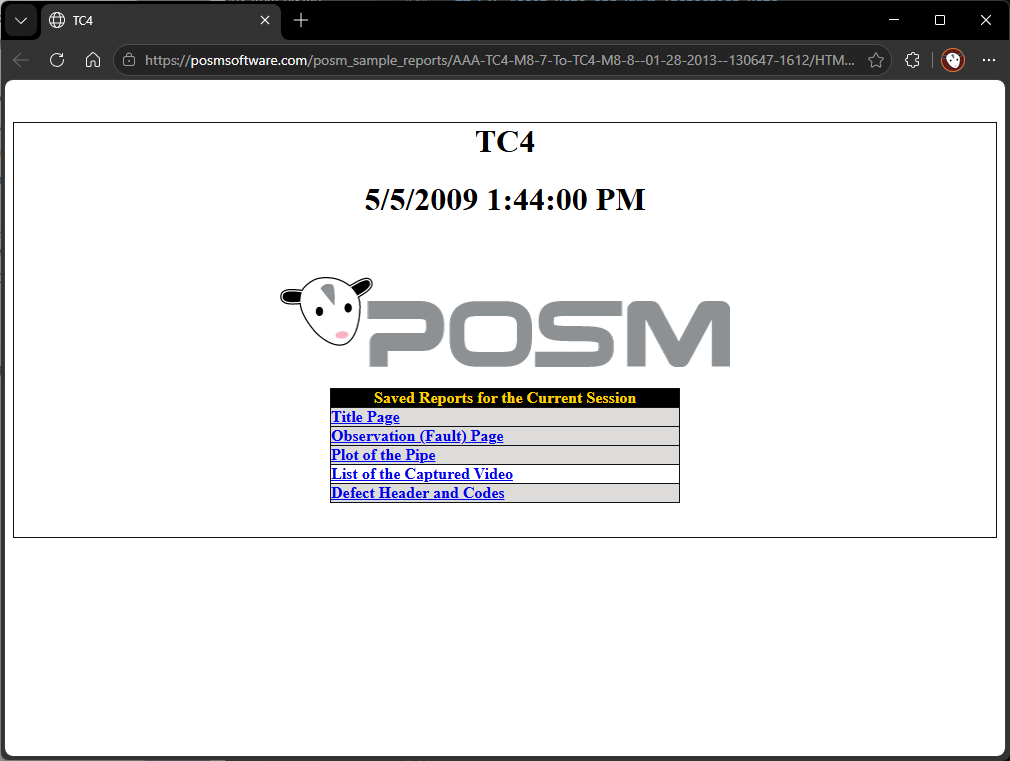
Depending on the inspection, available reports may include:
- Title Page
- Observation (Fault) Page
- Plot of the Pipe
- List of the Captured Video
- Defect Header and Codes
Click a report name to open that report.
GIS provides direct access to the inspection
The GIS report link takes you directly to the reports associated with the mapped inspection.
You do not need to return to Session Management and manually search for the inspection.
Available Inspection Reports
The reports available for an inspection depend on the inspection data.
Title Page
The Title Page displays general inspection and asset information.
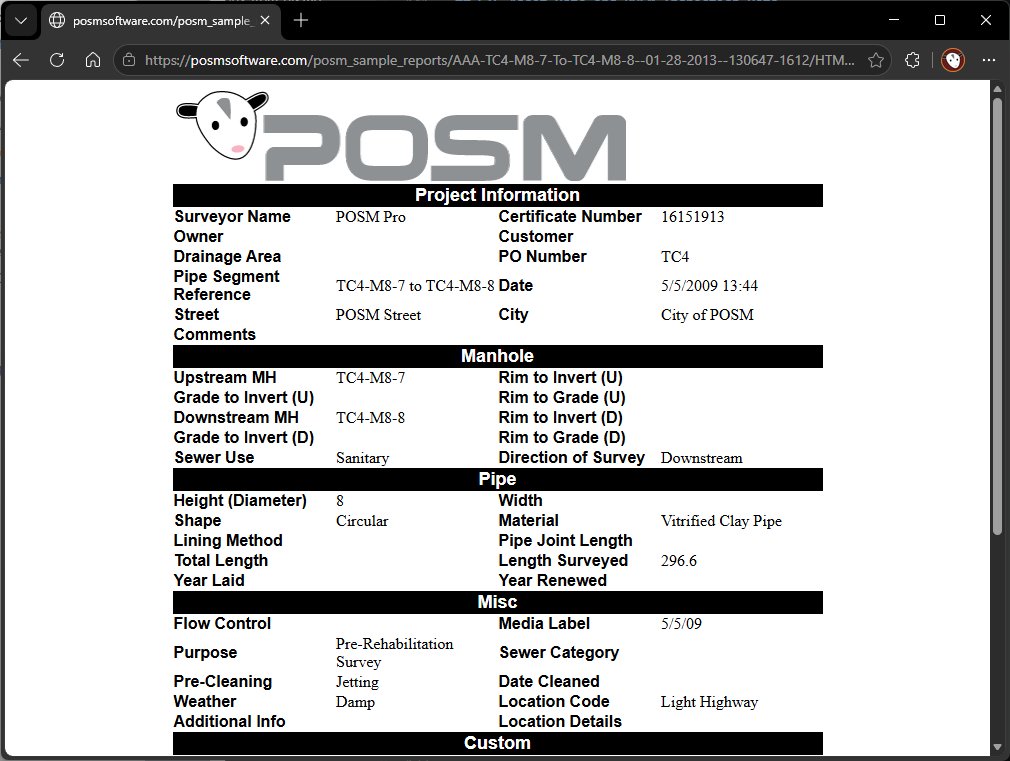
Information can include:
- Project information
- Surveyor
- Certificate number
- Pipe segment reference
- Street and location information
- Upstream and downstream manholes
- Direction of survey
- Pipe dimensions
- Shape
- Material
- Length surveyed
- Survey conditions
- Other inspection header information
Observation (Fault) Page
The Observation (Fault) Page lists inspection observations together with captured images when available.
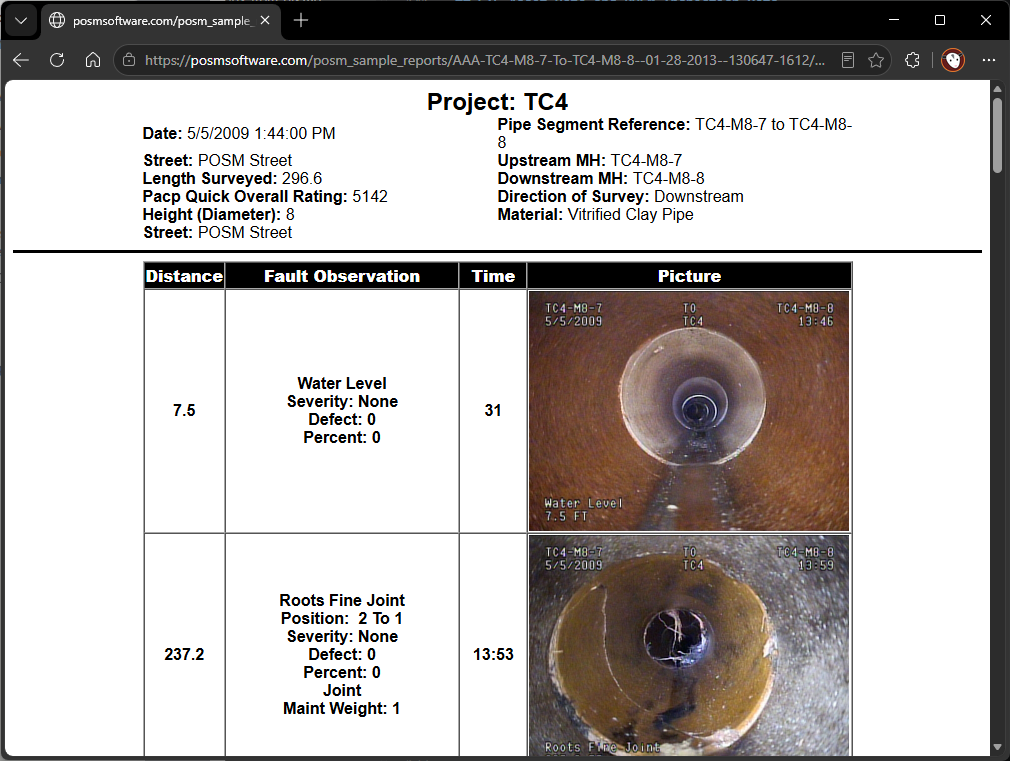
Depending on the inspection, the report can include:
- Observation distance
- Fault or observation description
- Position
- Severity information
- Video time
- Observation image
- Other observation information
Plot of the Pipe
The Plot of the Pipe provides a graphical representation of observations along the inspected pipe.
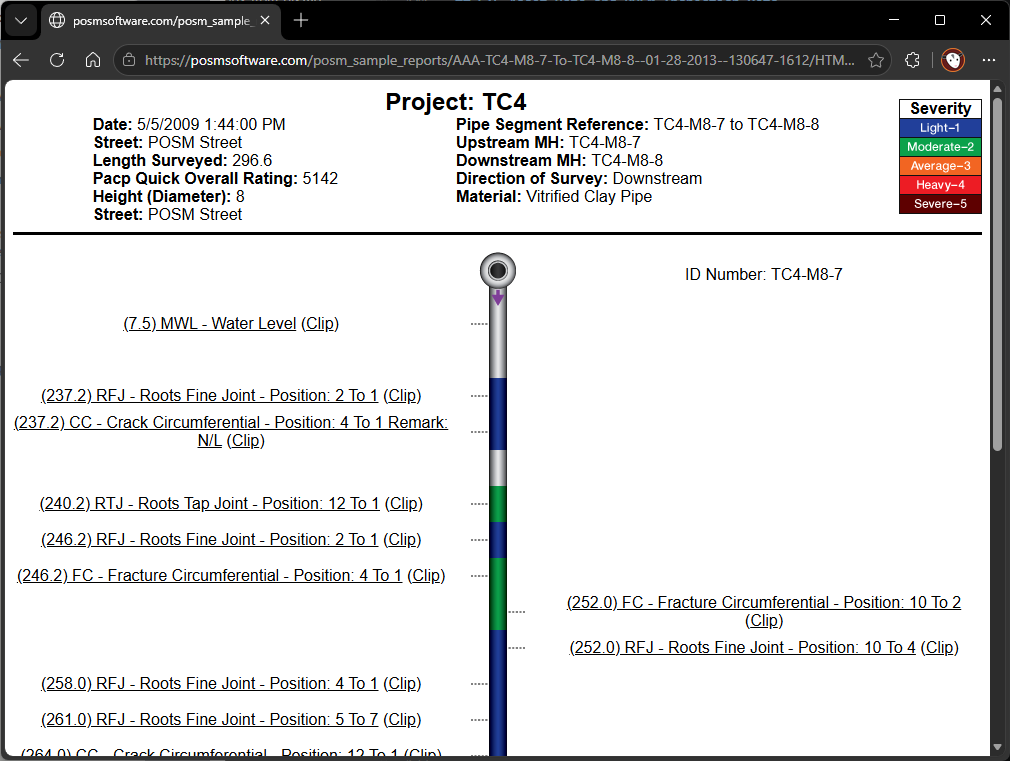
Observations are positioned according to their distance within the inspection.
Depending on the inspection, the plot may also use severity information to help identify the location and severity of recorded conditions.
Captured Video
The captured-video report provides access to video information associated with the inspection and its observations.
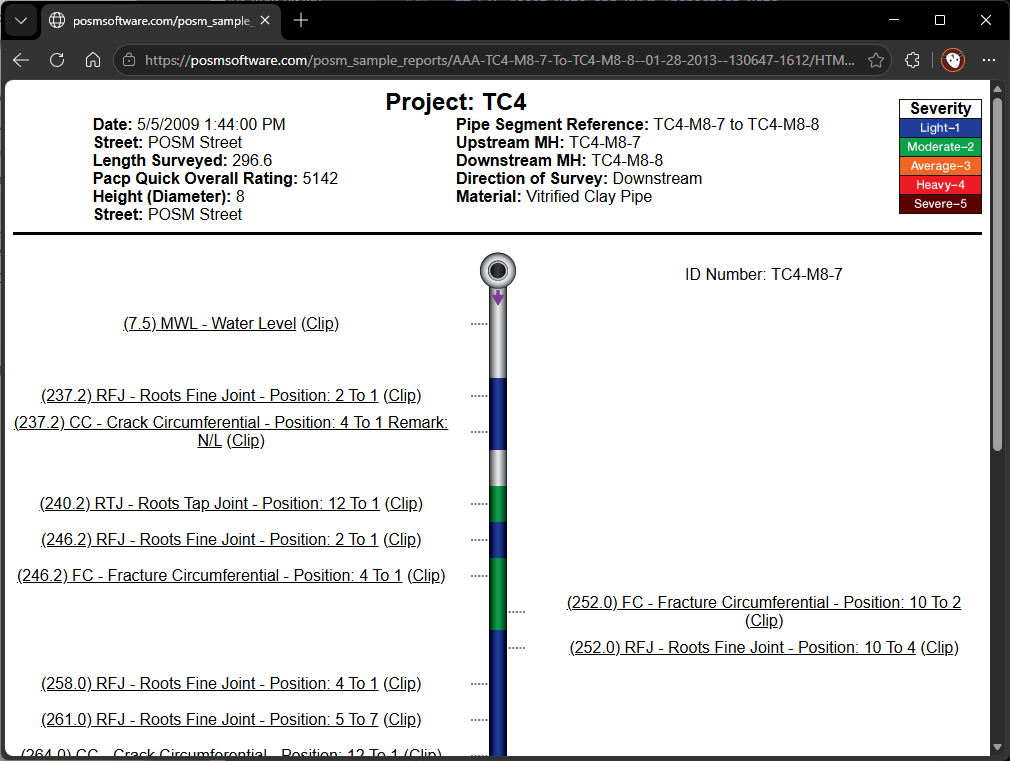
Available links may allow you to open captured video clips associated with individual observations.
Defect Header and Codes
For applicable NASSCO inspections, Defect Header and Codes provides inspection rating and defect-code information.
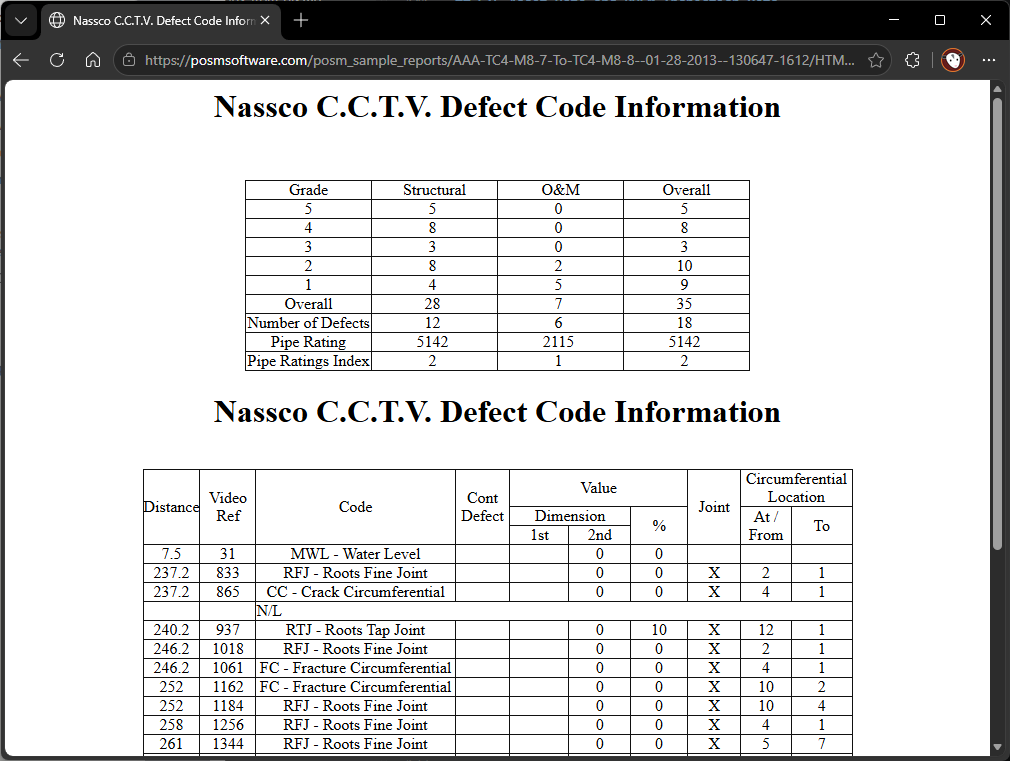
The report can include:
- Structural rating information
- O&M rating information
- Overall rating information
- Number of defects
- Pipe rating
- Observation distance
- Video reference
- Defect code
- Defect values
- Joint information
- Circumferential location information
Available reports vary
The reports and information available depend on the inspection template and the data recorded for the inspection.
If a Report Link Is Not Shown
Not every GIS feature will necessarily contain a POSM inspection report link.
The information available for an asset depends on the organization's GIS data and how the GIS workspace has been configured.
If report_link is not displayed:
- Confirm that you selected the intended asset.
- Review the asset information.
- Search for the asset using the Attribute Table or Advanced Search if needed.
- Check whether the inspection can be located through POSM Central Session Management.
GIS data varies by organization
The fields available in the asset information window depend on the organization's GIS configuration.
A report link can only be displayed when the GIS information for the asset includes the appropriate report-link data.
Find the Inspection in Session Management
If you need to locate the inspection without using a GIS report link:
- Return to POSM Central.
- Open Session Management.
- Search for the inspection using the available asset or inspection information.
- Open the inspection.
- Select Open Reports.
GIS Asset Data and POSM Inspection Data
The GIS map represents the organization's configured GIS assets.
POSM inspection information can be connected to those mapped assets through the data available in the GIS configuration.
When a report link is available, GIS users can move directly from the mapped infrastructure asset to its related inspection report.
This can be useful when reviewing:
- Gravity mains
- Manholes
- Faults and observations
- Inspection history associated with mapped infrastructure
- Other configured GIS assets
Available information depends on the GIS configuration
Different organizations may have different GIS layers, fields, asset information, and report links.
Need Help With a GIS Report Link?
POSM Support can assist if:
- A report link does not open
- An expected report link is not displayed
- The wrong report appears to be associated with an asset
- You cannot locate the desired GIS asset
- You need assistance with the organization's GIS configuration
You do not need to diagnose the problem before contacting Support.