Access Management
Access Management allows Organization Administrators to manage users in their POSM Central organization.
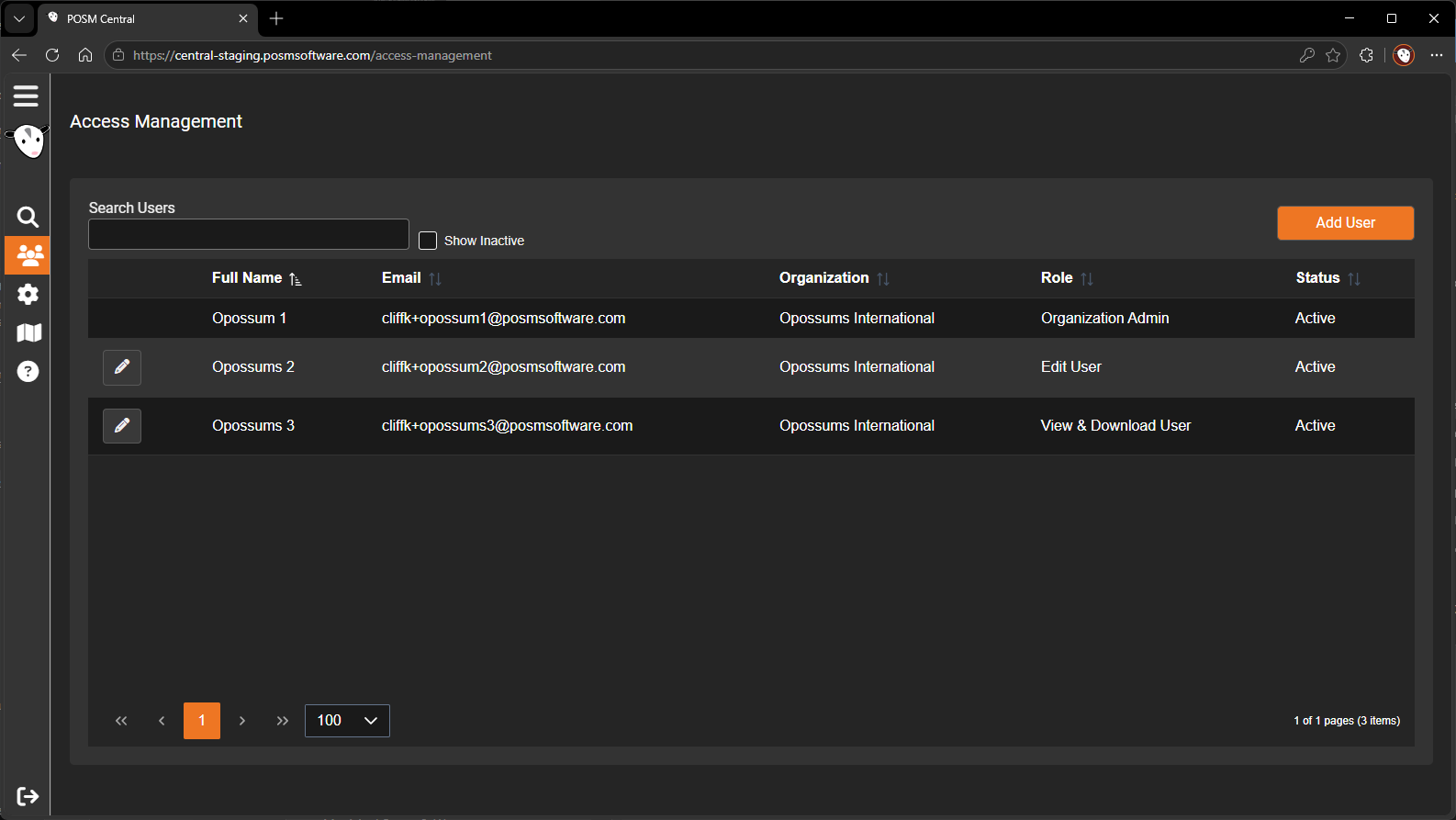
Organization Administrators can:
- Add users
- Edit existing users
- Assign or change user roles
- Activate users
- Deactivate users
Open Access Management
- Sign in to POSM Central.
- Select Access Management from the left navigation menu.
- Review the users in your organization.
The Access Management screen shows information such as:
- Full Name
- Organization
- Role
- Status
Add Users
Organization Administrators can create users for their organization.
When adding a user, enter:
- First Name
- Last Name
- Role
The user can then be associated with the organization and granted the selected role.
Edit Users
Select the edit option next to a user to open the Edit User window.
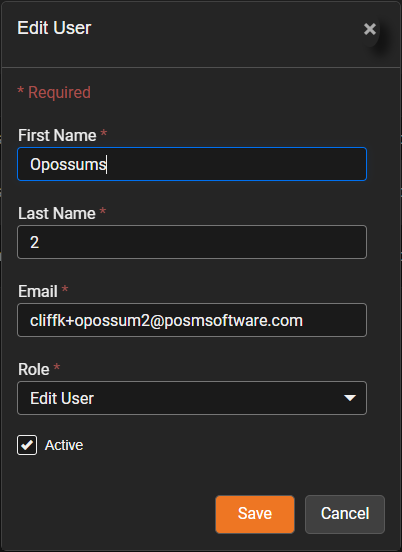
Organization Administrators can change:
- First Name
- Last Name
- Role
- Active status
Click Save to apply the changes.
User Roles
A user's role determines what they are permitted to do in POSM Central.
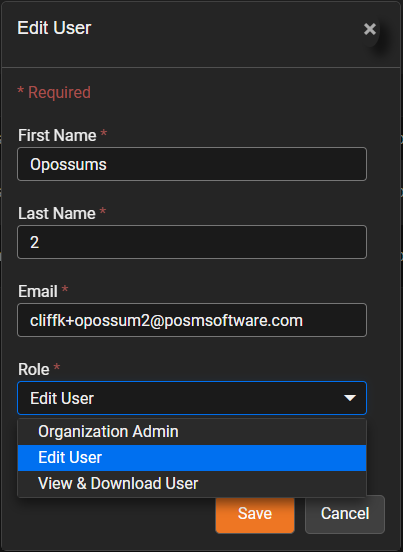
Available roles include:
- Organization Admin
- Edit User
- View & Download User
Assign roles carefully
Give users only the level of access they need to perform their work.
Activate or Deactivate Users
Use the Active checkbox in the Edit User window to control whether a user can access the organization.
- Checked — the user is active.
- Unchecked — the user is deactivated.
Use Show Inactive on the Access Management screen to include deactivated users in the list.
User Settings Are Separate
Access Management is used by Organization Administrators to manage organization users.
Each user also has a separate User Settings page for managing their own account and preferences.
User Settings includes:
- First Name
- Last Name
- Phone Number
- Change Password
- Organization logo
- Transfer notification preference
- Share notification preference
- Two-factor authentication setting