Data Sync Status
The POSM Data Sync Tool displays synchronization status information for inspections on both the Upload and Backup tabs.
Use the Status column and Activity Log to determine whether an inspection has been synchronized successfully or requires attention.
Where to Find Status Information
The Status column appears in the inspection list on both Data Sync tabs.
Upload Tab
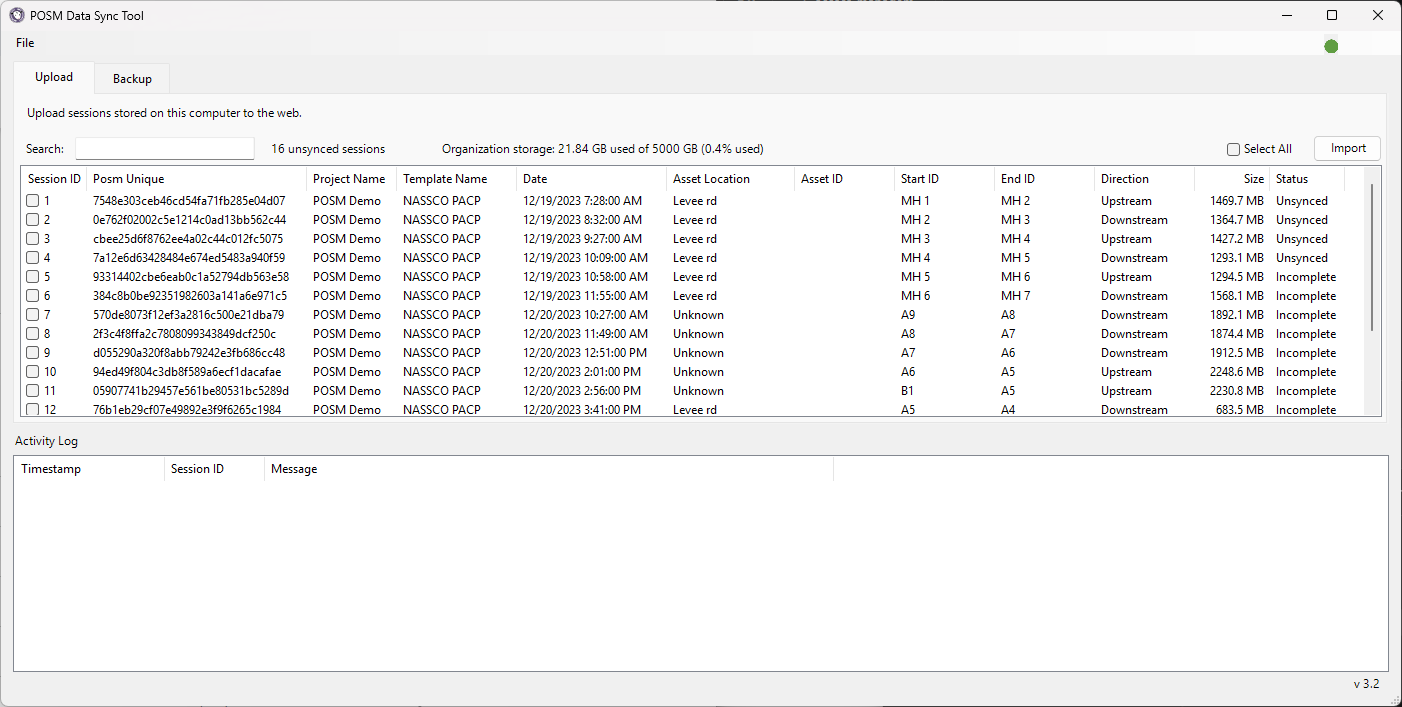
The Upload tab shows the synchronization state of inspections from the local POSM installation.
Backup Tab
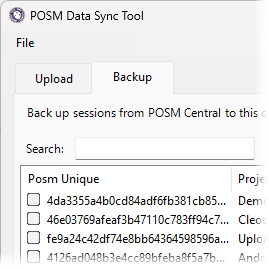
The Backup tab shows the synchronization state of inspections available from POSM Central.
Status depends on the direction
On the Upload tab, status relates to synchronization from the local POSM installation to POSM Central.
On the Backup tab, status relates to synchronization from POSM Central to the local POSM installation.
Upload Status
The Upload tab may display statuses including:
- Unsynced
- Incomplete
A successfully uploaded inspection may no longer require synchronization from the Upload tab.
Unsynced
Unsynced indicates that the local POSM inspection has not been completely synchronized with POSM Central.
Select the inspection and click Import when you are ready to upload it.
Upload Inspections to POSM Central
Incomplete
Incomplete indicates that Data Sync did not completely synchronize the inspection.
An incomplete upload can occur when Data Sync encounters a problem such as:
- Missing inspection media
- Missing ScanCam files or folders
- Incorrectly configured media paths
- NASSCO validation errors
- A synchronization or server error
Review the Activity Log and any warning displayed by Data Sync to determine what prevented the operation from completing.
Backup Status
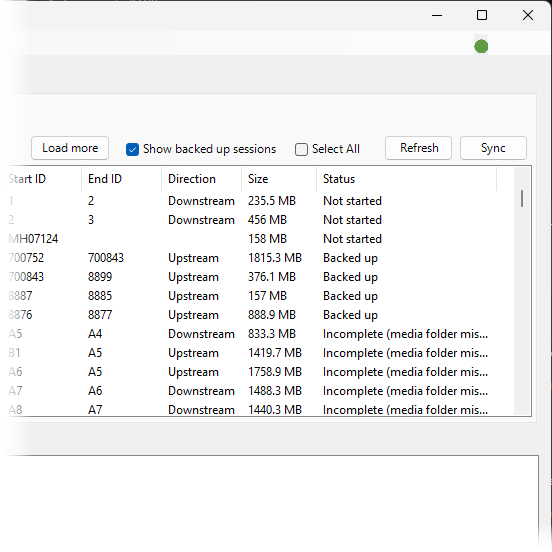
The Backup tab may display statuses including:
- Not started
- Backed up
- Incomplete
Not Started
Not started indicates that the POSM Central inspection has not yet been backed up to the configured local POSM installation.
Select the inspection and click Sync to begin the backup.
Backed Up
Backed up indicates that the inspection has been synchronized from POSM Central to the configured local POSM installation.
To include previously backed-up inspections in the Backup list, select Show backed up sessions.
Back Up Inspections From POSM Central
Incomplete
Incomplete indicates that the backup did not complete successfully.
Review the Activity Log for information about the affected inspection and where the operation stopped.
If the problem continues after retrying, review the Data Sync troubleshooting information.
Activity Log
The Activity Log appears below the inspection list and provides more detailed information than the Status column.
The Activity Log includes:
- Timestamp
- Session ID
- Message
Use it to follow synchronization progress and identify where a problem occurred.
Activity During an Upload
During an upload from local POSM to POSM Central, Activity Log messages may indicate:
- Beginning import for the session
- Session data imported
- Images imported
- Video import started
- Video imported
- Session data and media imported successfully
A normal successful upload ends with a message indicating that the session data and media were imported successfully.
Successful upload
When the Activity Log indicates that the session data and media were imported successfully, the inspection has completed the upload process.
Upload Completion Message
After Data Sync finishes processing the selected inspections, a completion message appears.
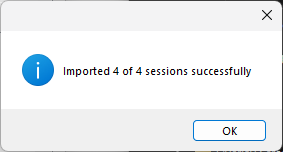
Review the completion message to see how many selected sessions were imported successfully.
If fewer sessions succeeded than were selected, review the Status column and Activity Log for the sessions that did not complete.
Activity During a Backup
During a backup from POSM Central to the local POSM installation, Activity Log messages may indicate:
- Beginning backup for the session
- Retrieving session details from POSM Central
- Number of media files and observations available
- Downloading video and image files
- Writing the session to the local database
- Writing session information
- Writing special fields
- Writing observations
- Writing additional reports
- Writing ScanCam information
- Writing inclinometer information
- Committing changes to the local database
- Session synchronized to the local database
Successful backup
A successfully completed backup ends with a message indicating that the session was synchronized to the local database.
Backup Completion Message
After Data Sync finishes processing the selected Central inspections, a completion message appears.
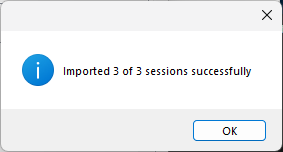
Review the completion message to confirm how many selected sessions were backed up successfully.
Missing Files
Data Sync checks for media associated with inspections during synchronization.
If an expected file or folder cannot be located, Data Sync may display a warning identifying:
- The affected Session ID
- The missing file or folder
- The expected file path
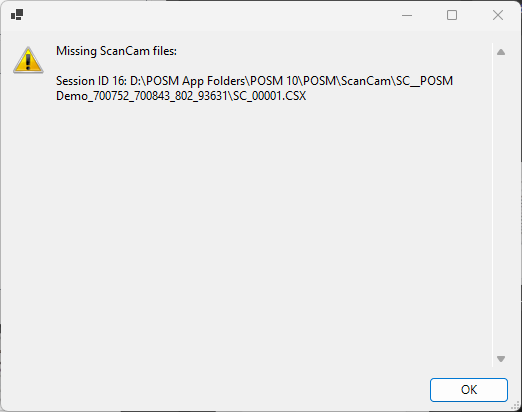
Common missing-file problems can include:
- Missing POSM media folders
- Missing inspection video
- Missing ScanCam files
- Missing ScanCam folders
- Incorrect POSM Media Folder Path
- Incorrect ScanCam Folder Path
An inspection affected by missing required data may display an Incomplete status.
NASSCO Validation Errors
NASSCO inspections must pass the required validation before they can be uploaded to POSM Central.
If an inspection cannot upload because of NASSCO validation errors:
- Open the inspection in POSM.
- Validate it for NASSCO compliance.
- Correct the reported errors.
- Validate the inspection again.
- Return to Data Sync.
- Try the upload again.
Validate NASSCO Sessions in POSM
Correct validation errors in POSM
Data Sync does not correct NASSCO inspection data.
Validation errors must be corrected in the POSM application before the inspection can be successfully uploaded to POSM Central.
Activity and Exception Log Files
Data Sync also stores log files on the computer.
The configured locations are available under Configure AppSettings → Logging Settings.
Activity Logs
Activity log files contain synchronization and diagnostic information.
They can provide additional details about:
- Session imports
- Media imports
- Video imports
- Backups from POSM Central
- Local database writes
- Synchronization errors
Exception Logs
Exception logs contain detailed information about errors encountered by Data Sync.
They may contain information about:
- Missing media folders
- Missing ScanCam files or folders
- Server communication errors
- Other synchronization exceptions
Logs can help POSM Support
POSM Support may use the Activity Log or Exceptions log to help investigate a synchronization problem.
If a Session Does Not Complete
If an inspection remains Incomplete or does not synchronize successfully:
- Note the affected Session ID.
- Review the Status column.
- Review the Activity Log.
- Review any warning or error displayed by Data Sync.
- Check the POSM Media Folder Path and ScanCam Folder Path when missing files are reported.
- Check NASSCO validation when uploading a NASSCO inspection.
- Correct the identified problem.
- Try the synchronization again.
You can also contact POSM Support at any point if you would like help investigating the synchronization problem.
When contacting Support, provide:
- The affected Session ID
- Whether you were using Upload or Backup
- The displayed Status
- The Data Sync Tool version
- The error message
- Activity or exception logs when requested
Status Summary
| Status | Where Seen | Meaning | Next Step |
|---|---|---|---|
| Unsynced | Upload | Local inspection has not been completely synchronized to Central | Select it and click Import |
| Incomplete | Upload or Backup | Synchronization did not complete | Review Activity Log and troubleshoot the issue |
| Not started | Backup | Central inspection has not been backed up locally | Select it and click Sync |
| Backed up | Backup | Central inspection has been synchronized to the local POSM installation | No action required unless another backup is needed |