Search and Filter Sessions
Use Session Management search and filter tools to locate inspections by project, date, asset, location, template, ownership, or other available fields.
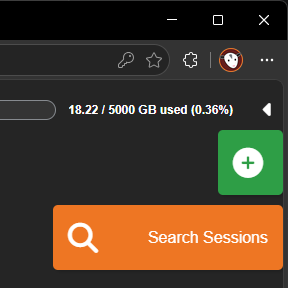
Open Session Search
- Open Session Management.
- Open the search or filter panel.
- Enter one or more search values.
- Select Search or apply the filters.
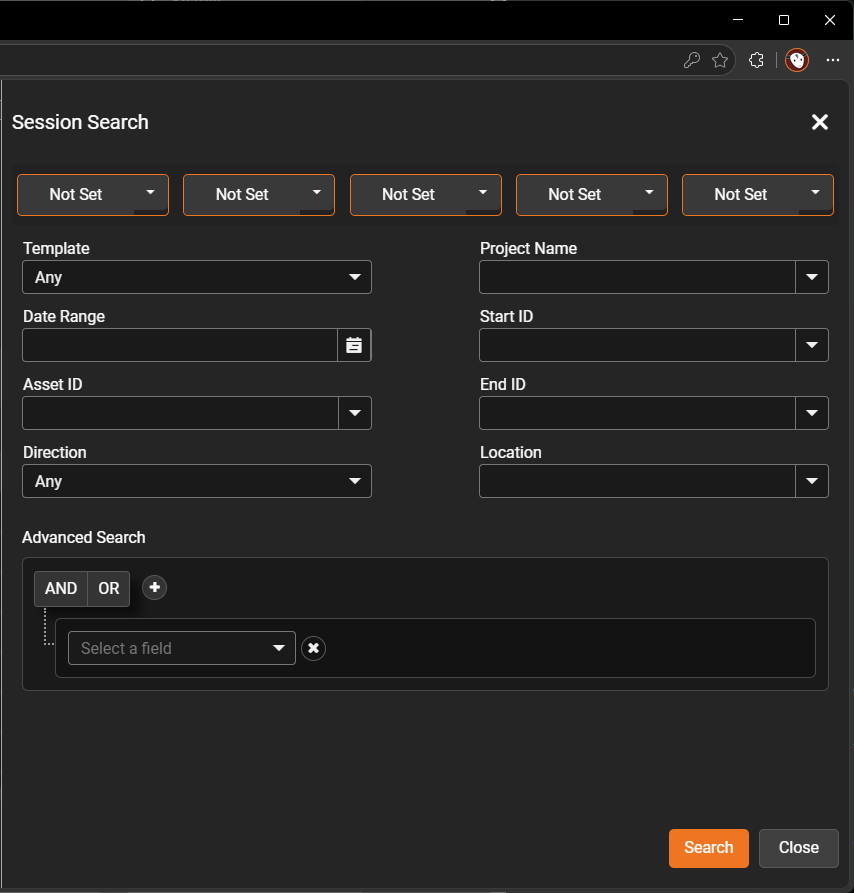
Common Search Fields
Depending on the selected template and your organization’s configuration, you may be able to search by:
- Project name
- Inspection date or date range
- Asset ID
- Start ID
- End ID
- Inspection direction
- Location
- Template
- Ownership or sharing status
Use Multiple Filters
More than one filter can be used at the same time.
For example, you may search for:
- A specific project
- Within a selected date range
- Using a particular inspection template
Clear Search Filters
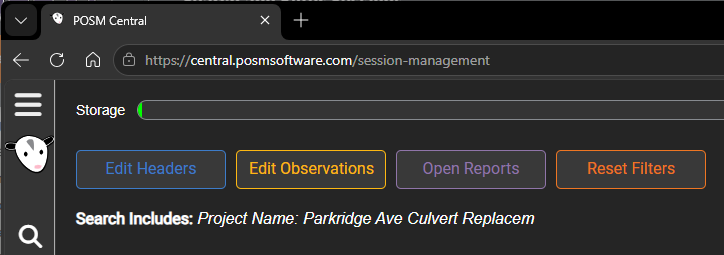
Use Reset Filters, Clear, or the equivalent control to remove the active search and return to the default session list.
Advanced Search
If Advanced Search is available, it may allow multiple conditions using AND or OR logic.
- AND requires all conditions to be true.
- OR returns sessions matching any of the listed conditions.
Tip
Start with the most specific field you know, such as Asset ID or Project Name, then add additional filters only when needed.
Imported Date
Session Management includes an Imported Date column for inspection data brought into Central with the Import workflow.
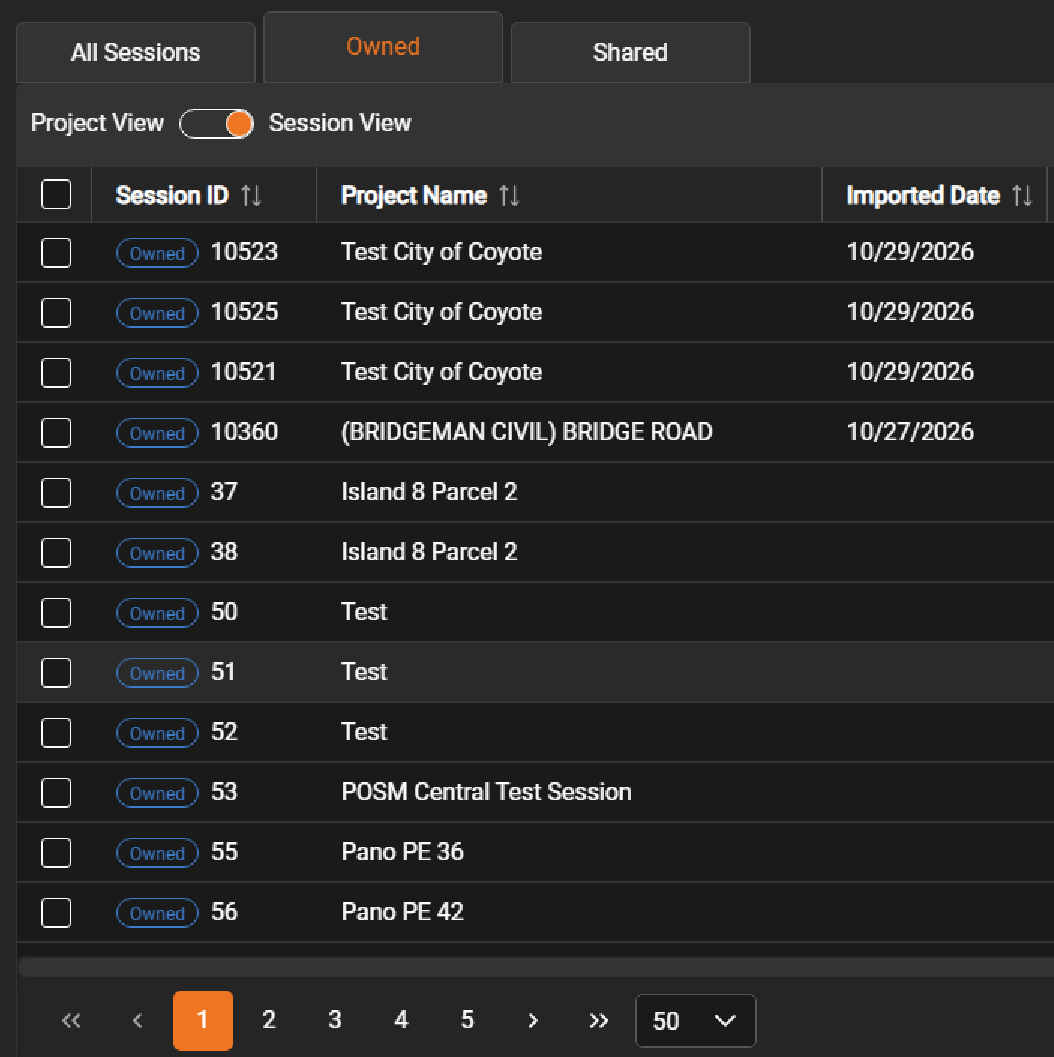
Imported Date can be used as a filter to locate recently imported sessions.
Advanced Search Updates
Advanced Search supports Yes/No boolean rules, including Not Equal.
When templates with the same name exist for different NASSCO versions, selecting a v7 or v8 template returns only sessions for the chosen version.
Select a Range of Sessions
To select a continuous range of sessions:
- Select the checkbox for the first session.
- Hold Shift.
- Select the checkbox for the last session in the range.
Central selects the checkboxes between the two selections.