Video Report
The Video report allows users to view the inspection video associated with a session.
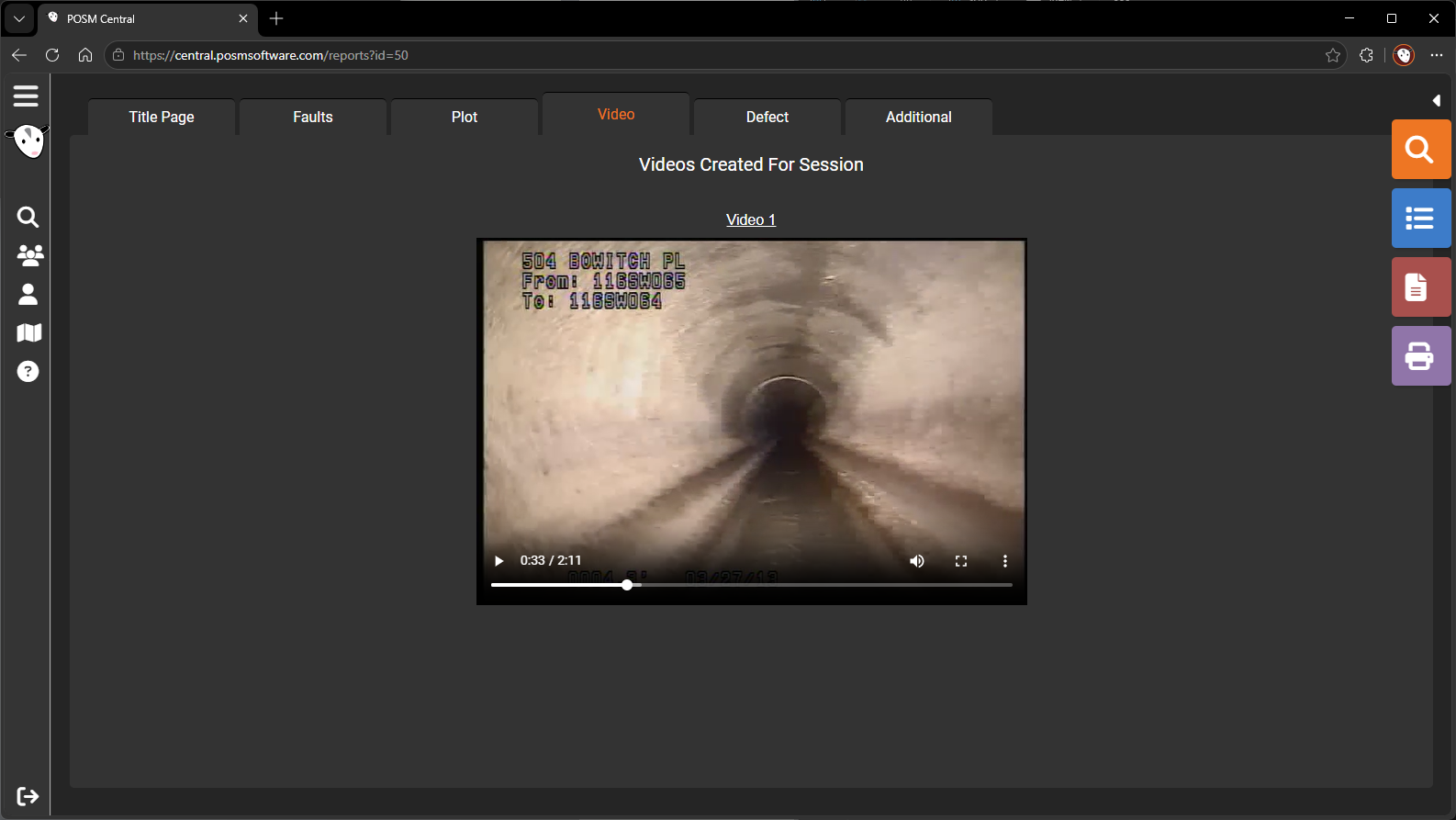
Open the Video Report
- Open Session Management.
- Select an inspection.
- Select Open Reports.
- Select the Video tab.
View the Inspection Video
Use the video player to review the inspection video.
The available controls may allow you to:
- Play the video
- Pause the video
- Move forward or backward
- Drag the video timeline
- Adjust the volume
- Enter full-screen mode
The exact controls may vary slightly depending on the browser.
Full-Screen Viewing
Use the full-screen control when you need a larger view of the inspection video.
Press Esc to exit full-screen mode.
Download the Video
A video link is displayed on the page.
To save the video to your computer:
- Locate the video link.
- Right-click the link.
- Select Save link as.
- Choose a folder on your computer.
- Select Save.
Note
The wording of the download option may vary slightly by browser. For example, some browsers may display Save target as or a similar option.
Video Does Not Play
If the video does not play:
- Confirm that the inspection contains a video.
- Allow time for large videos to load.
- Confirm that your internet connection is stable.
- Refresh the report page.
- Try another supported browser.
- Confirm that your account has access to the inspection.
- Contact POSM Support if the issue continues.
Add or Replace Video
Video files are managed through the inspection observation screen rather than the report viewer.
Learn how to add or manage inspection video