Print Inspection Reports
POSM Central allows users to print one or more report pages for an inspection.
Reports can be printed to a physical printer or saved as a PDF.
Open Print Report Settings
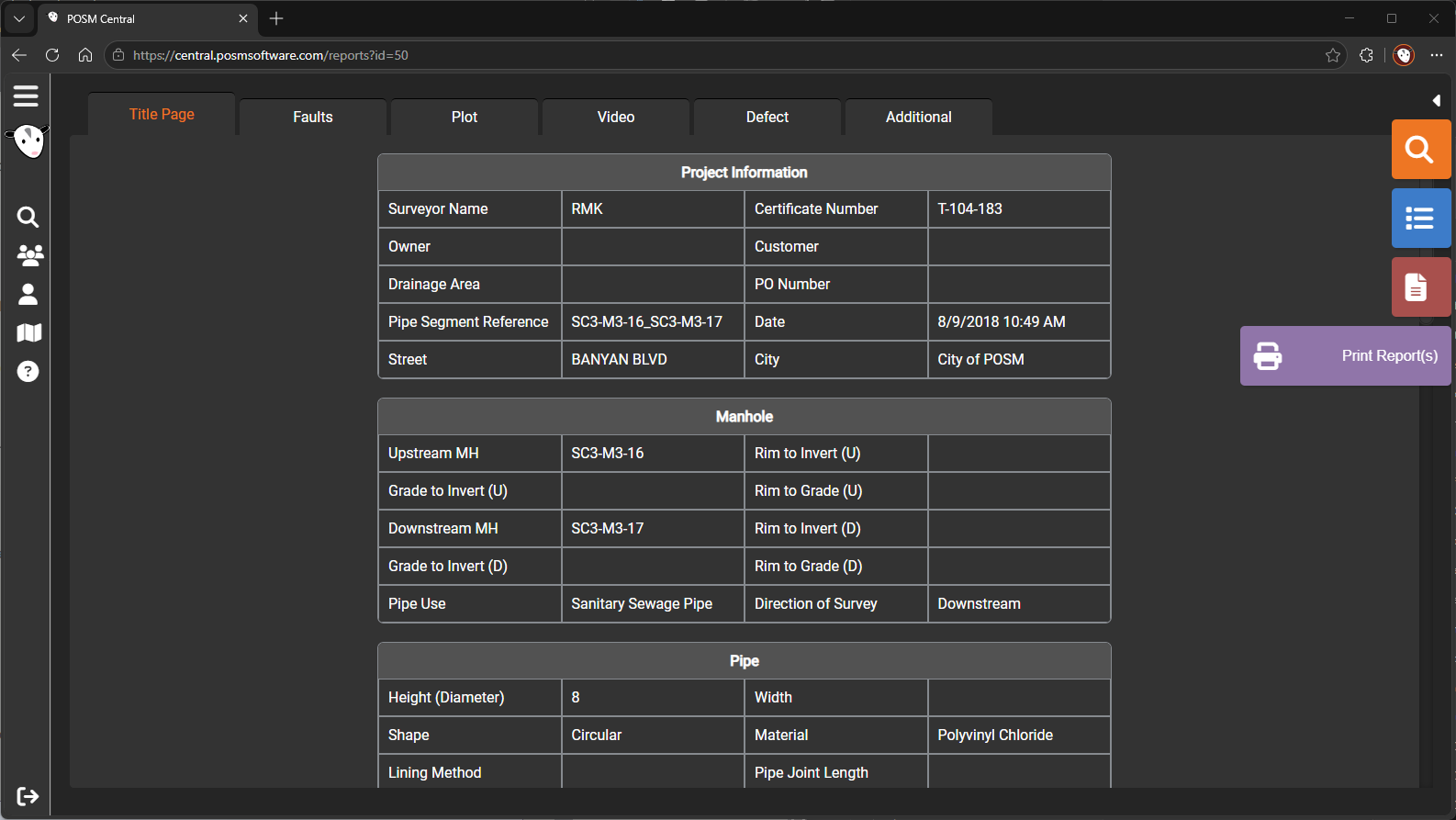
While viewing an inspection report, select the purple Print Report(s) button on the right side of the screen.
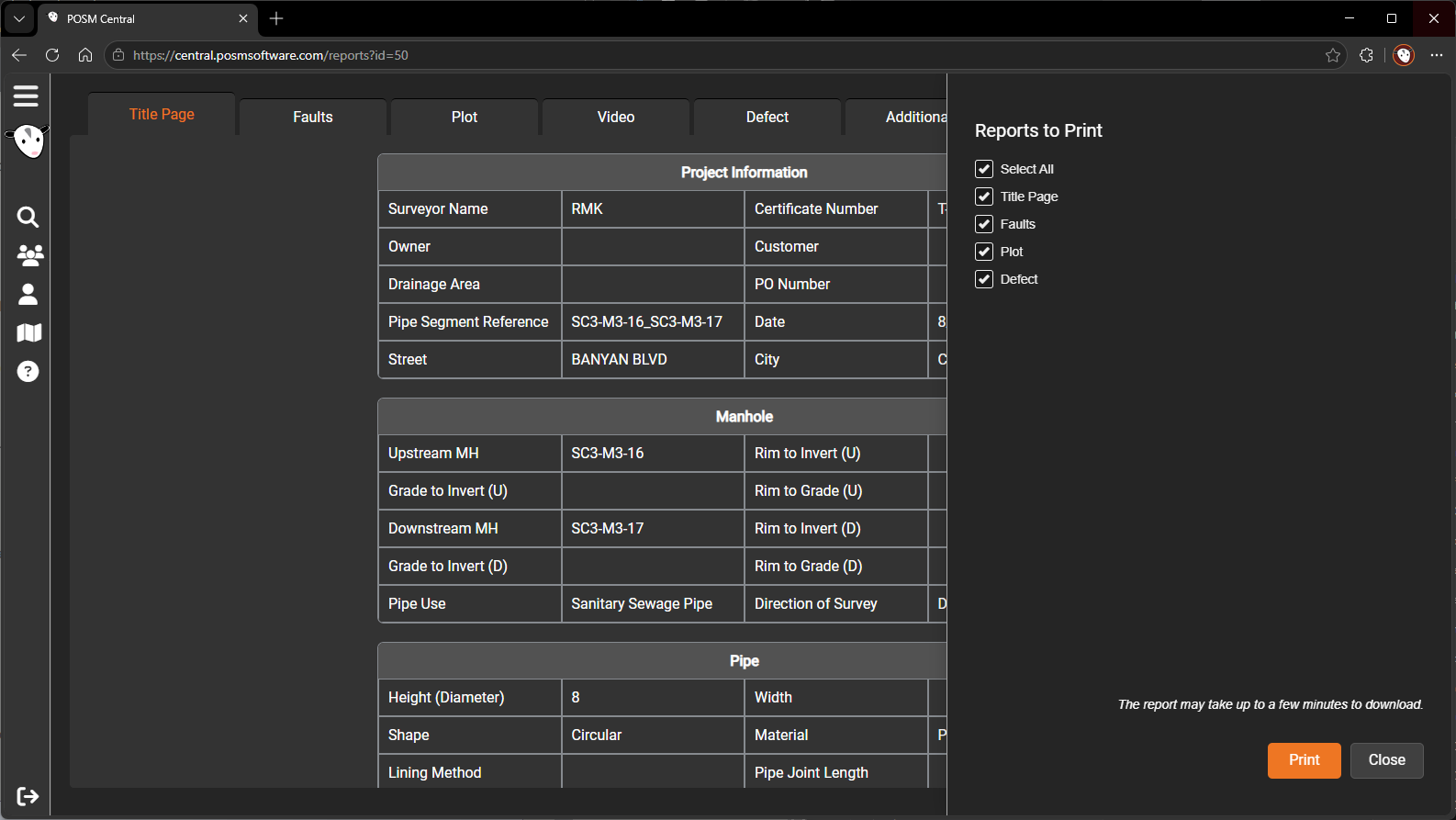
The Print Report Settings window opens.
Select Report Pages
Use the checkboxes to choose which report pages to include.
Available options may include:
- Select All
- Title Page
- Faults
- Plot
- Defect
- Inclination, when inclination data exists
- ScanCam, when ScanCam data exists
Selecting Select All includes every available report page for the inspection.
The Inclination and ScanCam options appear only when the corresponding data is associated with the inspection.
Print the Reports
After selecting the report pages:
- Select the orange Print button.
- Wait for the browser or operating-system print dialog to open.
- Choose one of the following:
- A physical printer
- Save as PDF
- Select the desired print settings.
- Complete the print or save operation.
Save Reports as a PDF
To save the selected reports as a PDF:
- Select the orange Print button.
- In the print dialog, choose Save as PDF or the equivalent PDF printer.
- Select a filename and folder.
- Select Save.
Close the Window
Select Close to leave the Print Report Settings window without printing.
Printing from Session Management
Reports can also be printed from Session Management by selecting one or more inspections and choosing Tools → Print.
This is useful when printing reports for multiple inspections at one time.
Learn about printing from Session Management