User Roles
POSM Central uses user roles to control what each person can do within an organization.
Organization Administrators assign roles from Access Management.
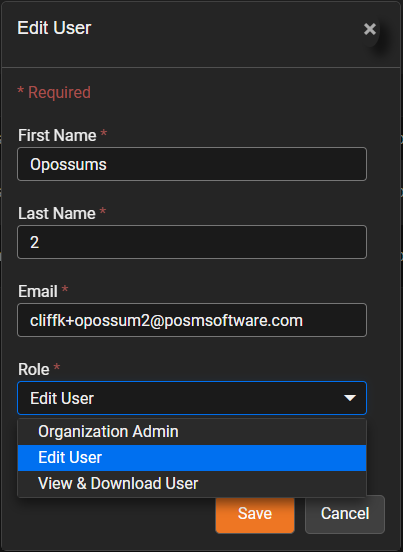
The available roles are:
- Organization Admin
- Edit User
- View & Download User
Organization Admin
Organization Admin provides full access to POSM Central for the organization.
Organization Admins can:
- View sessions and projects
- Create sessions
- Edit permitted inspection data
- Share owned sessions and projects
- Transfer owned sessions and projects to another organization
- Delete sessions
- Export sessions
- Print reports
- Access Access Management
- Add users
- Edit users
- Change user roles
- Activate users
- Deactivate users
- Manage organization settings
Use this role for users who are responsible for both inspection-data workflows and administration of the POSM Central organization.
Organization Admin has full access
Assign the Organization Admin role only to trusted users who need administrative control of the organization.
Edit User
Edit User provides operational access to inspection data without access to organization user administration.
Edit Users can:
- View sessions and projects
- Create sessions
- Edit permitted inspection data
- Share owned sessions and projects
- Transfer owned sessions and projects to another organization
- Delete sessions
- Export sessions
- Print reports
Edit Users cannot access Access Management.
This means they cannot:
- Add users
- Change user roles
- Activate users
- Deactivate users
- Manage other users in the organization
Edit User can Share and Transfer
Edit Users can perform ownership and sharing actions on inspection data even though they cannot administer organization users.
View & Download User
View & Download User provides read-only access to inspection data.
View & Download Users can:
- View sessions and projects
- View reports
- View images
- View video
- Download or export permitted inspection data
- Print reports
View & Download Users cannot:
- Edit inspection data
- Create sessions
- Share owned sessions or projects
- Transfer ownership
- Delete sessions
- Access Access Management
- Add or manage users
Use this role for users who need to review and retrieve inspection data without making changes.
Role Comparison
| Capability | Organization Admin | Edit User | View & Download User |
|---|---|---|---|
| View sessions and projects | Yes | Yes | Yes |
| Create sessions | Yes | Yes | No |
| Edit permitted inspections | Yes | Yes | No |
| Share owned sessions/projects | Yes | Yes | No |
| Transfer owned sessions/projects | Yes | Yes | No |
| Delete sessions | Yes | Yes | No |
| Export | Yes | Yes | Yes |
| Yes | Yes | Yes | |
| Access Access Management | Yes | No | No |
| Add users | Yes | No | No |
| Change user roles | Yes | No | No |
| Activate/deactivate users | Yes | No | No |
| Manage organization settings | Yes | No | No |
Roles and Shared Inspection Access
A user's role and the access level of a shared inspection work together.
For example:
- A View & Download User cannot edit an inspection, even if the inspection was shared to the organization with Full Edit Access.
- An Edit User or Organization Admin can edit an inspection shared with Full Edit Access.
- An inspection shared as View & Download remains read-only even for an Edit User or Organization Admin.
Both permissions matter
The sharing access level determines what the receiving organization is allowed to do with the inspection.
The user's role determines what that individual user is allowed to do.
The more restrictive permission applies.
Learn About Shared Access Levels
Change a User's Role
Organization Administrators can change a user's role from Access Management.
- Open Access Management.
- Locate the user.
- Click the edit button.
- Open the Role drop-down.
- Select the desired role.
- Click Save.
The new role determines the user's permissions the next time they use the applicable POSM Central functions.