Storage Usage and Limits
POSM Central tracks the amount of storage used by each organization.
Storage is based primarily on the inspection videos, images, and other media stored for the organization. POSM Central media is stored in Amazon S3.
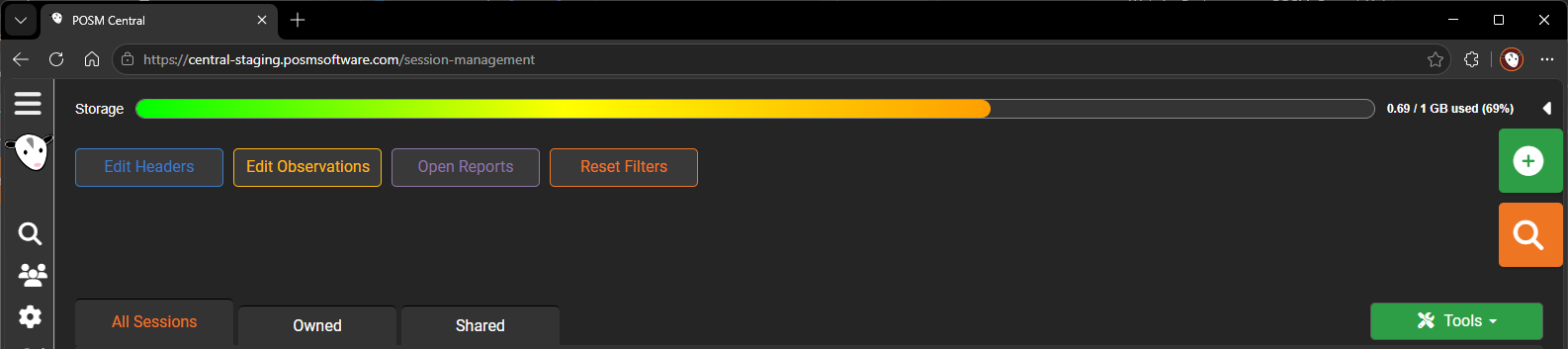
Storage Usage Meter
A storage meter appears at the top of the Session Management screen.
The meter shows how much storage the organization is currently using compared with its available storage capacity.
As storage usage increases, the progress bar fills from left to right through a color spectrum from green toward red.
The current storage usage is also displayed numerically to the right of the meter in the following format:
X / X GB used (X%)
This provides both a visual and numerical indication of the organization's remaining storage capacity.
Monitor available storage
Check the storage meter before importing large inspections or projects.
What Uses Storage?
Storage is used primarily by inspection data and associated media, including:
- Inspection video files
- Observation images
- Video clips
- ScanCam media
- Inclinometer data
- Supporting media
- Other files associated with inspections
Database records, inspection headers, observations, and other text data generally use much less storage than video and image files.
When the Storage Limit Is Reached
When an organization reaches its POSM Central storage limit, existing inspection data remains available according to the user's permissions.
Existing sessions can still be used to:
- View inspection information
- Review session headers and observations
- View reports
- View images
- Play inspection video
- Export or print permitted inspection information
New inspection data cannot be imported once the organization's storage limit has been reached.
Additional storage may be required
If the organization reaches its storage limit, increase the available storage capacity before importing additional inspection data.
Increase Storage
Additional storage can be purchased when an organization needs more capacity.
Contact POSM Software to increase the organization's available storage.
After additional storage is allocated, new inspection data can be imported again.
Delete Inspection Data
Organization Admin and Edit User accounts can delete inspection data that is no longer needed.
To delete inspection data:
- Open Session Management.
- Select the owned session or sessions you want to delete.
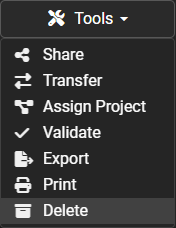
- Open the Tools menu.
-
Select Delete.
-
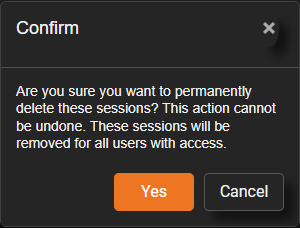
Review the deletion confirmation.
-
Click Yes to permanently delete the selected sessions, or click Cancel to leave them unchanged.
Deletion cannot be undone
Deleted sessions are permanently removed from POSM Central and are removed for all users who had access to them.
Export or download any inspection data that needs to be retained before deleting it.
Delete Permissions
Organization Admin and Edit User accounts can delete permitted inspection data.
View & Download User accounts cannot delete inspections.
Users can delete only inspection data they are permitted to manage.
Confirm before deleting
Make sure any inspection data that needs to be retained has been downloaded or exported before deletion.
Preserve Data Outside POSM Central
If inspection data no longer needs to remain in active POSM Central storage but should still be retained, export the data before deleting it.
The downloaded inspection package can be stored using your organization's preferred storage or archival system.
Examples include:
- Local storage
- Network or file-server storage
- Dropbox
- OneDrive
- Other cloud or backup storage
Exporting creates a separate copy of the inspection data and does not remove the original from POSM Central.
Ownership Determines Storage Responsibility
Inspection storage is assigned to the organization that owns the session or project.
When ownership is transferred:
- The transferred data no longer counts against the previous owner's storage usage.
- The transferred data counts against the receiving organization's storage usage.
This allows a contractor, for example, to transfer completed inspection data to a customer without continuing to carry that data as part of the contractor's POSM Central storage usage.
Sharing does not change storage ownership
Sharing inspection data does not transfer ownership.
The organization that owns the inspection remains responsible for its storage until ownership is transferred or the data is deleted.
Additional Storage
Paid organizations can purchase additional storage as their storage requirements grow.
Contact POSM Software for information about increasing your organization's POSM Central storage allocation.