Manage Users
Organization Administrators can manage the users who belong to their POSM Central organization through Access Management.
From Access Management, Organization Administrators can:
- View and search for users
- Add users
- Assign user roles
- Edit user information
- Change user roles
- Activate users
- Deactivate users
Organization Admin access
Access Management is available to Organization Admin users.
Edit Users and View & Download Users cannot access Access Management.
Open Access Management
- Sign in to POSM Central.
- Select Access Management from the left navigation menu.
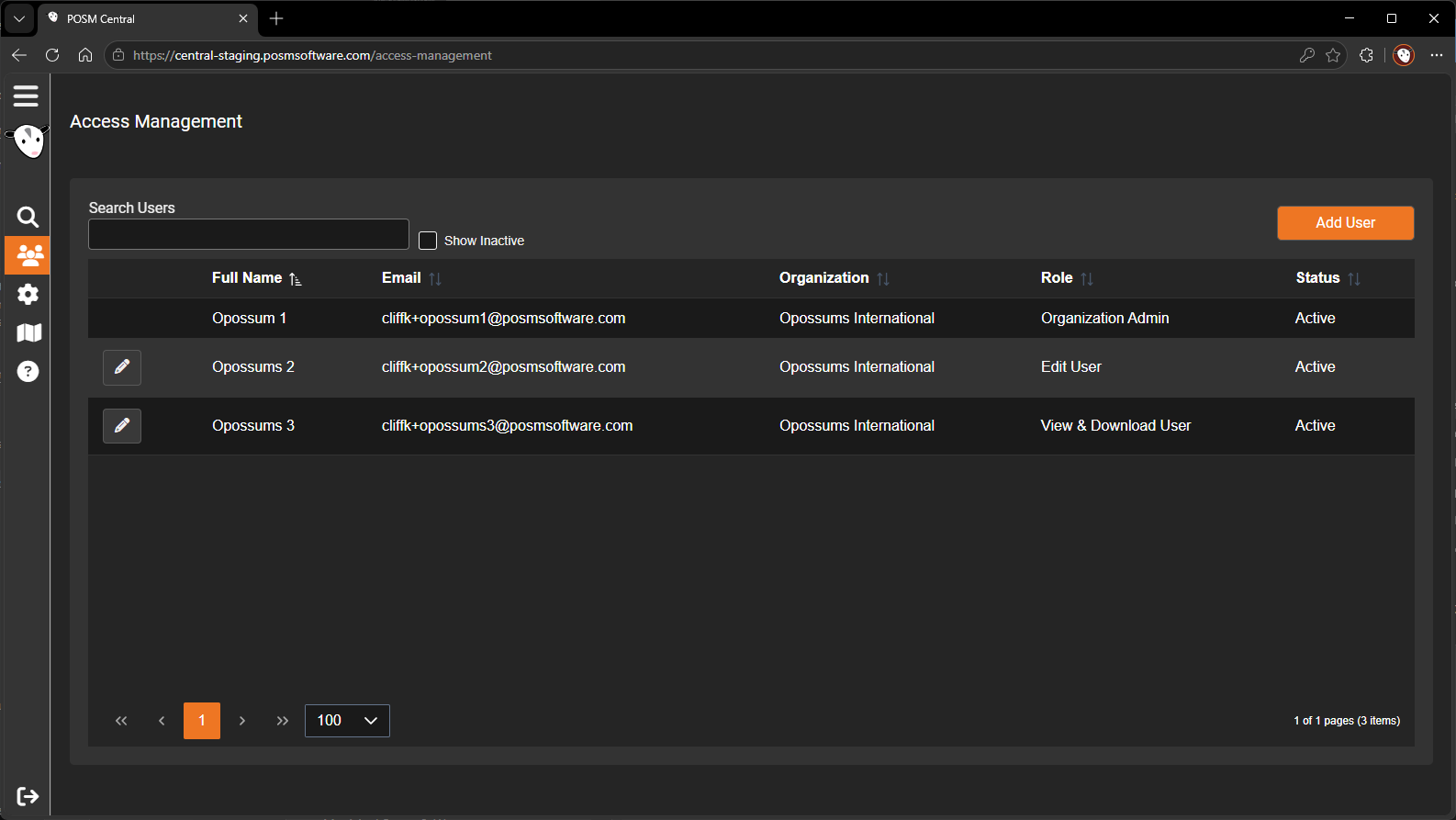
The Access Management screen displays users associated with your organization.
Information shown for each user includes:
- Full Name
- Organization
- Role
- Status
Use Search Users to locate a specific user.
Select Show Inactive when you need to include deactivated users in the list.
Add a User
To add a user to your organization:
- Open Access Management.
-
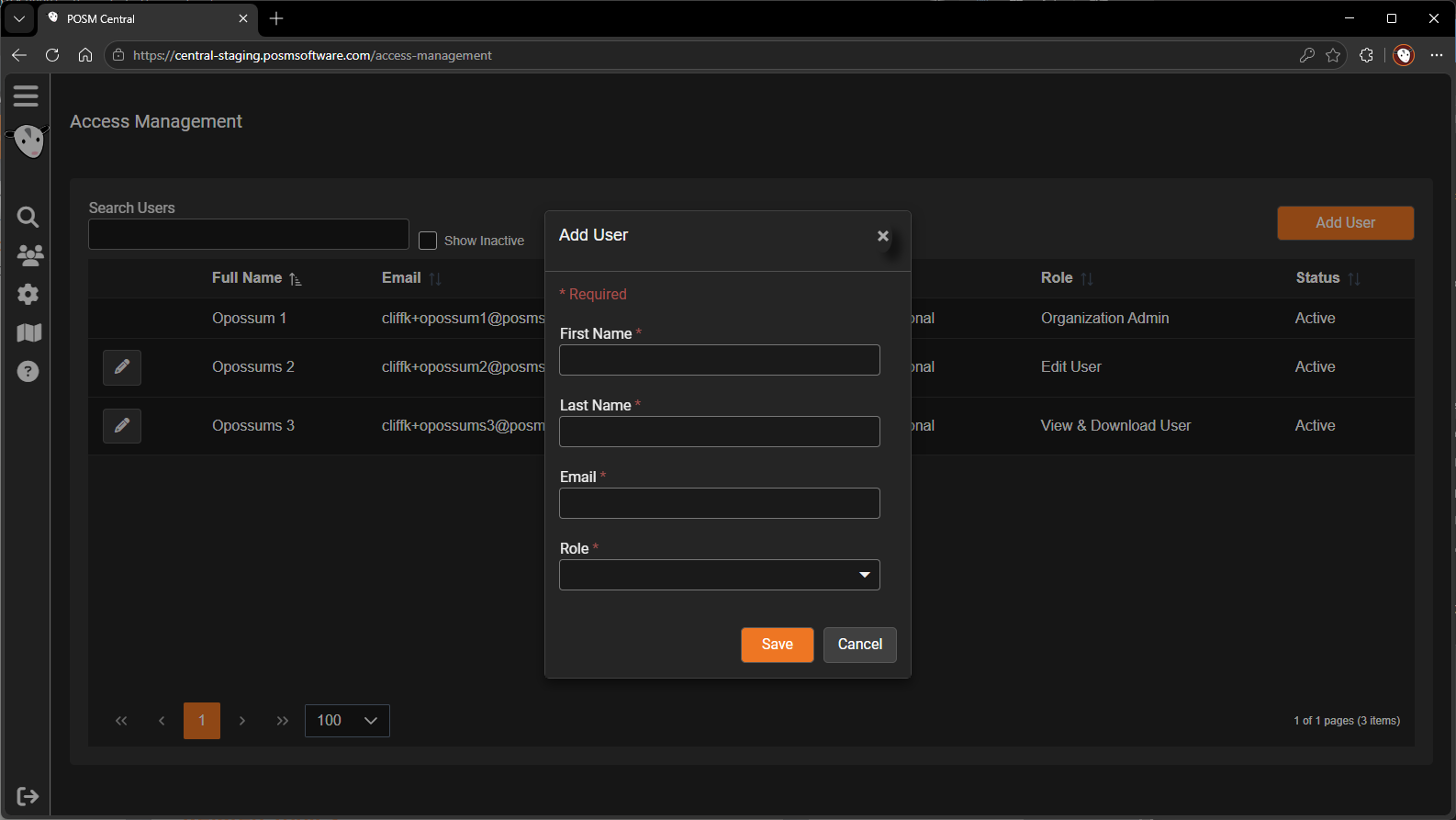
Click Add User.
-
Enter the user's information.
- Select the appropriate role.
- Complete the Add User operation.
The user information includes:
- First Name
- Last Name
- Role
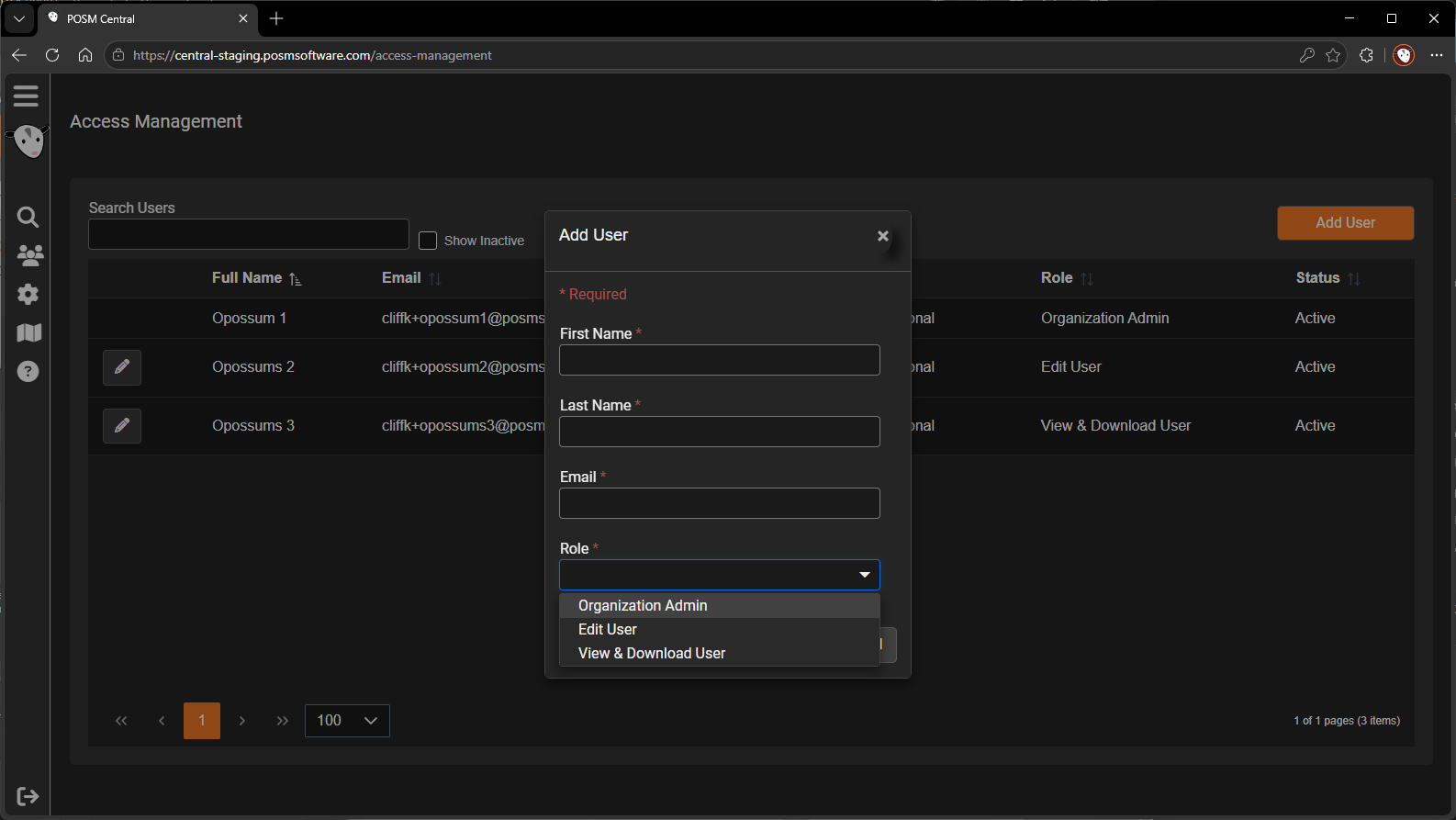
Verify the email address
Make sure the user's email address is correct before creating the account.
POSM Central uses this email address for the user's account and invitation.
For complete instructions about the invitation and account-setup process, see User Invitations.
Assign a User Role
When adding a user, select the role that determines what the user can do in POSM Central.
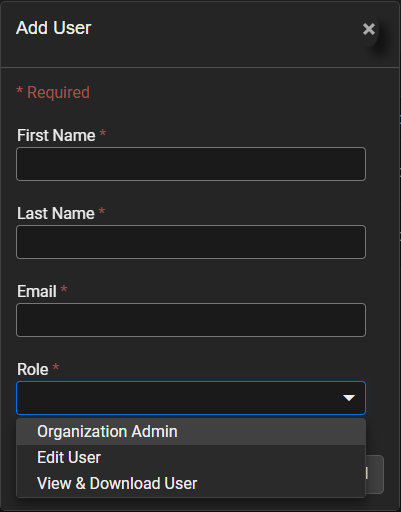
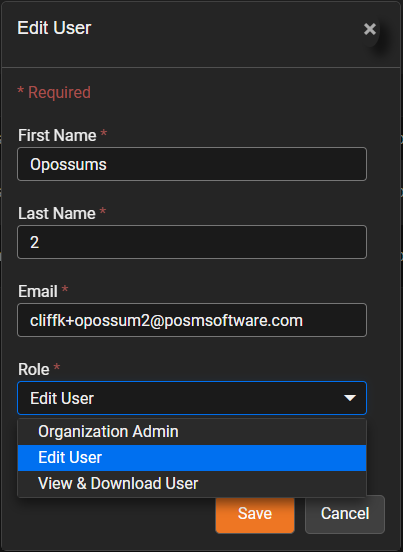
Available roles are:
- Organization Admin
- Edit User
- View & Download User
Organization Admin
Organization Admins have full access to the organization's POSM Central functions.
They can manage organization users and perform inspection-data operations such as creating, editing, deleting, sharing, transferring, exporting, and printing.
Edit User
Edit Users can perform operational inspection-data tasks, including:
- Create inspections
- Edit permitted inspection data
- Delete permitted inspections
- Share owned sessions and projects
- Transfer owned sessions and projects
- Export
Edit Users cannot access Access Management or manage other organization users.
View & Download User
View & Download Users are primarily intended to review and retrieve inspection information.
They can:
- View permitted inspection data
- View reports, images, and video
- Download or export permitted data
- Print reports
They cannot edit or delete inspection data, Share or Transfer owned inspection data, or access Access Management.
View Complete User Role Information
Edit a User
Organization Administrators can update an existing user's information.
- Open Access Management.
- Locate the user.
- Click the edit button for that user.
The Edit User window opens.
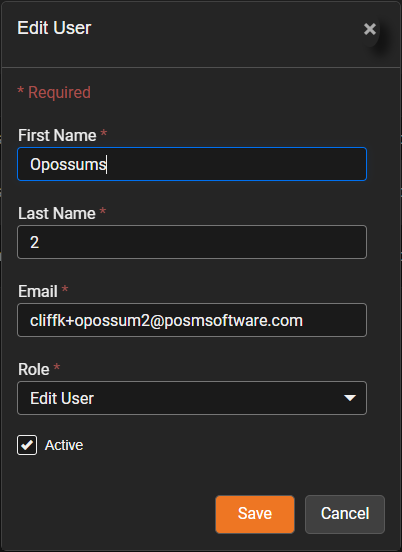
An Organization Administrator can change:
- First Name
- Last Name
- Role
- Active status
After making the changes, click Save.
Change a User's Role
To change what an existing user is permitted to do:
- Open Access Management.
- Locate the user.
- Click the edit button.
-
Open the Role drop-down.
-
Select the desired role.
- Click Save.
Review permissions before changing roles
Changing a user's role changes what that user is permitted to do in POSM Central.
Assign only the level of access the user needs.
Deactivate a User
Deactivate a user when they should no longer have access to your POSM Central organization.
- Open Access Management.
- Locate the user.
- Click the edit button.
-
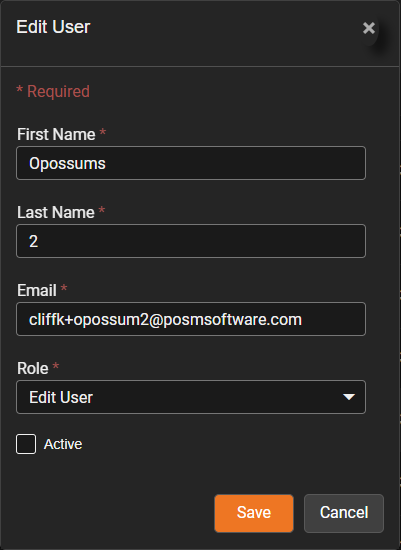
Clear the Active checkbox.
-
Click Save.
The user is now inactive.
Deactivation retains the user record
Deactivating a user prevents access without removing the user from Access Management.
Use Show Inactive to include deactivated users in the user list.
Reactivate a User
An Organization Administrator can restore access for a previously deactivated user.
- Open Access Management.
- Select Show Inactive.
- Locate the inactive user.
- Click the edit button.
- Select the Active checkbox.
- Review the user's assigned role.
- Click Save.
The user can access the organization again according to their assigned role.
Review the role before reactivating
A user's previous role remains important when access is restored.
Make sure the assigned role is still appropriate before reactivating the user.
User Management vs. User Settings
Access Management and User Settings serve different purposes.
| Area | Purpose |
|---|---|
| Access Management | Organization Administrators manage users, roles, and active status |
| User Settings | A user manages their own profile, password, notifications, and available organization settings |
User Settings includes options such as:
- First Name
- Last Name
- Phone Number
- Change Password
- Organization logo
- Notify about transferred inspections
- Notify about shared inspections
- Two-factor authentication setting, when permitted by the user's role