Transfer Ownership
POSM Central allows you to transfer ownership of inspection data to another organization.
You can transfer:
- A single inspection
- Multiple inspections
- An entire project
- Multiple projects
Transfer is different from sharing. When you Share inspection data, your organization remains the owner. When you Transfer inspection data, ownership moves to the receiving organization.
Transfer changes ownership
After the transfer is completed, you will no longer be able to edit the transferred sessions.
If another organization only needs to view or work with your inspection data while your organization remains the owner, use Share instead.
Before You Begin
Before transferring inspection data, make sure that:
- You selected the correct sessions or projects.
- The recipient already has a POSM Central account.
- The recipient's email address is associated with an organization in POSM Central.
- The recipient's email address is correct.
- The receiving organization should become the owner of the inspection data.
- You understand that the transferred data will no longer remain with your organization as owned inspection data.
The recipient must already have a POSM Central account
Unlike sharing, Transfer cannot be used to invite a new recipient to POSM Central.
The recipient's email address must already be associated with an organization in POSM Central before inspection data can be transferred to them.
Share or Transfer?
Use Share when another person or organization needs access while your organization should remain the owner.
Use Transfer only when ownership itself should move to another organization.
Select What You Want to Transfer
Transfer is available from Session Management.
You can transfer individual sessions from Session View or entire projects from Project View.
Transfer Sessions from Session View
Use Session View when you want to transfer individual inspections.
You can select:
- One inspection
- Multiple inspections
Select the inspection or inspections you want to transfer before opening the Tools menu.
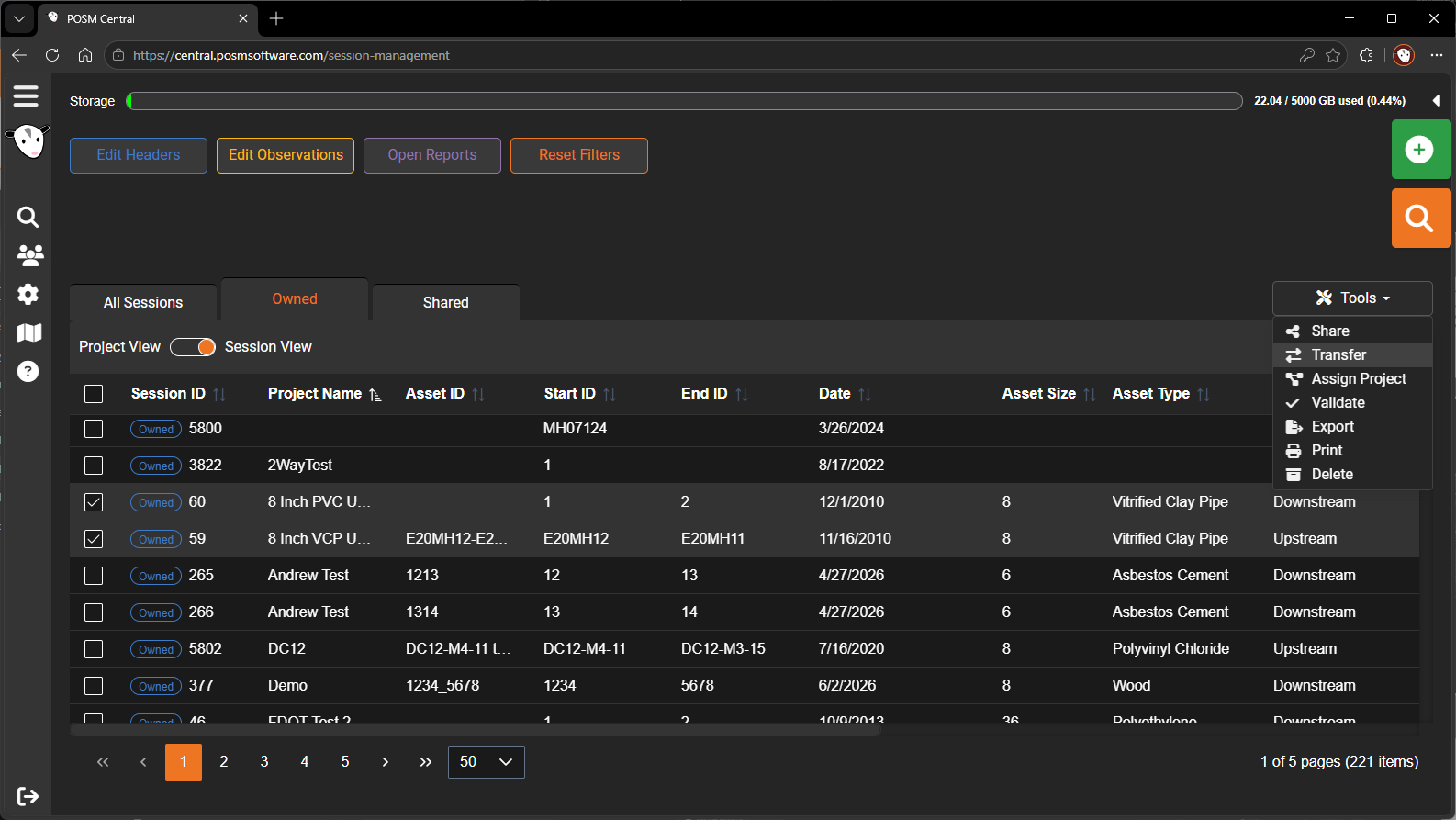
Transfer Projects from Project View
Use Project View when you want to transfer an entire project or multiple projects.
Select the project or projects you want to transfer before opening the Tools menu.
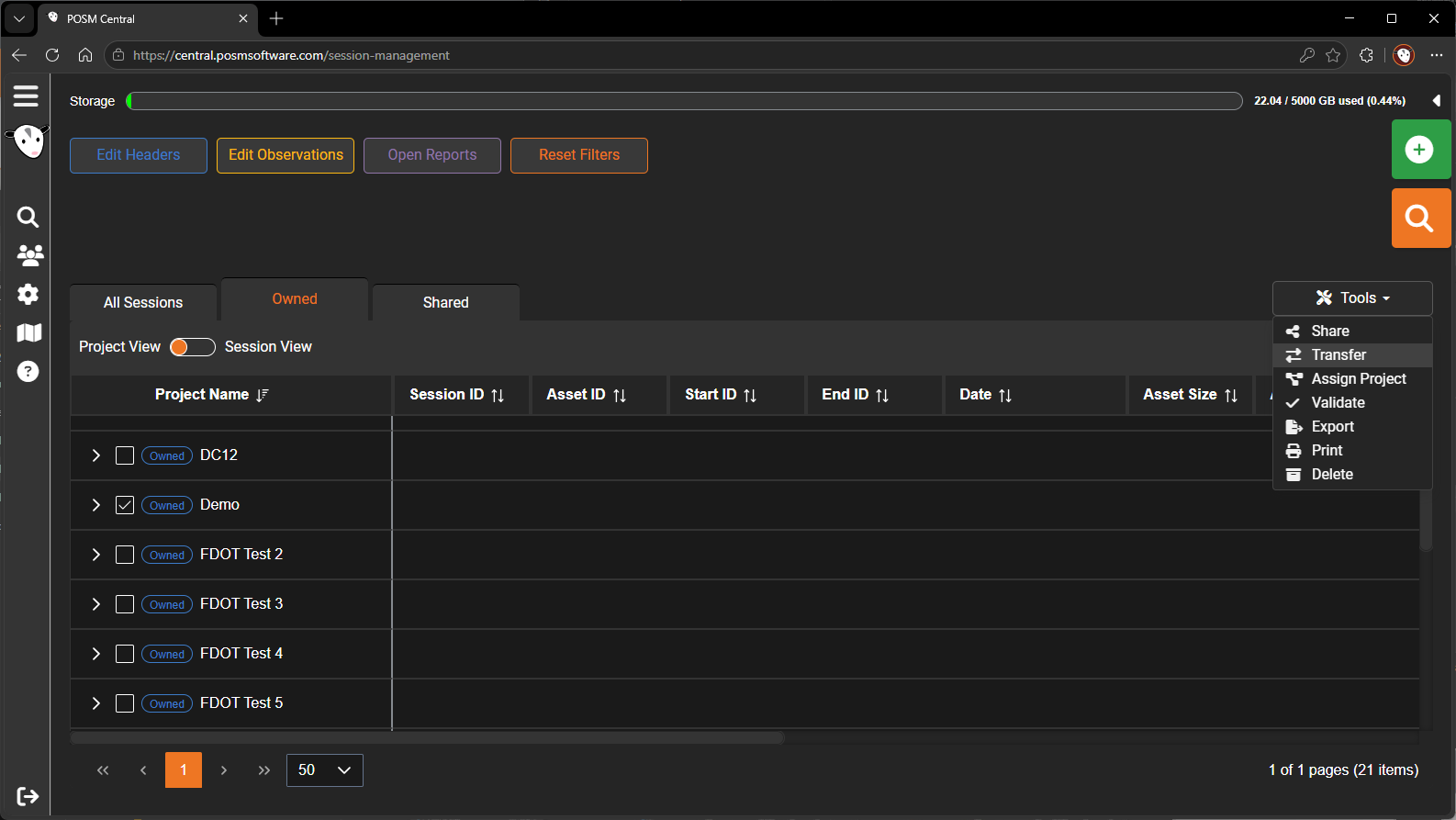
When a project is transferred, the sessions contained in that project are included in the transfer.
Transfer multiple items at once
You can select multiple sessions or multiple projects before starting the Transfer operation.
Open the Transfer Window
After selecting the sessions or projects you want to transfer:
- Open the Tools menu.
- Select Transfer.
The Transfer window opens.
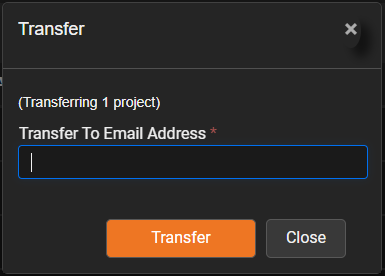
The window displays how many sessions or projects are being transferred.
Enter the Recipient
In Transfer To Email Address, enter the email address of the person or organization that should receive ownership of the selected inspection data.
Before continuing, verify that the email address is correct.
Verify the recipient
Transfer changes ownership of the selected inspection data. Make sure you are transferring it to the correct recipient before continuing.
Click Transfer.
Recipient Is Not Associated with an Organization
POSM Central verifies that the email address entered for the transfer is associated with an organization.
If the email address is not associated with an organization, the transfer cannot continue.
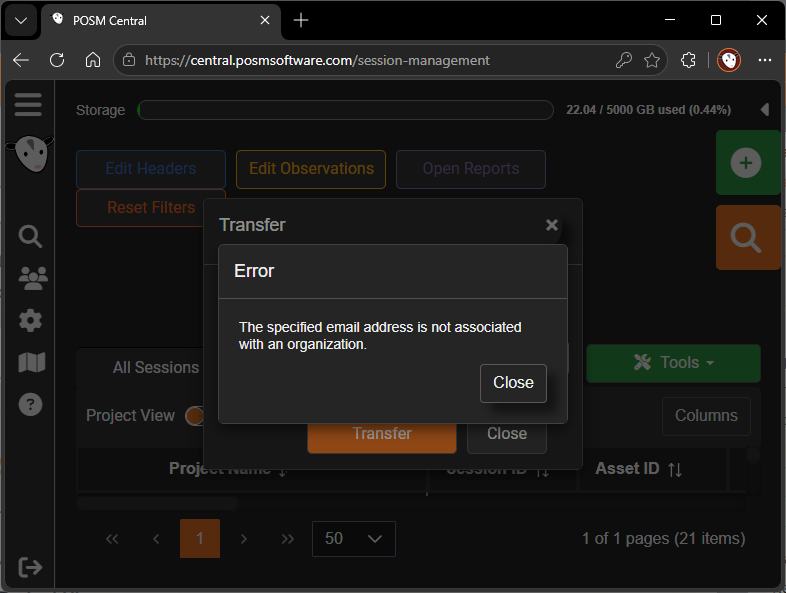
POSM Central displays the following message:
The specified email address is not associated with an organization.
Click Close to return to the Transfer window.
The intended recipient will need to contact POSM Software to create a POSM Central account and become associated with an organization before ownership can be transferred to them.
After the recipient's account and organization access have been established, return to Session Management and perform the Transfer again using their POSM Central email address.
Transfer does not create a recipient account
Transfer does not automatically send a registration invitation or create a new POSM Central account.
The recipient must already have an account associated with an organization.
Confirm the Transfer
POSM Central displays a confirmation before completing the ownership transfer.
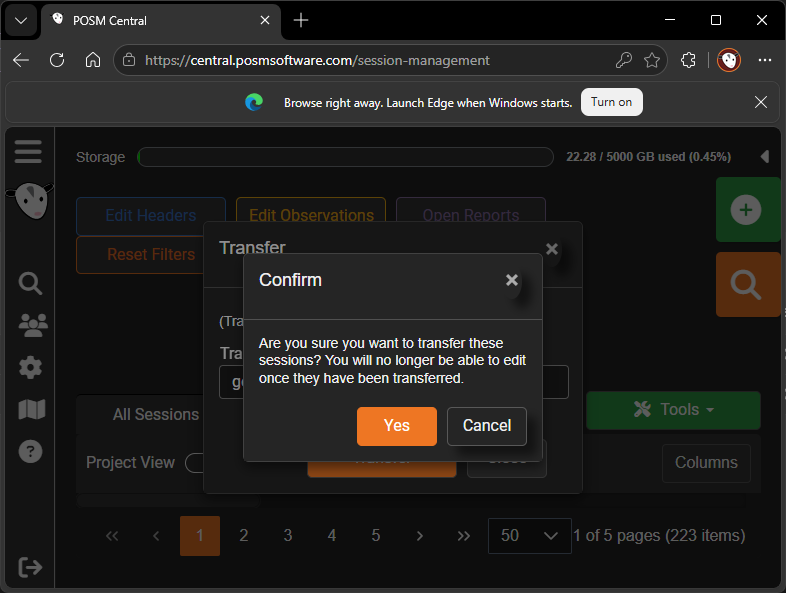
The confirmation warns:
Are you sure you want to transfer these sessions? You will no longer be able to edit once they have been transferred.
Review the transfer carefully.
- Click Yes to complete the transfer.
- Click Cancel to return without transferring the inspection data.
You will no longer be able to edit the transferred sessions
Clicking Yes completes the ownership transfer.
Do not confirm the transfer unless the receiving organization should become the owner of the selected inspection data.
What Happens After the Transfer?
After the transfer is completed:
- Ownership moves to the receiving organization.
- The transferred sessions or projects no longer remain with the original organization as owned inspection data.
- The original organization can no longer edit the transferred sessions based on its former ownership.
- The receiving organization becomes responsible for the transferred inspection data.
Unlike Share, Transfer is not an access level that can later be switched between View & Download and Full Edit Access.
Transfer is different from sharing
A shared inspection remains owned by the original organization.
A transferred inspection changes ownership and leaves the original organization's owned inspection data.
Transfer Notification
When transfer notifications are enabled, the receiving user receives an email informing them that inspection data has been transferred to their organization.
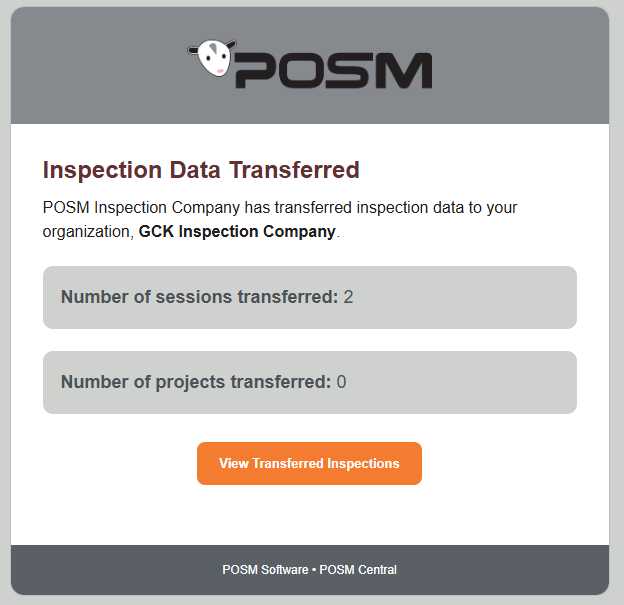
The notification identifies:
- The number of sessions transferred
- The number of projects transferred
- The organization receiving the inspection data
Transfer notifications can be controlled in My Settings
POSM Central includes a Notify me about transferred inspections preference in My Settings.
Whether a user receives the transfer notification depends on their notification setting.
Transfer vs. Share
| If you want to... | Use |
|---|---|
| Let someone view inspection data while you retain ownership | Share → View & Download |
| Let someone edit inspection data while you retain ownership | Share → Full Edit Access |
| Send someone a downloadable copy without requiring a Central account | Share → Download Link Only |
| Make another POSM Central organization the owner of the inspection data | Transfer |
Transfer requires an existing Central account
The Transfer recipient must already have a POSM Central account associated with an organization.
If the recipient does not have an account, they will need to contact POSM Software before the ownership transfer can be completed.
Transfer should be used when the receiving organization should actually become the owner of the inspection data.
Managing Shared Inspections
Transfer is separate from managing an existing share.
For inspections that remain owned by your organization, the Shared tab allows you to manage account-based access between View & Download and Full Edit Access.
Once ownership has been transferred, it is no longer an access-level setting that can be managed from the Shared tab.