Manage Shared Inspections
The Shared tab in Session Management allows you to review inspection data your organization has shared with other recipients.
The Shared tab includes both:
- Download Only shares that have been prepared for a recipient to download
- Account-based shares that give another POSM Central user ongoing access to inspection data
Account-based access can be changed between View & Download and Full Edit Access. Download Only shares cannot be changed.
Open the Shared Tab
- Open Session Management.
- Select the Shared tab.
The Shared tab displays inspection data your organization has shared with other recipients.
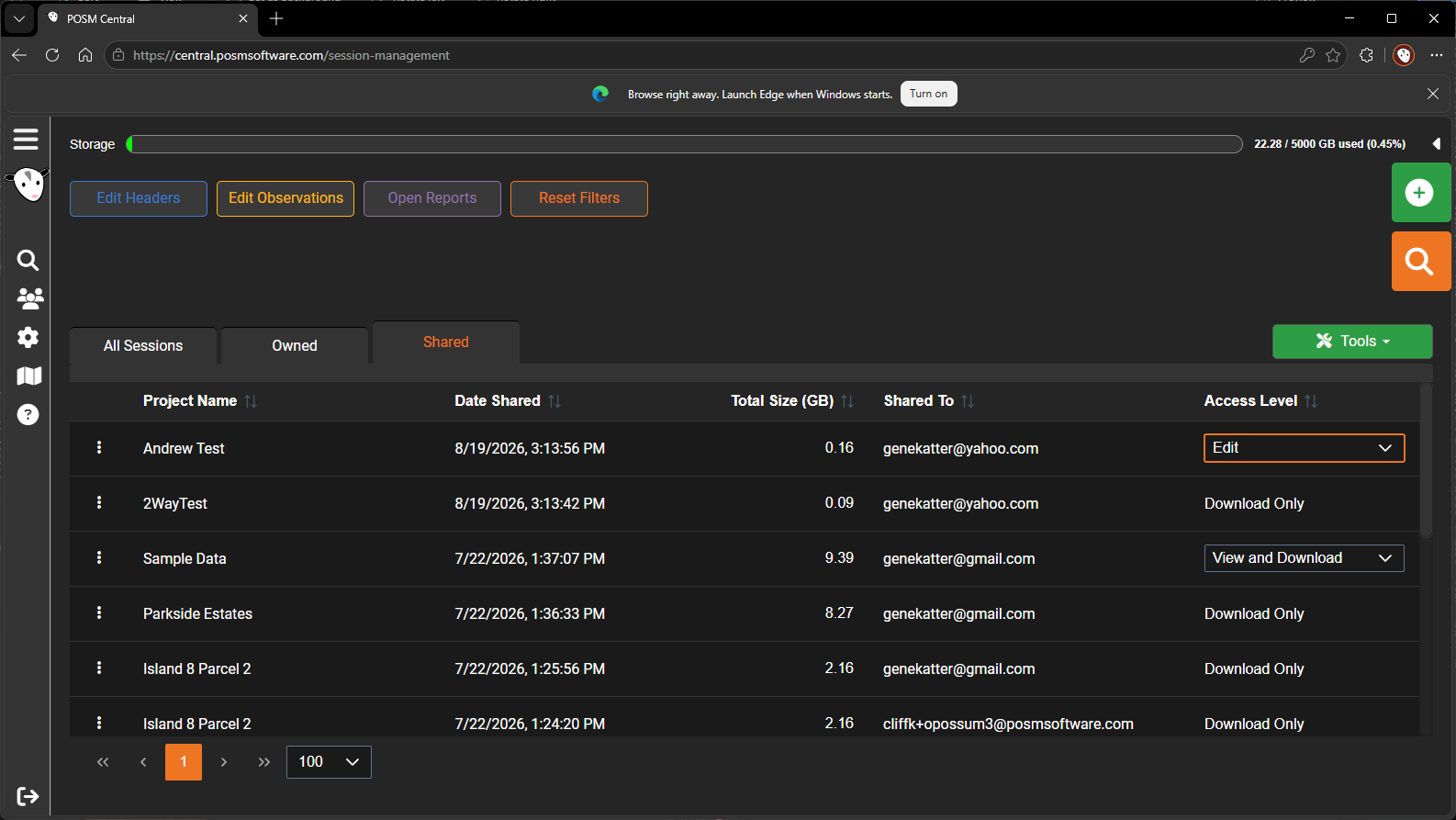
Information shown for each share includes:
- Project Name — the project containing the shared inspection data
- Date Shared — when the data was shared
- Total Size — the size of the shared data
- Shared To — the recipient's email address
- Access Level — how the recipient can access the shared data
Understand the Types of Shares
There are two important types of shares shown on the Shared tab.
Download Only
A Download Only share is a downloadable copy of the inspection data.
POSM Central prepares the inspection package as a ZIP file and makes it available for the recipient to download.
The recipient does not have ongoing account-based access to the original inspection data in POSM Central.
Download Only links expire
A Download Only package remains available for download for 60 days.
Because Download Only is a downloadable package rather than ongoing access to the inspection data, its access level cannot be changed from the Shared tab.
If the recipient later needs access to the inspection through POSM Central, the owner must share the original inspection or project again and choose either:
- View & Download
- Full Edit Access
Download Only remains Download Only
A Download Only share cannot be converted into View & Download or Full Edit Access.
Share the original inspection or project again if the recipient needs account-based access.
Account-Based Shares
View & Download and Full Edit Access are account-based shares.
Unlike Download Only, these sharing options give the recipient access to the inspection data through POSM Central.
The owner can change an existing account-based share between:
- View & Download
- Full Edit Access
There is no option to convert an account-based share to Download Only from the access-level control.
If a Download Only package is needed, use Share again and select Download Link Only.
Change an Existing Access Level
For an account-based share, you can change the recipient between View & Download and Full Edit Access directly from the Shared tab.
- Locate the account-based share you want to change.
- Click the access-level drop-down in the Access Level column.
- Highlight the desired access level.
- Click the access level to select it.
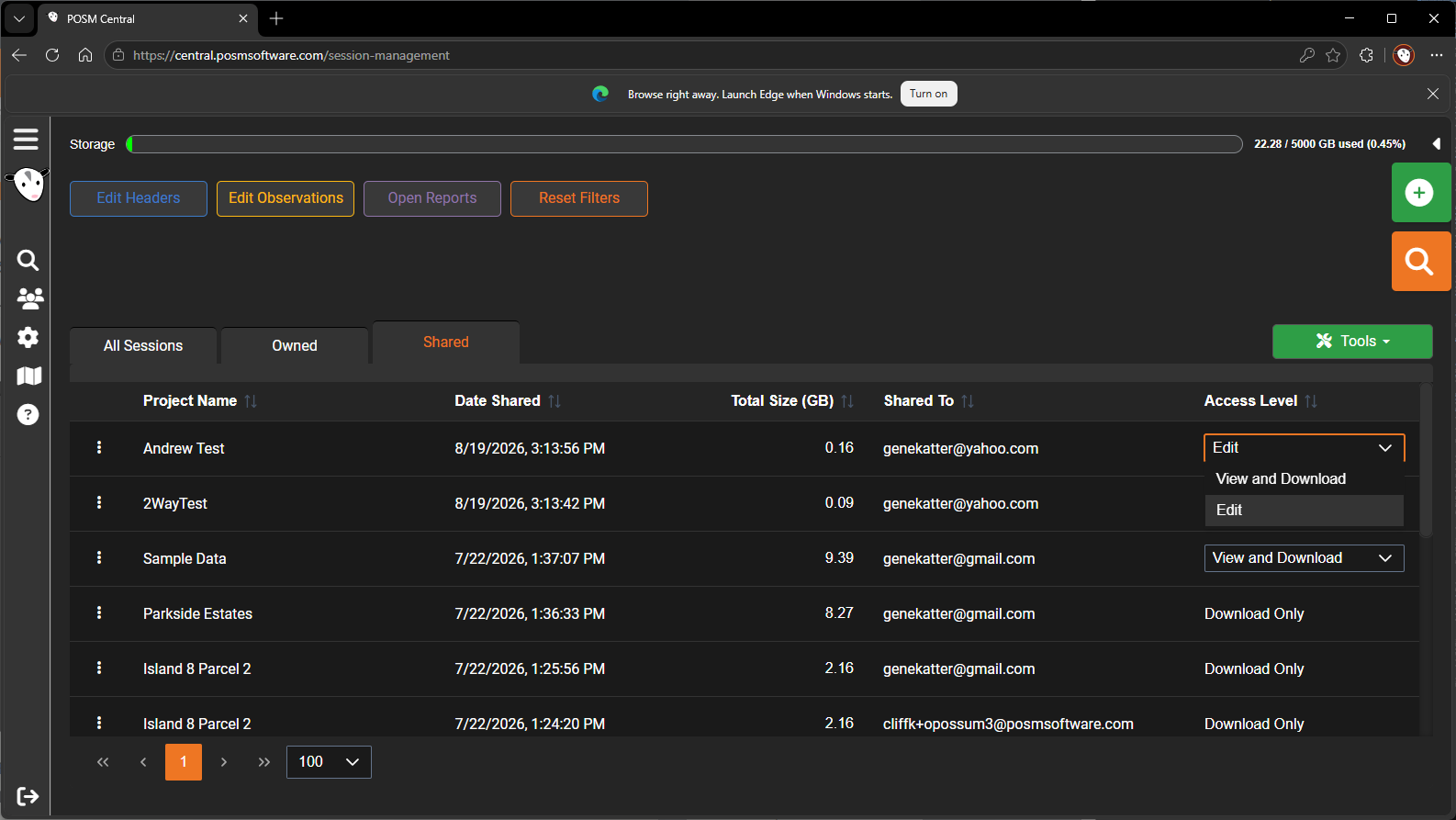
The access change is applied immediately.
No Save button is required
You do not need to click Save or perform another confirmation step.
Selecting the new access level from the drop-down immediately changes the recipient's access.
View & Download
View & Download provides read-only access to the shared inspection data through POSM Central.
The recipient can:
- View the inspection
- View reports
- View images
- View video
- Download the inspection
The recipient cannot edit the inspection.
If the recipient later needs to make changes, the owner can change the share to Full Edit Access from the Shared tab.
Full Edit Access
Full Edit Access provides read/write access to the shared inspection data through POSM Central.
If the recipient no longer needs editing access, the owner can change the share back to View & Download.
The recipient's permissions still apply
Full Edit Access does not override the recipient's POSM Central organization role or permissions.
Giving someone Full Edit Access does not automatically give that person permission to share the inspection with others or transfer its ownership.
Switch Between View and Edit Access
Account-based access can be changed in either direction:
View & Download → Full Edit Access
or
Full Edit Access → View & Download
To change the access:
- Locate the share on the Shared tab.
- Open the access-level drop-down.
- Select the desired access level.
The change takes effect immediately.
Only account-based access can be switched
The access-level drop-down is used to switch between View & Download and Full Edit Access.
Download Only shares cannot be changed with this control.
Sharing vs. Transferring Ownership
Sharing and transferring are different operations in POSM Central.
Sharing
When inspection data is shared:
- The original organization remains the owner.
- View & Download provides read-only account-based access.
- Full Edit Access provides read/write account-based access.
- The owner can switch between those two account-based access levels.
- Download Only provides a downloadable package instead of ongoing access.
The shared inspection data remains associated with the owning organization.
Transferring
Transfer changes ownership of the selected inspection data.
Transfer is a separate action available from the Tools menu in Session Management.
Once sessions or projects are transferred, they no longer remain with the original organization as owned inspection data.
Transfer is not an access-level change
Do not use Transfer simply because another organization needs to view or edit your inspection data.
Use Share when your organization should remain the owner.
Use Transfer when ownership itself should move to another organization.
Need to Share Again?
Use Share again when:
- A Download Only recipient now needs POSM Central access
- An account-based recipient now needs a Download Only package
- You need to share the inspection with another recipient
- You need to create another Download Only share