Sign In to POSM Central
Use your POSM Central account credentials to access your organization’s inspection data.
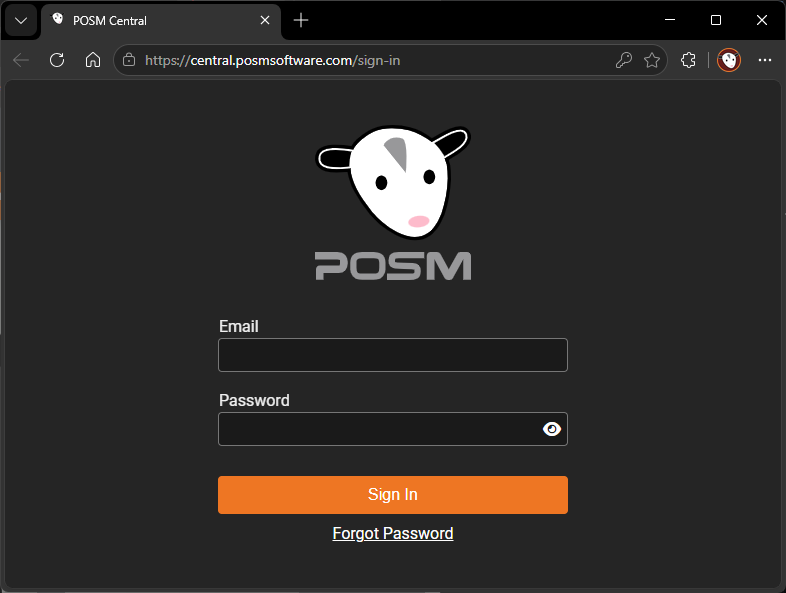
Open POSM Central
- Open POSM Central in a supported web browser.
- Enter your email address.
- Enter your password.
- Select Sign In.
Complete Two-Factor Authentication
Your organization may require two-factor authentication for additional account security. This setting is controlled by your organization’s POSM Central administrator.
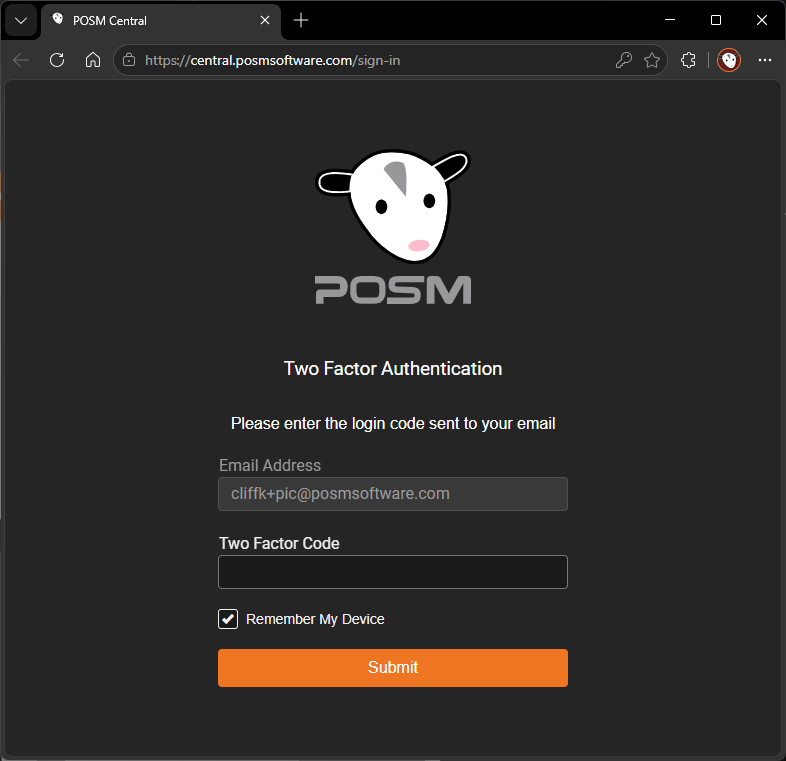
When two-factor authentication is enabled, POSM Central displays the verification screen after you enter your email address and password.
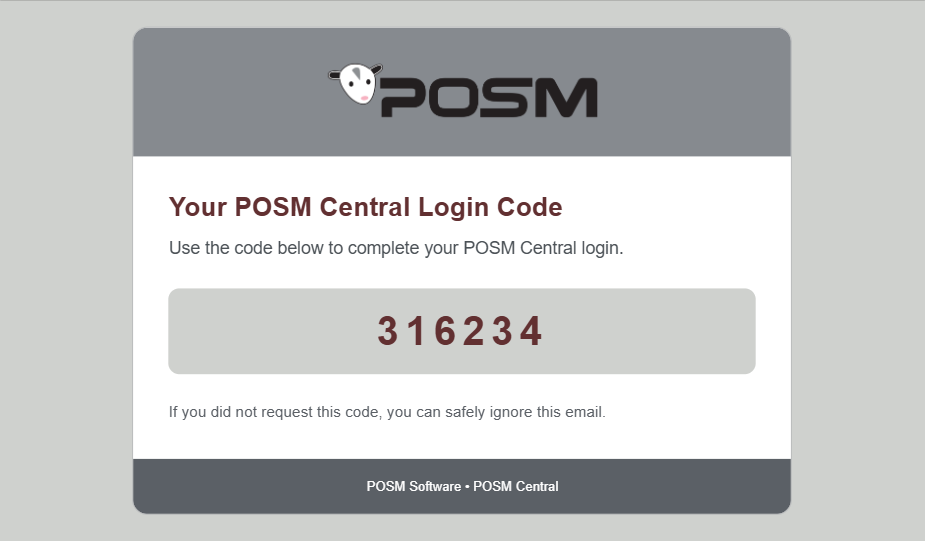
- Check your email for a message containing your POSM Central authentication code.
- Return to the POSM Central browser window.
- Confirm that the grayed-out email address shown on the screen is correct.
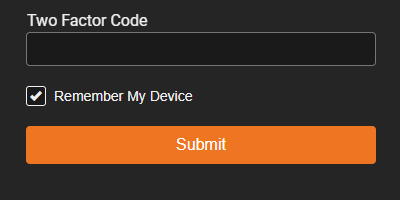
- Enter the emailed code in the Two Factor Code box.
- Select Remember My Device when appropriate.
- Select Submit.
Note
The two-factor authentication code is sent to the email address associated with your POSM Central account.
Tip
Selecting Remember My Device may reduce how often you are asked to enter a two-factor authentication code on that browser and device. Only use this option on a trusted computer or device.
Note
The two-factor authentication code is sent to the email address associated with your POSM Central account.
Tip
Selecting Remember My Device may reduce how often you are asked to enter a two-factor authentication code on that browser and device. Only use this option on a trusted computer or device.
If You Do Not Receive the Code
- Check your spam, junk, and filtered email folders.
- Confirm that the email address shown on the two-factor authentication screen is correct.
- Allow a few minutes for the message to arrive.
- Request a new code if that option is available.
- Ask an organization administrator to confirm that your account and two-factor authentication settings are configured correctly.
Trouble Signing In?
Confirm that:
- Your email address and password are entered correctly.
- Your account has been added to the correct organization.
- Your account is active.
- Cookies are enabled in your browser.
- Your organization’s administrator has configured your access correctly.
If you need help signing in, contact POSM Support.