Troubleshoot POSM Data Sync
Use this page when the POSM Data Sync Tool cannot upload or back up an inspection, displays an Incomplete status, cannot locate inspection files, or reports another synchronization error.
Start with the problem that most closely matches what you are experiencing.
Check the Activity Log first
The Activity Log at the bottom of Data Sync is usually the best place to begin troubleshooting.
Note the affected Session ID and the last messages displayed before the synchronization stopped.
Inspection Shows Incomplete
An Incomplete status indicates that Data Sync did not completely synchronize the inspection.
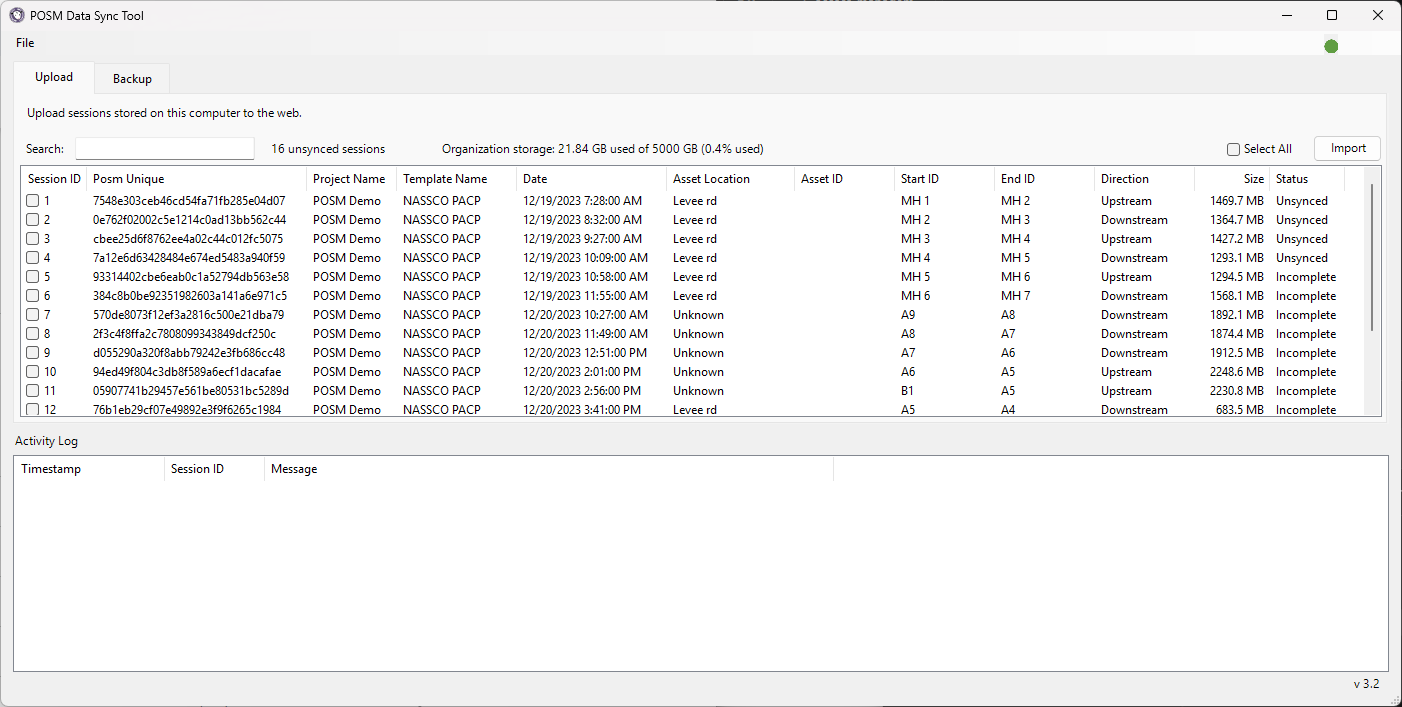
An incomplete synchronization can be caused by problems such as:
- NASSCO validation errors
- Missing inspection media
- Missing ScanCam files or folders
- Incorrectly configured media paths
- Server or communication errors
What to Do
- Note the affected Session ID.
- Review the Activity Log.
- Review any warning or error displayed by Data Sync.
- Determine whether the problem involves validation, missing files, configuration, or another synchronization error.
- Correct the problem.
- Try the synchronization again.
NASSCO Inspection Will Not Upload
If a NASSCO inspection will not upload to POSM Central, the inspection may contain NASSCO validation errors.
NASSCO validation errors must be corrected in the classic POSM application before the inspection can be successfully uploaded to POSM Central.
Use Validate NASSCO Sessions in POSM to scan one or more inspections for NASSCO compliance.
Validate the Inspection in POSM
- Open POSM.
- Go to Session Management.
- Select the session or sessions you want to validate.
- Select the Calculate tab.
- Click Validate NASSCO Sessions.
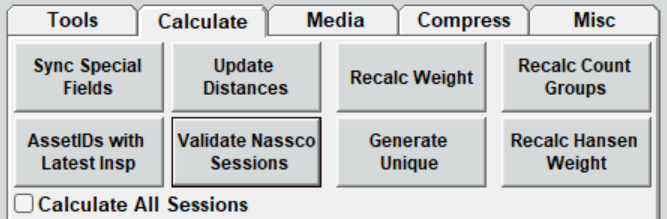
POSM scans the selected inspections for NASSCO errors and compliance issues.
Validate before uploading
Validating NASSCO inspections before uploading them to POSM Central can identify problems that would otherwise prevent the inspection from being successfully imported.
NASSCO Validation Scan
While the validation scan is running, the Import NASSCO Data window appears.
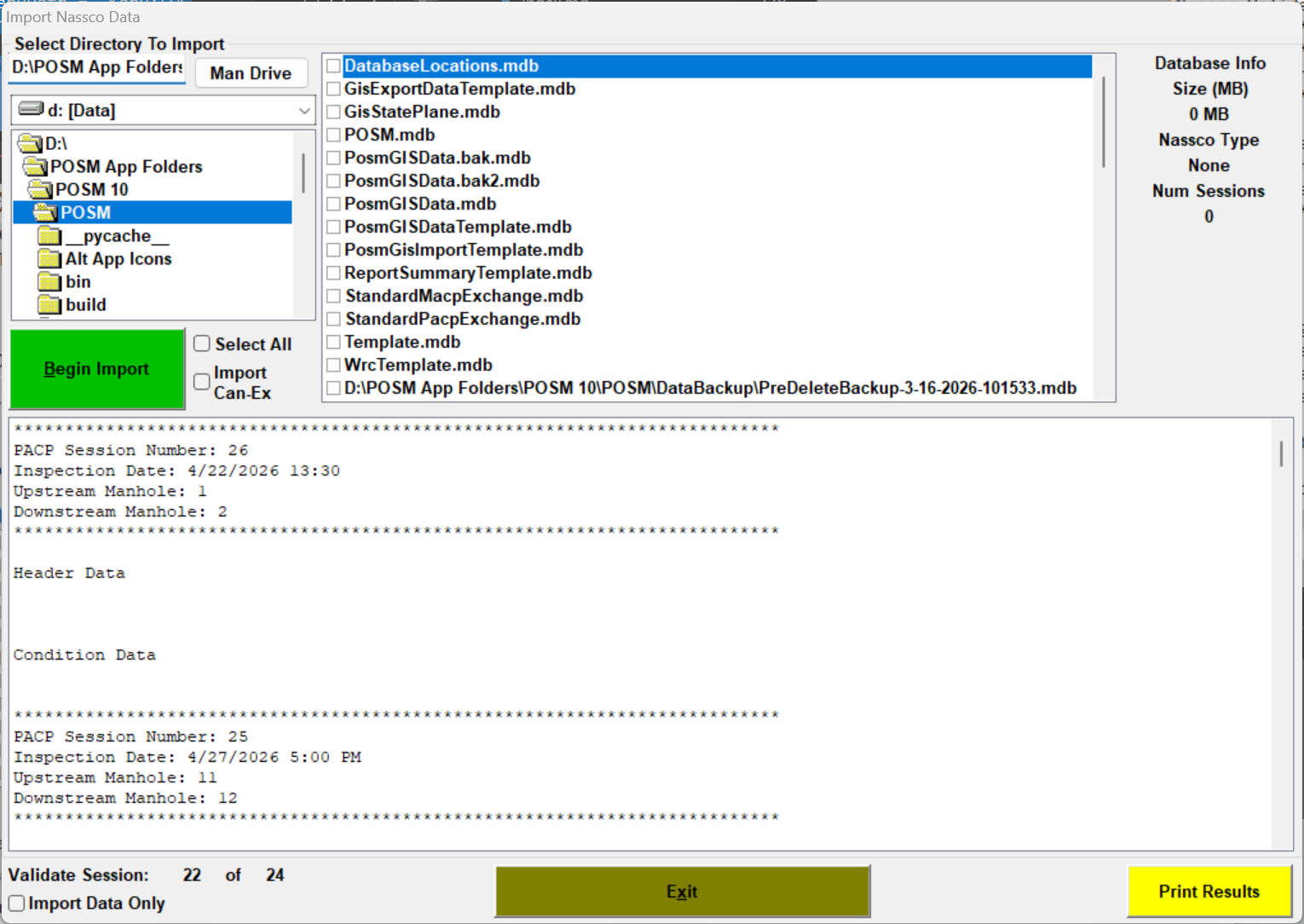
The window automatically closes when the validation scan is complete.
POSM then opens the NASSCO validation log so you can review the results.
A copy of the log is also saved in:
POSM\Logs
Review the Validation Log
The validation log identifies each inspection that was checked and lists any NASSCO compliance issues that were found.
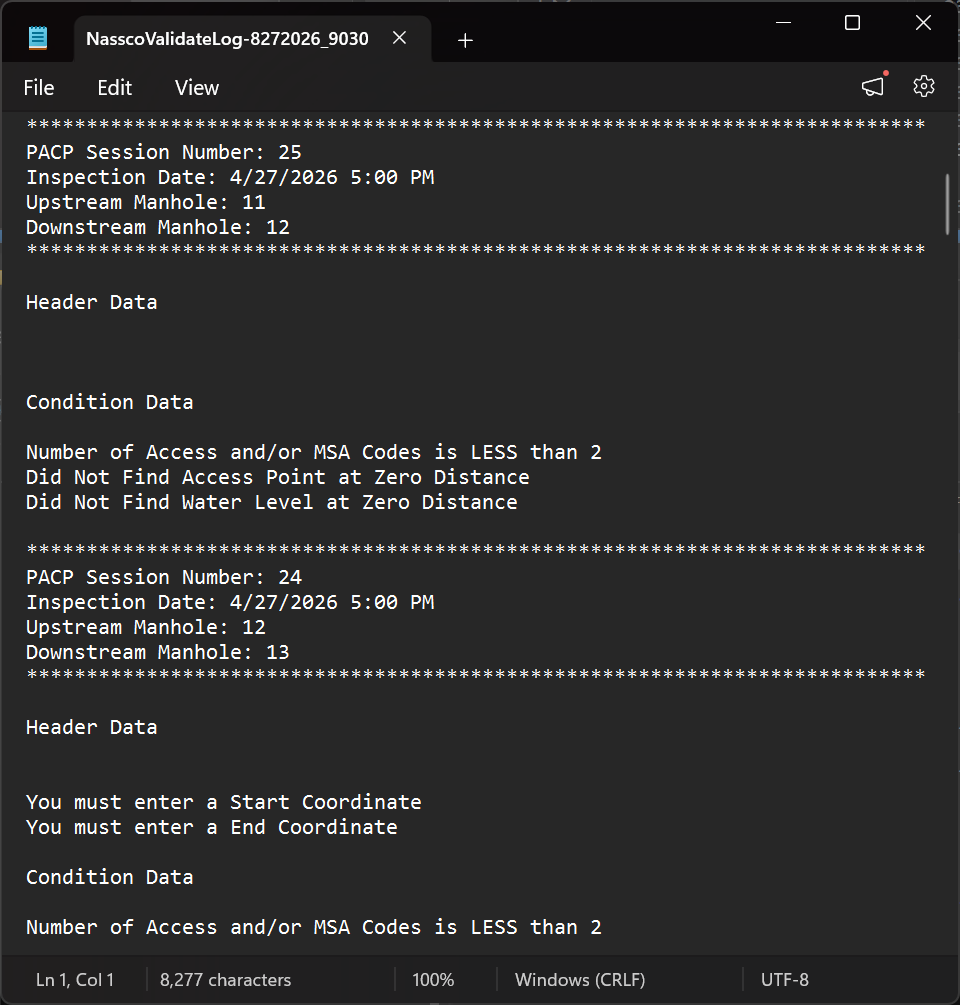
The results are divided into two primary areas:
- Header Data — problems with inspection header information.
- Condition Data — problems with observations or condition information recorded during the inspection.
Inspection With No Validation Issues
When an inspection has no NASSCO validation issues, the Header Data and Condition Data sections contain no error messages.
For example:
```text
Nassco Validate Performed On: 8/27/2026 9:00:30 AM
PACP Session Number: 26 Inspection Date: 4/22/2026 13:30 Upstream Manhole: 1 Downstream Manhole: 2
Header Data
Condition Data
Missing Media Folder
Data Sync uses the configured POSM Media Folder Path to locate inspection video, images, and other associated media.
If an expected media folder cannot be found, the synchronization may not complete.
The Exceptions log can identify the affected Session ID and the expected media-folder path. :contentReference[oaicite:0]{index=0}
What to Do
- Note the affected Session ID.
- Review the missing path reported by Data Sync.
- Verify that the inspection's media folder exists.
- Open Configure AppSettings.
- Review POSM Media Folder Path.
- Make sure the path points to the media location for the configured POSM installation.
- Correct the folder location or configuration as needed.
- Try the upload again.
Do not create empty replacement folders
If inspection media is actually missing, creating an empty folder with the expected name does not restore the missing inspection files.
Locate or restore the original inspection media when it needs to be included with the Central inspection.
Configure Session Sync Settings
Missing ScanCam Files
Data Sync may display a warning when an inspection references ScanCam data that cannot be located.
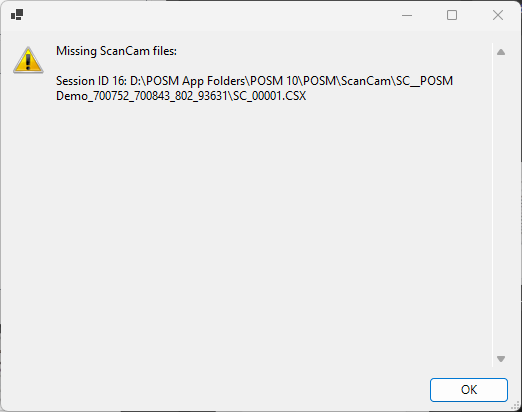
The warning can identify:
- The affected Session ID
- The expected ScanCam file
- The location where Data Sync expected to find the file
The Exceptions log also records missing ScanCam files and their expected paths. :contentReference[oaicite:1]{index=1}
What to Do
- Note the affected Session ID.
- Review the ScanCam path displayed by Data Sync.
- Verify that the expected ScanCam data exists.
- Open Configure AppSettings.
- Review ScanCam Folder Path.
- Verify that it points to the ScanCam folder for the configured POSM installation.
- Correct the path or restore the missing ScanCam data as needed.
- Try the synchronization again.
ScanCam Folder Cannot Be Found
A synchronization can also fail when Data Sync cannot locate the expected ScanCam folder for an inspection. The detailed log records this condition separately from an individual missing ScanCam file. :contentReference[oaicite:2]{index=2}
Check both:
- The configured ScanCam Folder Path
- The actual ScanCam folder and files associated with the inspection
If the configuration is correct but the inspection's ScanCam data is missing, restore the required data before trying the synchronization again.
Check the Data Sync Configuration
Incorrect App Settings can prevent Data Sync from locating the POSM database or inspection media.
From the login window, click Configure AppSettings.
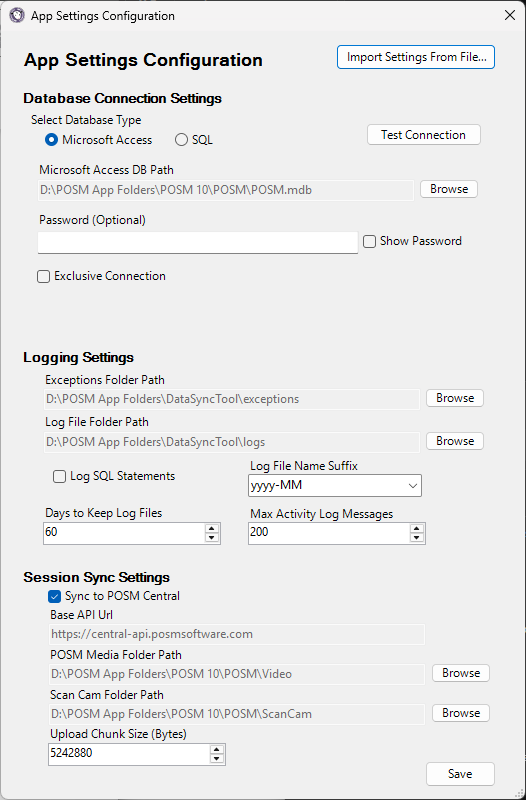
Review:
Database Connection Settings
Verify:
- Correct database type
- Correct POSM database
- Microsoft Access DB Path, when applicable
- Database password, when applicable
Click Test Connection to verify the database connection.
Session Sync Settings
Verify:
- Sync to POSM Central is enabled
- Base API URL is correct
- POSM Media Folder Path is correct
- ScanCam Folder Path is correct
The normal POSM Central Base API URL is:
https://central-api.posmsoftware.com
Do not change the API configuration unless instructed by POSM Support.
Configure the POSM Data Sync Tool
Data Sync Cannot Connect to the POSM Database
If Data Sync cannot access the configured POSM database:
- Open Configure AppSettings.
- Review Database Connection Settings.
- Verify that the correct database type is selected.
- If using Microsoft Access, verify that Microsoft Access DB Path points to the correct
POSM.mdb. - Verify the database password when applicable.
- Click Test Connection.
If the connection test fails, correct the database configuration before attempting to synchronize inspection data.
Upload Will Not Start or Data Sync Loads Slowly
Large local POSM databases can take longer to load when Data Sync checks synchronization status for thousands of sessions.
The login window provides:
Disable session status check (Recommended for large databases)
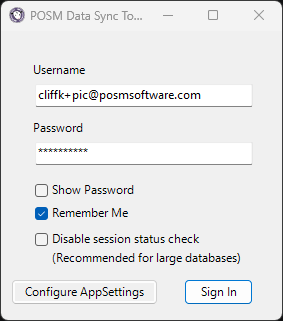
Select this option when appropriate to reduce the initial loading time for a large POSM database.
This affects the initial status check
This option is intended to improve loading performance for large databases. It does not change the direction of synchronization or replace the normal Upload and Backup workflows.
Organization Storage Limit Reached
POSM Central organizations have an allocated amount of storage.
The Upload tab displays the organization's current Central storage usage.
If the organization has reached its storage limit, new inspection data cannot be uploaded.
What to Do
Contact POSM Support to increase the organization's available storage.
Media Upload Could Not Be Confirmed
The Activity Log may report that an image, video, or other media upload could not be confirmed.
A real Data Sync Activity Log can show individual media confirmation failures while processing a session. :contentReference[oaicite:3]{index=3}
If this occurs:
- Note the affected Session ID.
- Review which media files could not be confirmed.
- Allow the current synchronization to finish.
- Review the final session status.
- Try the synchronization again if the session remains incomplete.
If media repeatedly cannot be confirmed, contact POSM Support and provide the Activity and Exceptions logs when requested.
Unexpected Server Error
Data Sync may occasionally report an unexpected server error during synchronization.
The Exceptions log records additional technical information about server errors that can help POSM Support diagnose the problem. :contentReference[oaicite:4]{index=4}
What to Do
- Note the affected Session ID.
- Allow any current synchronization activity to finish.
- Try the operation again.
- Review the Activity Log.
- Review the Exceptions log.
- Try the operation again when appropriate, or contact POSM Support for help investigating the error.
Server errors may require POSM Support
Detailed server errors generally are not something that should be corrected by changing inspection data or manually editing Data Sync files.
Provide the logs to POSM Support when requested.
Backup Does Not Complete
If an inspection cannot be backed up from POSM Central to the local POSM installation:
- Review the inspection's Status.
- Review the Activity Log.
- Note the affected inspection.
- Review any displayed error message.
- Verify the configured local POSM database.
- Verify the configured media locations.
- Try the Backup again.
A normal Backup retrieves session information and media from POSM Central, writes the inspection to the local database, and commits the changes. :contentReference[oaicite:5]{index=5}
Back Up Inspections From POSM Central
Review the Activity Log
The Activity Log appears at the bottom of the Upload and Backup tabs.
It includes:
- Timestamp
- Session ID
- Message
A successful Upload can show session data and images being imported, followed by video and a final successful completion message. :contentReference[oaicite:6]{index=6}
A successful Backup shows inspection information being retrieved from Central, files downloaded, local database records written, changes committed, and the session synchronized locally. :contentReference[oaicite:7]{index=7}
Use the Activity Log to identify:
- Which session is being processed
- What operation Data Sync is performing
- Which media is being transferred
- Where synchronization stopped
- Whether the session completed successfully
Review the Log Files
Data Sync stores additional log files on the computer.
Open Configure AppSettings → Logging Settings to review the configured locations.
Activity Log Files
The Log File Folder Path contains Data Sync activity and diagnostic logs.
Exception Logs
The Exceptions Folder Path contains detailed error information.
Exception logs may identify:
- Missing media folders
- Missing ScanCam files
- Missing ScanCam folders
- Server communication errors
- Other synchronization exceptions
Keep recent Data Sync logs
Recent Activity and Exceptions logs can help POSM Support investigate a Data Sync problem.
Information That Can Help POSM Support
If you contact POSM Support about a Data Sync problem, the following information can be helpful:
- The affected Session ID
- Whether you were using Upload or Backup
- The Status shown by Data Sync
- The Data Sync Tool version
- Any error message displayed
- The Activity Log or Exceptions log, when available
- A screenshot of the problem, when available
You do not need to diagnose the problem or gather all of this information before starting a support session. POSM Support can investigate the issue with you.
Quick Troubleshooting Guide
| Problem | Check First |
|---|---|
| NASSCO inspection will not upload | Validate and correct the inspection in POSM |
| Missing media folder | POSM Media Folder Path and actual inspection media |
| Missing ScanCam file | ScanCam Folder Path and actual ScanCam data |
| Database connection fails | Database type, path, password, and Test Connection |
| Data Sync loads slowly | Disable session status check for large databases |
| Central storage is full | Contact POSM Support to increase storage |
| Upload remains Incomplete | Activity Log, media, ScanCam data, validation and Exceptions log |
| Backup remains Incomplete | Activity Log, local database configuration and error message |
| Unexpected server error | Retry, then provide logs to POSM Support if it continues |